


How do I show total savings in the cart with the Saving on cart widget?
Show customers their total savings in the cart and cart drawer with the Saving on cart widget: setup, styles and troubleshooting.
Customers are more likely to finish checkout when they can see how much they're saving. The Saving on cart widget adds a short summary to the cart page and cart drawer: the full price of the cart, crossed out, and the total amount saved.
What it shows
The widget adds two lines to the cart:
Total: the cart's full price, crossed out. For each item, Discounty uses its compare-at price, or its original price if it has no higher compare-at price.
Saving: the difference between that Total and what the cart costs now.
The widget appears on the cart page and in the cart drawer (mini-cart) of your theme whenever the Saving is more than zero. That includes items discounted by a Bulk price editor, Quantity discount, Cart goal or Buy X get Y campaign, the product discount of an Advanced discount code, and products that simply have a compare-at price higher than their price. If nothing in the cart is cheaper than its full price, the widget doesn't show.
Order discounts and shipping discounts aren't counted in the Saving, because they apply to the whole order or to shipping, not to the items.
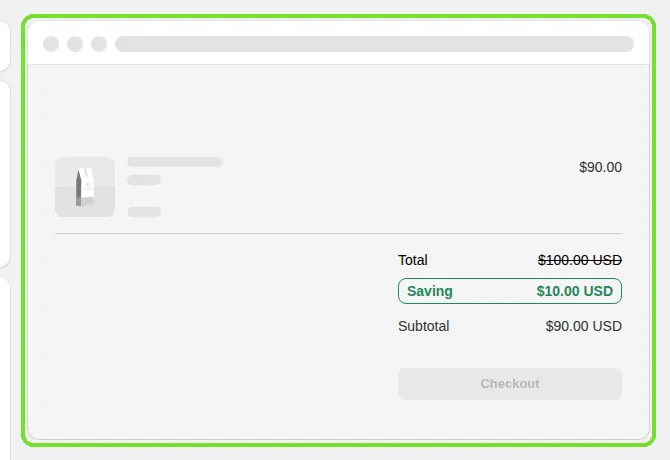
Example: a cart whose items have a full price of $100.00 and now cost $90.00 shows Total: $100.00 (crossed out) and Saving: $10.00.
Before you start
Make sure the Discounty app embed is enabled on your active theme (see How to activate Discounty widgets on your Shopify store?). The Customization page shows a banner if the app embed isn't active.
To test it, you need a cart with at least one item that costs less than its full price, for example a product in an active campaign.
Where to find the widget
In the Discounty app, open Customization.
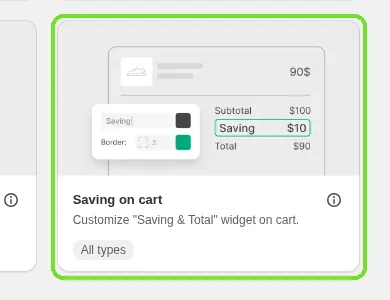
Select the Saving on cart card.
The widget page opens with the title Saving on cart. All settings for the widget are on this page.
Step 1: Turn on the widget
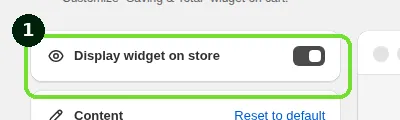
At the top of the page, under Display widget on store, turn the toggle on. If the Discounty app embed isn't enabled, a warning label appears next to the toggle. Enable the app embed first.
Step 2: Customize the text
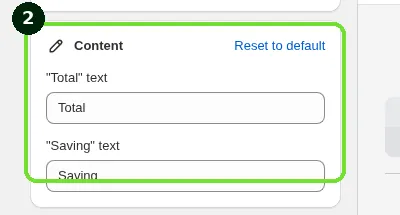
Under Content, edit the two labels shown in the widget:
"Total" text: the label for the full price (default:
Total)."Saving" text: the label for the amount saved (default:
Saving).
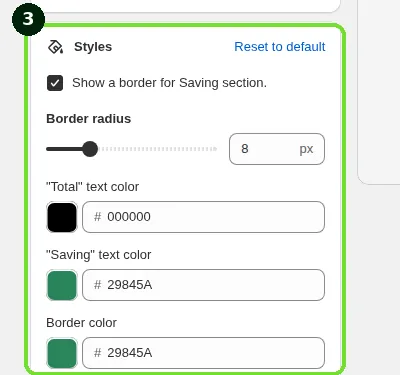
Step 3: Customize the styles
Under Styles, you can set:
Show a border for Saving section.: adds a border and padding around the Saving row.
Border radius: how rounded that border is (0 to 35 px). Only applies when the border is shown.
"Total" text color and "Saving" text color.
Border color: the color of the Saving row's border. Only applies when the border is shown.
Styles is included on the Lite plan and above. If your plan doesn't include it, a lock icon appears next to Styles. Click it to upgrade.
Each section has a Reset to default link if you want to start over.
Step 4: Save
When you're happy with the result, click Save. Your changes go live on your storefront right away.
Translating the widget text
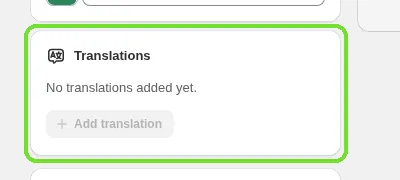
The "Total" and "Saving" labels can be translated into each language your store sells in, from the Translations section on the same page. See How do I translate Discounty widgets for a multi-language store?.
When the widget doesn't show
Check these in order:
Is the app embed active? Check that the Discounty app embed is enabled and saved in your active Shopify theme.
Is the widget toggle on? In Discounty, go to Customization > Saving on cart and check that Display widget on store is on.
Is anything in the cart cheaper than its full price? The widget shows only when the Saving is more than zero. An empty cart, or a cart where every item is at full price, shows nothing.
Is the discount an order or shipping discount? These aren't counted, so a cart discounted only by an order or shipping discount doesn't show the widget.
If everything above checks out and the widget still doesn't show, your theme or page builder may need a manual adjustment. Contact support with your theme name and store URL.
Related articles
Need a hand? Contact our support team through the app — we're happy to help.