


How do I translate Discounty widgets for a multi-language store?
Translate Discounty widget text into your store's languages, by hand or with AI: where to find it, plans, placeholders and troubleshooting.
If your store sells in more than one language, your widgets should speak your customers' language too. You can translate the text of Discounty's storefront widgets inside the app. Once a translation is saved, a customer who visits your store in that language sees the translated widget text automatically. You can write each translation yourself or let Discounty translate it with AI, then review the result.
Before you start
Widget translations are included on the Essential plan and above.
Translate with AI is included on the Discounty plan and above. On the Essential plan, you can still translate every widget by hand.
The languages come from your Shopify store (Shopify admin > Settings > Languages). Customers only see a language once it's published there.
Which widgets can be translated?
These widgets have a Translations section on their page:
Quantity/Value table: title, column labels, discount texts and "Eligible items" link text
Saving on cart: "Total" and "Saving" labels
Starts in countdown timer and Ends in countdown timer: title, timer labels and call-to-action text
Buy X get Y pop-up: title, subtitle, available rewards message and button labels
Buy X get Y offer: the product page text, the badge text, the free, percentage and amount reward texts and the "Eligible items" link text
Shipping progress bar: the three progress messages
The Buy X get Y floating button and the home & collection page discount badge of the Quantity/Value table can't be translated. On the Shipping progress bar, the extra "You've unlocked … off shipping!" line shown between tiers is always in English.
Where to find translations
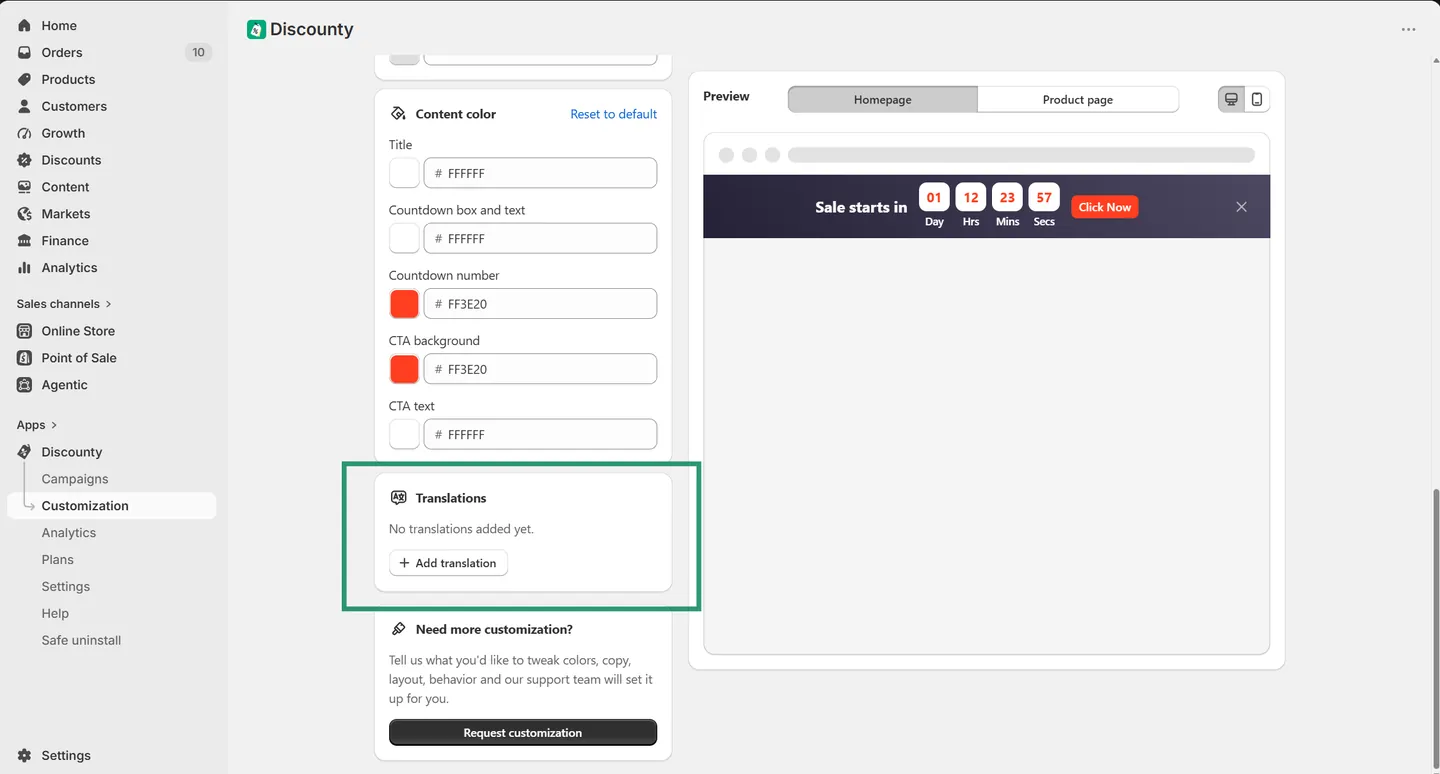
Translations live on each widget's own page. In Discounty, go to Customization, open the widget you want to translate, and scroll to the Translations section.
How to translate a widget
On the widget's page, find the Translations section. Until you add one, it says "No translations added yet."
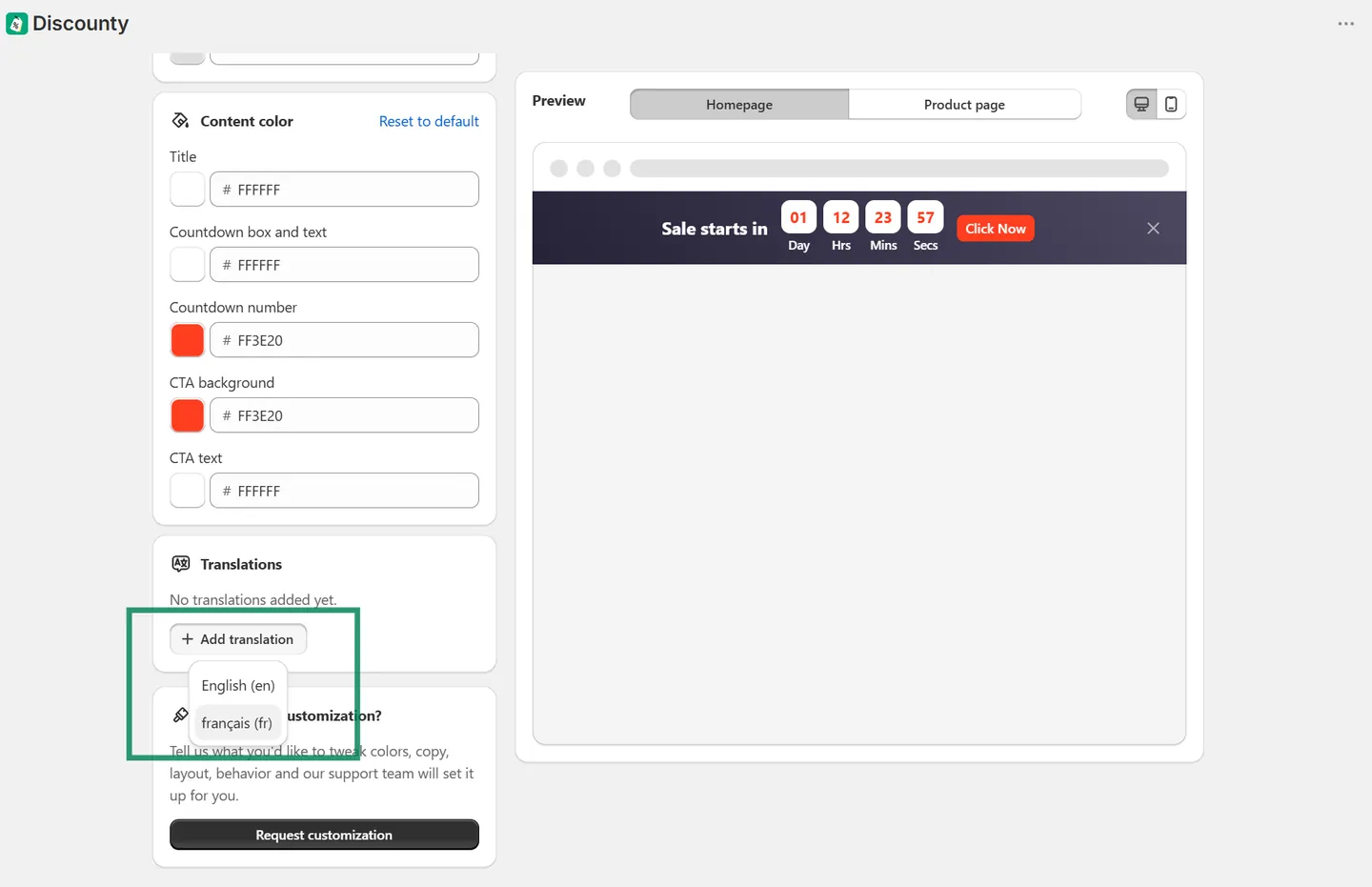
Click Add translation and choose a language. The list shows every language added to your store in Shopify that this widget doesn't have a translation for yet.
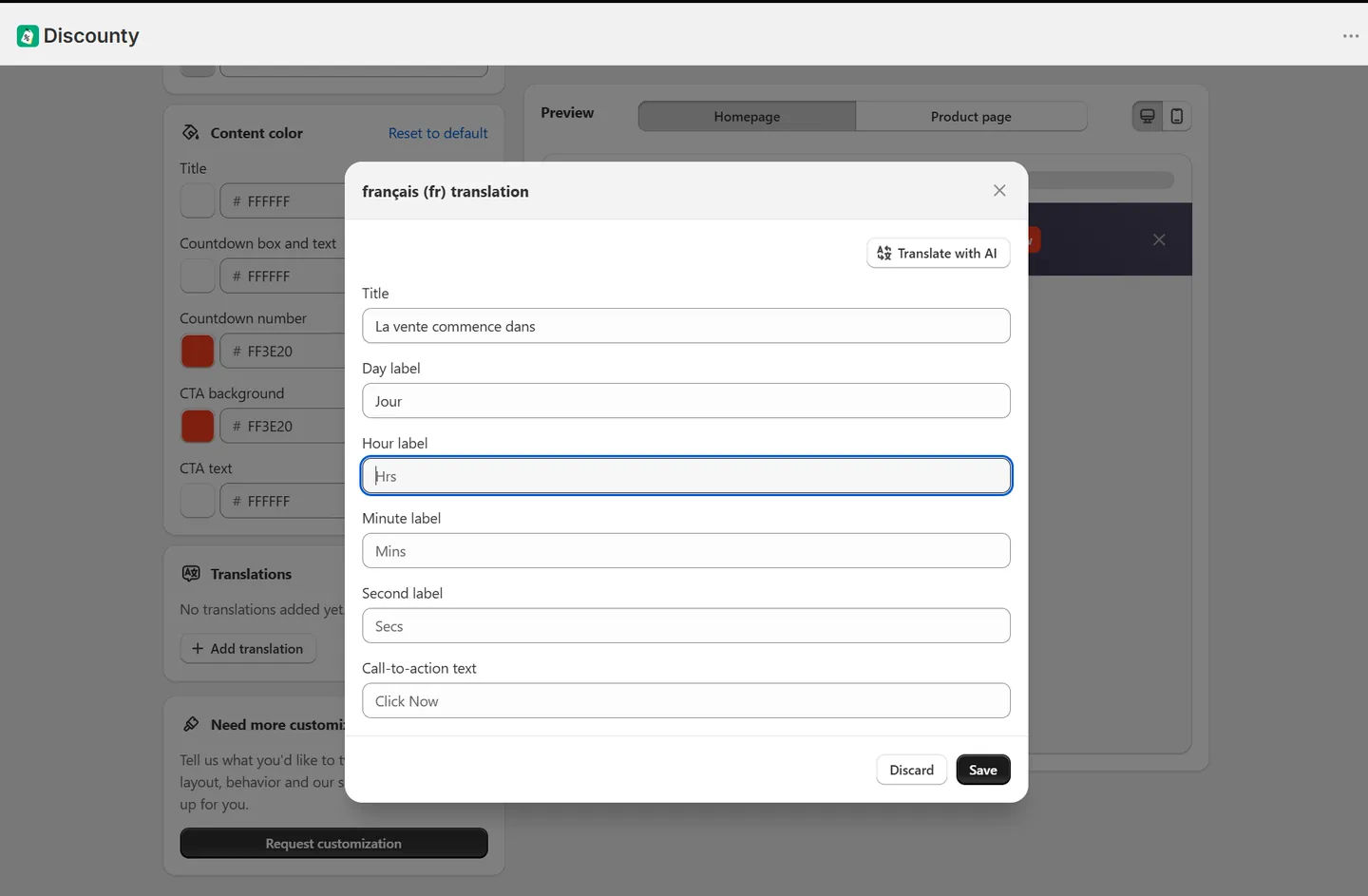
In the translation window, fill in the translated text for each field, or click Translate with AI to fill them in for you.
Review the text and click Save in the translation window.
Click Save on the widget's page to publish the translation to your store. The translation window alone doesn't publish it.
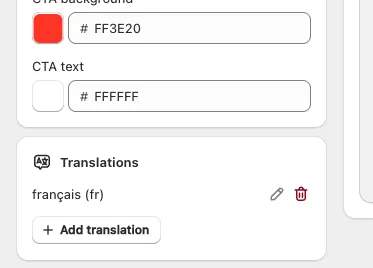
You translate one widget at a time, so you can tailor the wording for each widget. Each language you've added appears as a row in the Translations section, with buttons to edit or delete it. When every language has a translation, the button shows All languages added.
Publish a language in Shopify
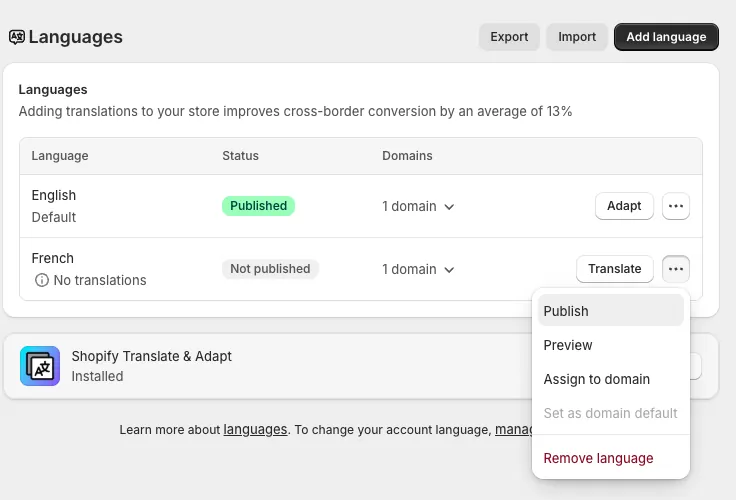
Customers can only switch to a language you've published in Shopify. To publish one:
In your Shopify admin, go to Settings > Languages.
Under Unpublished languages, click … > Publish next to the language you want to offer customers.
Click Save.
Translate with AI
In a language's translation window, click Translate with AI. Discounty translates the widget's current text in your default language and fills in every field. Review the results, edit anything you want, then click Save in the window and Save on the widget's page.
Running Translate with AI again replaces the text in every field it translates, including changes you made by hand. If you've edited a translation manually, update those fields by hand instead of running the AI again.
Placeholders in translated text
Some widget texts contain placeholders in double curly braces, such as #{{discount}}, #{{new-price}}, #{{amount}} or #{{count}}. They're replaced with live values (like the discount amount) when the widget shows on your store. Keep them exactly as they are in your translation. You can move them to wherever they fit in the sentence.
If a required placeholder is missing, the field shows an error such as "Enter discount variable", and you can't save until you add it back. Translate with AI keeps placeholders as they are, but check them when you review the result.
Finishing incomplete translations
If any field of a translation is empty, its row shows an Incomplete badge. Click edit on that language, fill in the missing text, and save in the window and on the widget's page.
When you change your widget text
Translations don't update by themselves when you change a widget's original text. After editing the original wording, open each language and update its text, or run Translate with AI again (this replaces that language's current text). Then save.
Removing a translation
To remove a language, click the delete icon on its row in the Translations section, then click Save on the widget's page. Customers browsing in that language then see the widget's original text. The widget's original text in your default language can't be removed.
Troubleshooting
The translation isn't showing on the storefront
Make sure the language is published (not just added) in Shopify under Settings > Languages.
Make sure you clicked Save on the widget's page after saving the translation window.
Check that Display widget on store is on for the widget, and that the Discounty app embed is enabled in your active Shopify theme.
Do a hard refresh to clear your browser cache:
Ctrl + Shift + Ron Windows orCmd + Shift + Ron Mac.
The Translations section is locked
Widget translations are included on the Essential plan and above. On the Starter and Lite plans, the Translations section is shown with a lock icon. Upgrade on the Plans page to use it.
The Translate with AI button is disabled
Translate with AI is included on the Discounty plan and above. If the button is greyed out with a lock icon next to it, your plan doesn't include it. You can still type translations by hand.
The language I need isn't listed
The list shows the languages added to your store in Shopify that don't have a translation for this widget yet. To add a new language:
In Shopify admin, go to Settings > Languages.
Add the language, and publish it so customers can use it.
Return to Discounty and reload the widget's page. The language now appears when you click Add translation.
I can't find the Translations section on a widget
The Buy X get Y floating button doesn't have a Translations section. See "Which widgets can be translated?" above for the full list.
Related articles
Need a hand? Contact our support team through the app — we're happy to help.