


How do I customize the Buy X get Y pop-up and floating button?
Change the text, colors, dismiss behavior and translations of the Buy X get Y pop-up and the look of its floating button.
The Buy X get Y pop-up is what customers see when their cart earns a reward, so it should look and sound like your store. On the Customization page you can change the pop-up's text, colors and dismiss behavior, add translations, and style the floating button that lets customers reopen the pop-up. These settings apply to Buy X get Y campaigns whose Reward selection method is Show pop-up.
Where to find the settings
From your Shopify admin, open the Discounty app.
In the left-hand menu, select Customization.
Open the Buy X get Y pop-up card to customize the pop-up, or the Buy X get Y floating button card to customize the floating button. Each has its own page.
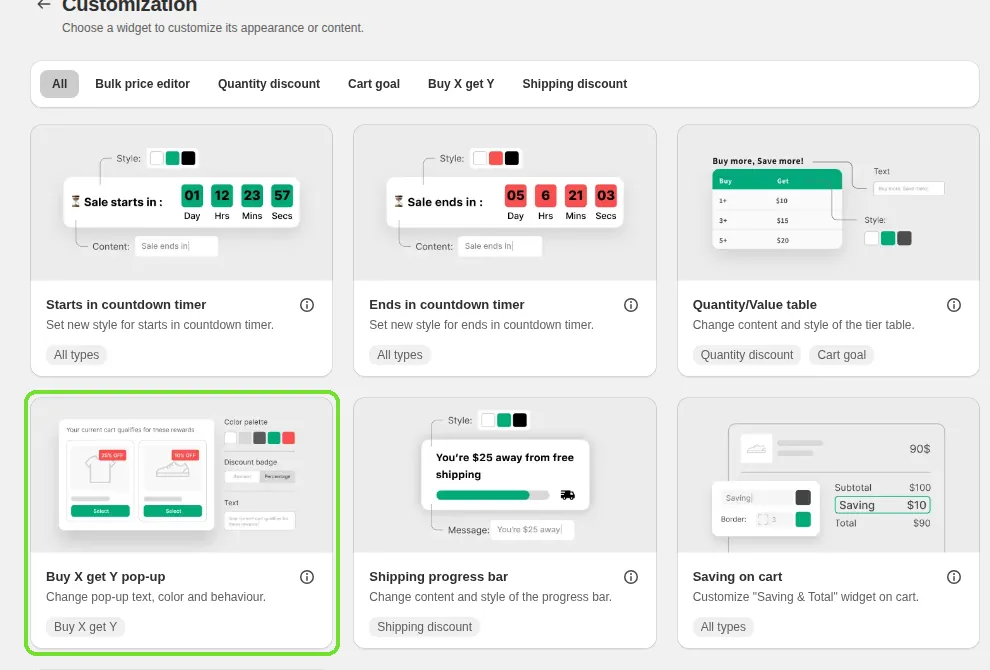
You can edit both pages at any time. Your settings show on the storefront only for campaigns that use Show pop-up. Campaigns using Manual selection or Auto-add to cart don't show a pop-up, so these settings don't affect them.
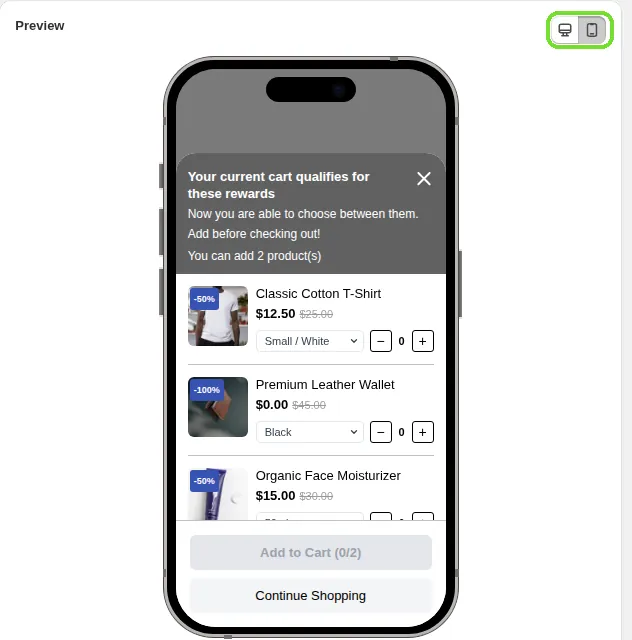
Each page has a live preview on the right with a desktop and mobile toggle, so you can check your changes before you save. You can also ask questions in the Ask Lumos box at the top of the page.
What your plan includes
Text customization on the pop-up page: Lite plan and above (every plan that includes Buy X get Y).
Color palette and Advanced (dismiss behavior) on the pop-up page: Lite plan and above.
The whole Buy X get Y floating button page: Essential plan and above.
Translations: Essential plan and above. Translate with AI: Discounty plan and above.
Request customization: every plan.
Sections that your plan doesn't include show a lock.
Customize the pop-up
Display widget on store
The Display widget on store toggle at the top of the page turns the pop-up on or off for your whole store. It's on by default. When it's off, no Buy X get Y campaign shows the pop-up, and the fields on the page are disabled. The card also shows whether the Discounty app embed is active in your theme.
Text customization
Use this section to change the words in the pop-up.
Header texts
Title (up to 55 characters): the headline at the top of the pop-up. Default: "Your current cart qualifies for these rewards". Use the placeholder #{{campaign}} to show the campaign name.
Subtitle (up to 80 characters): supporting text under the title. Default: "Now you are able to choose between them. Add before checking out!" The subtitle shows on both desktop and mobile.
Available rewards message (up to 80 characters): tells customers how many rewards they can add. Default: "You can add #{{count}} product(s)". Use the placeholder #{{count}} to show the number.
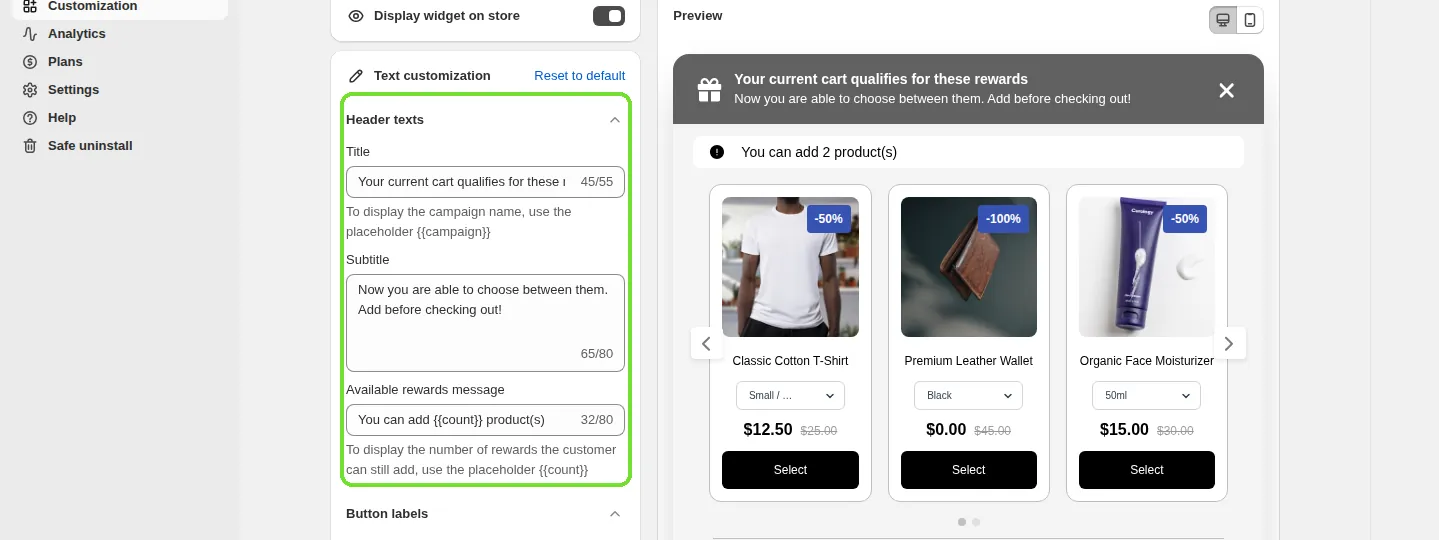
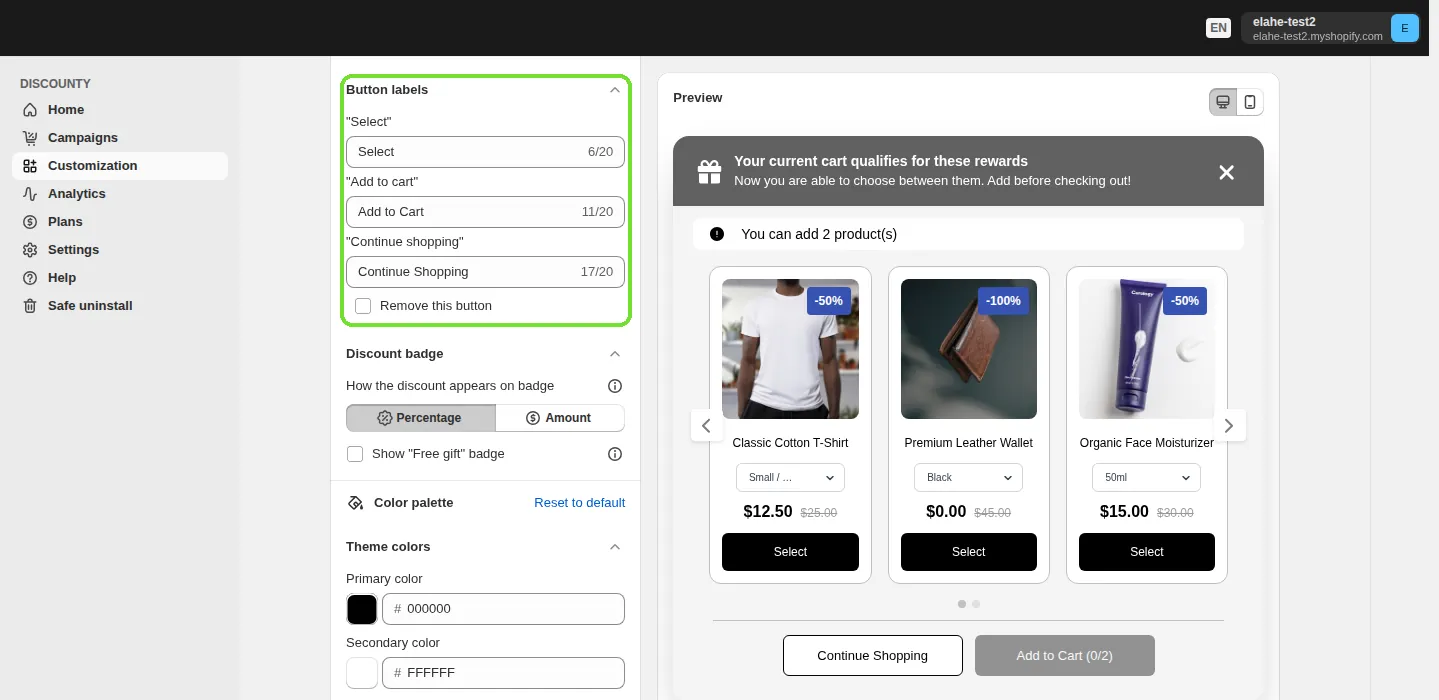
Button labels (up to 20 characters each)
"Select": the button on each reward card.
"Add to cart": the button that adds the selected rewards. The pop-up adds a count after it, for example "Add to Cart (1/2)".
"Continue shopping": the button that closes the pop-up. Tick Remove this button to hide it in the desktop pop-up.
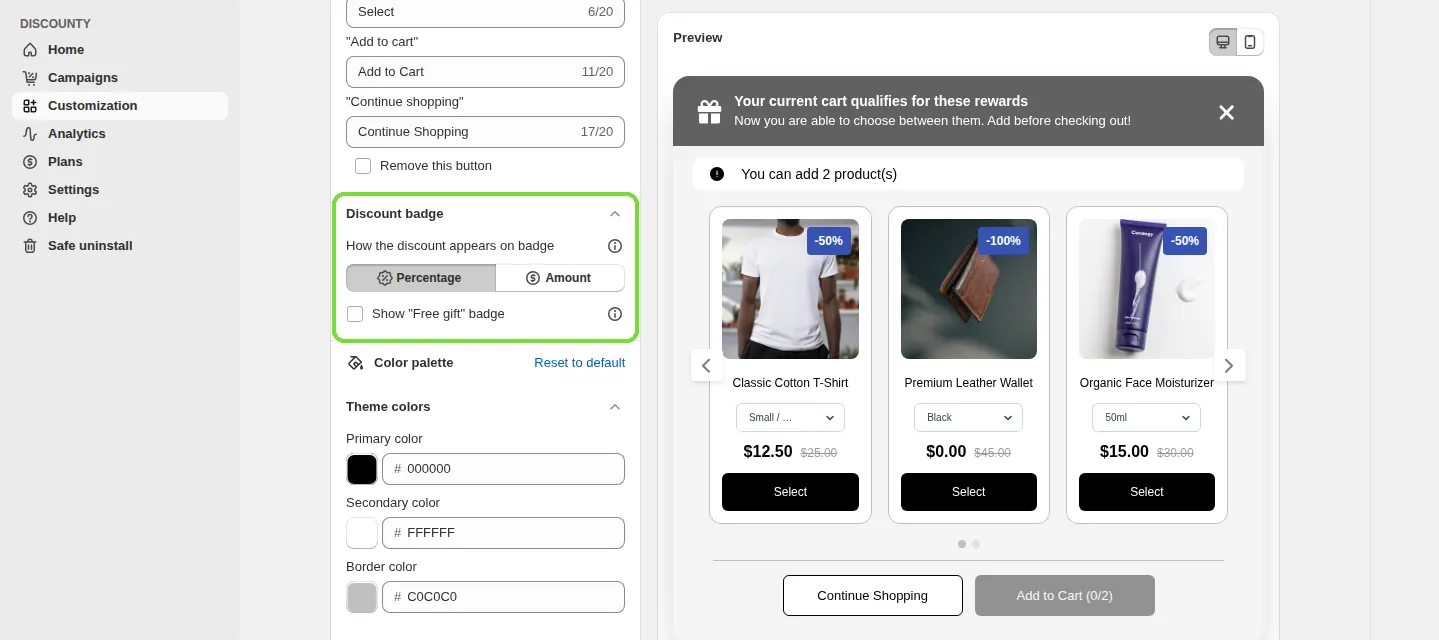
Discount badge
How the discount appears on badge: choose Percentage or Amount (for example, -50% vs -$25). Default: Percentage.
Show "Free gift" badge: shows a "Free Gift" badge instead of a discount amount when the reward is 100% off. Off by default.
Color palette
Match the pop-up to your store's branding. Color palette is available on the Lite plan and above.
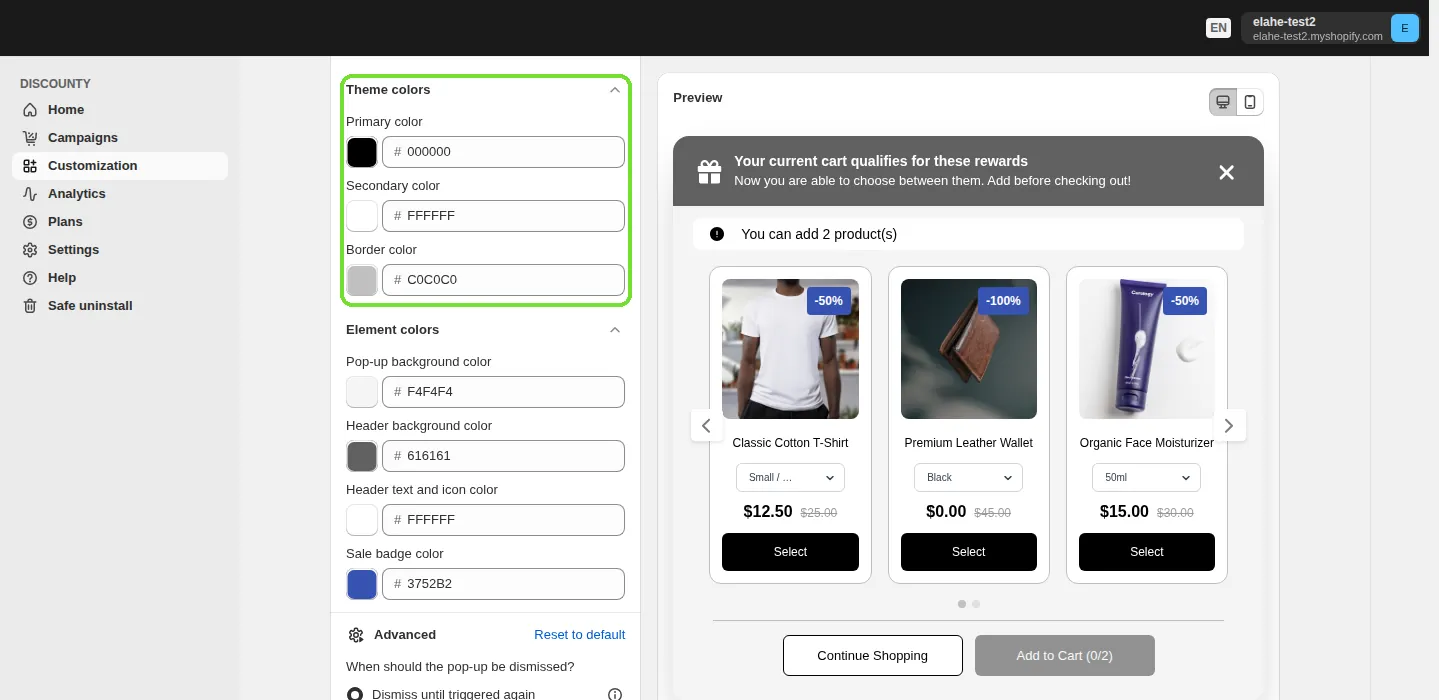
Theme colors
Primary color: the background of the Select and Add to cart buttons, and the main text such as product names and prices.
Secondary color: the background of the reward cards and the Continue shopping button, and the text on the main buttons.
Border color: the edges of the reward cards and the divider lines.
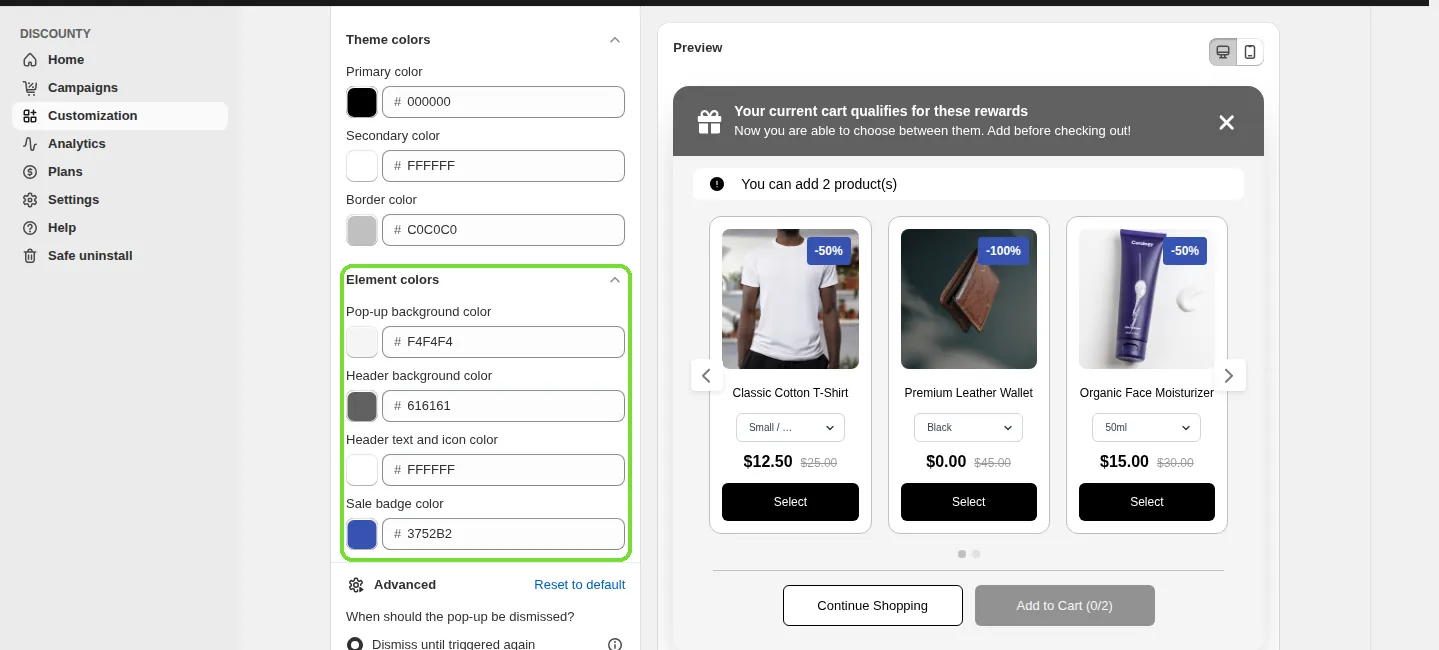
Element colors
Pop-up background color
Header background color
Header text and icon color
Sale badge color
Note: on mobile, the buttons at the bottom of the pop-up don't use your custom colors.
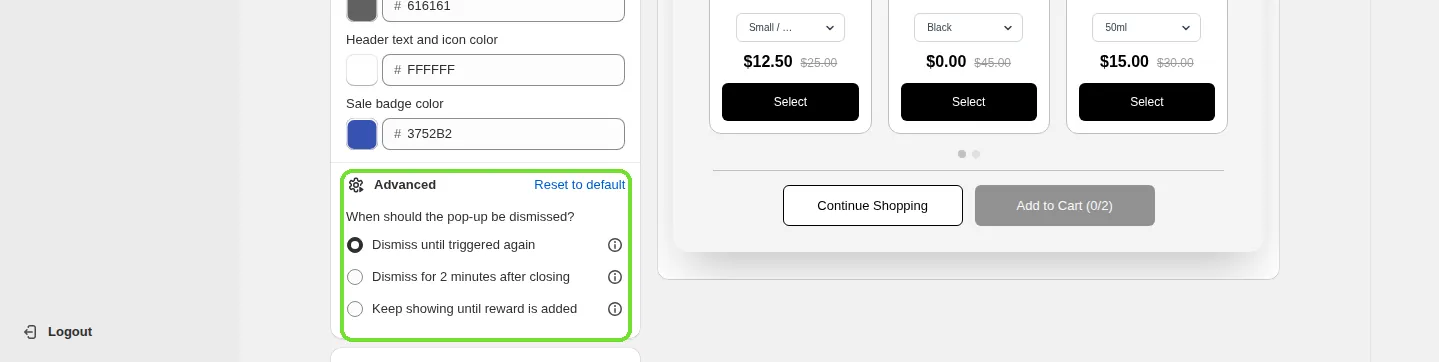
Advanced: when the pop-up is dismissed
Under When should the pop-up be dismissed?, choose what happens after a customer closes the pop-up. Advanced is available on the Lite plan and above.
Dismiss until triggered again (default): once closed, the pop-up doesn't show again until the campaign conditions are met again, either for a new campaign or by re-triggering the same one.
Dismiss for 2 minutes after closing: the pop-up doesn't appear again for 2 minutes after it's closed, even if a new campaign is triggered during that time.
Keep showing until reward is added: the pop-up reappears every time the page reloads or the cart changes, until the customer adds one of the rewards. Use it when you want to make sure customers don't miss the reward.
Translations
If your store sells in more than one language, use the Translations section to add the pop-up's text in each language. You can write translations yourself or use Translate with AI. Translations are available on the Essential plan and above, and Translate with AI on the Discounty plan and above. See How do I translate Discounty widgets for a multi-language store?.
Customize the floating button
The floating button appears on the storefront after a customer closes the pop-up without adding a reward, and lets them reopen it at any time. The Buy X get Y floating button page is available on the Essential plan and above. Use its Display widget on store toggle to turn the floating button on or off.
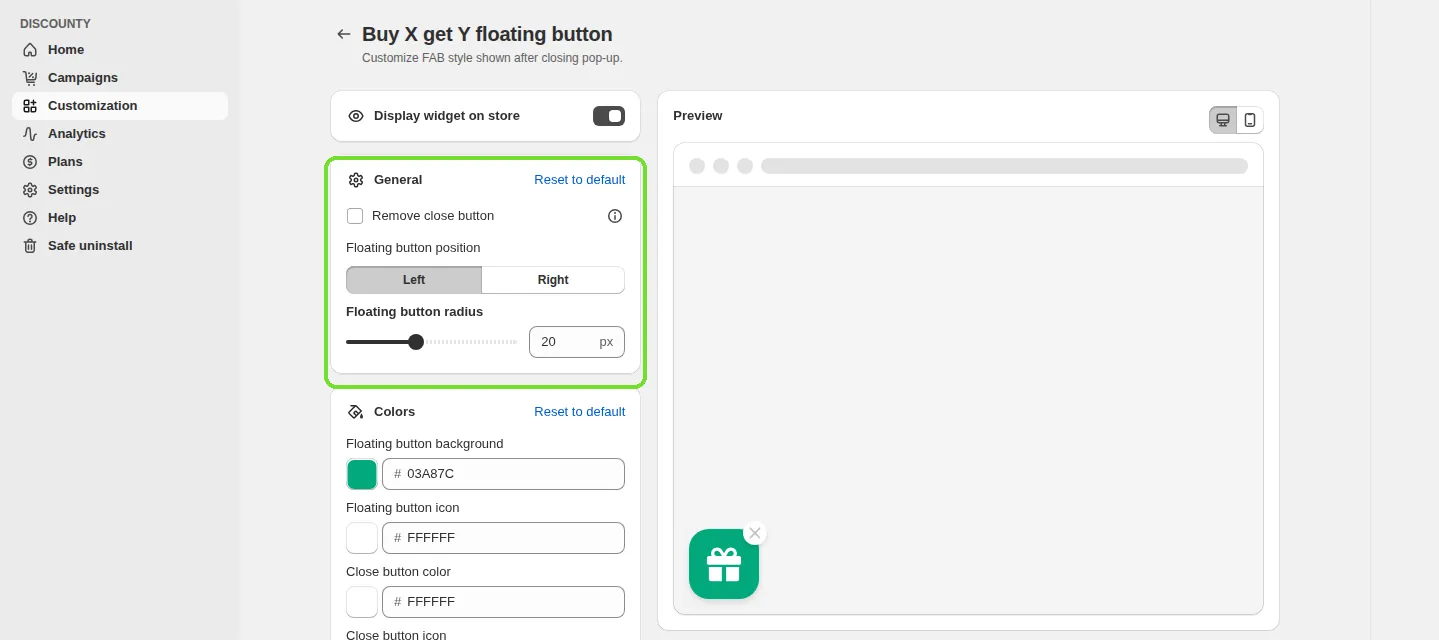
General
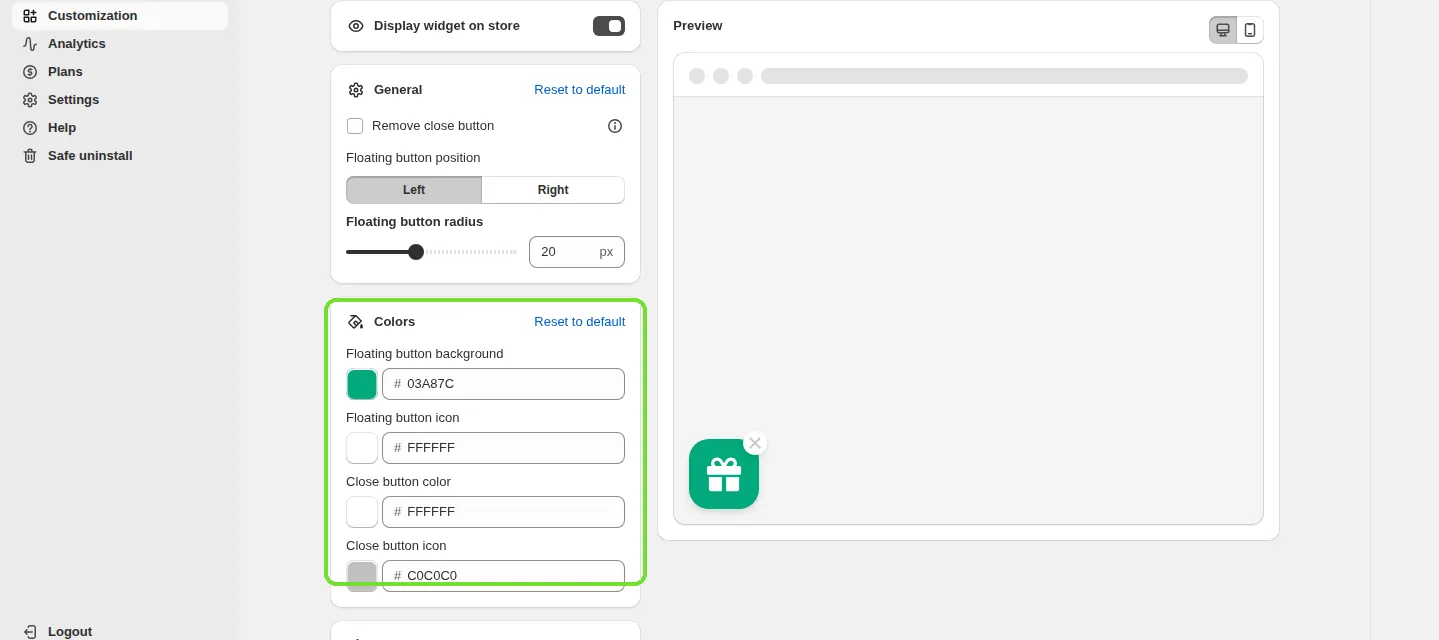
Remove close button: hides the close (X) icon on the floating button, so customers can't dismiss it. Off by default.
Floating button position: Left (default) or Right, at the bottom of the screen.
Floating button radius: from 0 to 50px (default 20px). Use 0px for sharp corners, or a higher value for a rounder button.
Colors
Floating button background
Floating button icon
Close button color
Close button icon
Preview, save and reset
Every change shows right away in the preview on the right. Use the toggle to switch between desktop and mobile.
Click Save in the save bar to make your changes live, or Discard to undo the changes you haven't saved.
Each section has its own Reset to default button, which restores only that section's original settings.
What you can't change yourself
These options aren't available in the settings:
Changing fonts
Changing the layout (for example, switching from a grid to a carousel)
Adding videos, icons or custom HTML
To go beyond the settings, add your own CSS in the Custom CSS card on the widget's page. See How to add custom CSS to your Discounty widgets?
For anything else, use Need more customization? at the bottom of that card and click Request customization. Describe what you'd like to change, and our support team will reply over Intercom.
If the pop-up isn't showing
Make sure the Discounty app embed is turned on in your Shopify theme. See How to activate Discounty widgets on your Shopify store?
Check that Display widget on store is on for the Buy X get Y pop-up.
Confirm that the campaign is Active and its Reward selection method is Show pop-up.
For the full campaign setup, see How to create a Buy X get Y (BXGY) campaign in Discounty?
Related articles
Need a hand? Contact our support team through the app — we're happy to help.