


How to create a Buy X get Y (BXGY) campaign in Discounty?
Set up a Buy X get Y campaign: what customers buy, the reward they get, how they receive it, combinations and scheduling.
A Buy X get Y campaign gives customers a free or discounted product (Y) when they buy specific products (X). It's a simple way to raise order value, move complementary products and reward bigger carts. For example, a customer who buys two candles (X) gets a third candle or a matching candle holder (Y) free.
Buy X get Y can be an automatic discount or run on a discount code. With the Automatic method, customers don't enter a code: the reward is applied in the cart once the condition is met. With the Discount code method, customers enter your code at checkout. Buy X get Y is available on the Lite plan and above. For BOGO and free-gift recipes and other common questions, see FAQs about Buy X get Y (BXGY) campaigns.
Prefer to watch? This walkthrough shows the full setup step by step:
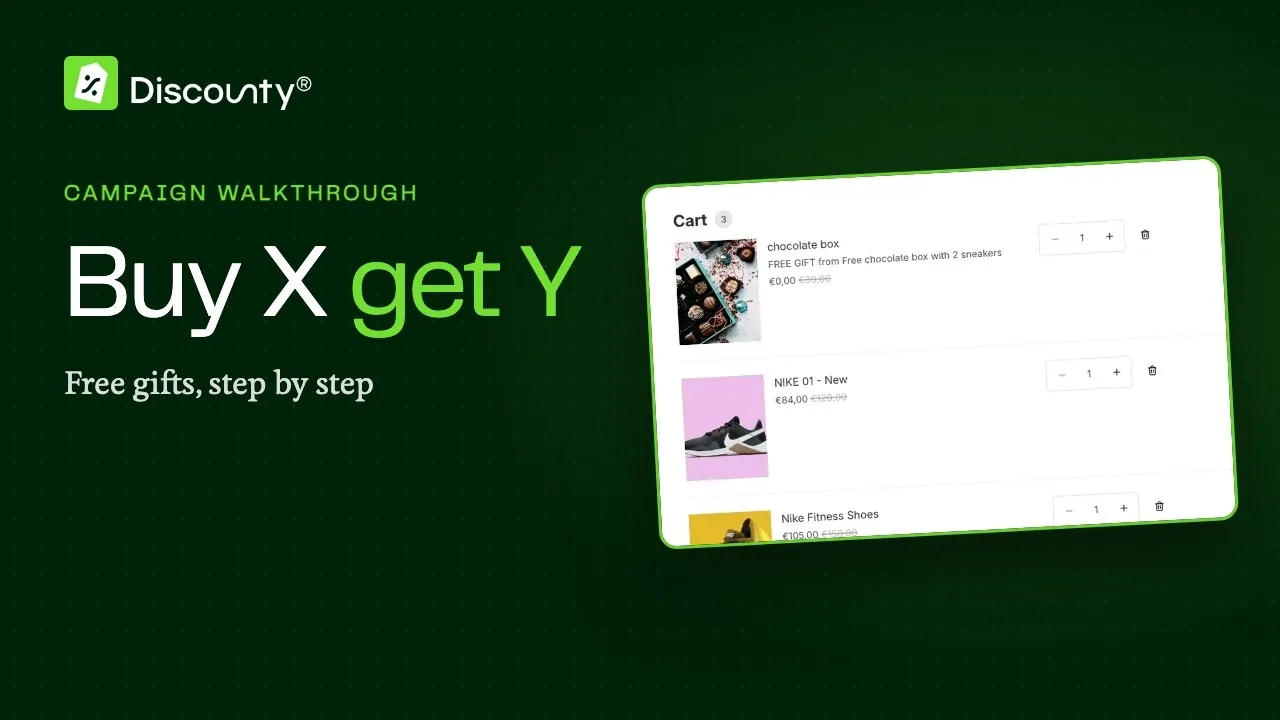 Play the video: How to create a Buy X get Y (BXGY) campaign in Discounty?
How to set up a Buy X get Y campaign
Step 1: Choose "Buy X get Y" as your campaign type
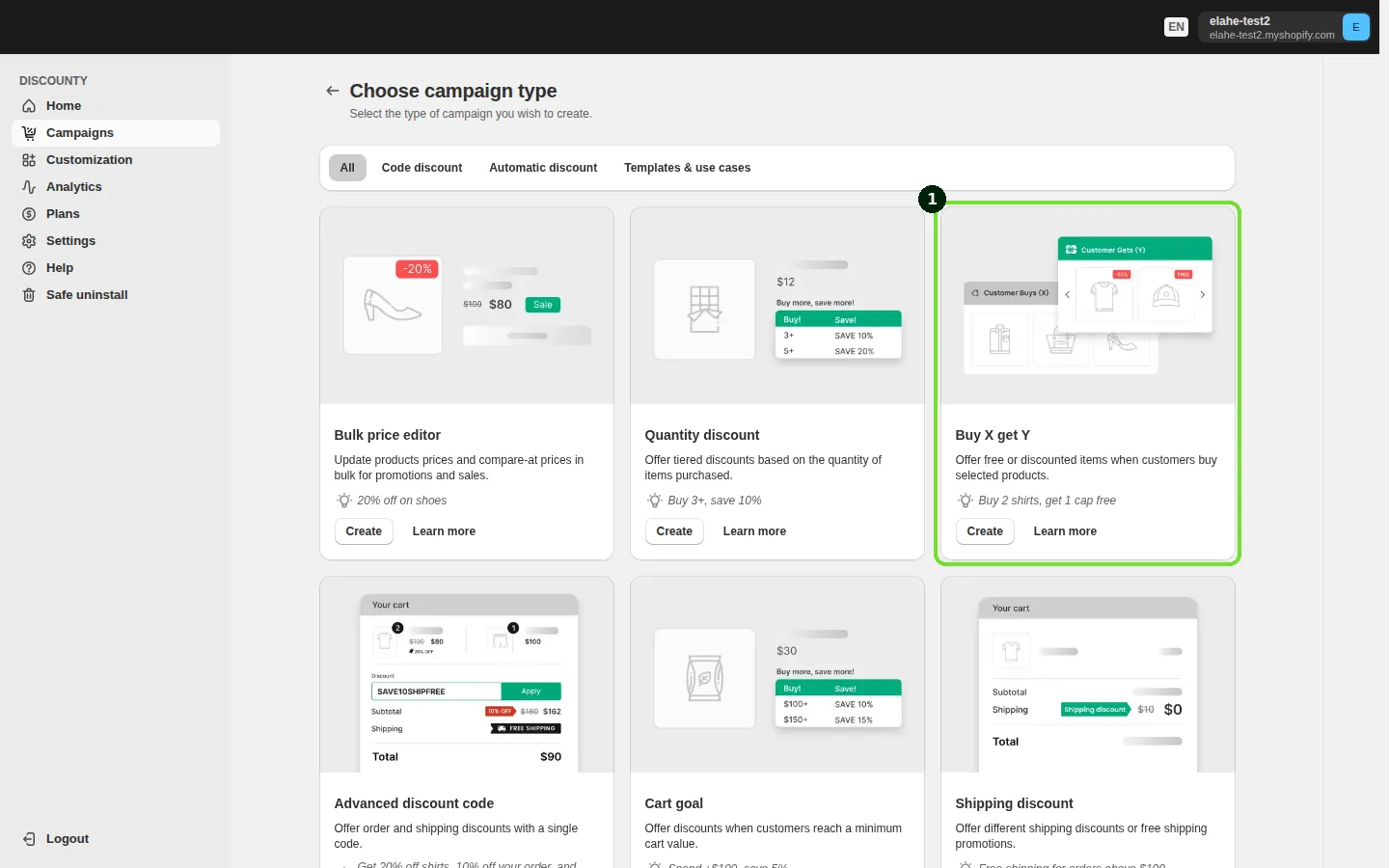
From Campaigns, click Create campaign and select Buy X get Y from the list of campaign types.
To start from a ready-made setup, open the Templates & use cases tab on the same page. Free gift with purchase pre-fills a "buy 2 items, get a free gift" campaign, and Buy X get Y at a discount pre-fills a "buy 2 items, get 50% off the third" campaign. You can change every setting before you save.
Tip: you can also describe the offer you want in the Ask Lumos box at the top of the campaign form, and Lumos fills in the settings for you to review. See How do I use Lumos, the AI assistant in Discounty?
Step 2: Choose the discount method and name the campaign
The Discount method card sits at the top of the form. Choose how customers get the reward:
Automatic: the reward is applied in the cart once the condition is met, with no code.
Discount code: the customer enters the code at checkout, and the reward is discounted only if the cart qualifies. Type your code in the Discount code field. You can also set Maximum discount uses (if your plan includes it) and limit the code to once per customer.
Good to know about the Discount code method:
The method can't be changed after the campaign is created. To switch, create a new campaign.
Reward selection is always Manual selection, and a code campaign is never shown on your storefront (no pop-up, auto-add or offer widget).
Codes must be unique across Buy X get Y, Shipping discount and Advanced discount code campaigns. Upper or lower case doesn't matter.
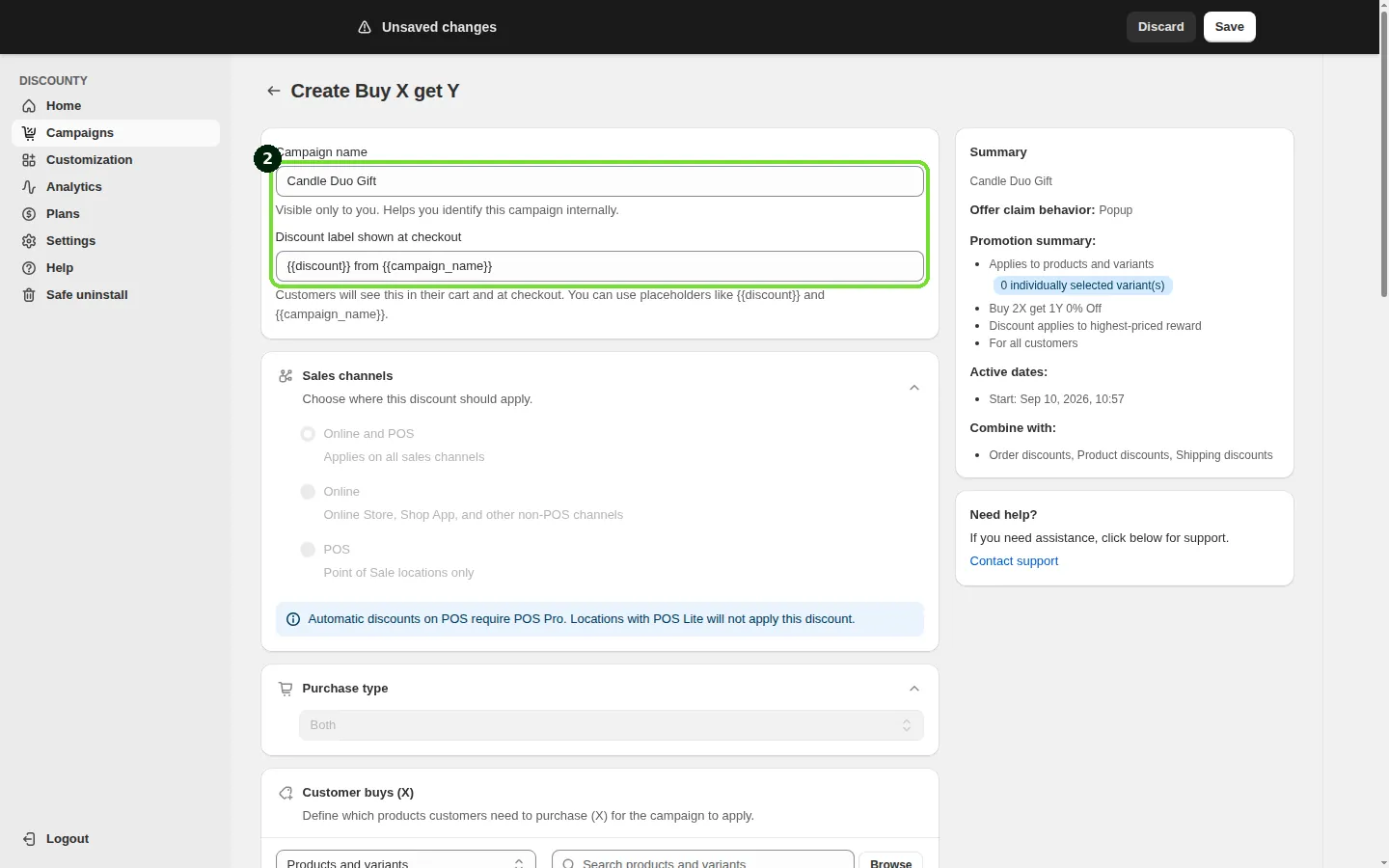
Then name the campaign:
Campaign name is visible only to you. It helps you find and manage the campaign inside Discounty. Customers never see it unless you include it in the checkout label below.
Discount label shown at checkout (Automatic method) is the text customers see on the discount line in their cart and at checkout. You can use two placeholders: #{{discount}} is replaced with the discount (for example "50%", "$ 5.00", or "FREE GIFT" for a 100% reward), and #{{campaign_name}} is replaced with the campaign name. The default label is #{{discount}} from #{{campaign_name}}, which a customer sees as "50% from Seasonal Sale".
Step 3: Choose sales channels and purchase type
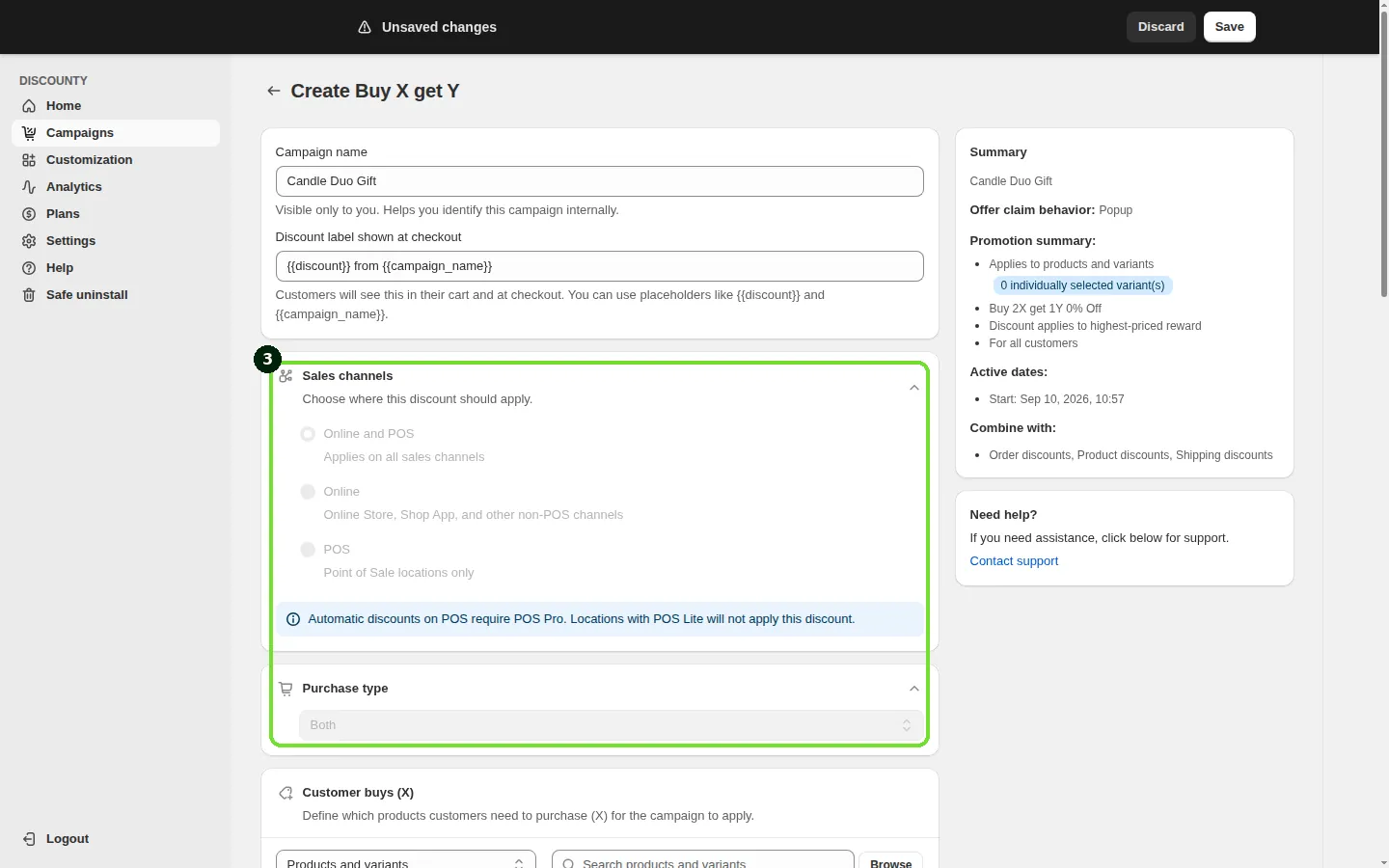
Two short cards appear before the product conditions:
Sales channels: choose Online and POS (default), Online, or POS. Changing the sales channel is available on the Discounty plan and above. Automatic discounts on POS require POS Pro, so locations on POS Lite won't apply the discount. At the register, staff can use the Discounty Campaigns tile on the POS home screen: its Ready to add section lists the rewards the current cart has earned, and staff tap Add to put a reward in the cart. See How do Discounty discounts work with Shopify POS?
Purchase type: choose whether the campaign applies to One-time purchase items, Subscription items, or Both (default). Only cart lines that match the selected type count toward the "buy" condition. Purchase type is available on the Essential plan and above. See How do I apply a discount only to subscription (or one-time) purchases?
Step 4: Set up "Customer buys (X)"
This is where you define what customers must buy to qualify for the reward.
Choose included products (X): pick a filter: All store, Collections, Product tags, Vendors, Product types, or Products and variants to select specific items. These are the items customers need to buy to trigger the reward.
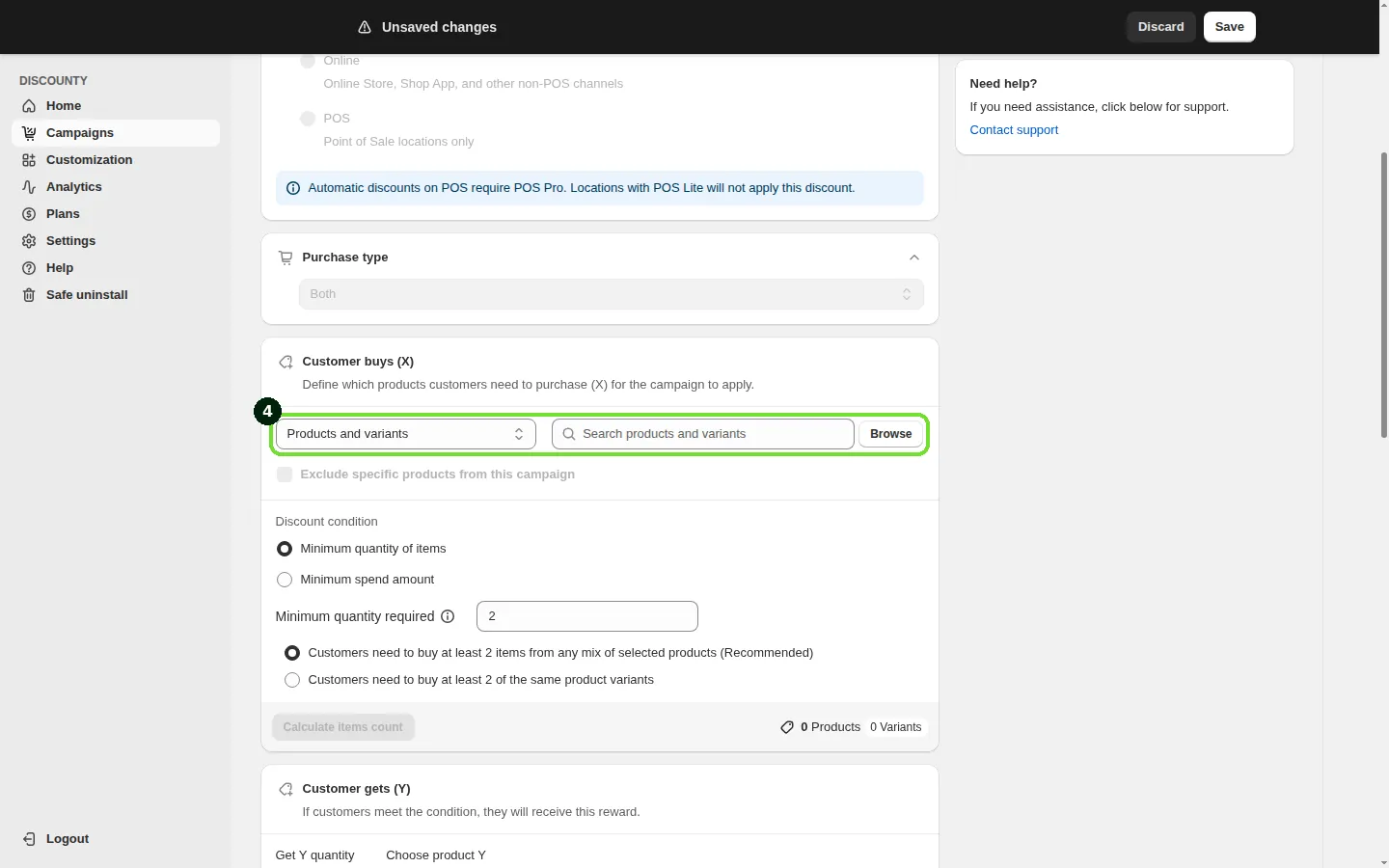
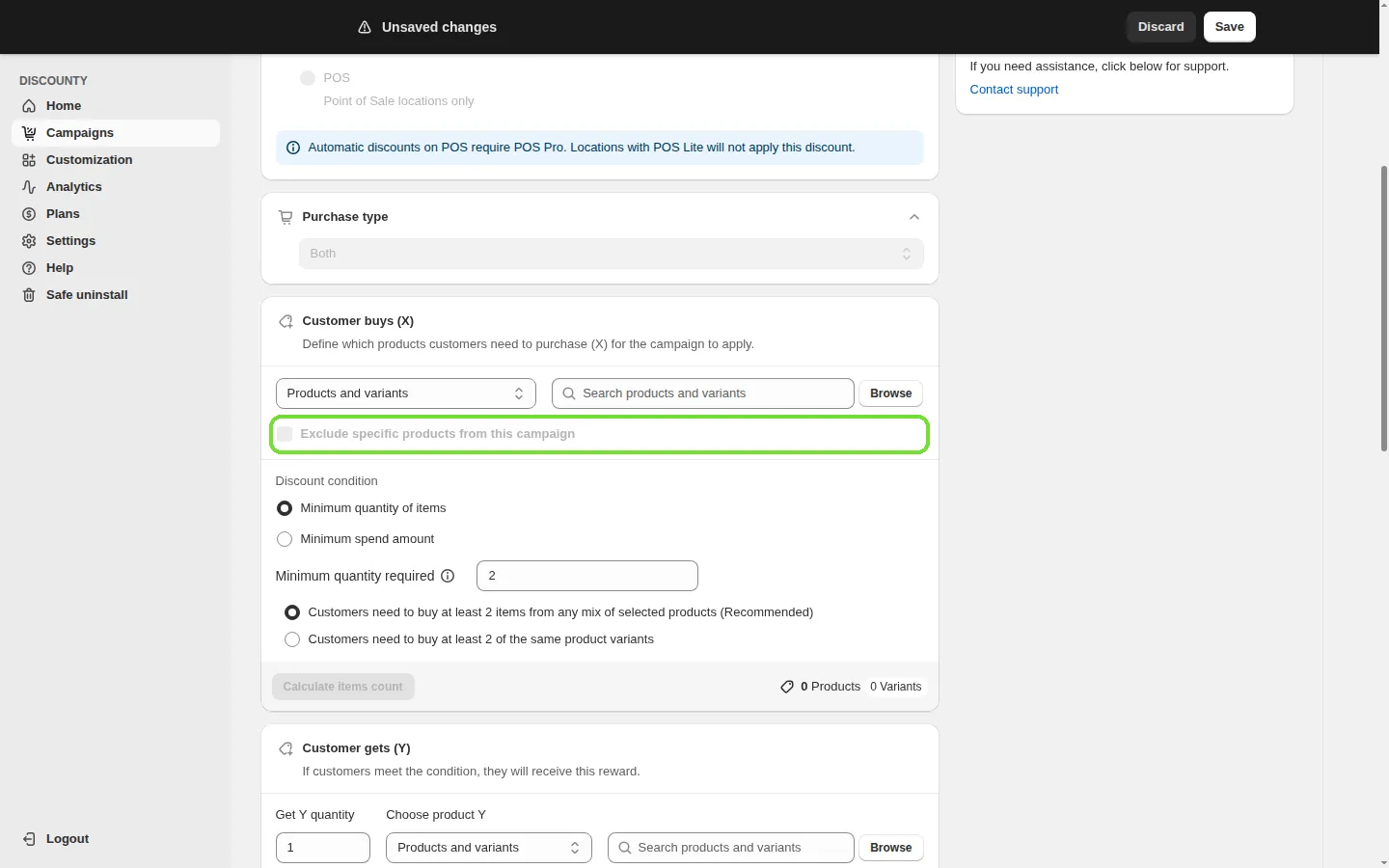
Exclude specific products from this campaign: select this checkbox to leave certain products or groups out of X, then choose a filter under Excludes. For example, to exclude items under $50, tag them and exclude that tag here. Excluding isn't available when X is set to Products and variants, because you're already choosing exactly what qualifies.
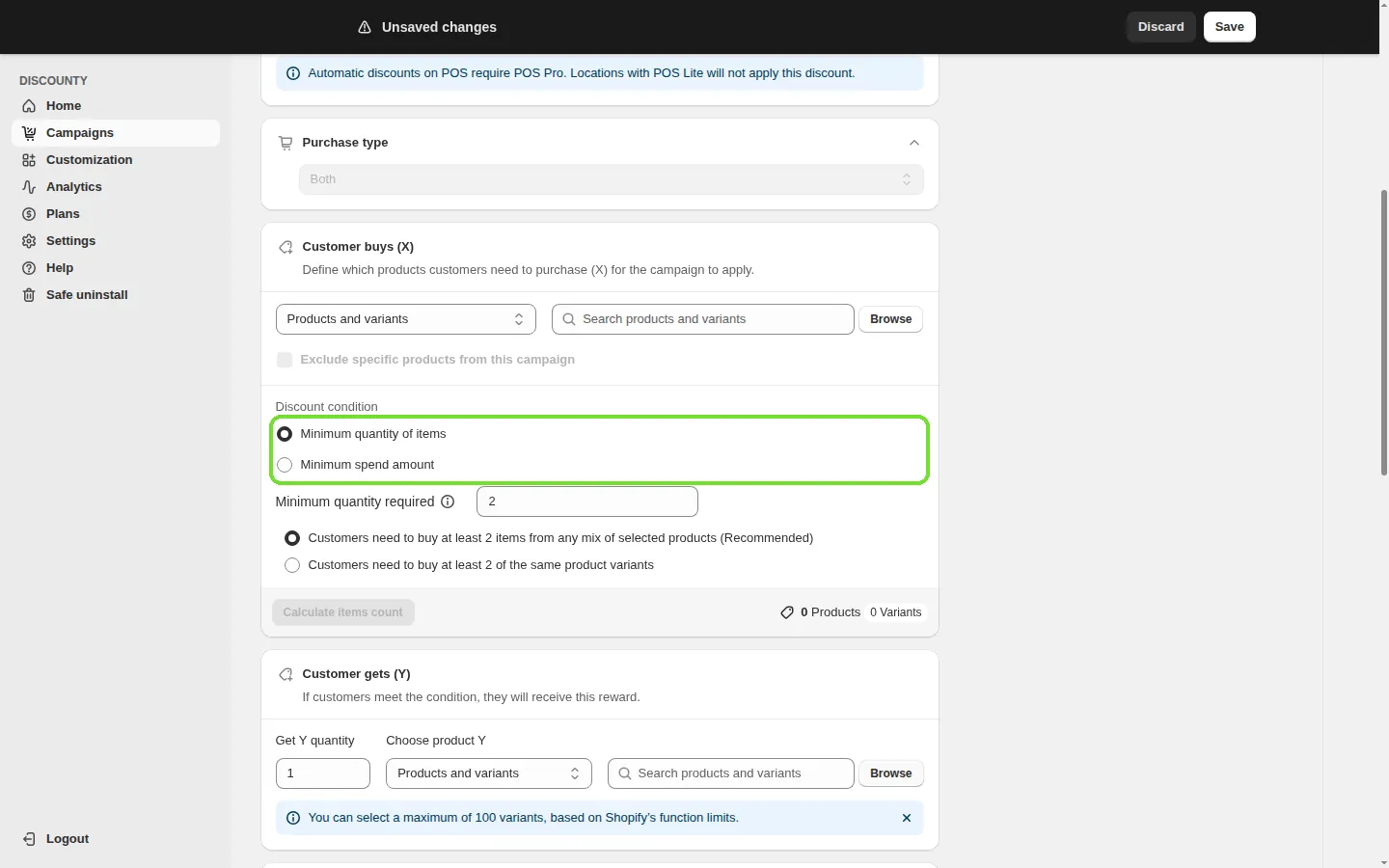
Discount condition: choose what unlocks the reward.
Minimum quantity of items (default): the customer adds a set number of qualifying items to the cart (for example, buy 3, get 1 free).
Minimum spend amount: the customer spends at least a set amount on qualifying products. No X units are "used up" by this condition. See How do I trigger a Buy X get Y reward by amount spent (Spend X get Y)? for the full setup.
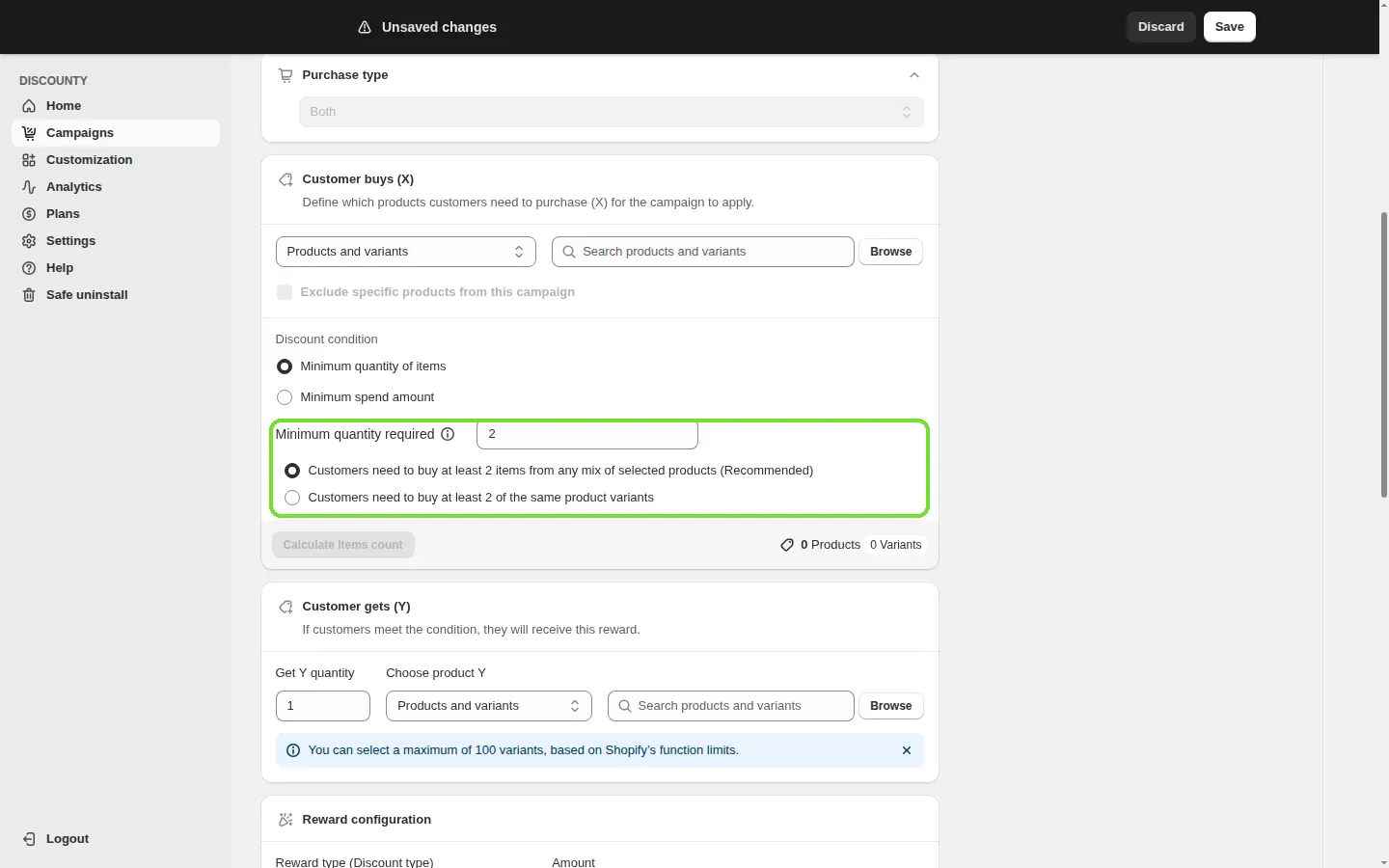
With a quantity condition, set the Minimum quantity required and choose how it's counted:
Customers need to buy at least {N} items from any mix of selected products (Recommended): the quantities of all qualifying products in the cart are added together. If N = 3 and X is your "Summer Collection", a cart with a shirt, pants and sunglasses from that collection qualifies.
Customers need to buy at least {N} of the same product variants: each variant is counted on its own. If N = 3, the customer must add 3 units of the exact same variant, for example 3 × Small/Blue. One Small, one Medium and one Large of the same product (three different variants) do not qualify in this mode, and neither does a mix of different products.
A free gift that Discounty adds to the cart automatically never counts toward the X condition.
Step 5: Set up "Customer gets (Y)"
This card defines the reward customers receive when they meet the X condition.
Get Y quantity: how many Y items a customer gets once the condition is met. This is a fixed number. It doesn't grow when the customer adds more qualifying items beyond the threshold.
Choose product Y: select the reward by Products and variants (up to 100 variants, based on Shopify's function limits), Collections, Product tags, or All store. Collections and Product tags are also limited to 100 each.
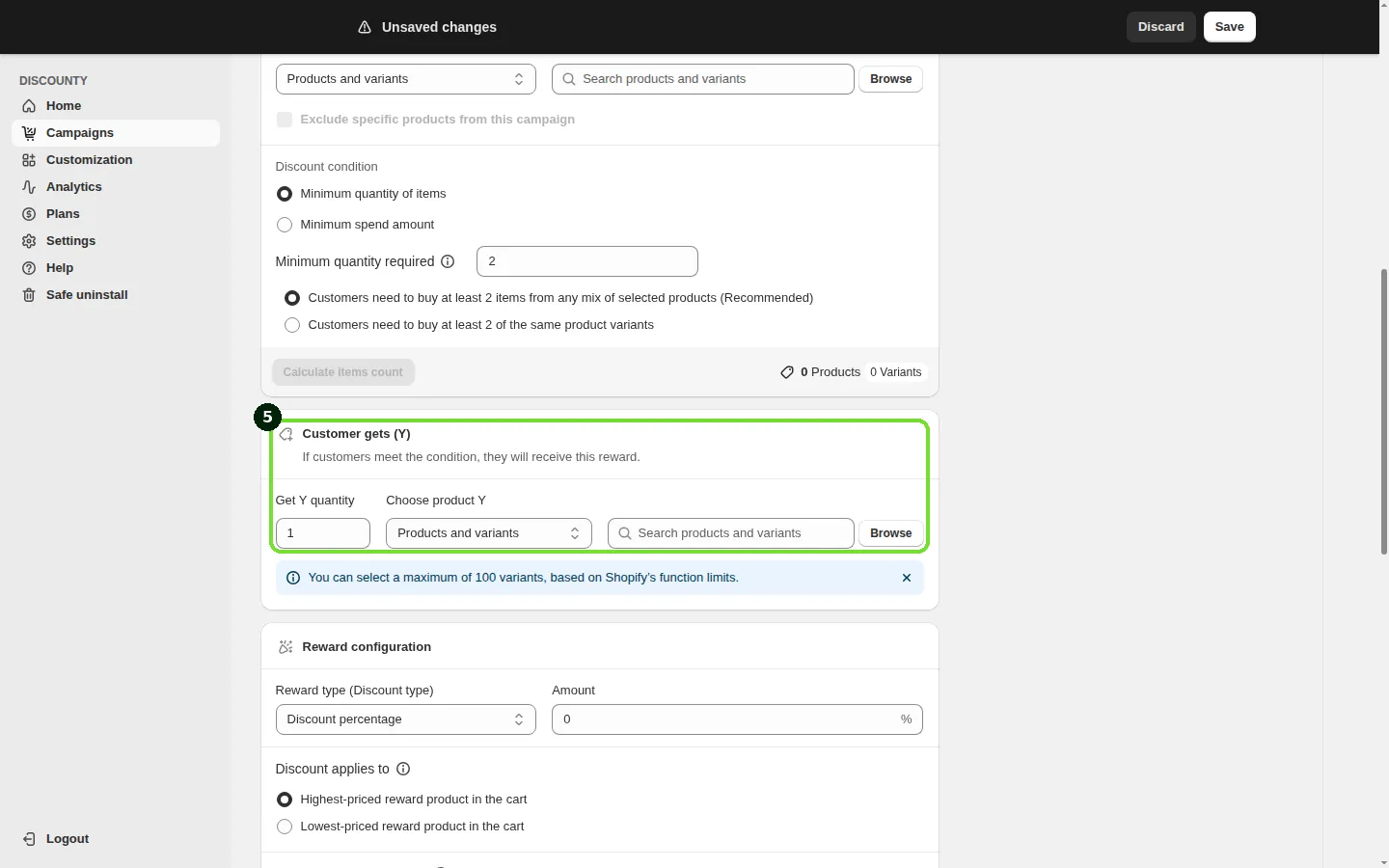
If you choose Collections, Product tags or All store for Y, the Show pop-up reward selection method can't be used (see Step 6).
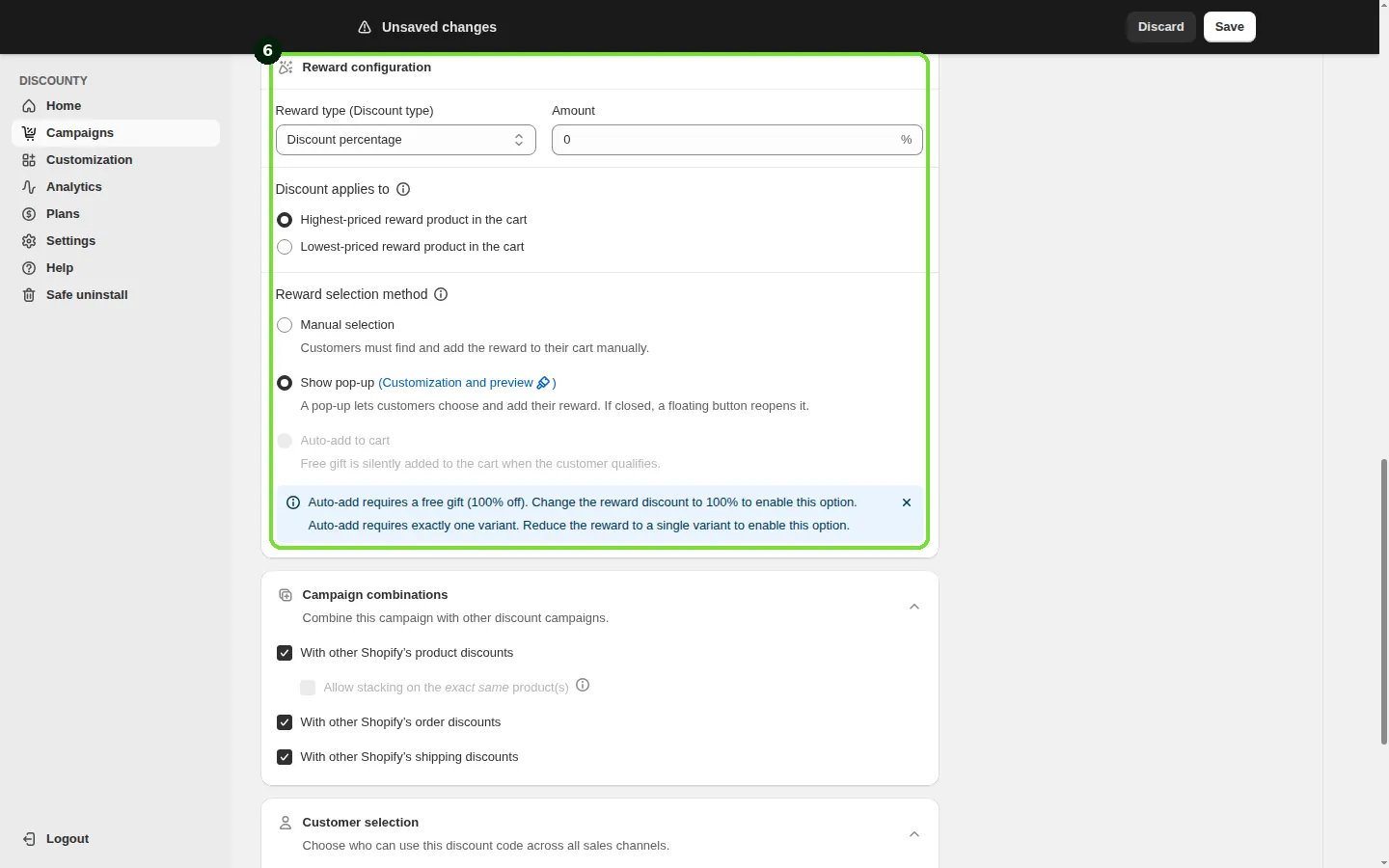
Step 6: Reward configuration
This card sets the discount amount, which reward item gets the discount, and how customers receive it.
Reward type (Discount type) and Amount:
Discount percentage: takes a percentage off product Y. A 50% discount means the customer pays half the price.
Fixed amount discount: takes a fixed amount off product Y. If the amount is higher than the product's price, the item becomes free.
Free gift: product Y is completely free. The amount locks to 100%, so there's nothing to enter.
Discount applies to: when more than one eligible Y product is in the cart, choose which one gets the discount:
Highest-priced reward product in the cart
Lowest-priced reward product in the cart (Essential plan and above)
Reward selection method: how the reward reaches the customer once they qualify.
Manual selection: customers find and add product Y to their cart themselves. Once it's in the cart and the condition is met, the discount applies.
Show pop-up: a pop-up lets customers choose and add their reward. If they close it, a floating button reopens it. Show pop-up is available on the Lite plan and above, and only when Y is set to Products and variants. When your plan includes it, new campaigns start with Show pop-up selected. See How does the Buy X get Y reward pop-up work? and How do I customize the Buy X get Y pop-up and floating button?.
Auto-add to cart: the free gift is silently added to the cart when the customer qualifies, with no pop-up and nothing to click. It's available on the Essential plan and above, and only when the reward is a Free gift (100% off) with exactly one variant selected. If you later change the reward so it no longer meets these conditions, the method reverts to Manual selection.
Show pop-up and Auto-add to cart both need the Discounty app embed turned on in your theme. With the Discount code method, only Manual selection is available. See How to activate Discounty widgets on your Shopify store?
Step 7: Campaign combinations
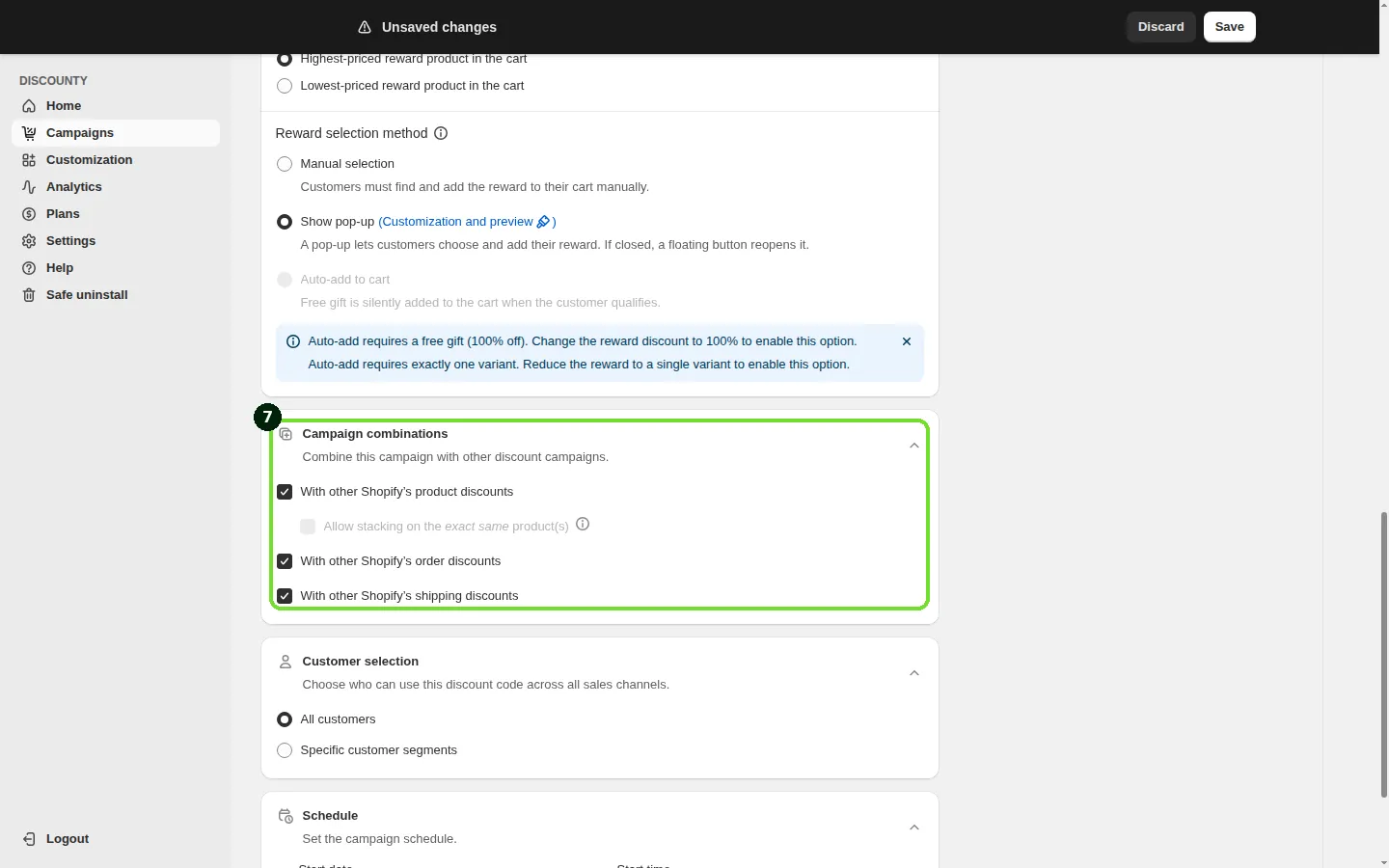
The Campaign combinations card controls whether this Buy X get Y discount can combine with other discounts on the same order. It only affects the reward (Y) lines. Discounts already on the qualifying (X) items aren't touched by it.
With other Shopify's product discounts (on by default)
With other Shopify's order discounts (on by default)
With other Shopify's shipping discounts (on by default)
When a product is eligible for two or more product discounts, only the best one applies by default. If With other Shopify's product discounts is on, the Allow stacking on the exact same product(s) option appears. Use it to pick other product-discount campaigns (Buy X get Y or Advanced discount code) that apply on top of this one, so both reduce the same cart line. Same-line stacking needs Shopify Plus and the Discounty plan or above. See How do I stack two product discounts on the same item?
For how Discounty campaigns interact with Shopify's own discounts and other apps, see How do Discounty campaigns combine with each other, Shopify discounts, and third-party app discounts?
Step 8: Choose who can use the discount
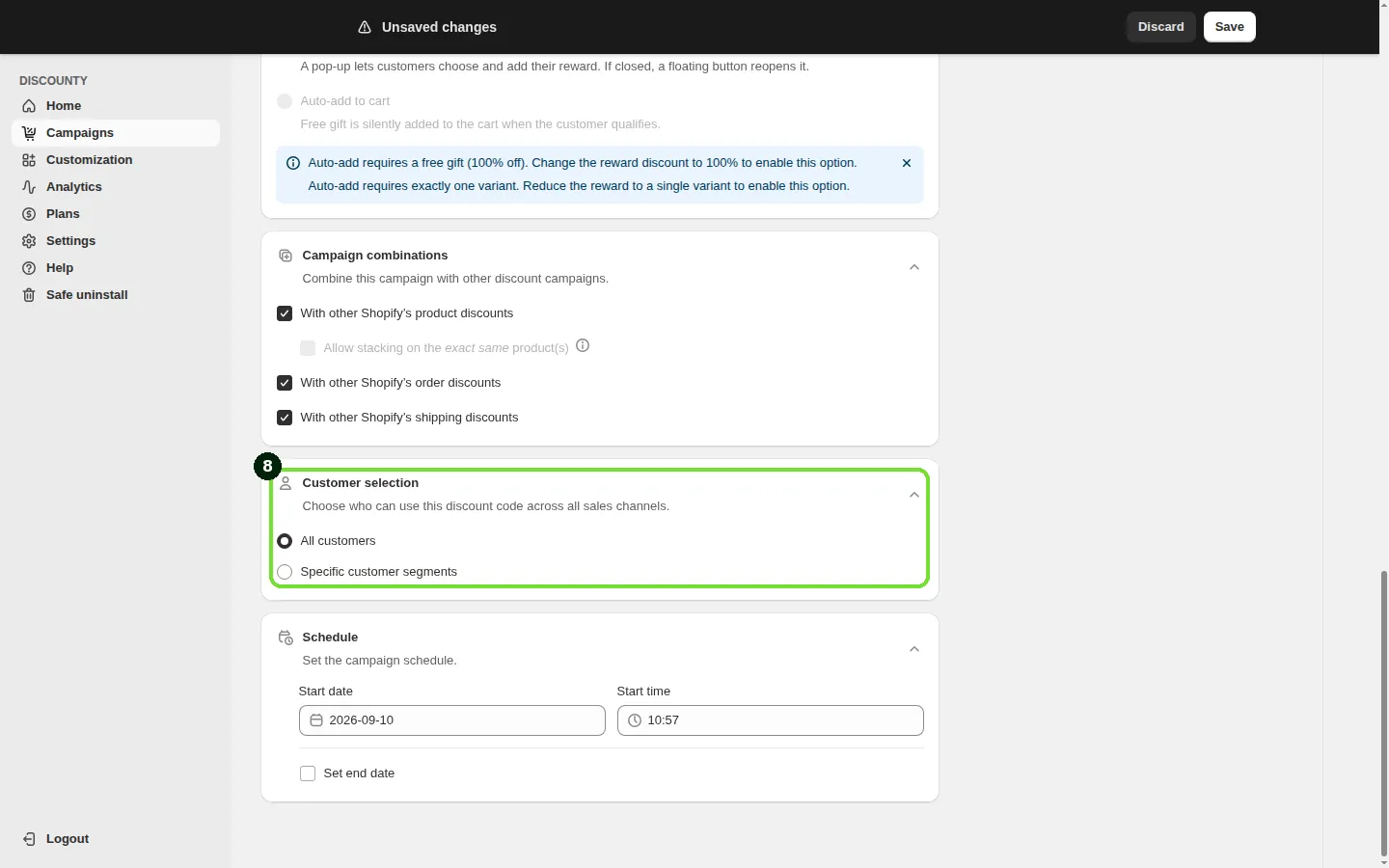
In the Customer selection card, choose All customers (default) or Specific customer segments. With specific segments, search or browse your Shopify customer segments. Because of a Shopify limit, an automatic Buy X get Y campaign can use up to 5 segments. A Discount code campaign can use up to 100. Customer segments are available on the Discounty plan and above. See How do I limit a Discounty campaign to specific customer segments?
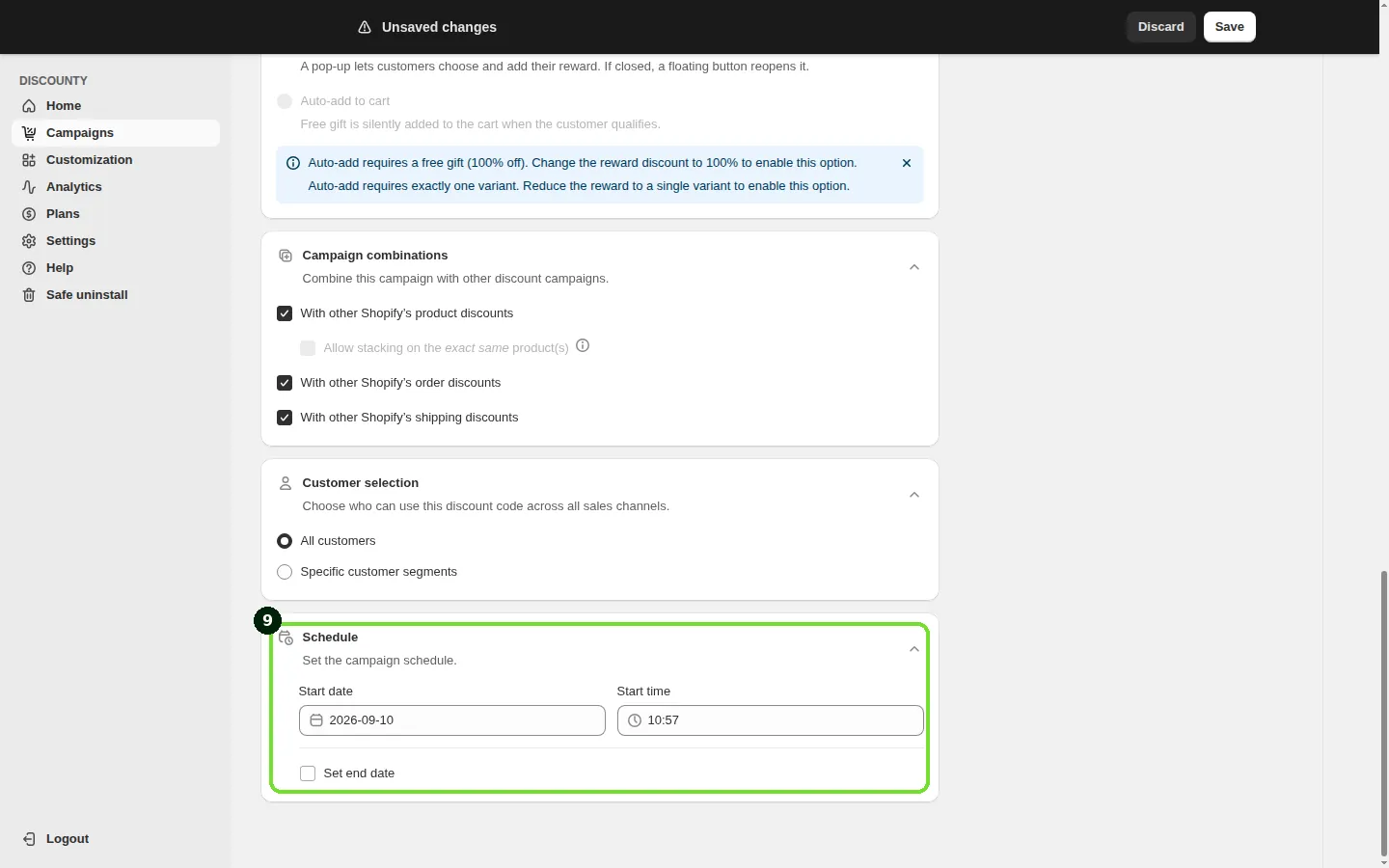
Step 9: Set the campaign schedule
Set the Start date and Start time. To end the campaign automatically, select Set end date and set the End date and End time. Scheduling is available on every plan.
Important: each Buy X get Y campaign with the Automatic method creates its own Shopify automatic discount (campaigns that use a Discount code don't count toward the limit), and Shopify allows at most 25 active automatic discounts at a time (including discounts from apps). If you're at that limit, you can't create or schedule another Buy X get Y campaign until you free up room. See Is there a limit on the number of campaigns I can create?
Running several Buy X get Y campaigns
You can use products in a Buy X get Y campaign that are already used in other Discounty campaigns.
You can create several Buy X get Y campaigns with the same X products. There's no priority setting, so Discounty warns you when a product is already used as X in another Buy X get Y campaign, because the discounts may overlap. For example, if "Nike Shoes" is the X product in two campaigns with different rewards, a customer who adds Nike Shoes to the cart may get both rewards.
You can use the same Y product in different Buy X get Y campaigns.
You can use the same product as both X and Y in one campaign. For example, "buy 2, get 1 free" on the same product needs 3 units in the cart: 2 count toward the condition and the third is free.
Example
You sell candles and want to give customers a free gift. You create a Buy X get Y campaign named "Candle Duo Gift". You set Customer buys (X) to Products and variants with your "Vanilla Candle" selected, and Minimum quantity required to 2 with any mix of selected products. You set Customer gets (Y) to your "Travel Candle" with Get Y quantity 1. In Reward configuration, you choose Free gift and Auto-add to cart. A customer who adds 2 Vanilla Candles gets the Travel Candle added to the cart automatically, free of charge, with no pop-up to deal with.
Related articles
Need a hand? Contact our support team through the app — we're happy to help.
In Discounty: Buy X get Y See how Shopify Buy X Get Y offers work