


How does the Buy X get Y reward pop-up work?
How the Buy X get Y reward pop-up works: turning it on, what customers see, reward limits, and the floating button.
The reward pop-up shows customers the free or discounted items they've earned as soon as their cart qualifies, so they can add them without searching your store. It works with Buy X get Y campaigns whose Reward selection method is Show pop-up, and it's available on the Lite plan and above.
Turn on the pop-up
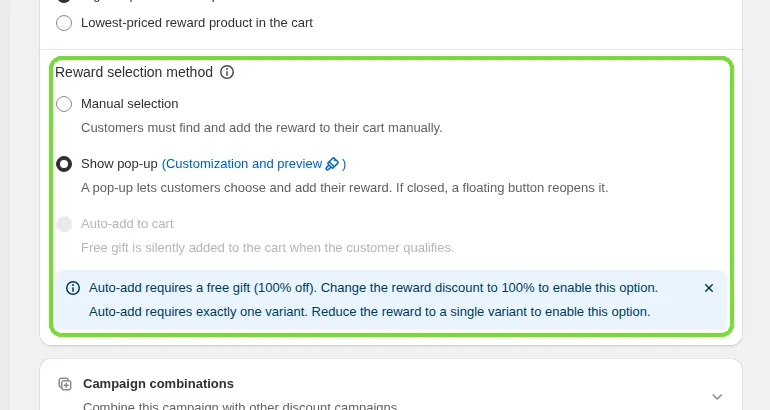
In your Buy X get Y campaign, under Reward configuration, set Reward selection method to Show pop-up. When your plan includes the pop-up, new campaigns already start with Show pop-up selected.
Save and activate the campaign.
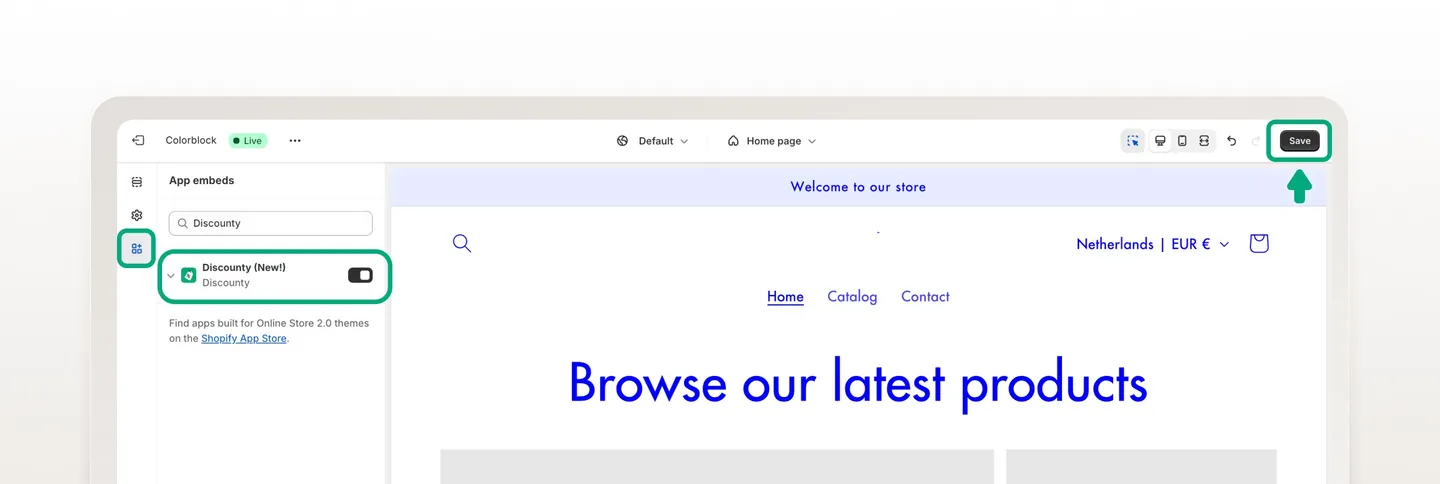
Make sure the Discounty app embed is turned on in your theme's App embeds panel. If the pop-up doesn't appear, check this first.
In Discounty, go to Customization and open Buy X get Y pop-up. Check that Display widget on store is on. If it's off, the pop-up doesn't show for any campaign.
For step-by-step help with the app embed, see How to activate Discounty widgets on your Shopify store?
Note: Show pop-up is only available when the reward (Y) is set to Products and variants (up to 100 variants). If Y is set to Collections, Product tags or All store, Show pop-up can't be used and the campaign uses Manual selection. On plans that don't include the pop-up, the option shows a lock.
What customers see
Desktop
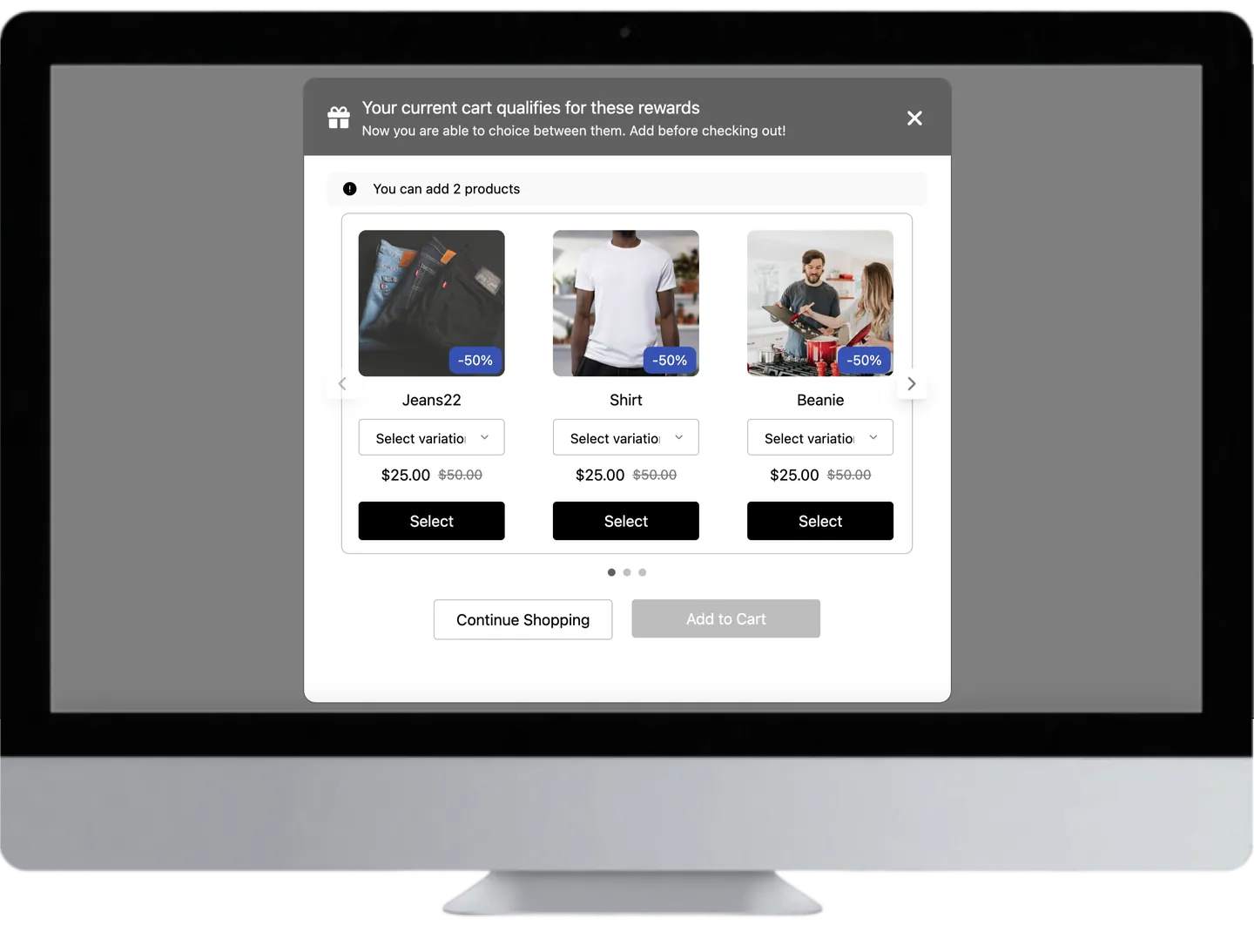
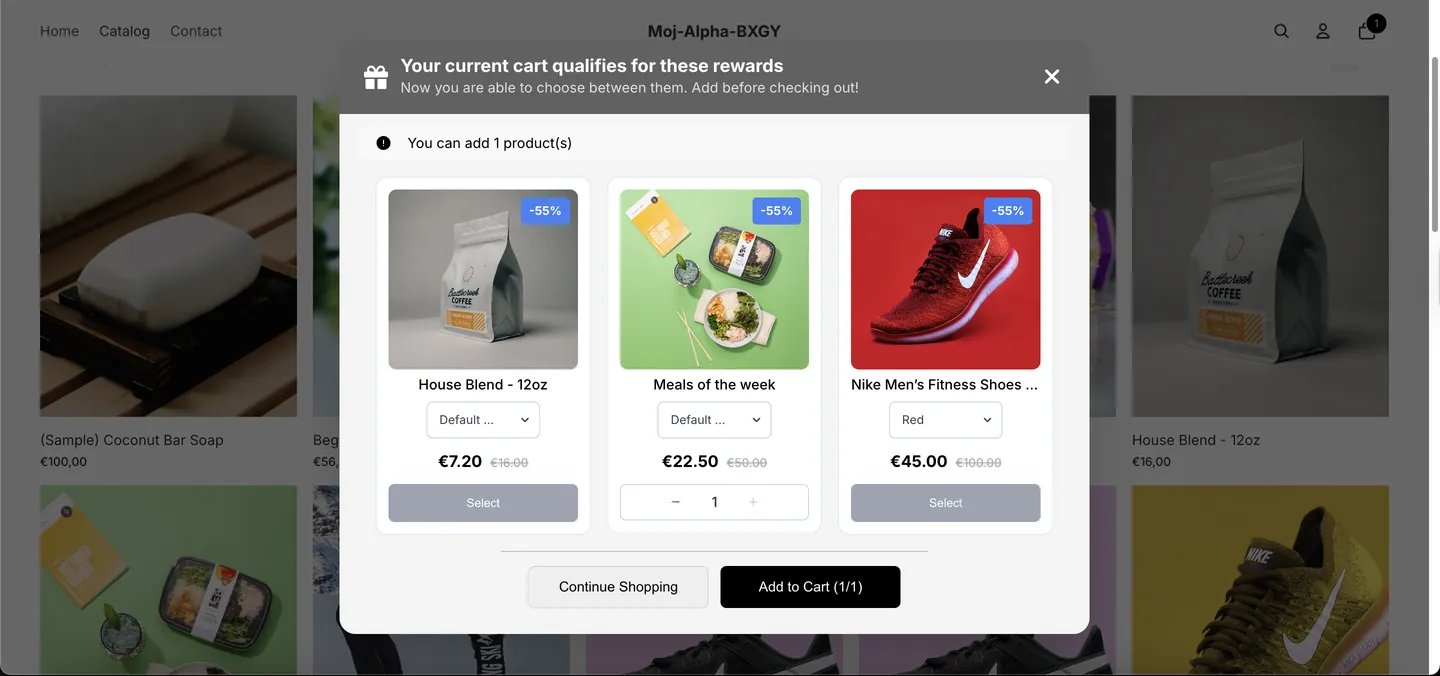
The pop-up opens in the center of the screen over the page.
Each reward card shows the product image, title, a variant picker (when the product has more than one variant), the discounted price with the original price struck through, and a badge such as "-50%". When Show "Free gift" badge is on, a 100% reward shows "Free Gift" instead.
After the customer clicks Select, the button turns into a quantity control (− and +) so they can change how many they take.
The add button shows how many rewards are selected out of how many are available, for example "Add to Cart (1/2)".
Mobile
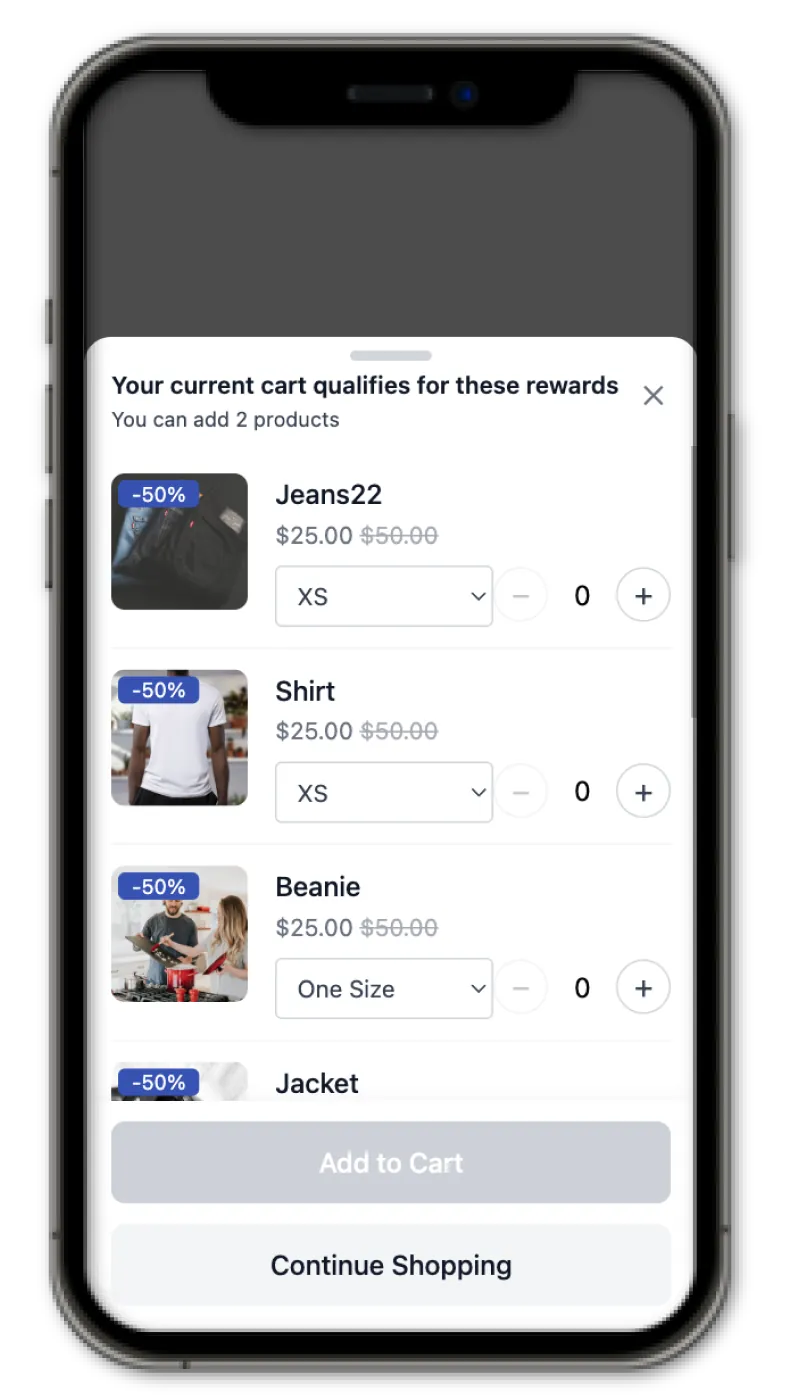
The pop-up slides up from the bottom of the screen.
Rewards are listed in a single column that customers scroll through.
You can change the pop-up's text, colors and behavior on the Customization page. See How do I customize the Buy X get Y pop-up and floating button?.
Out-of-stock rewards
The pop-up only shows reward products your store can sell right now:
If a reward variant is out of stock in Shopify (and Continue selling when out of stock is off for it), that variant is hidden from the pop-up.
If every variant of a reward product is unavailable, the whole product is hidden.
If none of a campaign's reward products are available, the pop-up doesn't open for that campaign.
Reward products that aren't available on your Online Store sales channel are hidden the same way. When stock changes, it can take up to 5 minutes for a customer who is already browsing to see the update in the pop-up.
In-store sales (Shopify POS)
The pop-up is an online-store feature. At the register, staff use the Discounty Campaigns tile on the POS home screen instead: its Ready to add section lists the rewards the current cart has earned, and staff tap Add to put a reward in the cart. For campaigns set to Auto-add to cart, the Discounty Free Gifts tile adds the gift for them when the cart qualifies. See How do Discounty discounts work with Shopify POS?
Reward limits
Customers can select rewards only up to the Get Y quantity you set in the campaign. Once they reach it, the other Select buttons for that campaign are disabled.
Example: if one free gift is allowed, the Select buttons are disabled after the customer picks one reward.
When several campaigns qualify
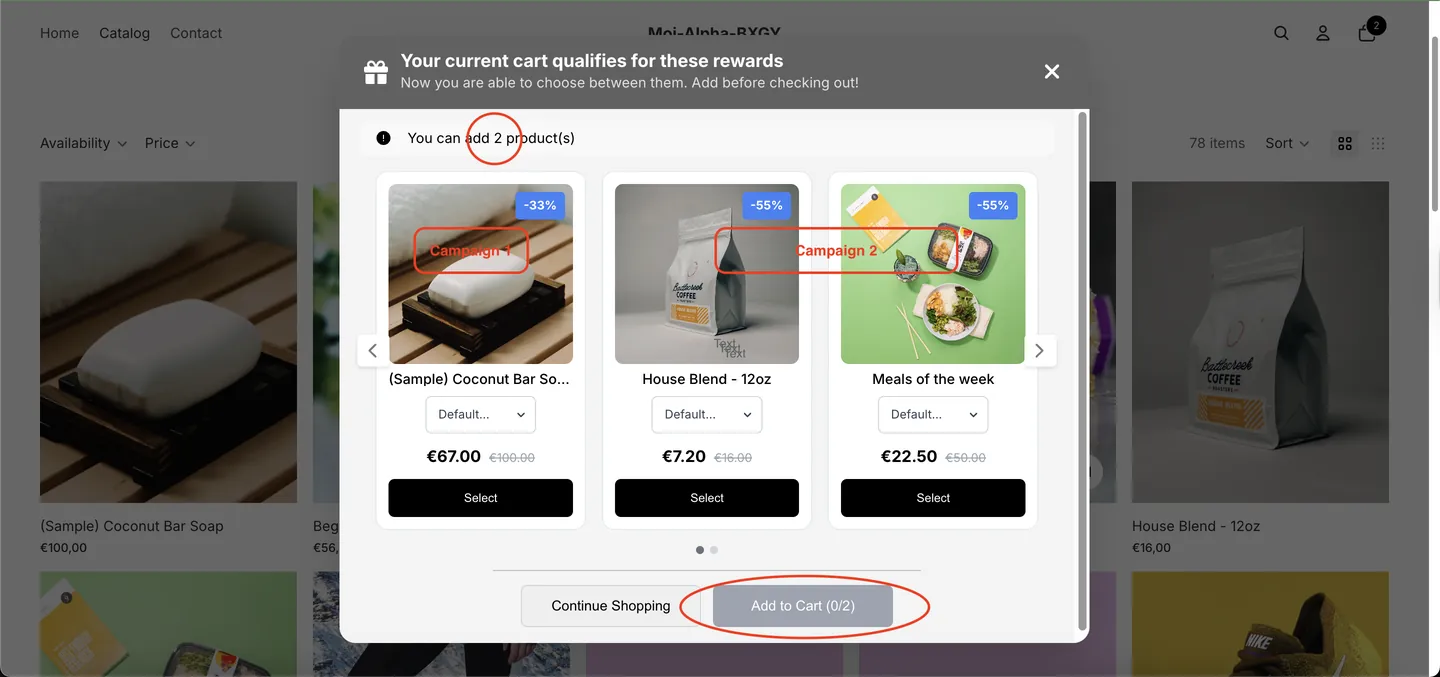
If the cart qualifies for two or more Buy X get Y campaigns with unclaimed rewards, one pop-up lists the reward products of all of them, each with its own discount. The total number of rewards the customer can select is the sum of the campaigns' reward quantities.
If the same reward product belongs to more than one of these campaigns, it's shown once.
Adding rewards to the cart
When the customer clicks the add button, Discounty adds the selected rewards to the cart right away and closes the pop-up. Discounty then lets your theme know the cart changed, so on many themes the cart updates or the cart drawer opens on its own. If your theme's cart icon or count doesn't update after a reward is added, contact our support team so we can check your theme.
Closing the pop-up and the floating button
If a customer closes the pop-up without adding a reward, the Buy X get Y floating button appears on the storefront (when it's turned on). Customers can click it at any time to reopen the pop-up and claim their reward. The floating button is available on the Essential plan and above.
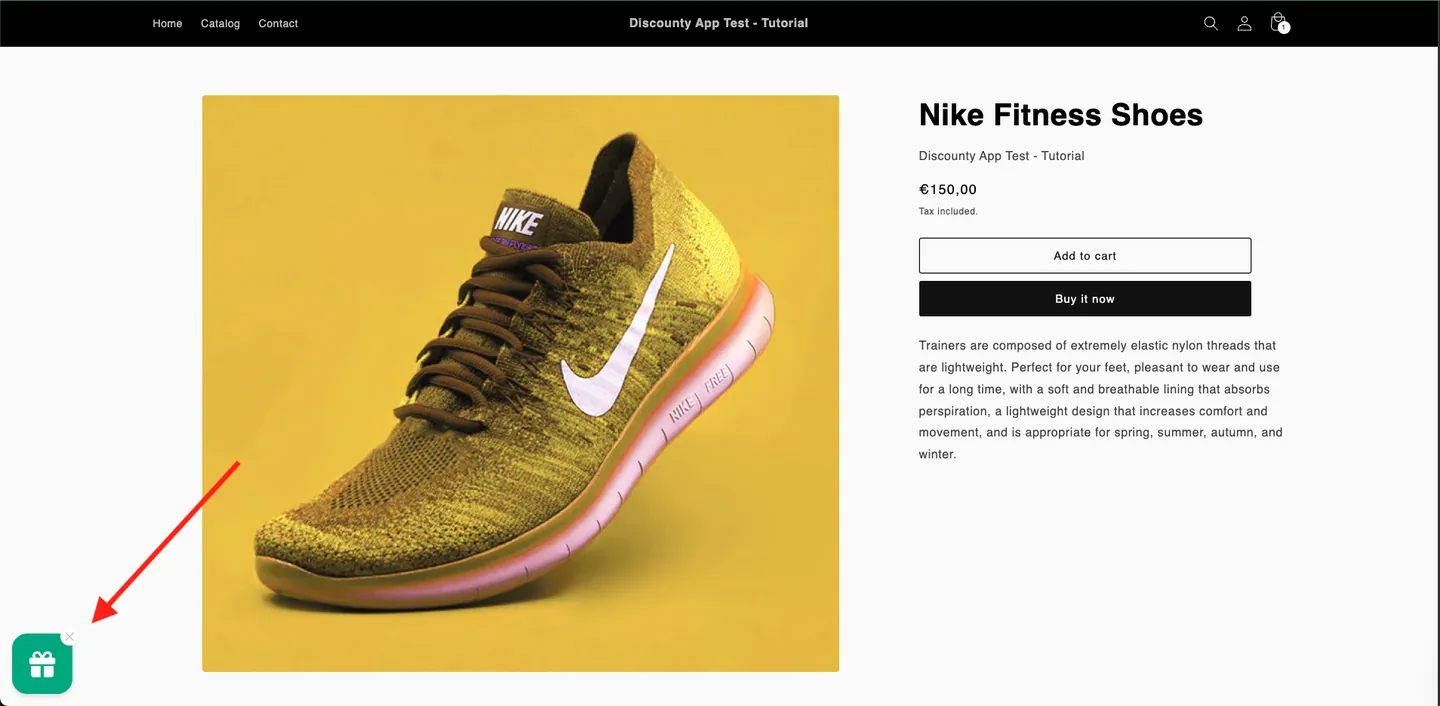
Whether the pop-up opens again on its own depends on the dismiss setting you choose in Customization > Buy X get Y pop-up > Advanced: Dismiss until triggered again (default), Dismiss for 2 minutes after closing, or Keep showing until reward is added.
You can change the dismiss setting and the floating button's look and position on the Customization page. See How do I customize the Buy X get Y pop-up and floating button?.
Prefer no pop-up?
For a single-variant free gift, you can use Auto-add to cart instead (Essential plan and above). It adds the gift to the customer's cart silently when they qualify. See the reward selection methods in How to create a Buy X get Y (BXGY) campaign in Discounty?
Related articles
Need a hand? Contact our support team through the app — we're happy to help.
In Discounty: Buy X get Y See how Shopify Buy X Get Y offers work