


How to activate Discounty widgets on your Shopify store?
Enable the Discounty app embed, see which widget each campaign type shows, verify on your storefront, and troubleshoot a missing widget.
Discounty's storefront widgets show your offers to shoppers: tier tables, reward pop-ups, countdown timers, shipping progress bars and cart savings. A discount still applies at checkout without a widget, but shoppers who can't see the offer on the page are less likely to act on it.
This article covers how to turn on the Discounty (New!) app embed in your Shopify theme, which widget each campaign type uses, how to check a widget on your live store, and what to do if a widget doesn't show.
Enable the Discounty app embed
Discounty's widgets are delivered by a Shopify theme app embed. Until it's enabled on your published theme, no widget can appear, no matter how your campaigns or Customization settings are configured.
In Shopify admin, go to Online Store > Themes.
On your current (published) theme, click Customize.
In the theme editor, open the App embeds section (the icon in the left sidebar).
Find Discounty (New!) in the list and turn its toggle on.
Click Save in the top right corner.
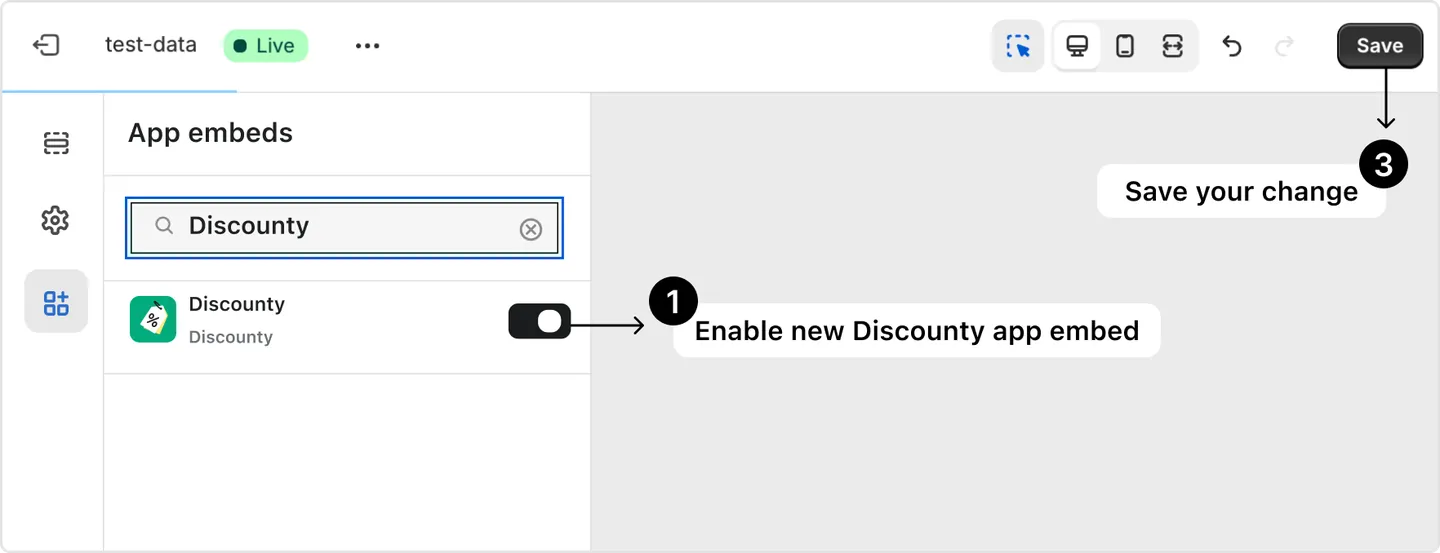
You can also start this from inside Discounty: on the Home page, or on the Customization page banner, click Enable app embed — this opens the theme editor's App embeds section directly. The Home page's App embed status card shows whether the embed is currently Active or Inactive so you can confirm it took effect.

Which widgets show, and what each one needs
Open Customization in the Discounty app to see every widget available on your plan. Each widget lives on its own card with a Display widget on store toggle — this must be on, in addition to the app embed, for that specific widget to render. A widget also only appears when there's a matching active campaign targeting the customer's product or cart; it's normal not to see a widget if no eligible campaign is running.
Widget card | What it shows | What it needs |
|---|---|---|
Starts in countdown timer | Countdown on the product page to a campaign's start date | An active Bulk price editor, Quantity discount, or Cart goal campaign with Set "starts in" countdown timer turned on for that product |
Ends in countdown timer | Countdown on the product page (or homepage) to a campaign's end date | Same three campaign types, with Set "ends in" countdown timer turned on |
Quantity/Value table | Tiered discount table on the product page | An active Quantity discount or Cart goal campaign targeting that product |
Buy X get Y offer | Offer message on product pages and a badge on product cards, for example "Buy 2 of this item, get FREE" | An active Buy X Get Y campaign, and the Product page or Home & collection page toggle turned on |
Buy X get Y pop-up | Pop-up informing customers about the free or discounted item they qualify for | An active Buy X Get Y campaign |
Shipping progress bar | Progress bar (typically on the cart page) toward free or discounted shipping | An active Shipping discount campaign with Enable progress bar widget for this campaign turned on — available on higher plans |
Saving on cart | Total amount saved, shown on the cart page | An active Bulk price editor, Quantity discount, Cart goal, or Buy X Get Y campaign that is currently discounting the cart. It is not shown for Shipping discount campaigns. |
Buy X get Y floating button | A button that reopens the reward pop-up after a customer closes it | An active Buy X Get Y campaign — this widget itself is available on selected plans |
The Customization page badges the countdown timer and Saving on cart cards as All types, but they still only render for the campaign types listed above — a Shipping discount campaign, for example, won't trigger a countdown timer or the Saving on cart widget.
Bulk price editor campaigns don't have a widget of their own: this campaign type changes the product's price and compare-at price directly, so the discount is visible as the updated price with no separate widget to enable. If you don't see a widget after setting one up, check the product's price and compare-at price instead — that's expected. A Bulk price editor campaign can still trigger the countdown timer and Saving on cart widgets listed above if you turn those on.
Styling a widget beyond its defaults (colors, text, layout) is available on selected plans, the widget's own customization page shows an upgrade prompt if your plan doesn't include it, while Display widget on store generally stays available regardless of plan.
Verify the widget on your storefront
On the widget's customization page in Discounty, check the preview panel updates as you change settings — this confirms your configuration is saved correctly.
Open your storefront in a new tab (use a private/incognito window to avoid cached pages) and visit a product, collection, or cart page that's targeted by an active, matching campaign.
Confirm the widget appears in the expected location. If it's a countdown timer or the Quantity/Value table, this must be a product page targeted by the campaign; for the Shipping progress bar and Saving on cart, check the cart page and cart drawer.
Troubleshooting: widget not showing
If a widget displays correctly on desktop but not on mobile, or shows on one page type (for example the product page) but not another (for example the homepage), skip the checklist below — see "Mobile and page-specific display" further down instead.
Work through this list in order:
App embed saved? After toggling Discounty (New!) to on in App embeds, confirm you clicked Save in the theme editor.
Correct theme? The embed must be enabled on your currently published theme, not a draft or unpublished theme.
Widget toggle on? In Discounty, go to Customization, open the widget, and confirm Display widget on store is on.
Active, matching campaign? Confirm there's an active campaign of the type that widget needs (see the table above), and that it targets the product or cart you're testing.
Theme layout not recognized? Widgets look for a known spot in your theme's page layout to insert into. If your theme's structure is unusual, the widget may not find a place to render — this needs a one-time manual placement from support (see below).
App conflict? Other apps modifying your product or cart page HTML can interfere. Try disabling them temporarily to isolate the issue.
Cache? Clear your browser cache or test in a private/incognito window.
If you've worked through every step above and the widget still doesn't appear, contact the Discounty support team via the in-app chat with your theme name and store URL. The team will perform a one-time manual placement on the backend; once that's done, the widget keeps working automatically for future campaigns.
Mobile and page-specific display
Widgets are built to be responsive, but some themes handle mobile layouts differently, so a widget can display correctly on desktop while appearing misaligned, oversized, or missing on mobile — or show on one page type but not another. This isn't fixed by the checklist above; it needs a one-time manual wrapper or placement adjustment from support for your specific theme. Share the affected page URL and your theme name with the support team via the in-app chat and request a mobile or page-specific display fix. This adjustment is free and only needs to be done once per theme.
Switching themes and page builders
If you recently switched to a new Shopify theme and a widget no longer appears even after enabling the app embed, the new theme likely needs to be manually re-integrated. Contact support with your new theme's name and store URL; this is a one-time task per theme, and the widget continues to display automatically afterward. The same applies if you use a page builder such as GemPages, EComposer, or Pagefly, or a theme like Horizon or Eurus — these can require additional manual placement.
Running more than one widget on the same product page (for example the Quantity/Value table alongside a countdown timer) is supported but may need configuration help — contact support if enabling one widget causes another to disappear.
Requesting a style customization
Each widget's own customization page in Discounty lets you adjust its text, colors, and layout directly, on plans that include styling for that widget. For anything beyond what the customization page offers — or if your plan doesn't include self-serve styling for that widget — use the in-app chat and describe the change you'd like. Include the widget type (for example countdown timer, Quantity/Value table, Saving on cart) and, if possible, a link to the page where you'd like it applied. These support-assisted customizations are free.
Related articles
Need a hand? Contact our support team through the app — we're happy to help.