


Which Discounty campaign type should I use?
An overview of Discounty's six campaign types, how each discount is applied, and when to use each one.
The right campaign type depends on what you want shoppers to do: buy more items, spend more per order, grab a free gift, use a promo code, or finish checkout because shipping is free. Discounty has six campaign types, one for each of these goals.
Start with the table below to find your match, then read that type's section to see how the discount reaches customers, the key options, and a link to the full setup guide. Each campaign type is available on selected plans.
Prefer video? The Discounty walkthrough series on YouTube shows how to set up each campaign type, step by step.
Campaign types at a glance
Campaign type | How the discount is applied | Where customers see it | Best for |
|---|---|---|---|
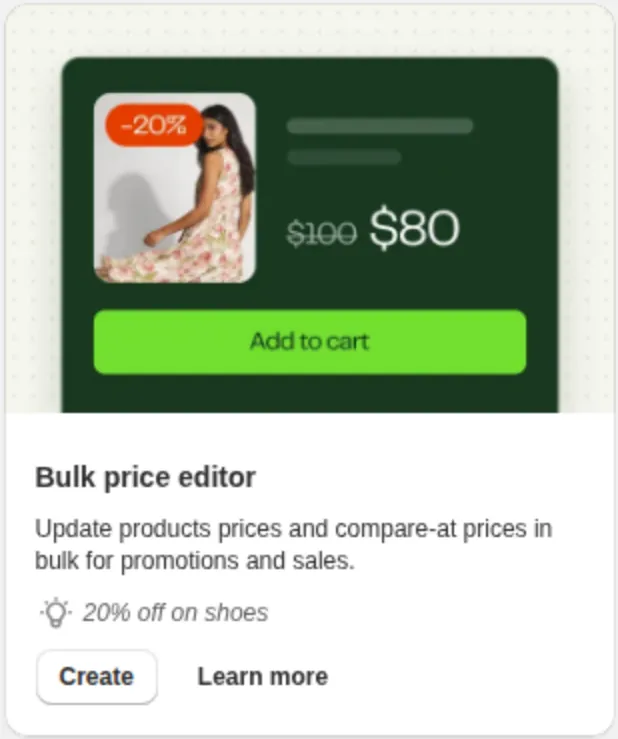
Bulk price editor | Product price and compare-at price are changed on the product itself | Everywhere the product is sold (Online Store, POS and other channels) | Sales, clearances, storewide promotions |
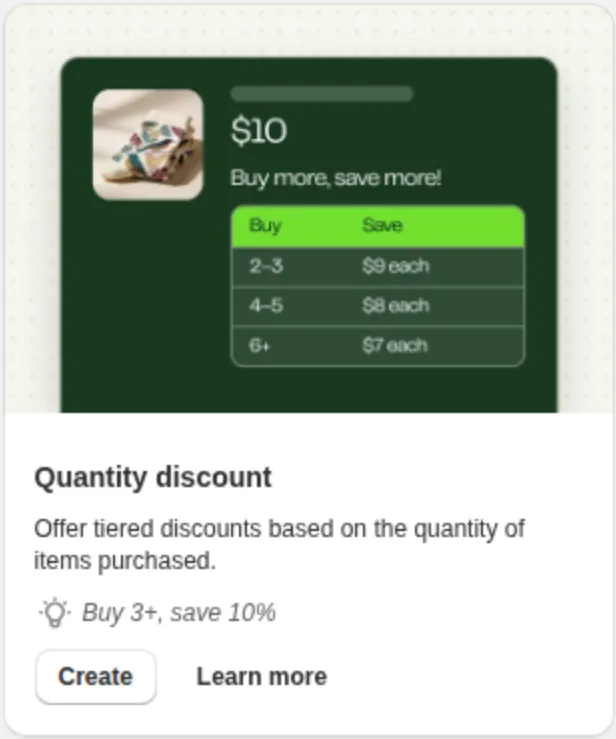
Quantity discount | Automatic discount in cart and checkout | Tier table on the product page, then cart and checkout | Buy more, save more |
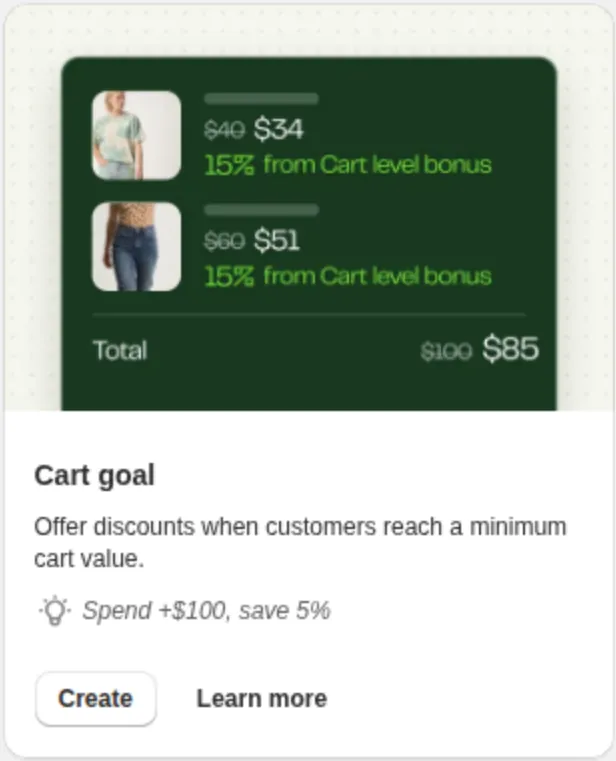
Cart goal | Automatic discount in cart and checkout | Tier table on the product page, then cart and checkout | Spend more, save more |
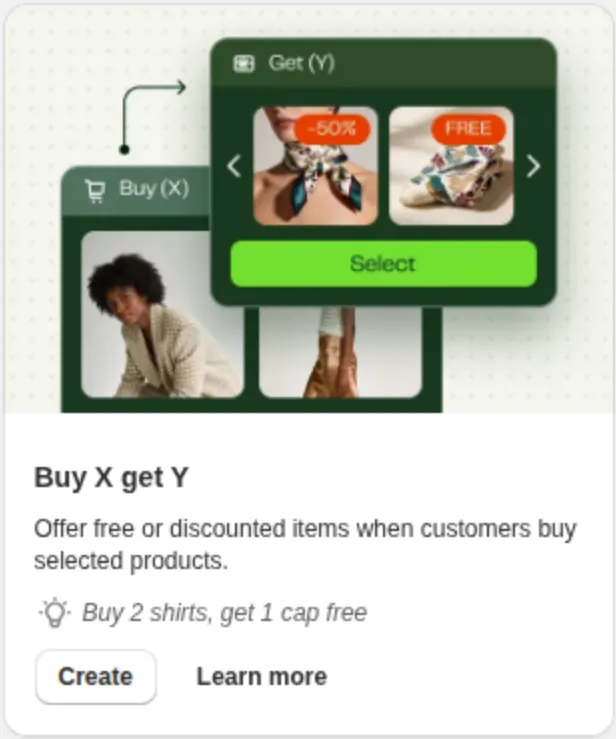
Buy X get Y | Automatic discount in cart and checkout | Reward pop-up and floating button, then cart and checkout | BOGO, free gifts, bundles |
Advanced discount code | Discount code entered at checkout | Checkout, after the code is entered | One code that combines product, order and shipping discounts |
Shipping discount | Automatic discount or discount code | Shipping progress bar on product and cart pages, then checkout | Free or reduced shipping |
Bulk price editor: change product prices directly
What it does: Update product prices and compare-at prices in bulk for promotions and sales. Discounty writes the new price and the compare-at price to each selected product, so the discount is a real price change rather than a discount applied at checkout.
When to use it: Sales and clearances, storewide promotions such as Black Friday, or any time you want the discounted price to show on the product page and in every sales channel where the product is published.
How it is applied: As a price change on the product. The new price is visible wherever the product is published (Online Store, POS and other channels). Most themes show the compare-at price with a strikethrough, but that depends on your theme; see Where do the strikethrough price and Sale badge come from in a Bulk price editor campaign?.
Key options:
Discount/Pricing: Percentage, Fixed amount, or New price, applied to the products, collections or the whole store you select.
Product availability: include products published on the Online Store, on POS, or both.
Advanced price change features: Set specific price endings, For product already discounted, calculate the discount based on compare-at price, and Keep current price and set a higher compare-at price (the last two are available on selected plans).
Setup guide: How do I set up a Bulk price editor campaign?. Video: watch the walkthrough.
Quantity discount: reward customers for buying more items
What it does: Offer tiered discounts based on the quantity of items purchased, for example "Buy 3+, save 10%".
When to use it: Raising the average order value, or offering bulk pricing on selected products.
How it is applied: As an automatic discount in the cart and at checkout. Product prices are not changed. The tiers are shown on the product page by the Quantity/Value table widget.
Key options:
Discount/Pricing: Percentage, Fixed amount, or New price per tier, each with a Minimum quantity of items. Adding extra tiers is available on selected plans.
Discount conditions: Mix of products (any combination of eligible products counts toward the tier) or Same variants (customers must add the same variant).
Customer eligibility, sales channel and purchase type restrictions.
Setup guide: How do I set up a Quantity discount campaign?. Widget setup: How to set up and customize the Quantity/Value table widget in Discounty?. Video: watch the walkthrough.
Cart goal: reward customers for spending more
What it does: Offer discounts when customers reach a minimum cart value, for example "Spend $100+, save 5%".
When to use it: Encouraging a higher spend on selected products or across the store.
How it is applied: As an automatic discount in the cart and at checkout. Product prices are not changed. The tiers are shown on the product page by the same Quantity/Value table widget used for Quantity discount.
Key options:
Discount/Pricing: Percentage, Fixed amount, or New price per tier, each with a Minimum purchase amount.
Discount conditions: Mix of products or Same variants.
Customer eligibility, sales channel and purchase type restrictions.
Setup guide: How do I set up a Cart goal campaign?. If a Quantity discount or Cart goal is not applying, see Why is the Quantity discount or Cart goal campaign not applying? Troubleshooting guide. Video: watch the walkthrough.
Buy X get Y: give a free or discounted reward
What it does: Offer free or discounted items when customers buy selected products, for example "Buy 2 shirts, get 1 cap free".
When to use it: BOGO and "buy 2 get 1" offers, free gifts with purchase, and bundles of complementary products.
How it is applied: With the Automatic method, as an automatic discount in the cart and at checkout. With the Discount code method, customers enter the code at checkout. With the Automatic method and depending on the reward selection method, customers pick the reward in a pop-up (a floating button reopens it if closed) or the free gift is added to the cart for them.
Key options:
Customer buys (X): the qualifying products with a Minimum quantity of items or a Minimum spend amount; Customer gets (Y): the reward products and the Get Y quantity.
Reward type (Discount type): Discount percentage, Fixed amount discount, or Free gift.
Reward selection method: Manual selection, Show pop-up, or Auto-add to cart (free gifts only). Pop-up and auto-add are available on selected plans.
Setup guide: How to create a Buy X get Y (BXGY) campaign in Discounty?. See also Buy X get Y pop-up guide and FAQs about Buy X get Y (BXGY) campaigns. Video: watch the walkthrough.
Advanced discount code: product, order and shipping discounts in one code
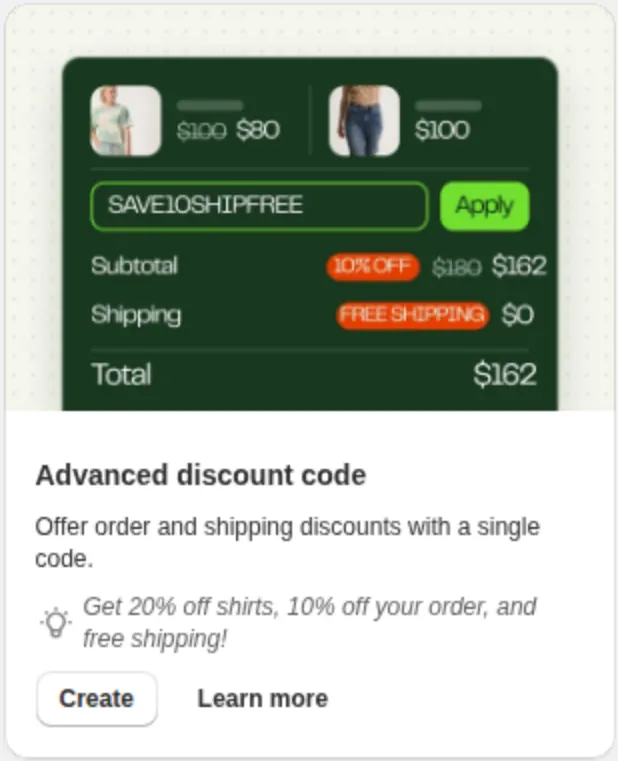
What it does: Offer order and shipping discounts with a single code, optionally together with a product discount, for example "Get 20% off shirts, 10% off your order, and free shipping".
When to use it: Promo codes for email, social or influencer campaigns, and any offer that should only apply when the customer enters a code.
How it is applied: As a discount code. Customers must enter this code at checkout; the discount is not applied automatically. You can also share a Shareable discount link that applies the code for the customer.
Key options:
Product discount: Percentage, Fixed amount discount, or New price on the products you choose, with Mix of products or Same variants conditions.
Order discount with No minimum requirements, a Minimum purchase amount, or a Minimum quantity of items; and a Shipping discount of Percentage, Fixed amount, or Free shipping.
Maximum discount uses and Customer eligibility (available on selected plans).
Setup guide: How do I set up an Advanced discount code campaign?. Video: watch the walkthrough.
Shipping discount: free or reduced shipping
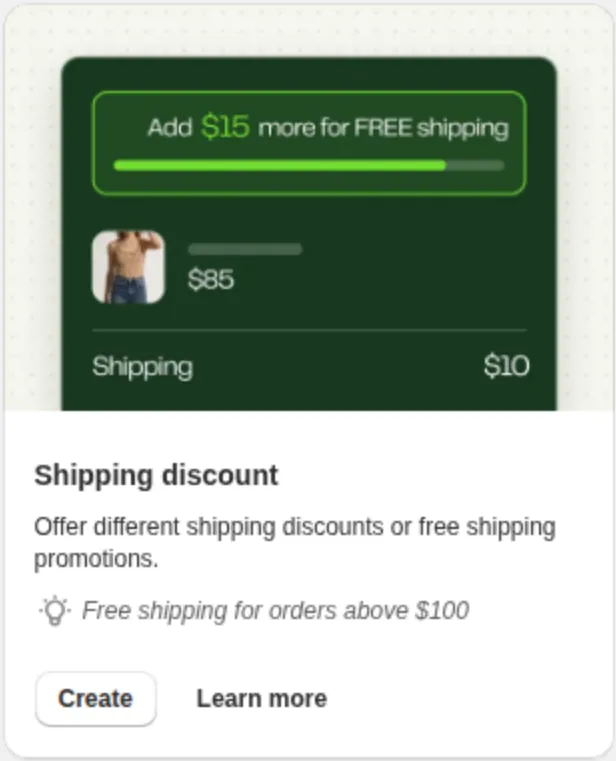
What it does: Offer different shipping discounts or free shipping promotions, for example "Free shipping for orders above $100".
When to use it: Removing shipping cost as a reason to abandon the cart, or nudging customers toward a free-shipping threshold.
How it is applied: You choose the Discount method: Automatic discount (applied at checkout with no code) or Discount code (customers must enter this code at checkout). With the automatic method you can show the Shipping progress bar widget on product and cart pages so customers see how far they are from the threshold.
Key options:
Discount of Percentage, Fixed amount, or Free shipping, with Minimum purchase requirements of No minimum requirements, a Minimum purchase amount, or a Minimum quantity of items.
Countries: apply to All countries or include or exclude selected countries (available on selected plans).
Enable progress bar widget for this campaign: automatic discounts only, one campaign at a time (available on selected plans).
Setup guide: How do I set up a Shipping discount campaign?. Widget setup: How do I use the Shipping progress bar widget to offer free shipping?. Video: watch the walkthrough.
Related articles
Need a hand? Contact our support team through the app — we're happy to help.