


How do I set up a Shipping discount campaign?
Set up a Shipping discount: code or automatic, minimums and tiers, countries, progress bar, combinations, customer segments, schedule.
A Shipping discount campaign gives customers free or cheaper shipping, either automatically or with a code. Shipping costs are a common reason shoppers leave at checkout, so a free-shipping threshold such as "Free shipping on orders over $50" can win back those sales and encourage bigger carts. Shipping discount is available on the Lite plan and above.
Below, each step matches one card on the campaign form, in the order you see it.
Prefer to watch? This walkthrough shows the full setup step by step:
 Play the video: How do I set up a Shipping discount campaign?
What a Shipping discount campaign does
The campaign creates a shipping discount in Shopify that applies to the shipping rate at checkout. You can take a percentage or a fixed amount off shipping, or make it free, with or without a minimum purchase amount or quantity, and limit it to specific countries.
A Shipping discount applies to shipping for the whole cart. You can't limit it to specific products: Target specific products is shown as coming soon in the Condition based discount card on the right of the form. Click Feature request in that card to tell us which conditions would help you sell more.
How to set up a Shipping discount campaign
Go to Campaigns, click Create campaign, and choose Shipping discount.
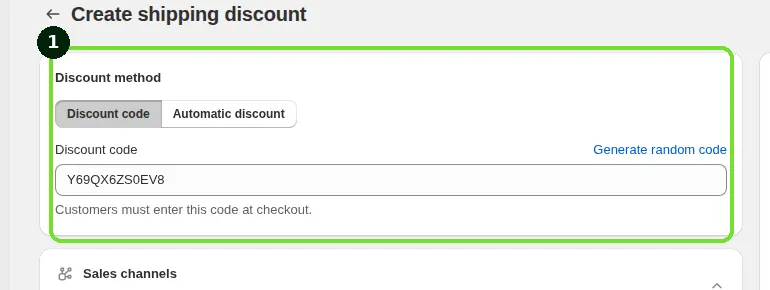
Step 1: Choose the Discount method
In the Discount method card, choose how customers get the discount:
Discount code (default): customers must enter the code at checkout. Type the code in the Discount code field, for example FREESHIP, or click Generate random code. The code is also the campaign's name, and it must be unique among your Shipping discount and Advanced discount code campaigns.
Automatic discount: the discount applies at checkout without a code. Enter a Title, for example "Free shipping over $50". Customers see this in their cart and at checkout. The title must be unique among your active automatic Shipping discount campaigns.
You can't change the discount method after the campaign is created. To switch, create a new campaign.
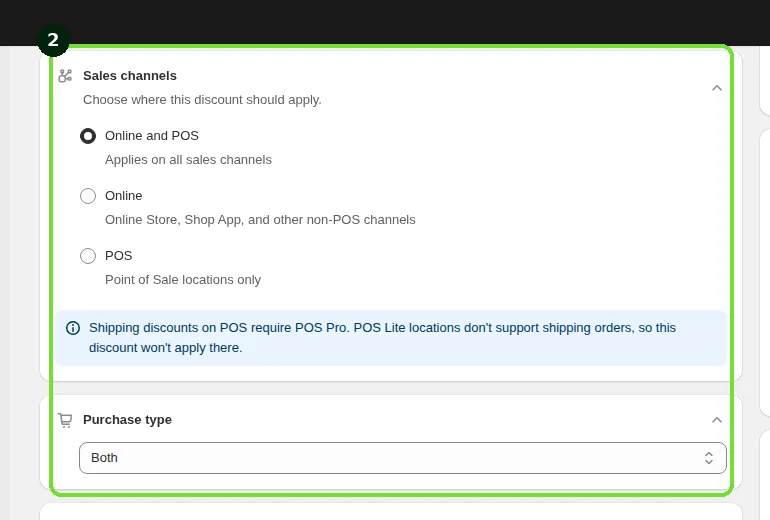
Step 2: Choose the Sales channels and Purchase type
Sales channels: choose Online and POS (default), Online, or POS. With Online and POS or POS, the form shows: "Shipping discounts on POS require POS Pro. POS Lite locations don't support shipping orders, so this discount won't apply there." Changing the sales channel is available on the Discounty plan and above. See How do Discounty discounts work with Shopify POS?.
Purchase type: choose whether the campaign applies to One-time purchase items, Subscription items, or Both (default). Choosing One-time purchase or Subscription only is available on the Essential plan and above. See How do I apply a discount only to subscription (or one-time) purchases?.
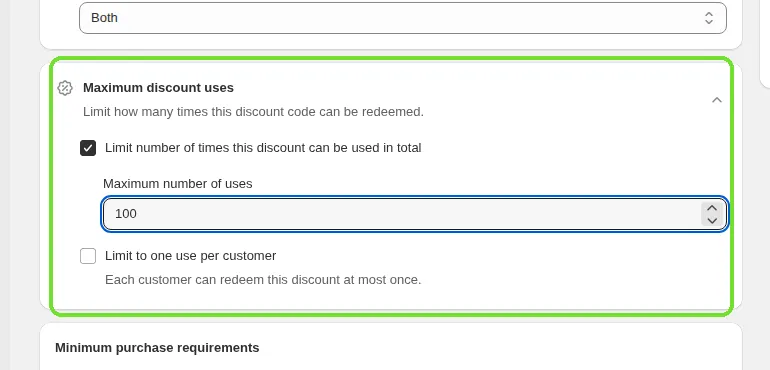
Step 3: Set the Maximum discount uses (discount codes only)
With Discount code, a Maximum discount uses card limits how many times the code can be redeemed. Both options are off by default:
Limit number of times this discount can be used in total: select it and enter the Maximum number of uses (at least 1) across all customers.
Limit to one use per customer: each customer can redeem this discount at most once.
This card doesn't appear for Automatic discount campaigns. Maximum discount uses is available on the Discounty plan and above.
Step 4: Set the minimum purchase requirements and discount
In the Minimum purchase requirements card, first choose what the customer must do to get the discount:
No minimum requirements (default): every order gets the discount.
Minimum purchase amount: for example, spend $50 to unlock free shipping.
Minimum quantity of items: for example, buy 3 or more items.
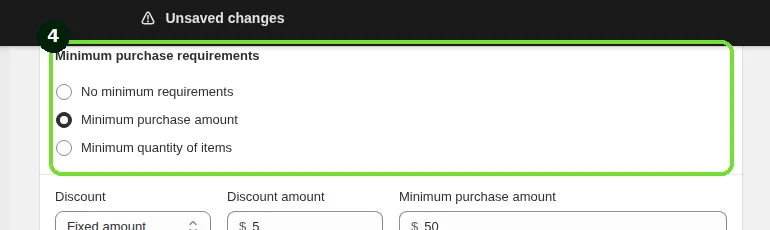
Then, in the same card, set the discount:
Under Discount, choose Percentage, Fixed amount (default) or Free shipping.
For Percentage or Fixed amount, enter the Discount amount.
If you chose a minimum, enter the Minimum purchase amount or Minimum quantity of items.
To offer more than one level, click Add discount tier, for example $5 off shipping from $50 and $10 off from $100. Each tier's minimum must be greater than the previous tier's. Tiers are only available with a minimum requirement, and not with Free shipping.
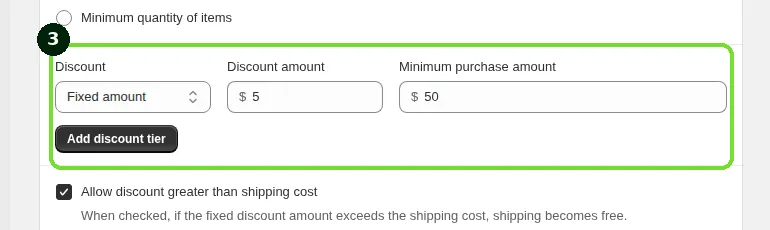
The highest tier whose minimum is met applies. With Fixed amount, you can also select Allow discount greater than shipping cost. When it's checked and the fixed amount exceeds the shipping cost, shipping becomes free. When it isn't checked and the fixed amount is larger than the shipping cost, the discount isn't applied.
Examples:
Free shipping on orders over $50: Minimum purchase amount, Free shipping, minimum $50.
$5 off shipping when buying 3+ items: Minimum quantity of items, Fixed amount $5, minimum 3.
Step 5: Choose the Countries
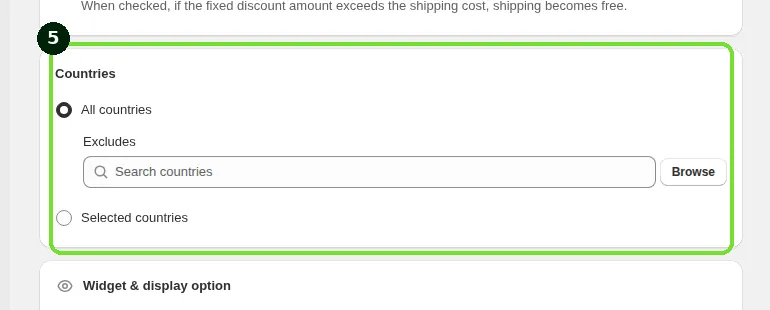
In the Countries card, choose where the shipping discount applies. The discount applies when the delivery address is in an allowed country.
All countries (default): every country in your Shopify Markets. To leave some out, add them under Excludes with the Search countries field or Browse.
Selected countries: only the countries you add with Search countries or Browse.
For example, offer free shipping everywhere except Germany and Italy (All countries with those two under Excludes), or only to the US and UK (Selected countries). You can only choose countries from your store's active Shopify Markets. Learn more about Shopify Markets.
Step 6: Show the Shipping progress bar (optional)
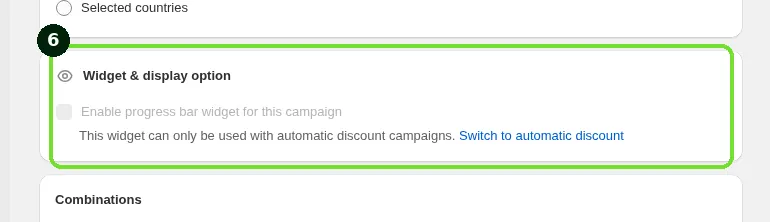
In the Widget & display option card, select Enable progress bar widget for this campaign to show customers a live bar that updates as they add items and tells them how much more they need for the shipping discount. Click Try widget customization to change how it looks.
The progress bar works only with Automatic discount campaigns. With Discount code, the checkbox is disabled and shows "This widget can only be used with automatic discount campaigns." Click Switch to automatic discount to change the method while you're still creating the campaign.
The Shipping progress bar is available on the Essential plan and above. On a lower plan, the checkbox is disabled with an Upgrade now link.
The widget can be active in one campaign at a time. Enabling it here removes it from any other campaign. To offer different thresholds, use discount tiers in one campaign.
For setup and styling, see How do I use the Shipping progress bar widget to offer free shipping?.
Step 7: Combinations (optional)
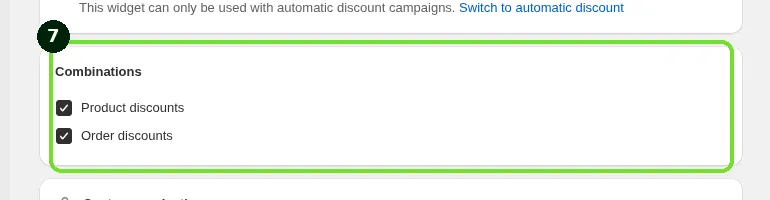
By default, a Shipping discount doesn't combine with other discounts. In the Combinations card, select Product discounts and/or Order discounts to let it apply together with those discounts from other Discounty campaigns, Shopify, or other apps. The other discount must also allow combining with shipping discounts. A Shipping discount can never combine with another shipping discount: Shopify applies only one shipping discount per order. See How do Discounty campaigns combine with each other, Shopify discounts, and third-party app discounts?.
Step 8: Choose who can use the discount
In the Customer selection card, choose All customers (default) or Specific customer segments, then search or Browse for Shopify customer segments. Due to Shopify's limit, you can add up to 5 segments to an automatic discount campaign and up to 100 segments to a discount code campaign. With a discount code, guest customers can enter the code and see the discount, but it's only applied after they provide an email that matches a selected segment. Customer segments are available on the Discounty plan and above. See How do I limit a Discounty campaign to specific customer segments?.
Step 9: Set the schedule
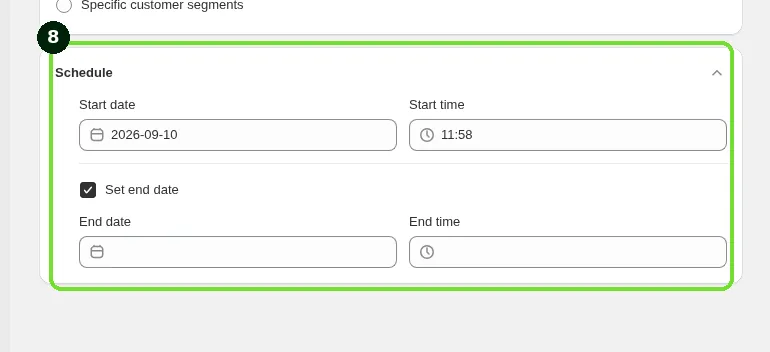
In the Schedule card, set the Start date and Start time. To end the campaign automatically, select Set end date and set the End date and End time. Setting an end date is available on every plan.
Each automatic Shipping discount campaign creates one Shopify automatic discount. If you schedule one, the form reminds you to make sure your store won't exceed Shopify's limit of 25 active automatic discounts when it goes live; otherwise it won't be created. Discount code campaigns don't count toward this limit. See Is there a limit on the number of campaigns I can create?.
Step 10: Check the summary and save
The summary card on the right shows the code or title, the discount, the minimum requirement, the countries, the customers and the schedule. When it looks right, save the campaign.
Editing an active campaign
While a campaign is Active, you can only change its end date and time. The app shows "You can only change end time of an active campaign. You have to deactivate the campaign to edit other fields." To change anything else, click Deactivate, edit the campaign, and activate it again. See Campaign statuses in Discounty.
If the shipping discount isn't applying
Check that the campaign status is Active, that the customer entered the code exactly (for discount codes), that the cart meets the minimum requirement, that the delivery address is in an allowed country, and that the sales channel, purchase type and customer selection match the order. If the cart also has another shipping discount, Shopify applies only one of them.
Related articles
Need a hand? Contact our support team through the app — we're happy to help.
In Discounty: Shipping discount See how a Shopify free shipping discount works