


How do I set up an Advanced discount code campaign?
Create one Discounty code that discounts products, the order total and shipping: requirements, compare-at option, combinations, share link.
An Advanced discount code is one discount code that can do up to three things at once: take money off specific products, off the order total, and off shipping. Customers enter a single code at checkout and get every discount you turned on, so you can run offers like "15% off the Spring collection + free shipping" without juggling several codes. Advanced discount code is available on the Essential plan and above.
Below, each step matches one card on the campaign form, in the order you see it.
Prefer to watch? This walkthrough shows the full setup step by step:
 Play the video: How do I set up an Advanced discount code campaign?
What an Advanced discount code campaign does
The campaign creates a discount code in Shopify that can carry a Product discount, an Order discount and a Shipping discount. You turn on any one, two or all three. Because it's a code discount, it doesn't count toward Shopify's limit of 25 active automatic discounts, but it does follow Shopify's rules for discount codes at checkout.
If your plan doesn't include Advanced discount code, you can still build the campaign: click Continue and save as draft in the upgrade prompt. The campaign is saved but stays Blocked until you upgrade to the Essential plan or above.
How to set up an Advanced discount code campaign
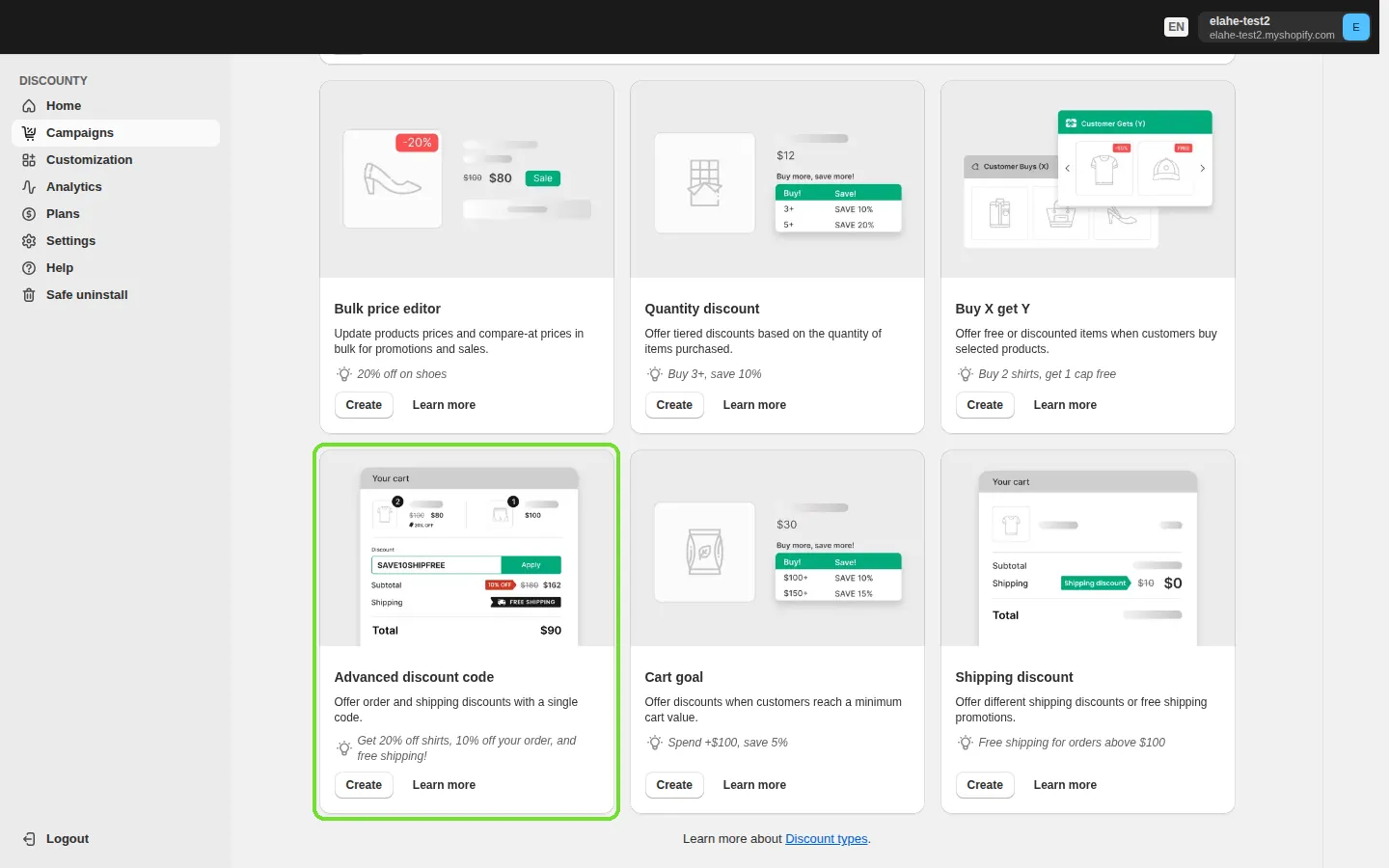
Go to Campaigns, click Create campaign, and choose Advanced discount code. The form opens as Create advanced discount code.
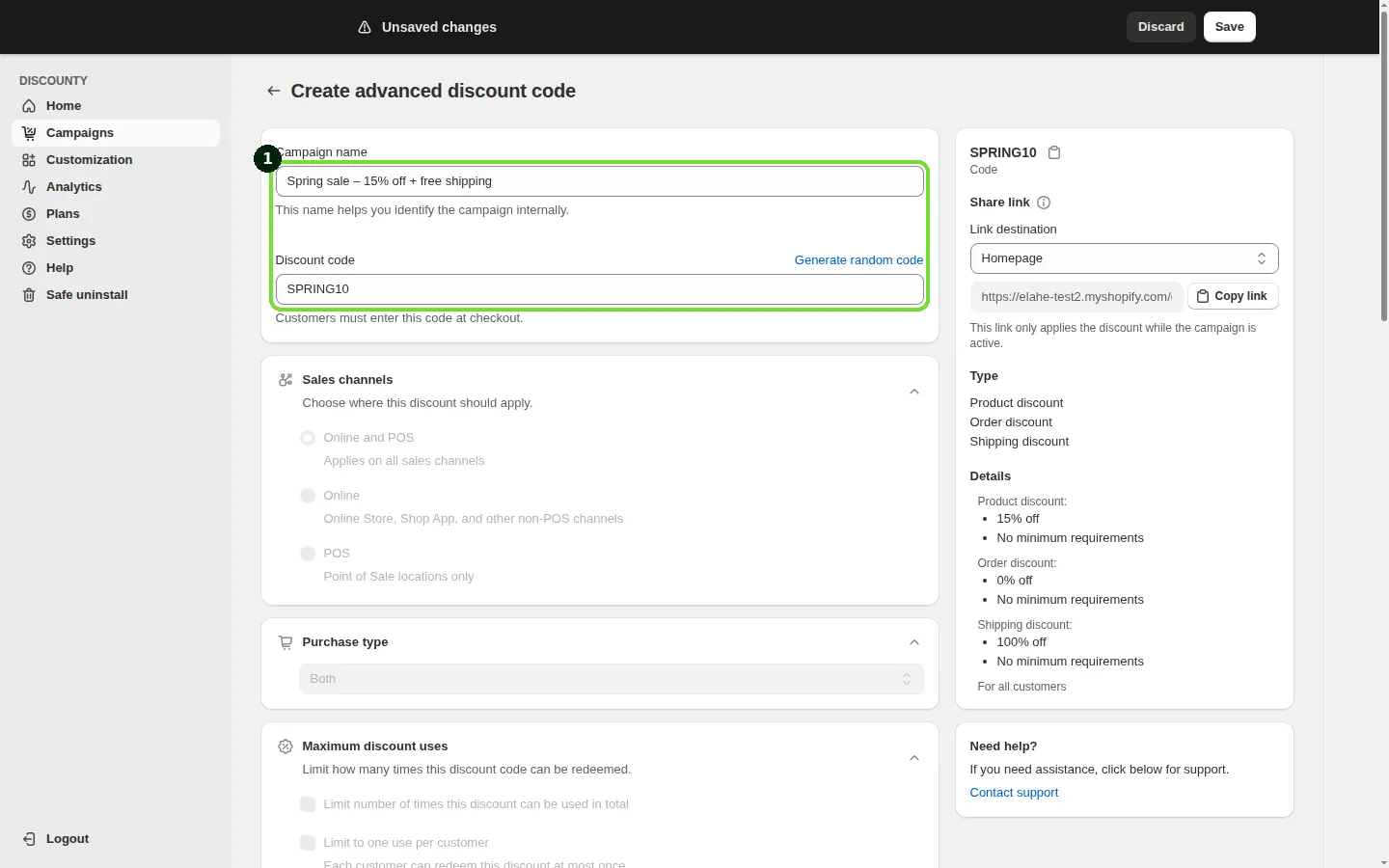
Step 1: Name the campaign and set the discount code
In the first card of the form:
Campaign name: an internal name, for example "Spring sale – 15% off + free shipping". This name helps you identify the campaign internally; customers don't see it.
Discount code: type the code customers will enter, for example SPRING10, or click Generate random code. Customers must enter this code at checkout.
The code must be unique among your Advanced discount code and Shipping discount campaigns. Otherwise, the form shows "This discount code is already in use for this shop". If the same code already exists as another discount in your Shopify admin, the campaign goes to Error when it's activated. Change the code and activate it again.
Step 2: Choose the Sales channels
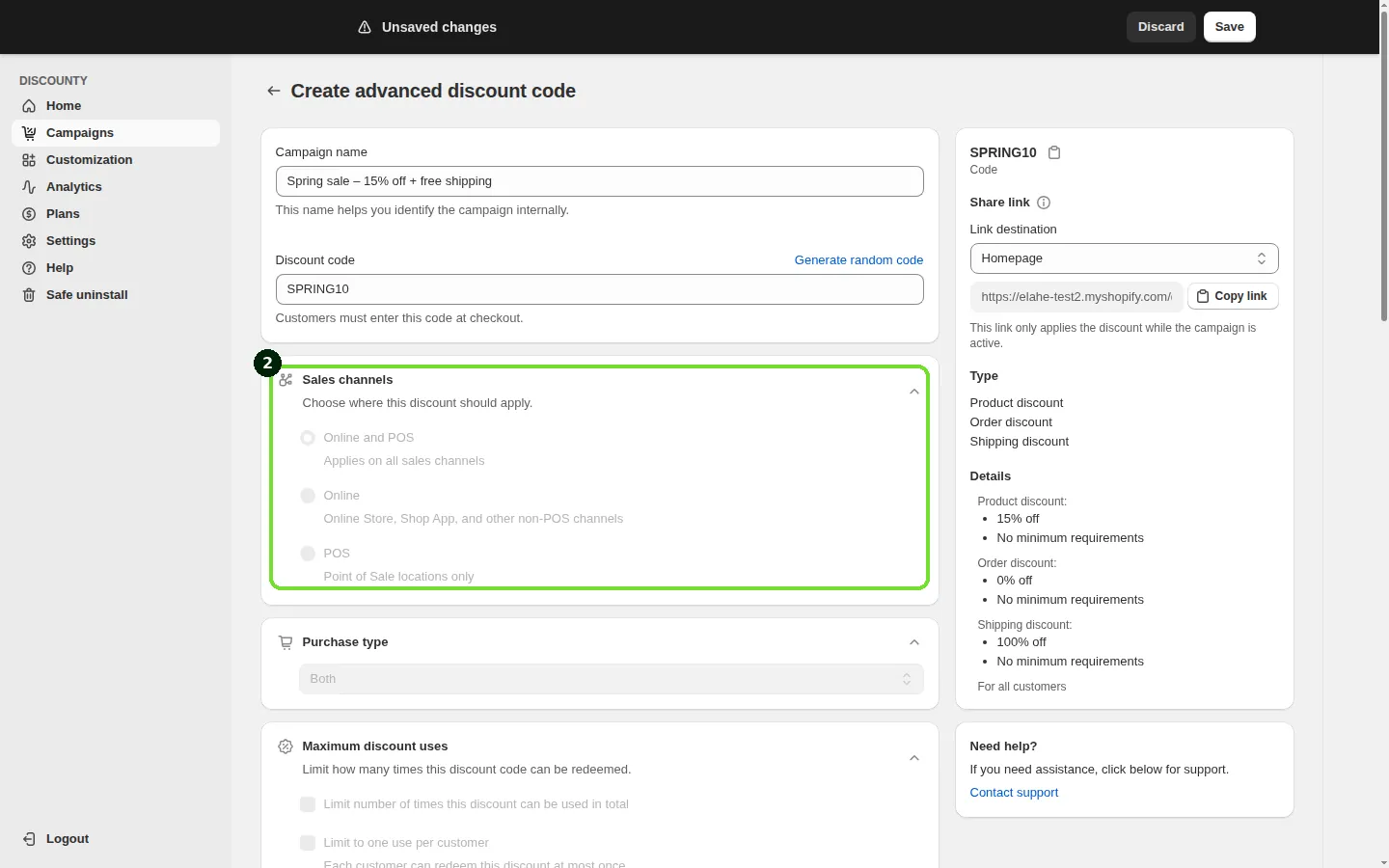
In the Sales channels card, choose where this discount applies:
Online and POS (default): applies on all sales channels.
Online: Online Store, Shop App, and other non-POS channels.
POS: Point of Sale locations only.
If a checkout happens on a channel the campaign doesn't cover, none of the code's discounts apply there. Changing the sales channel is available on the Discounty plan and above. See How do Discounty discounts work with Shopify POS?.
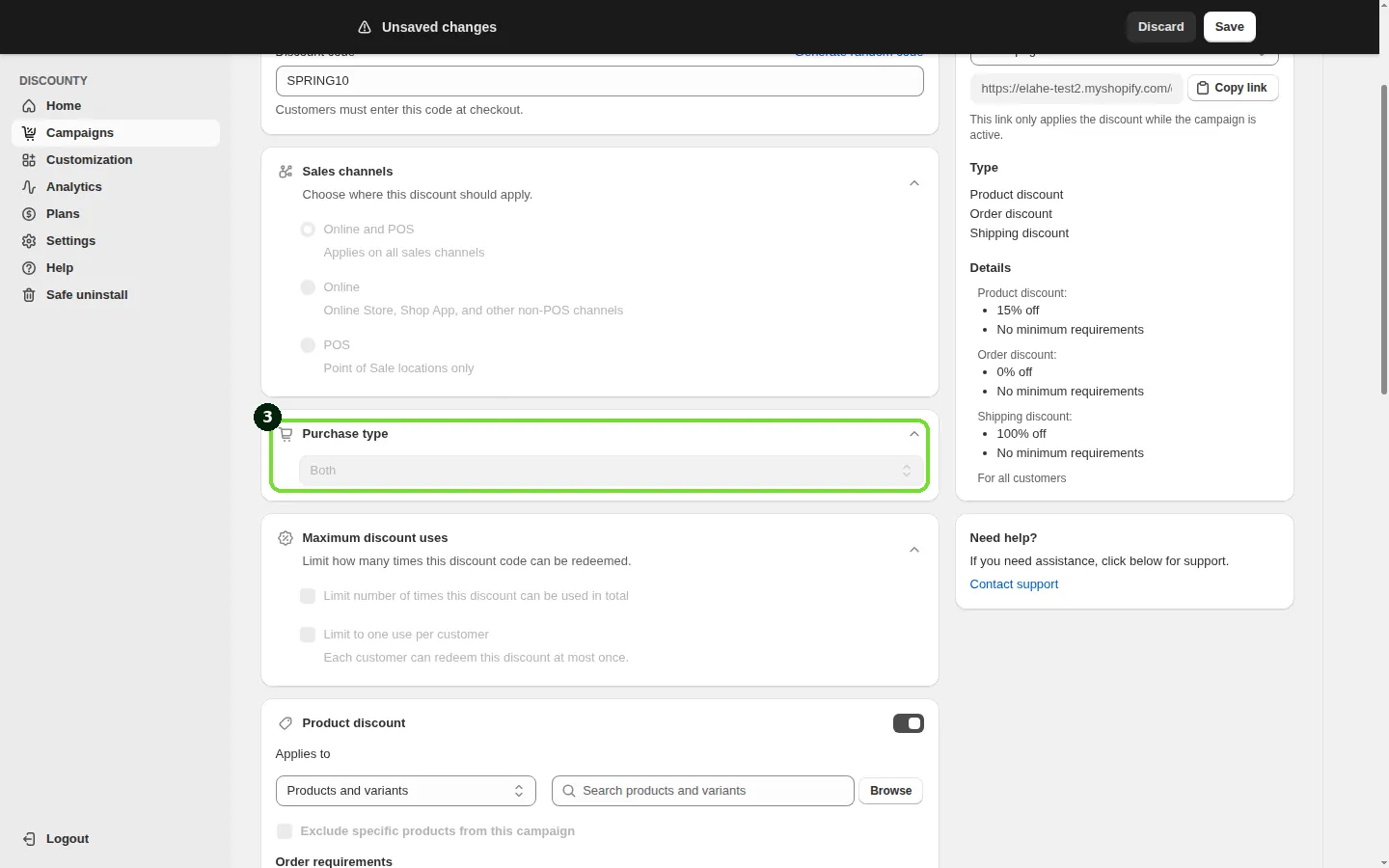
Step 3: Choose the Purchase type
In the Purchase type card, choose whether the code applies to One-time purchase items, Subscription items, or Both (default). Only cart lines that match the selected purchase type are discounted and counted toward the order and shipping requirements. Choosing One-time purchase or Subscription only is available on the Essential plan and above. See How do I apply a discount only to subscription (or one-time) purchases?.
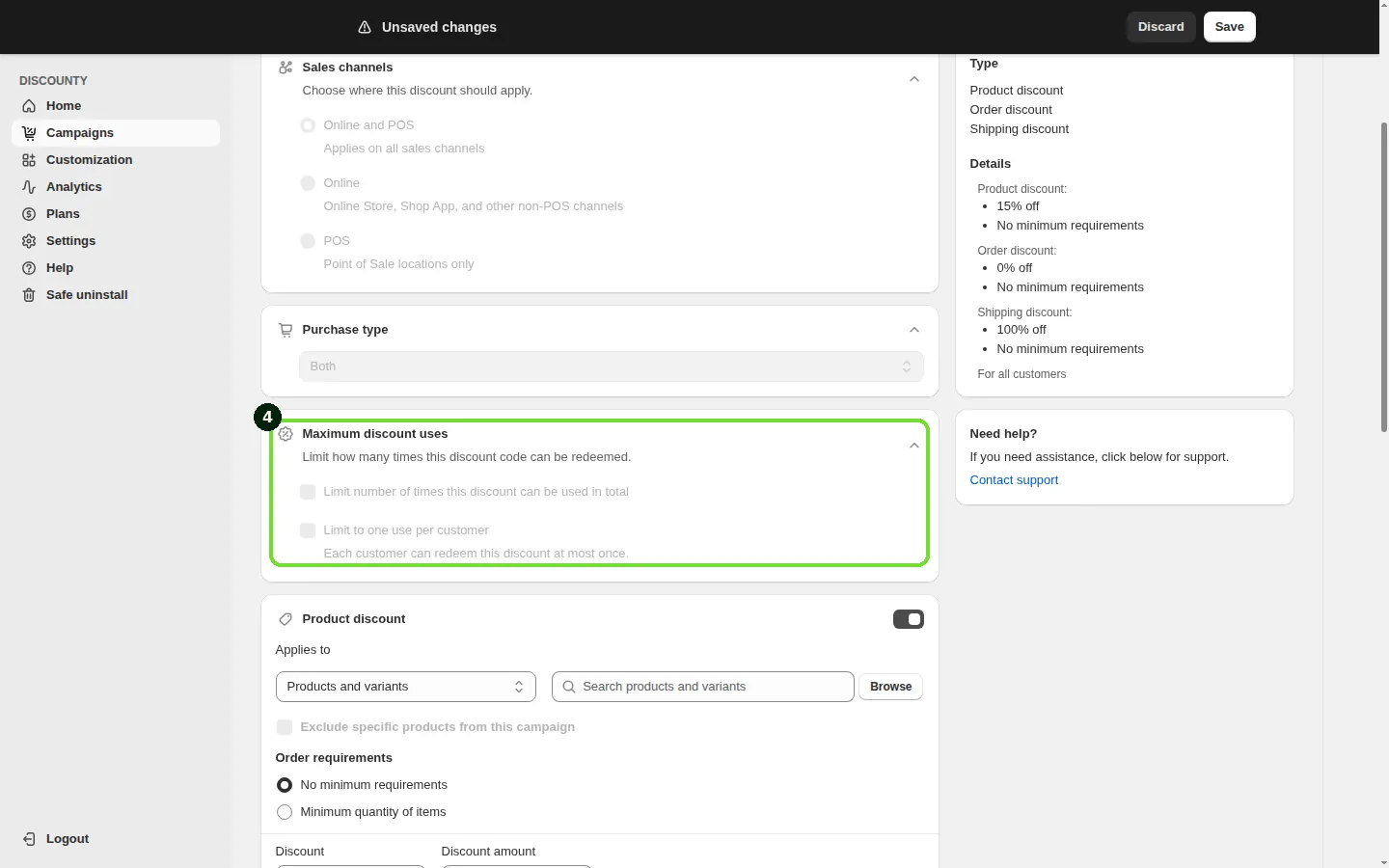
Step 4: Set the Maximum discount uses
The Maximum discount uses card limits how many times this discount code can be redeemed. Both options are off by default:
Limit number of times this discount can be used in total: select it and enter the Maximum number of uses (at least 1). Once the code has been redeemed that many times across all customers, it stops working.
Limit to one use per customer: each customer can redeem this discount at most once.
You can select either option, both, or neither. Discounty passes these limits to Shopify, which enforces them at checkout. Maximum discount uses is available on the Discounty plan and above.
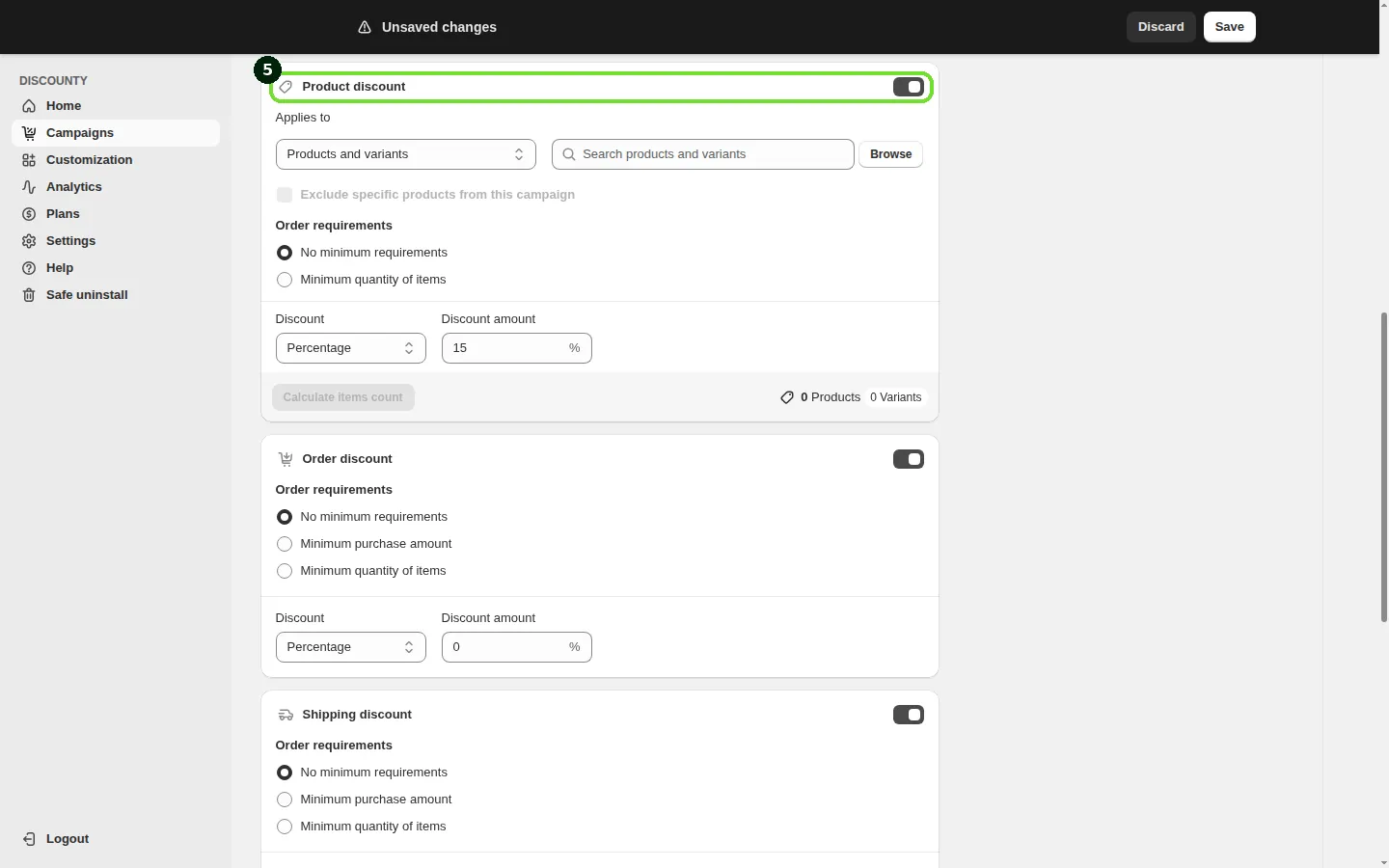
Step 5: Turn on the discounts you want under this code
The next three cards, Product discount, Order discount and Shipping discount, each have a toggle in the card header. All three are on when you open a new campaign; turn off the ones you don't need. At least one must stay on. The code then applies every discount that's on, as long as each one's own requirement is met.
You want to run | Product discount | Order discount | Shipping discount |
|---|---|---|---|
10% off the order + free shipping | Off | On | On |
15% off selected products + $10 off the order | On | On | Off |
20% off selected products + free shipping | On | Off | On |
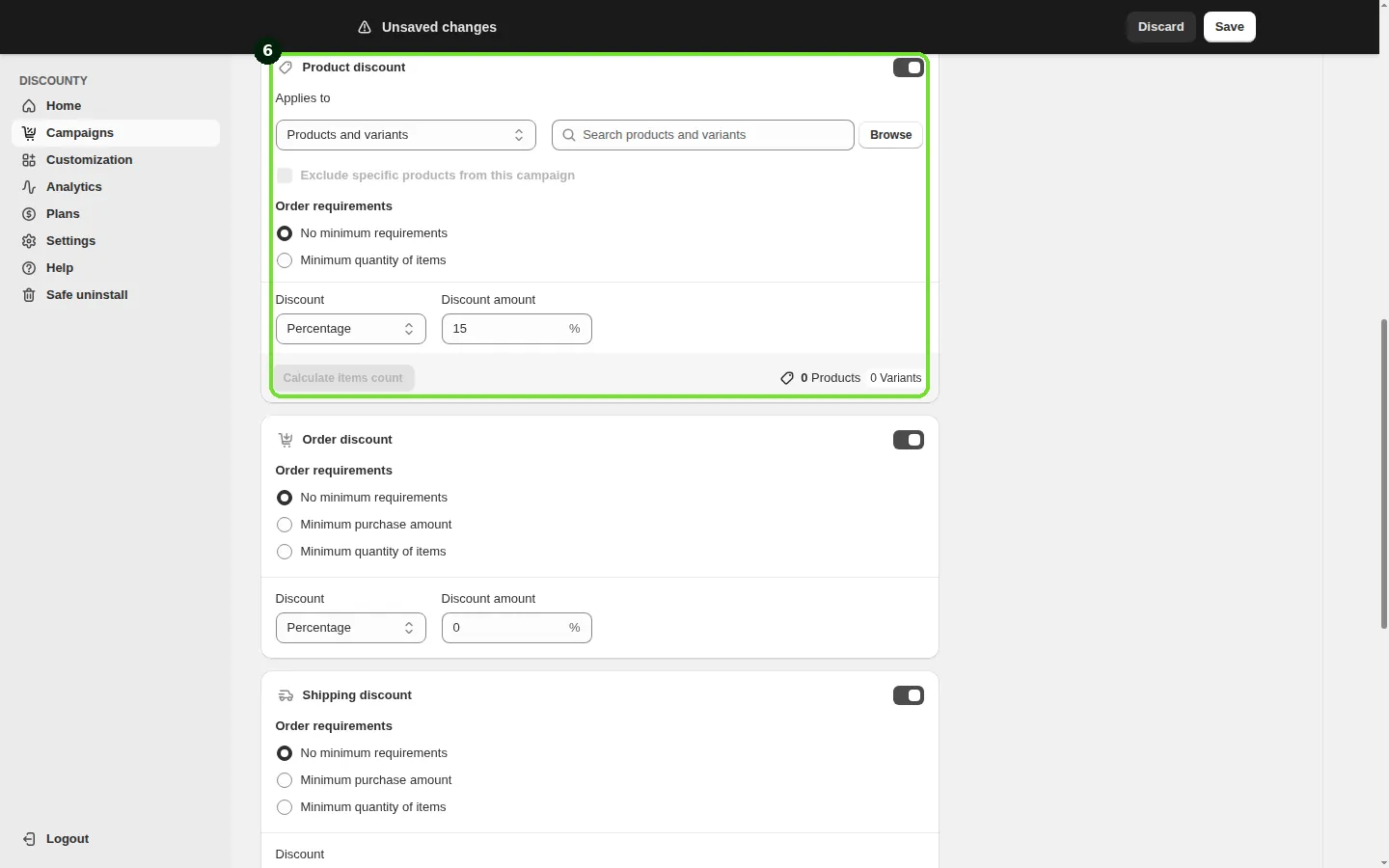
Step 6: Set up the Product discount
The Product discount card discounts specific items in the cart.
Under Applies to, pick a filter: Products and variants, Collections, Product tags, Vendors, or Product types, then use the search box or Browse to pick the items. With Products and variants, only the exact variants you select are discounted, so check every size and color you want included. You can select up to 100 product tags or 100 collections in one list.
To leave some items out, select Exclude specific products from this campaign and pick a second filter for the products to exclude. This option is available on the Lite plan and above, and not when the included products are chosen with Products and variants.
Under Order requirements, choose No minimum requirements (default), Minimum purchase amount, or Minimum quantity of items.
Under Discount, choose Percentage (for example 15% off each item, up to 100%), Fixed amount discount (for example $5 off each item), or New price (for example each item costs $20), and enter the Discount amount.
With Minimum quantity of items, enter the quantity for the first tier (a whole number of at least 1) and click Add discount tier for more thresholds, for example 2+ = 10% off and 5+ = 20% off. Each tier needs a different minimum quantity.
With Minimum purchase amount, enter the amount for the first tier (more than 0, with at most 2 decimals) and click Add discount tier for more thresholds, for example $50+ = 10% off and $100+ = 20% off. Each tier needs a different minimum purchase amount.
With a minimum requirement, also choose how it's counted: Mix of products (default), where customers qualify by adding any combination of eligible products and their quantity or spend is added together; or Same variants, where customers must add the same variant of a product and each line is checked on its own.
Click Calculate items count at the bottom of the card to see how many products and variants your selection covers.
How the product discount is applied:
Only cart lines that match Applies to (and aren't excluded) are discounted and counted toward the minimum.
With Minimum purchase amount, spend is the price × quantity of the eligible products only; anything else in the cart doesn't count.
The highest tier whose minimum quantity or amount is met applies, and meeting the threshold exactly counts. There is no upper cap.
Percentage and Fixed amount discounts are taken off each eligible item. With New price, the item is reduced to that price; an item already priced at or below the new price isn't discounted.
Calculate the discount from the compare-at price (optional)
For Percentage and Fixed amount discount, the Product discount card has the option For product already discounted, calculate the discount based on compare-at price. It's off by default, so the discount is calculated on the selling price unless you turn it on. It isn't available for New price, and it's available on the Lite plan and above.
Use it when your products are already priced below their compare-at price. With the option off, the code stacks on top of that existing markdown. With it on, the discount is taken off the compare-at price instead, so the customer pays the compare-at price minus your discount.
For example, a product has a compare-at price of $10 and a selling price of $8, and your code gives 30% off. With the option off, the customer pays $5.60 (30% off $8). With it on, the customer pays $7 (30% off $10).
If a product's current price is already lower than the price this would set, no extra discount is applied to it: a discount can only lower a price, not raise it. For example, with 10% off the same product, 10% off $10 is $9, which is higher than the $8 selling price, so that item gets no discount. Products with no compare-at price, or a compare-at price that isn't higher than the selling price, keep the normal selling-price discount.
Step 7: Set up the Order discount
The Order discount card takes money off the order total.
Under Order requirements, choose No minimum requirements (default), Minimum purchase amount, or Minimum quantity of items.
Under Discount, choose Percentage or Fixed amount and enter the amount. With a minimum requirement, enter the threshold and click Add discount tier to add more thresholds, for example $100+ = 10% off and $200+ = 15% off. Each tier's threshold must be higher than the previous one.
With Fixed amount, you can select Allow discount greater than order total. When it's checked and the fixed amount exceeds the order total, the entire order becomes free. When it isn't checked and the fixed amount is larger than the order total, the order discount doesn't apply.
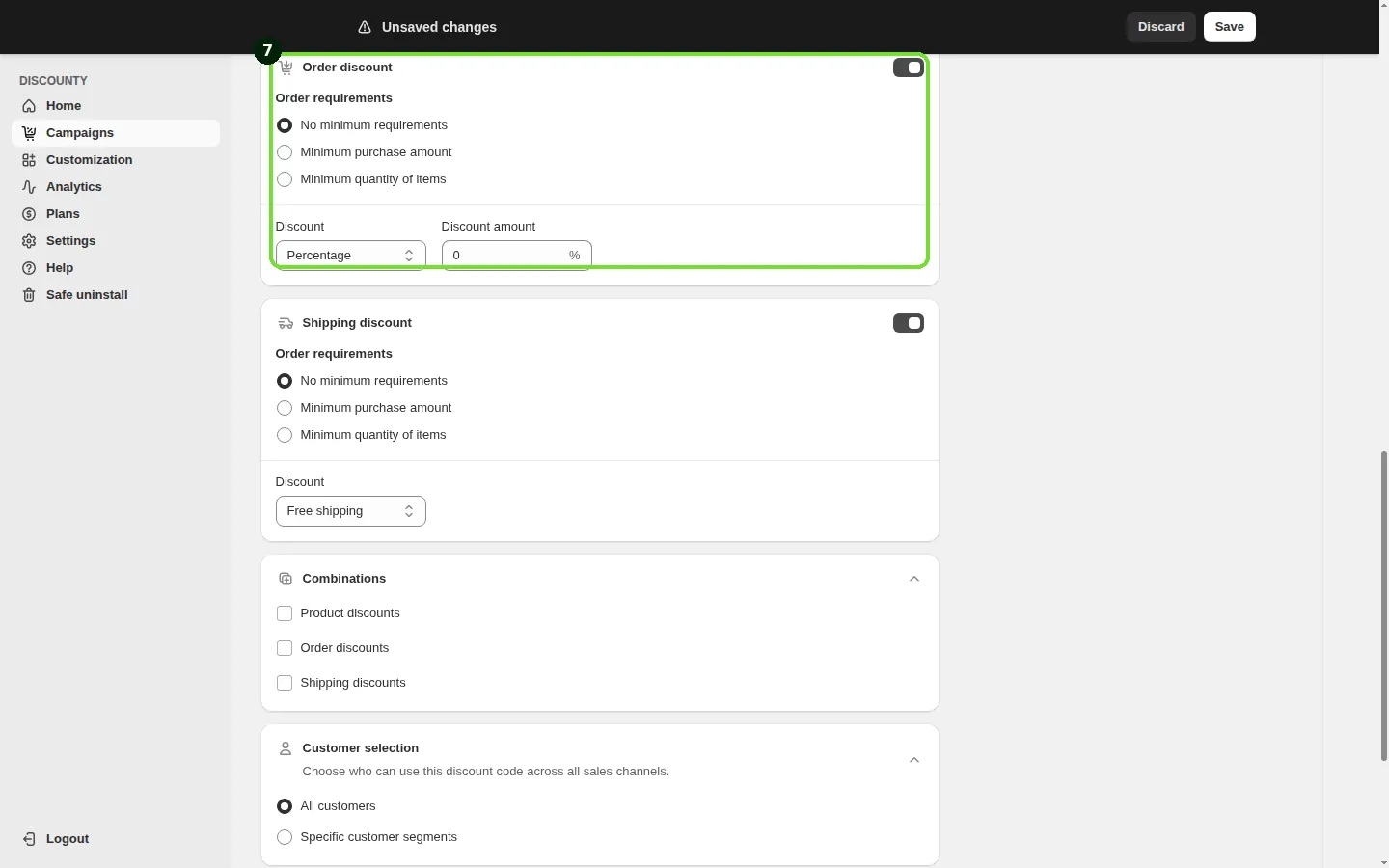
The order requirement is checked against the whole cart: every item counts toward Minimum quantity of items, not just discounted products. The highest tier whose threshold is met applies, and there is no upper cap. If $100+ gives 25% off, a $500 cart still gets 25% off.
Step 8: Set up the Shipping discount
The Shipping discount card takes money off the shipping rate.
Under Order requirements, choose No minimum requirements (default), Minimum purchase amount, or Minimum quantity of items.
Under Discount, choose Percentage, Fixed amount or Free shipping. With Percentage or Fixed amount and a minimum requirement, you can add tiers with Add discount tier; Free shipping has a single threshold.
With Fixed amount, you can select Allow discount greater than shipping cost. When it's checked and the fixed amount exceeds the shipping cost, shipping becomes free. When it isn't checked and the fixed amount is larger than the shipping cost, the shipping discount doesn't apply.
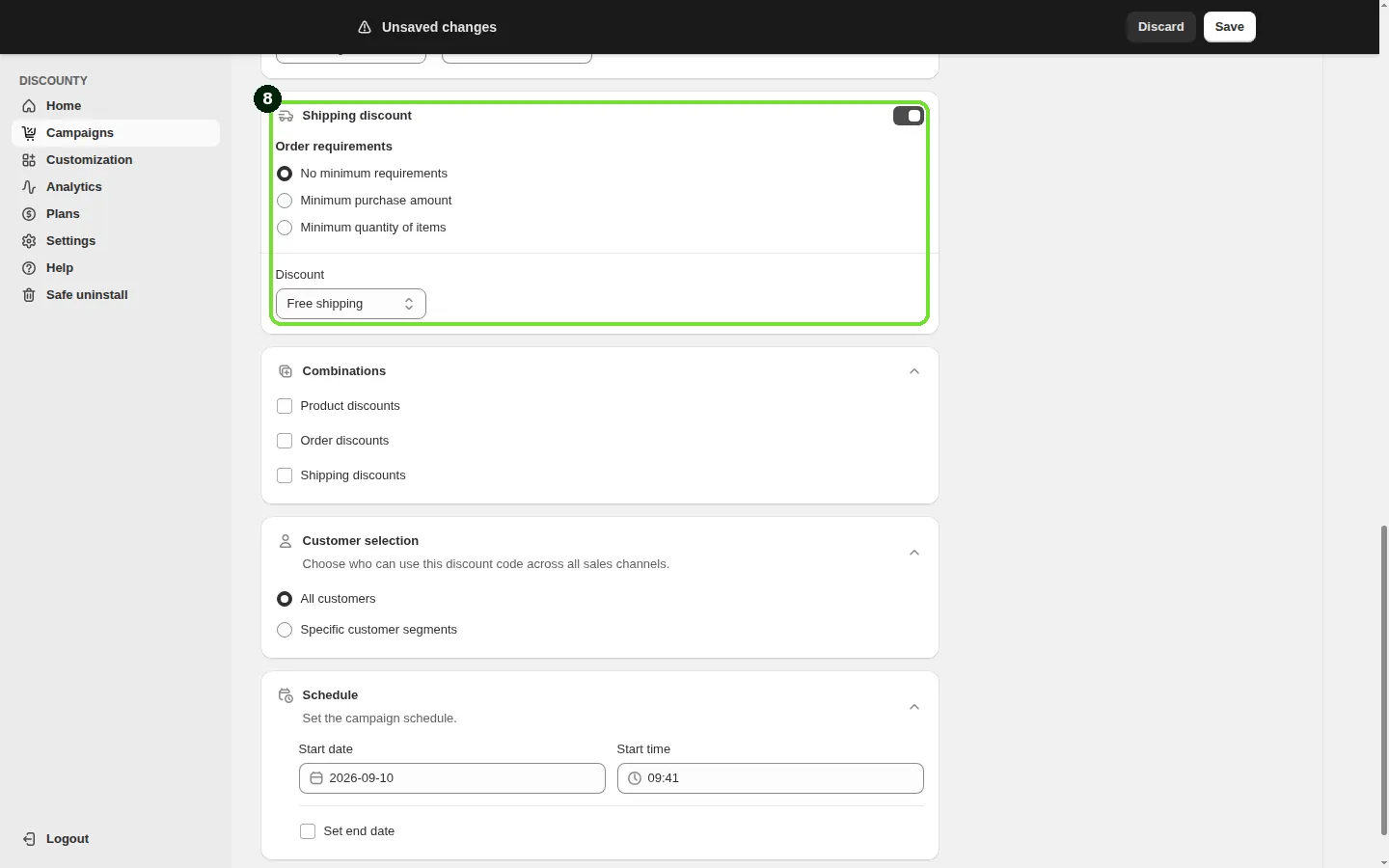
The shipping discount is judged only by its own Order requirements, against the whole cart. It isn't limited to the products selected in the Product discount card: if you turn on free shipping next to a product discount, shipping is free whenever the shipping requirement is met, whatever is in the cart. It applies to the selected shipping option of every delivery group in the checkout.
Step 9: Combinations (optional)
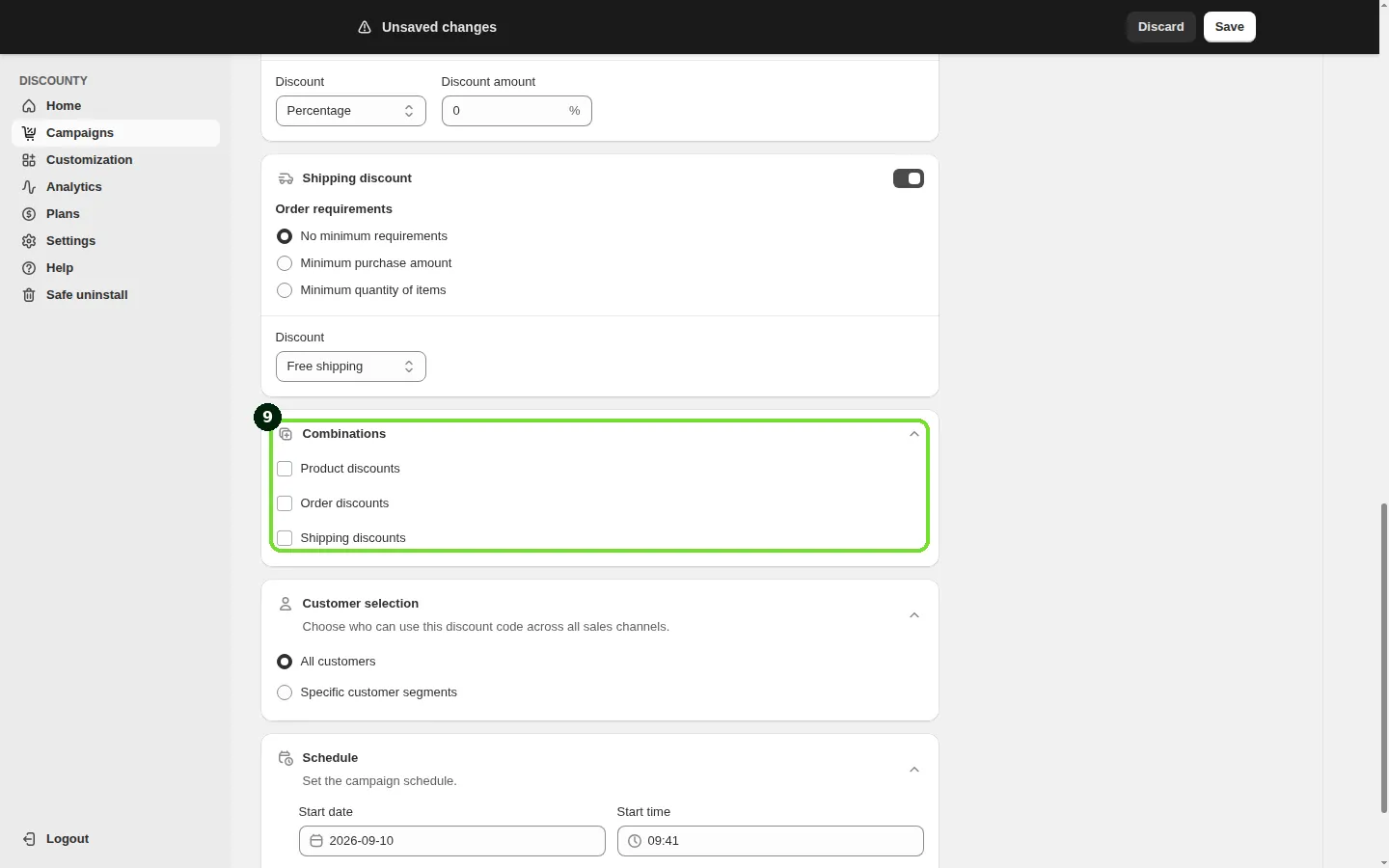
By default, the code doesn't combine with any other discount. In the Combinations card, select Product discounts, Order discounts and/or Shipping discounts to let it combine with those discount types from other Discounty campaigns, Shopify's own discounts, or other apps. Shipping discounts only matters when the Product discount or Order discount is on.
Combinations work both ways: the other discount must also allow combining with this code's discount types, otherwise Shopify applies only the best one for the cart. Shopify also sets platform rules; for example, a customer can use at most 5 product or order discount codes and 1 shipping discount code on the same order. See How do Discounty campaigns combine with each other, Shopify discounts, and third-party app discounts?.
When Product discounts is selected and the Product discount is on, Allow stacking on the exact same product(s) appears. By default, when a product is eligible for two or more product discounts, only the best discount is applied. Select this option and search for the Buy X get Y or Advanced discount code campaigns to stack with (up to 10), and all of them reduce the same cart line. It needs Shopify Plus and the Discounty plan or above. See How do I stack two product discounts on the same item?.
Step 10: Choose who can use the code
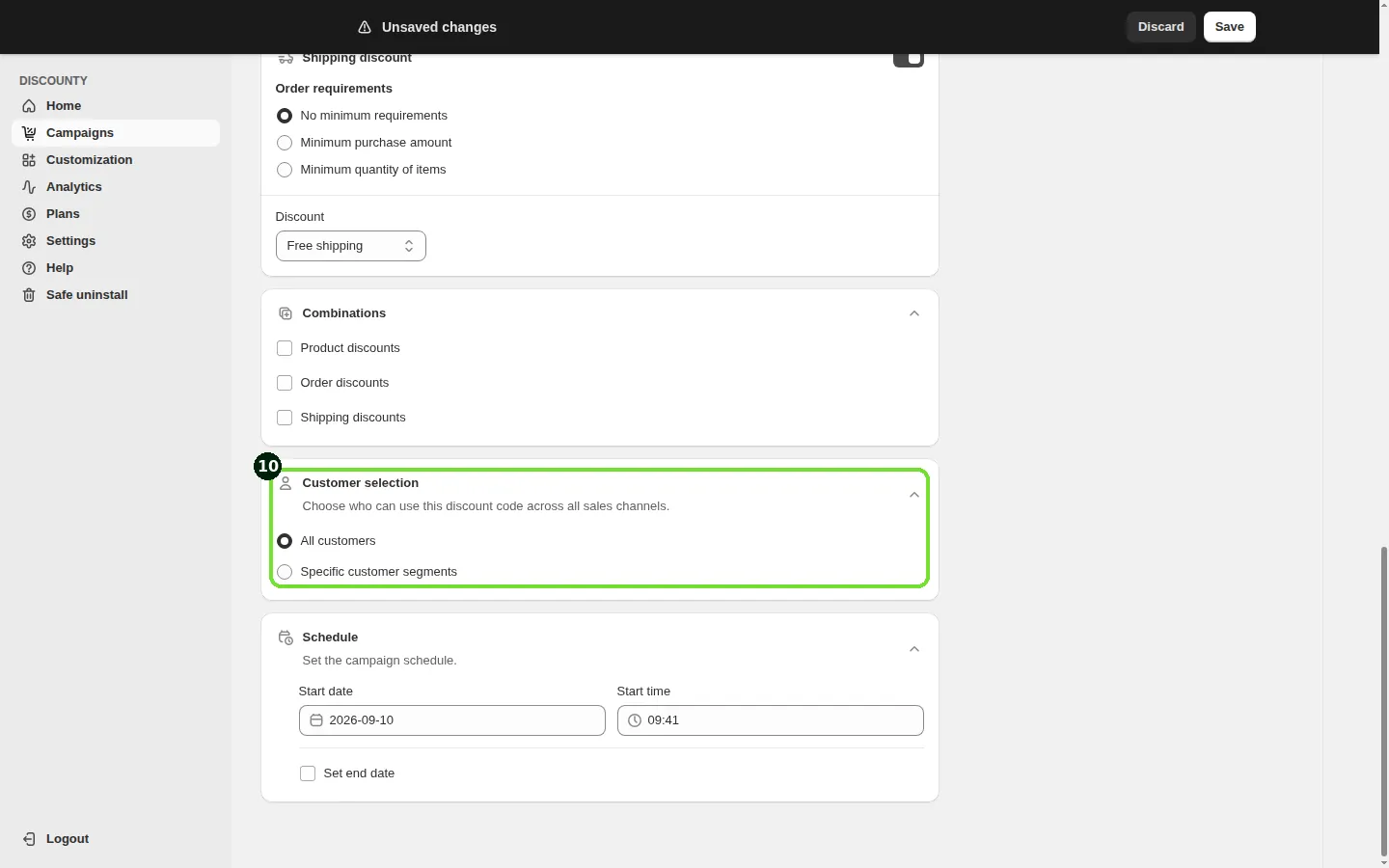
In the Customer selection card, choose All customers (default) or Specific customer segments. With specific segments, search or Browse for Shopify customer segments. Due to Shopify's limit, you can add up to 100 segments to each discount code campaign. Guest customers can enter the code and see the discount at checkout, but it's only applied after they provide an email that matches a selected segment. Customer segments are available on the Discounty plan and above. See How do I limit a Discounty campaign to specific customer segments?.
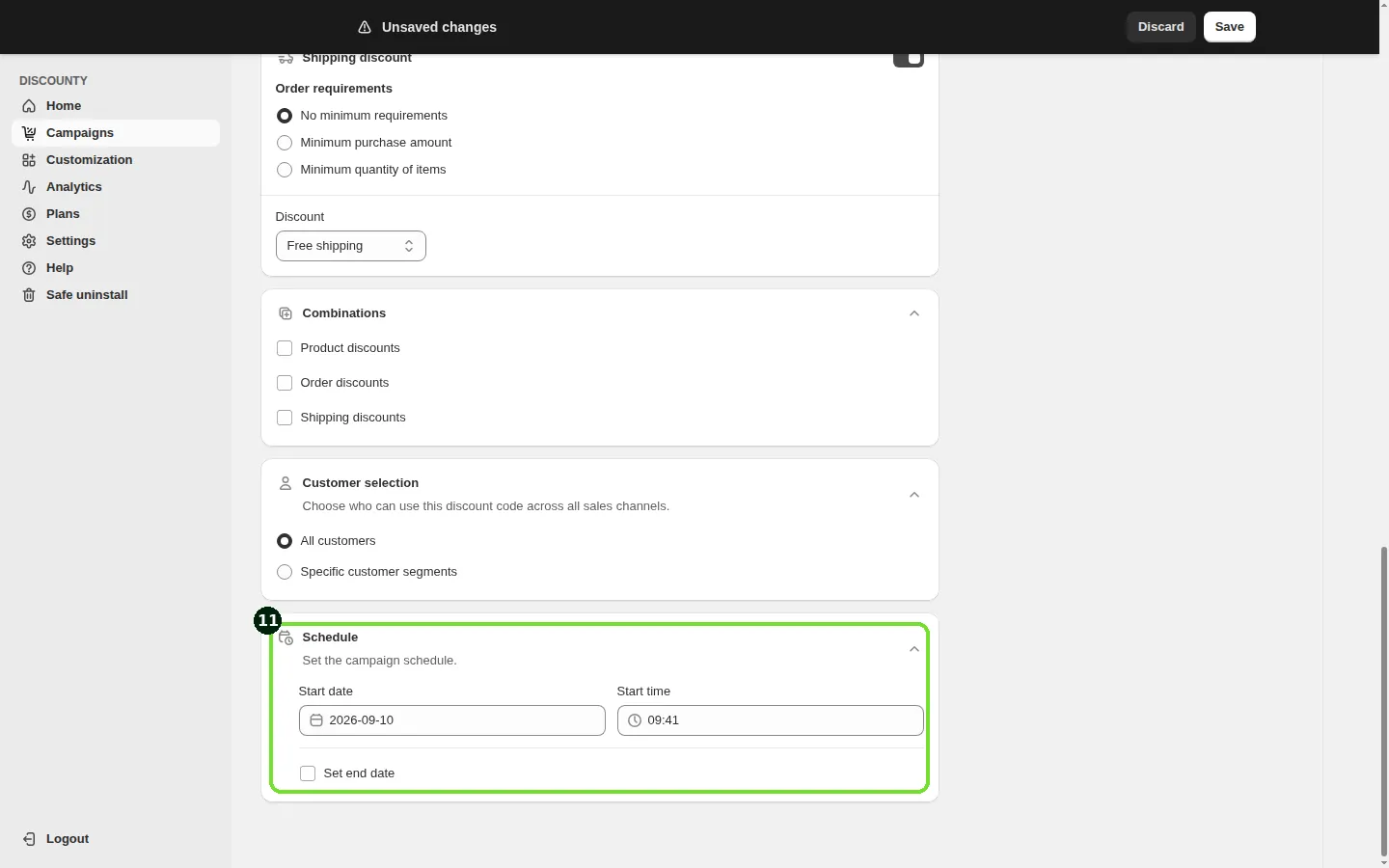
Step 11: Set the schedule
In the Schedule card, set the Start date and Start time. To end the campaign automatically, select Set end date and set the End date and End time. Setting an end date is available on every plan. This campaign type has no countdown timer options.
Step 12: Check the summary, share the link, and save
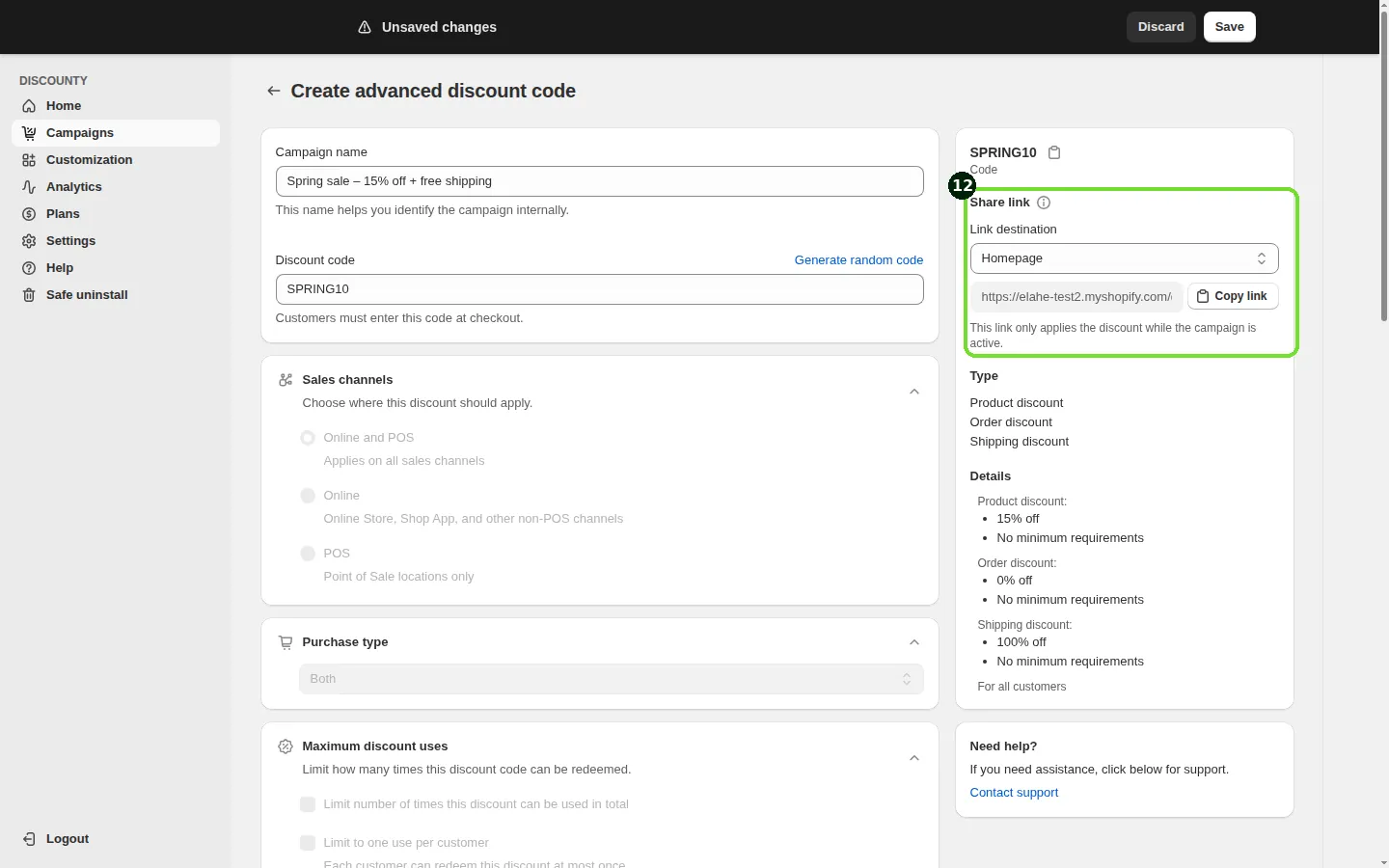
The summary card on the right shows the code (with a copy button), the discount types that are on under Type, and each discount's value and requirement under Details, so you can confirm the setup before you save.
Once the campaign has a code, the same card shows Share link: a link that applies the code for the customer, useful for email buttons, social posts and SMS.
Under Link destination, choose where the link should land: Homepage, Cart, Checkout, Collection, or Product.
For Collection or Product, click Choose collection or Choose product and pick one.
Click Copy link and paste it wherever you like.
The link has the form https://your-store.com/discount/CODE, which Shopify recognizes and applies at checkout. It only applies the discount while the campaign is active, and it applies the code, not the products: customers still need to add the qualifying items themselves.
Editing an active campaign
While a campaign is Active, you can only change its end date and time. Sales channel, purchase type, customer selection, the discounts and everything else are locked. The app shows "You can only change end time of an active campaign. You have to deactivate the campaign to edit other fields." To change them, click Deactivate, edit the campaign, and activate it again. See Campaign statuses in Discounty.
Example
You create the code SPRING10 with all three discounts on: a Product discount of Percentage 15% on the "Spring" collection with Minimum quantity of items 2 and Mix of products; an Order discount of Fixed amount $10 with Minimum purchase amount $100; and a Shipping discount of Free shipping with Minimum purchase amount $50.
A customer adds three $50 items from the Spring collection ($150) and enters SPRING10 at checkout: the three items are 15% off ($7.50 each), $10 comes off the order, and shipping is free. A customer who adds one $50 Spring item and one $60 item from another collection ($110) gets the $10 order discount and free shipping, but no product discount, because only one item matches the collection and the product discount needs 2.
If the code isn't applying
Check that:
The campaign status is Active. A Blocked campaign isn't running because it goes beyond your current plan; the campaign page explains why.
The customer entered the code exactly.
The discount you expect is turned on in its card, and the cart meets its Order requirements.
The products in the cart match Applies to. With Products and variants, every variant you want must be selected.
The sales channel, purchase type and customer selection match the order.
Any other discount in the cart allows combining with this one, on both sides.
For combination problems, see How do Discounty campaigns combine with each other, Shopify discounts, and third-party app discounts? and How do I stack two product discounts on the same item?.
Related articles
Need a hand? Contact our support team through the app — we're happy to help.
In Discounty: Advanced discount code See how the Shopify discount code app works