


How do I limit a Discounty campaign to specific customer segments?
Limit a campaign to Shopify customer segments: supported types, segment limits, guest behavior, plan and troubleshooting.
Want an offer only for VIPs, wholesale buyers or newsletter subscribers? You can limit a Discounty campaign to one or more of your Shopify customer segments, so only those customers get the discount. You set this in the campaign's Customer selection card.
What a customer segment is
A customer segment is a group of customers you define in Shopify under Customers > Segments, for example VIP customers, wholesale customers, marketing subscribers, or customers in a specific country. Shopify keeps each segment up to date as customers match or stop matching its rules. Discounty doesn't create or store segments. It reads the segments that already exist in your Shopify admin and lets you attach one or more of them to a campaign.
Which campaign types have a Customer selection card?
The Customer selection card is on these campaign types:
Quantity discount
Cart goal
Buy X get Y
Shipping discount (with a discount code or as an automatic discount)
Advanced discount code
It is not on Bulk price editor campaigns. See "Bulk price editor and customer targeting" below.
The two options in Customer selection
Open a campaign's Customer selection card and you'll see two choices:
All customers: the campaign is available to every customer. This is the default.
Specific customer segments: the campaign is limited to customers who belong to one or more Shopify segments you choose.
You can't pick individual customers one by one. Targeting always works through a Shopify segment, even if that segment matches only one customer (for example, a segment built from a single customer tag).
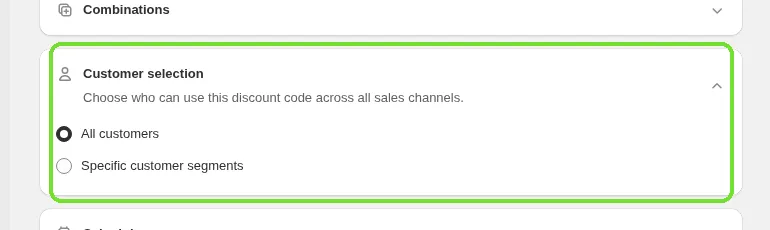
How to select segments
In the campaign editor, open the Customer selection card.
Choose Specific customer segments.
Click Browse (or start typing in the search field) to open the segment picker.
Search or scroll the list and tick every segment you want to include.
Click Add to confirm your selection, then save the campaign.
If the segment you need doesn't exist yet, the picker links to Shopify's Segments page. Create the segment there first, then come back and add it.
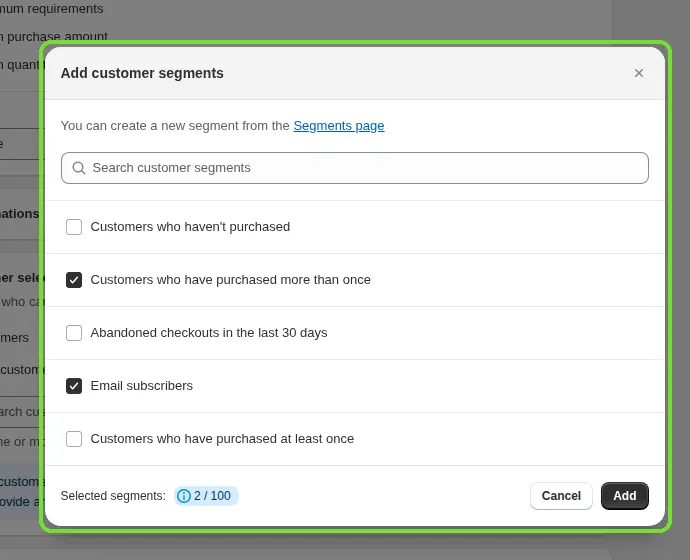
Segment limits by campaign type
Shopify limits how many segments one discount can use. The limit depends on whether the discount uses a code or is automatic:
Up to 100 segments: Advanced discount code, and Shipping discount when it uses a discount code.
Up to 5 segments: Quantity discount, Cart goal, Buy X get Y, and Shipping discount when it's an automatic discount.
The segment picker shows a running count (for example, "3 / 5"). Once you go over the limit for that campaign's discount method, the Add button is disabled.
Quantity discount and Cart goal campaigns: by default, these campaigns share one Shopify automatic discount. A Quantity discount or Cart goal campaign that is limited to customer segments gets its own automatic discount, which counts toward Shopify's limit of 25 active automatic discounts.
How guests and logged-out customers are treated
This depends on whether the campaign uses a discount code or is an automatic discount.
Code-based campaigns (Advanced discount code, and Shipping discount with a code)
A guest can enter the discount code at checkout without an account. The discount applies only after they enter a checkout email that matches one of the selected segments. Shopify checks segment membership by email at that point, not before. When you turn on segments for a code campaign, Discounty shows this as a note: "Guest customers can enter the code and see the discount at checkout. However, it will only be applied after they provide an email that matches the selected customer segment."
Automatic campaigns (Quantity discount, Cart goal, Buy X get Y, automatic Shipping discount)
These discounts don't use a code, so eligibility depends on the logged-in customer. A guest who hasn't logged in has no customer record, so they don't belong to any segment:
If the campaign is set to All customers, guests see and get the offer like logged-in customers.
If the campaign is set to Specific customer segments, a guest doesn't match any segment and doesn't get the discount. For Buy X get Y and the Shipping progress bar, Discounty also hides the widget from customers (guest or logged in) who aren't in a selected segment, so they aren't shown an offer they can't get. Quantity discount and Cart goal don't hide their widget this way. Shopify still checks eligibility when it calculates the price.
Shopify's discount engine makes this check, not Discounty. The segment (or "All customers") rule is attached to the Shopify discount when the campaign is created, and Shopify decides whether a cart qualifies.
Discounty stores segment membership for widget visibility for a few minutes, so a customer you just added to or removed from a segment in Shopify may not see the change right away.
Changing segments on an active campaign
You can't change the Customer selection card while a campaign is Active or still processing. On an Active campaign, the app shows "You can only change end time of an active campaign. You have to deactivate the campaign to edit other fields." To add or remove segments, or switch back to All customers:
Open the campaign and click Deactivate.
Change the segments in the Customer selection card and save.
Activate the campaign again.
Bulk price editor and customer targeting
Bulk price editor campaigns don't have a Customer selection card and can't be limited to a customer segment. A Bulk price editor campaign changes the product's price for every customer who views it. It's a price change, not a per-customer discount. If the discount should depend on who's shopping, use Quantity discount, Cart goal, Buy X get Y, Shipping discount or Advanced discount code instead.
Which plan includes customer segments?
Specific customer segments is included on the Discounty plan and above. On the Plans page it's listed as "Set campaign for specific customer segments". If your plan doesn't include it, the option is shown locked in the Customer selection card.
Worked example
Say you want a 15% discount code that only VIP customers can use:
Create an Advanced discount code campaign with your 15% discount and a code like
VIP15.In Customer selection, choose Specific customer segments and add your "VIP customers" segment.
Save and activate the campaign.
Any customer can enter VIP15 at checkout, including guests, but the discount applies only when the checkout email belongs to a customer in your VIP segment.
Troubleshooting
"Specific customer segments" is greyed out
If the option has a lock icon, your plan doesn't include customer segments. Upgrade to the Discounty plan or above. If the whole card is greyed out, the campaign is Active or processing. Deactivate it first.
No segments show up when I search
The segment picker only shows segments that already exist in Shopify. If nothing matches your search, create the segment on Shopify's Customers > Segments page (the picker links there), then come back and add it.
I can't save because the Add button is disabled
You've selected more segments than Shopify allows for this discount method: 100 for code-based campaigns and 5 for automatic campaigns. Remove segments until you're back under the limit shown next to the count.
A customer says a segment-limited code isn't applying
For code-based campaigns, the discount applies only when the checkout email belongs to a customer in one of the selected segments. If the customer checks out as a guest with a different email than their account, or their Shopify customer record isn't in the segment you selected, the discount won't apply. Check the segment's rules and members in Shopify.
An automatic offer isn't showing for a customer who should be eligible
Make sure the customer is logged in (automatic campaigns limited to segments don't apply to guests) and that their Shopify customer record is a member of the segment you selected. Shopify can take a few minutes to update a segment after a customer's data changes, and Discounty also stores segment membership for a few minutes.
Related articles
Need a hand? Contact our support team through the app — we're happy to help.