


How do I set up a Bulk price editor campaign?
Set up a Bulk price editor campaign: discount type, compare-at options, product availability, products, combinations, schedule, timers.
A Bulk price editor campaign (previously called "General discount") changes the real price of the products you select, so the sale price shows on product pages, collection pages, search and every sales channel where the product is published. There's no code and nothing to apply at checkout: the discount is the new price itself. Bulk price editor is available on every plan, including Starter.
Below, each step matches one card on the campaign form, in the order you see it.
Prefer to watch? This walkthrough shows the full setup step by step:
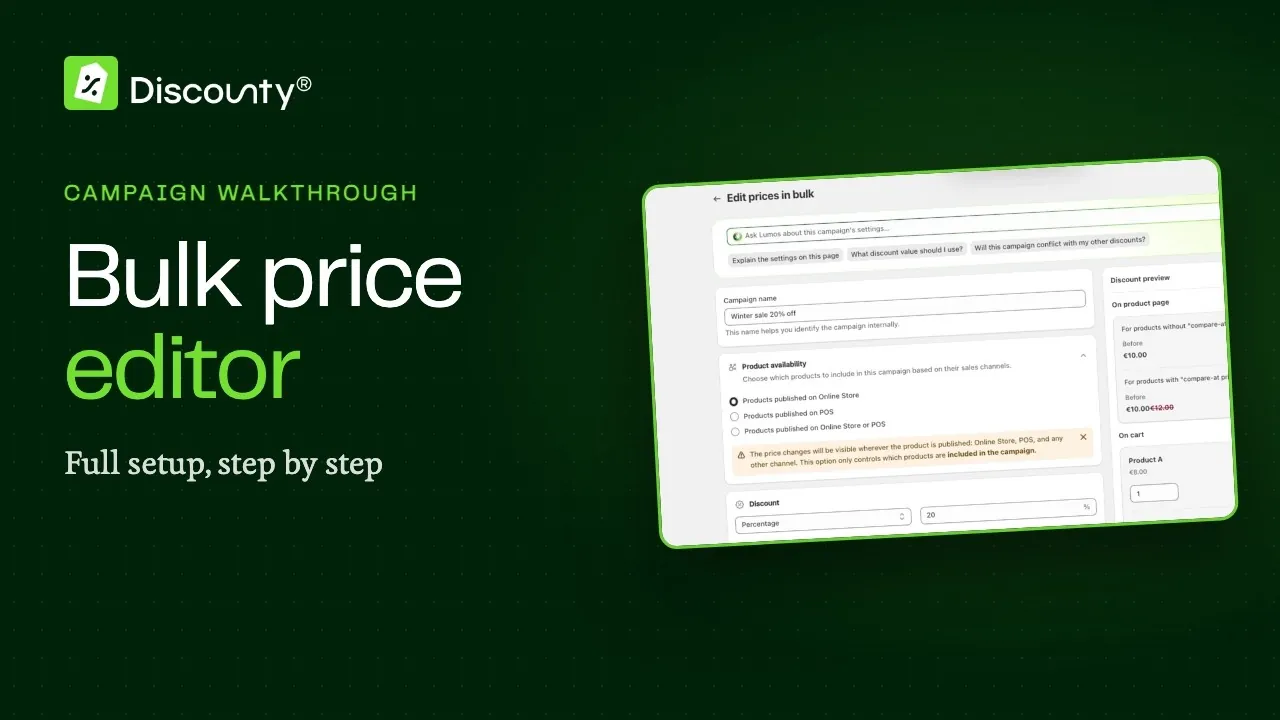 Play the video: How do I set up a Bulk price editor campaign?
What a Bulk price editor campaign does
Discounty writes a new price to each selected product variant and, where relevant, a compare-at price. Most themes show the compare-at price as a strikethrough and add their own Sale badge, so customers see a "was / now" price. When the campaign ends or you deactivate it, Discounty restores the original prices. Some messages in the app call this campaign type "Price rule".
How to set up a Bulk price editor campaign
Go to Campaigns, click Create campaign, and choose Bulk price editor. The form opens as Edit prices in bulk.
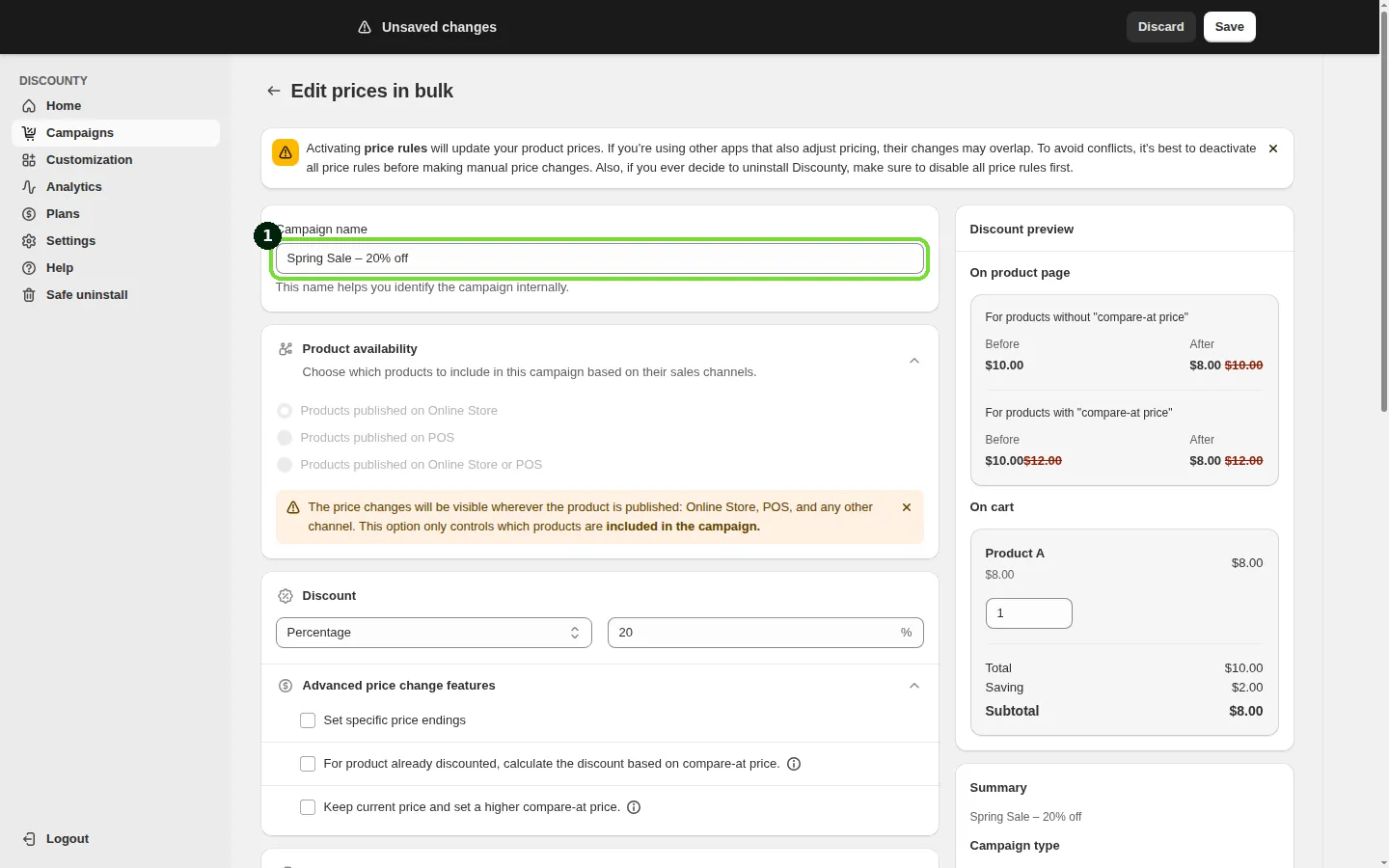
Step 1: Name the campaign
In the Campaign name field, give the campaign an internal name, for example "Spring Sale – 20% off". This name helps you identify the campaign internally; customers never see it.
Step 2: Set the Product availability
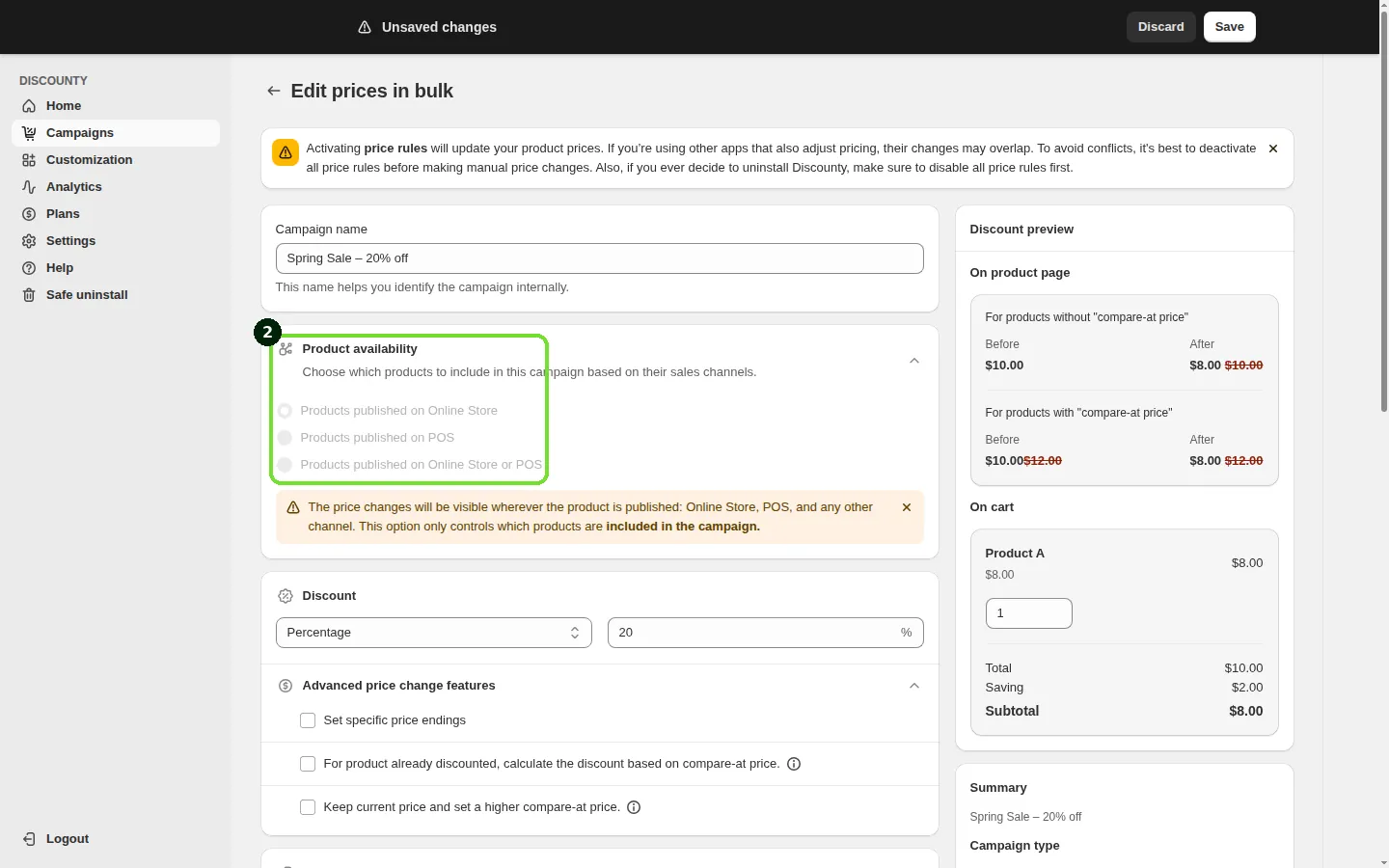
In the Product availability card, choose which products are eligible for the campaign based on where they're published:
Products published on Online Store: only products published on your Online Store (or another non-POS channel) are included. This is the default for new campaigns.
Products published on POS: only products published to a POS location are included.
Products published on Online Store or POS: products published on either are included.
This setting only controls which products are included in the campaign. It doesn't limit where the new price is visible: once a product is included, its new price shows everywhere that product is published, including Online Store, POS and any other channel. For example, with Products published on Online Store, a product published on both Online Store and POS still gets its new price everywhere; a product published only on POS is left out of the campaign.
Changing Product availability is available on the Discounty plan and above. Campaigns created before this setting existed don't show the card and keep working as before. For more on POS, see How do Discounty discounts work with Shopify POS?.
Step 3: Choose the discount type and amount
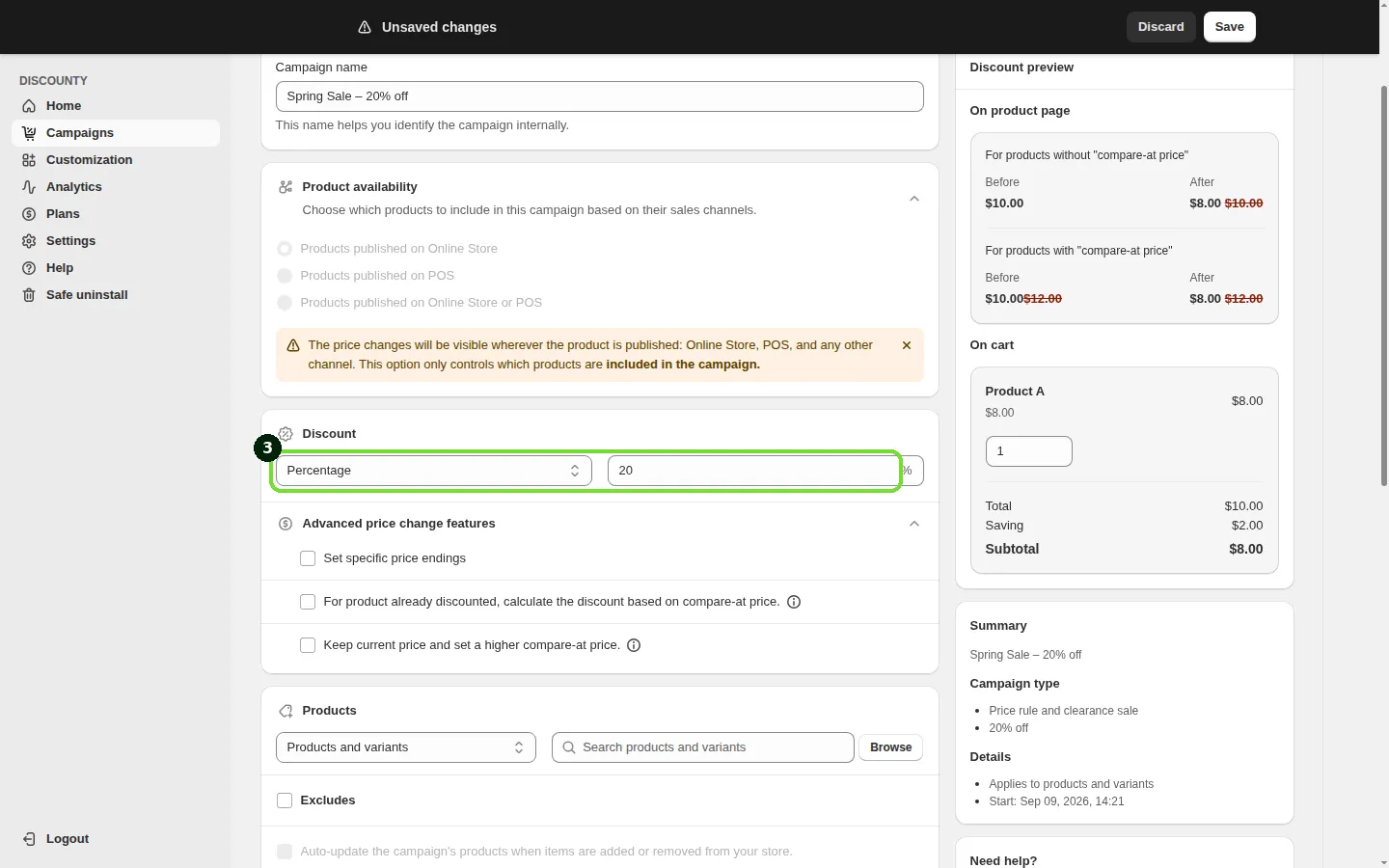
In the Discount card, choose how you want to change prices under Discount/Pricing:
Percentage: for example 20% off.
Fixed amount: for example $10 off. A price never goes below 0.
New price: every selected variant gets the same sale price, for example $25.
Then enter the Discount amount. It must be greater than 0.
Bulk price editor campaigns change your live product prices. If another app, ERP or inventory sync also edits prices, the two can overwrite each other. See Why do Bulk price editor discounts show up, then disappear minutes or hours later?.
Choose which prices to change (Percentage only)
If you chose Percentage, the Prices to change card lets you decide which prices the campaign changes. Store prices is the default. On plans with access you can switch to Catalog prices, or select both. Fixed amount and New price change store prices only. On plans without access, the Catalog prices choice is locked.
Store prices: the campaign changes your regular product prices, as described above.
Catalog prices: the campaign changes the fixed prices in the Shopify Market and Company location catalogs you pick.
When you choose Catalog prices, use the search box or Browse to find your catalogs. You can filter the list by catalog type, and the catalogs you select are listed below the picker.
Keep in mind:
Only variants that already have a fixed price in the catalog change. Catalog prices that follow the catalog's own percentage adjustment aren't changed directly; they follow the store price.
While the campaign runs, the discounted price is set in the catalog and the original price is shown as the compare-at price. When the campaign ends or you deactivate it, the original prices are restored.
One campaign owns a catalog price at a time. If another campaign already changes the same catalog price, this campaign's variant is marked as conflicted and doesn't overwrite it.
Step 4: Set up advanced price change features (optional)
Advanced price change features is only available for Percentage and Fixed amount discounts. It's hidden when the discount type is New price.
Set specific price endings: round every changed price to a specific ending, for example .99. A discounted price of $23.87 becomes $23.99. Prices that don't change keep their ending.
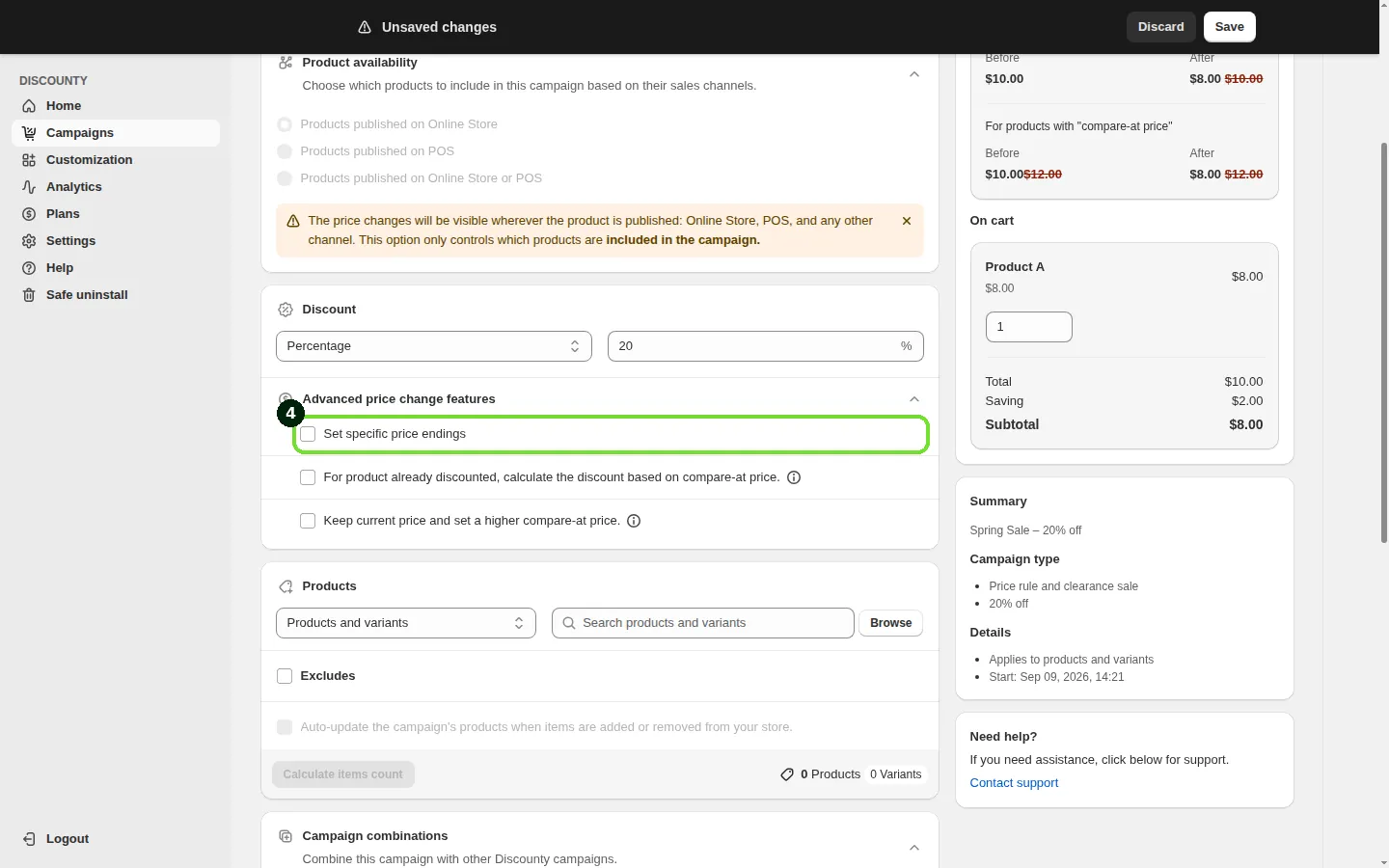
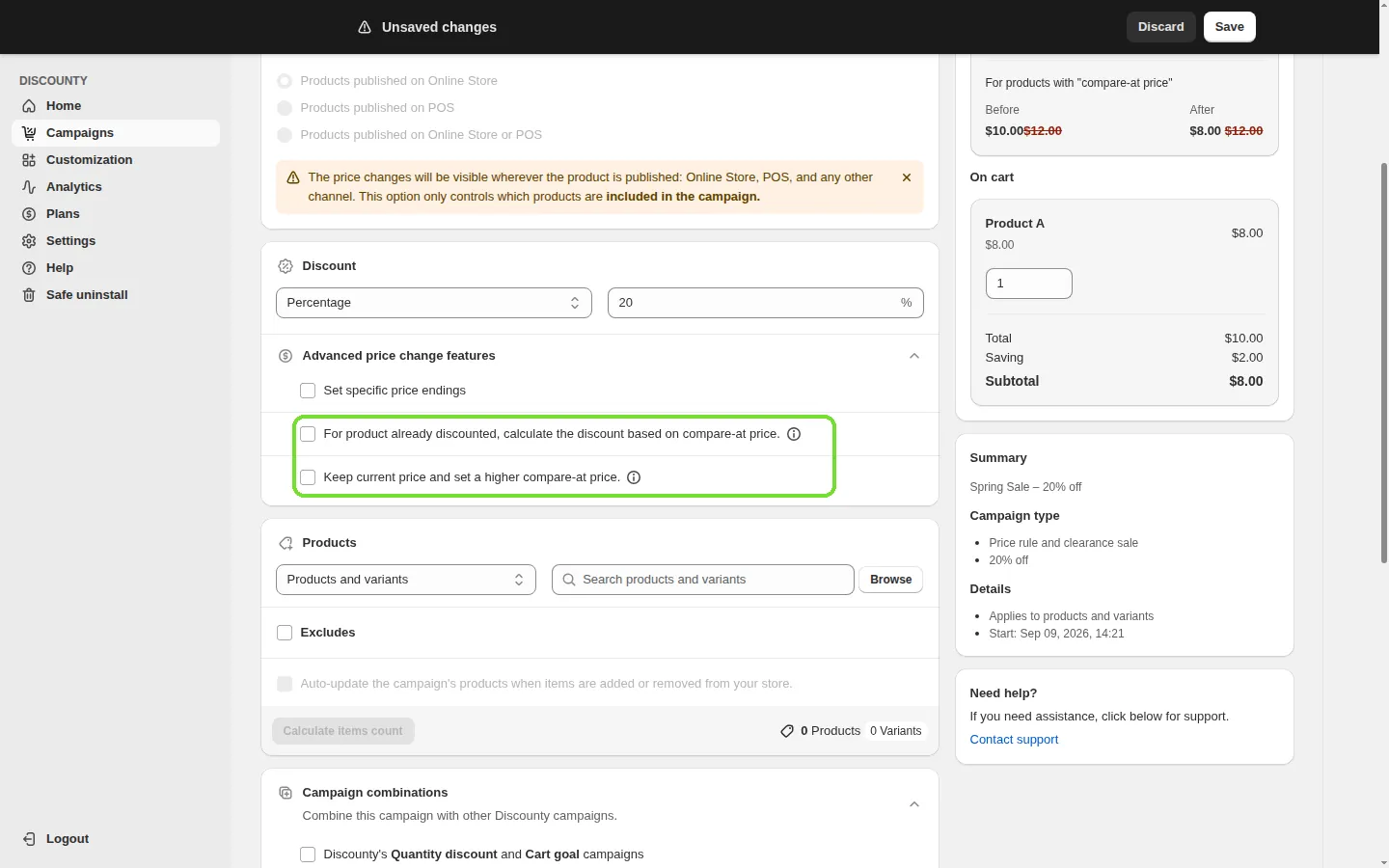
Two more options change how the discount works with an existing compare-at price. You can turn on only one of them at a time:
For product already discounted, calculate the discount based on compare-at price. (Lite plan and above): if a product already has a compare-at price higher than its price, your discount is taken off the compare-at price instead of the current selling price. If this option is off, the discount is calculated from the selling price.
Example: compare-at price $12, current price $10, discount 10% → new price $10.80 (10% off $12), and the compare-at price stays $12.
As this example shows, the new price can end up higher than the current selling price when your discount is smaller than the product's existing markdown. Check the preview before you save.Keep current price and set a higher compare-at price. (Essential plan and above): the selling price stays the same and the compare-at price is raised, so customers see a "was / now" price without the price actually going down.
Example: current price $10, discount 50% → the product still sells for $10 and the compare-at price becomes $20. A 100% discount can't be used with this option, because the compare-at price would be infinite.
Step 5: Select the products
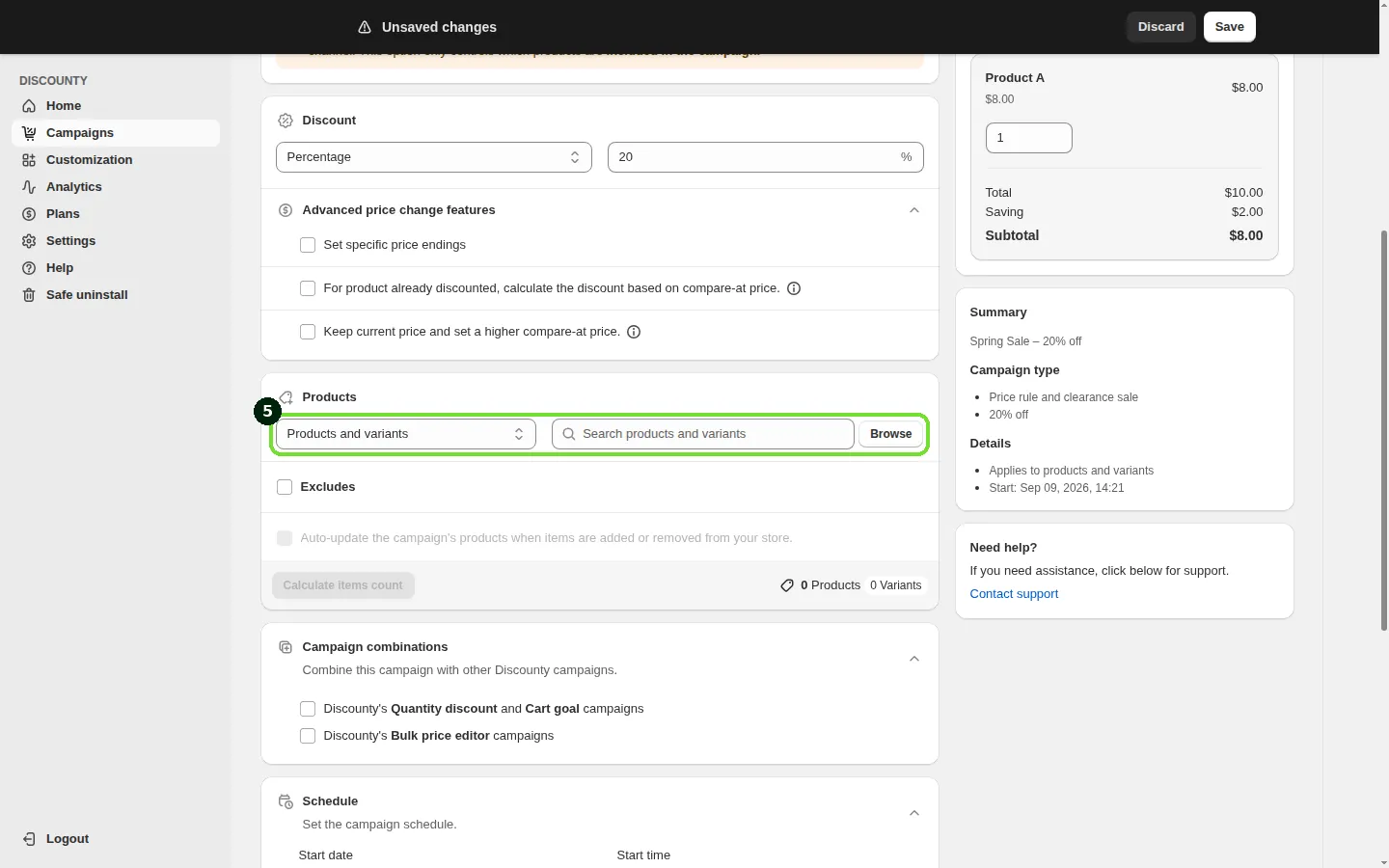
In the Products card, choose which products the campaign applies to:
Pick a filter: All store, Collections, Product tags, Vendors, Product types, or Products and variants. For every filter except All store, use the search box or Browse to pick the items. You can select up to 100 collections or 100 product tags in one list.
To leave some items out, select Excludes and pick a second filter for the products to exclude. Excludes is available on the Lite plan and above.
Select Auto-update the campaign's products when items are added or removed from your store. if you want Discounty to keep the product list in sync with your store. Auto-update is available on the Discounty plan and above, and it's turned off when you pick products manually with Products and variants. Without auto-update, the product list is fixed when the campaign is activated.
Once the campaign is Active, you can also click Sync products on the campaign page or in the Campaigns list (Discounty plan and above). Discounty re-fetches the campaign's products and re-checks conflicts with your other campaigns right away, without reverting prices. The status shows Updating products until it's done. Sync products doesn't rewrite prices that another app has overwritten.
Step 6: Campaign combinations (optional)
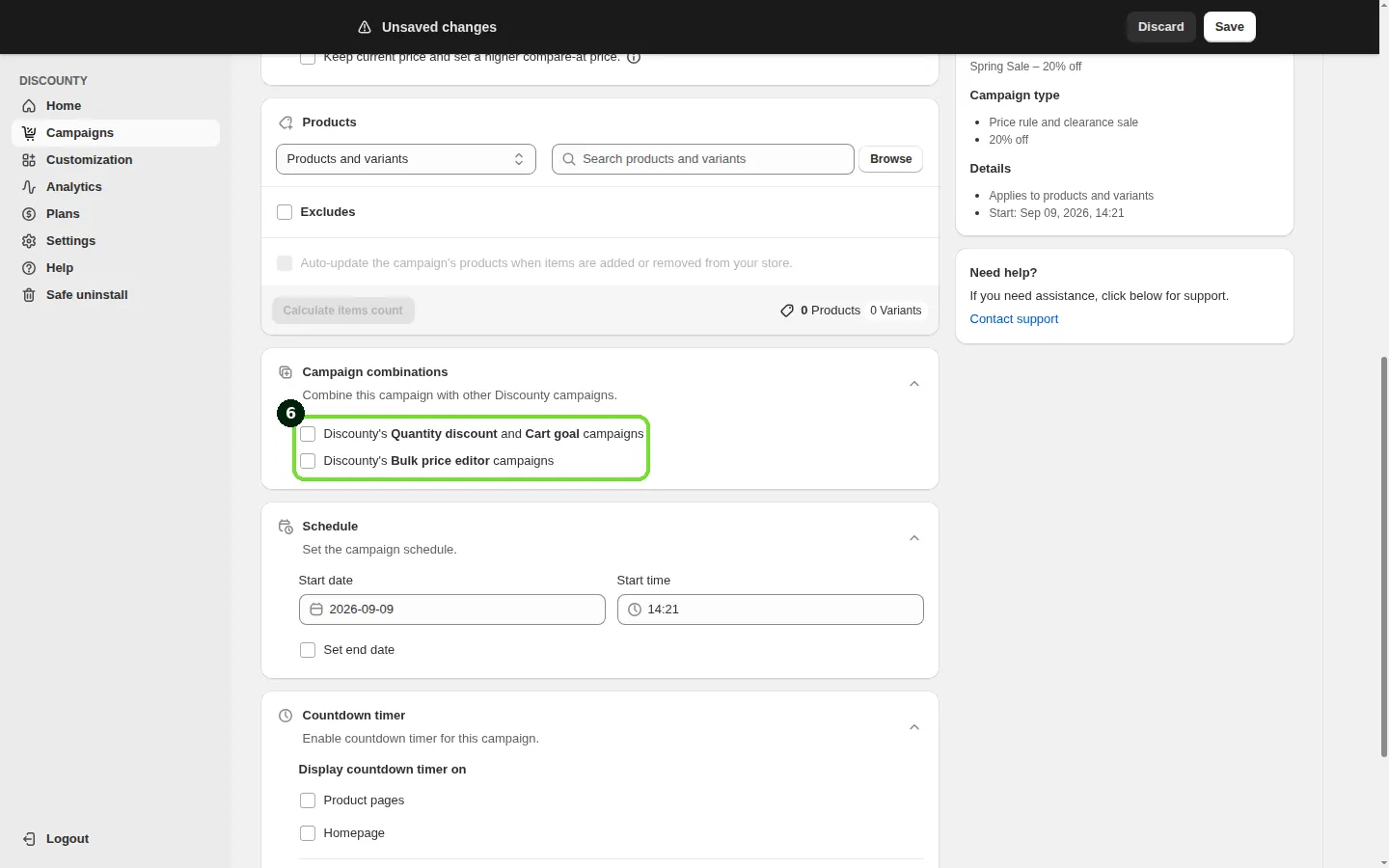
By default, a product is discounted by only one Discounty campaign at a time. Open Campaign combinations to change that. Campaign combinations are available on the Discounty plan and above.
Discounty's Quantity discount and Cart goal campaigns: lets a Quantity discount or Cart goal campaign apply on top of the price this campaign has already changed.
Discounty's Bulk price editor campaigns: lets other Bulk price editor campaigns apply to the same products, one after another. This option is disabled when the discount type is New price or when Keep current price and set a higher compare-at price. is selected. Stores that installed Discounty more recently only see the Quantity discount and Cart goal option.
Both campaigns must allow the combination. Otherwise, the product stays with the campaign that was activated first.
For how Discounty campaigns work with Shopify's own discounts and other apps, see How do Discounty campaigns combine with each other, Shopify discounts, and third-party app discounts?.
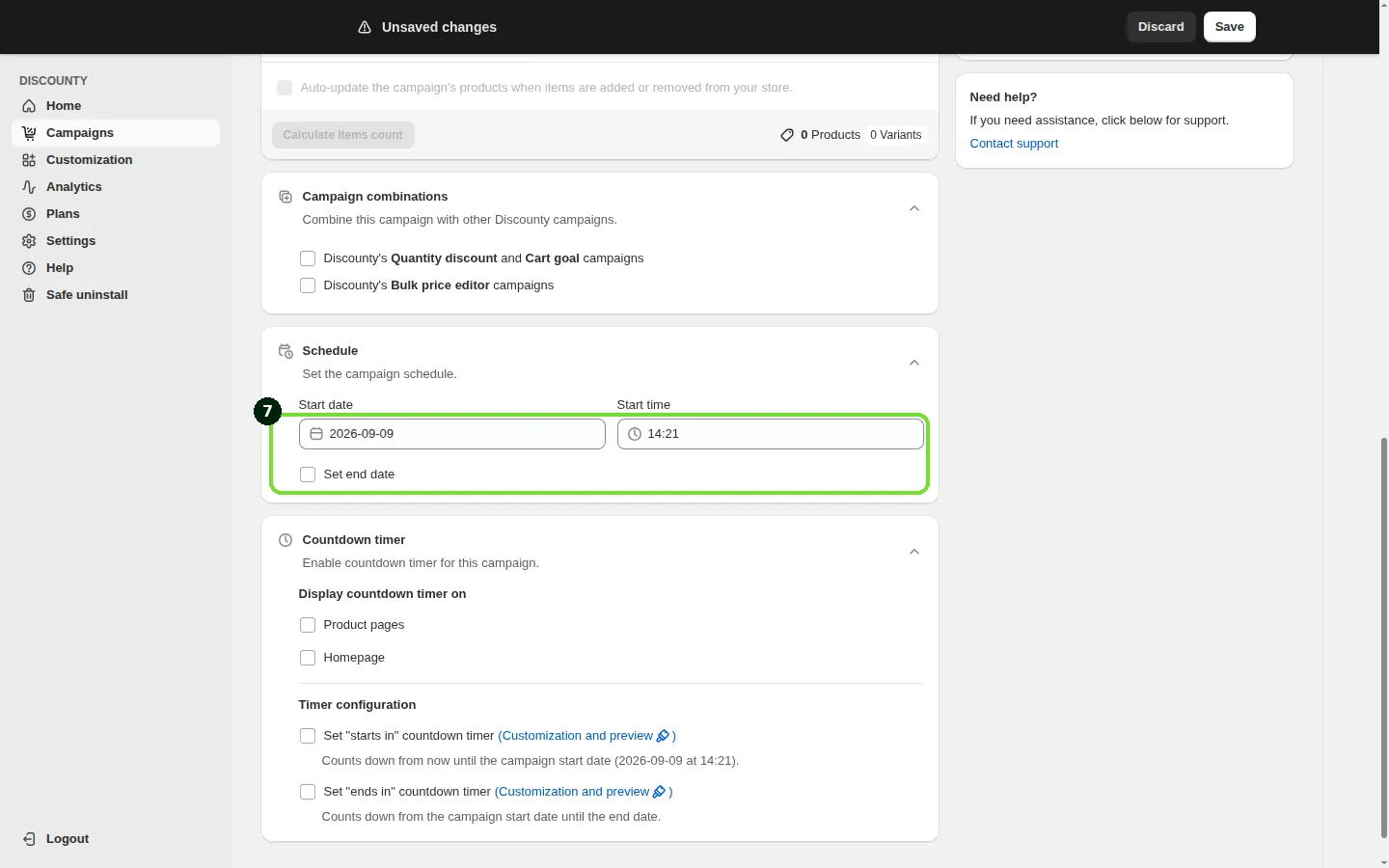
Step 7: Set the schedule
In the Schedule card, set the Start date and Start time. To end the campaign automatically, select Set end date and set the End date and End time. Setting an end date is available on every plan.
Dates and times use the time zone of the browser or device you're using when you save the campaign, not your store's time zone. If you or a teammate opens the campaign from a device in a different time zone, the displayed times adjust, but the scheduled moment stays the same.
Step 8: Add a countdown timer (optional)
Open Countdown timer to show a live countdown on your storefront. Countdown timers are available on the Essential plan and above.
Under Display countdown timer on, select Product pages and/or Homepage. You can display only one countdown timer on the homepage at a time. If another Discounty campaign already has one, it's replaced.
Under Timer configuration, select Set "starts in" countdown timer to count down until the sale starts. Choose Use campaign start date or Set a custom start date.
Select Set "ends in" countdown timer to count down to the end of the sale. Choose Use campaign end date or Set a custom end date.
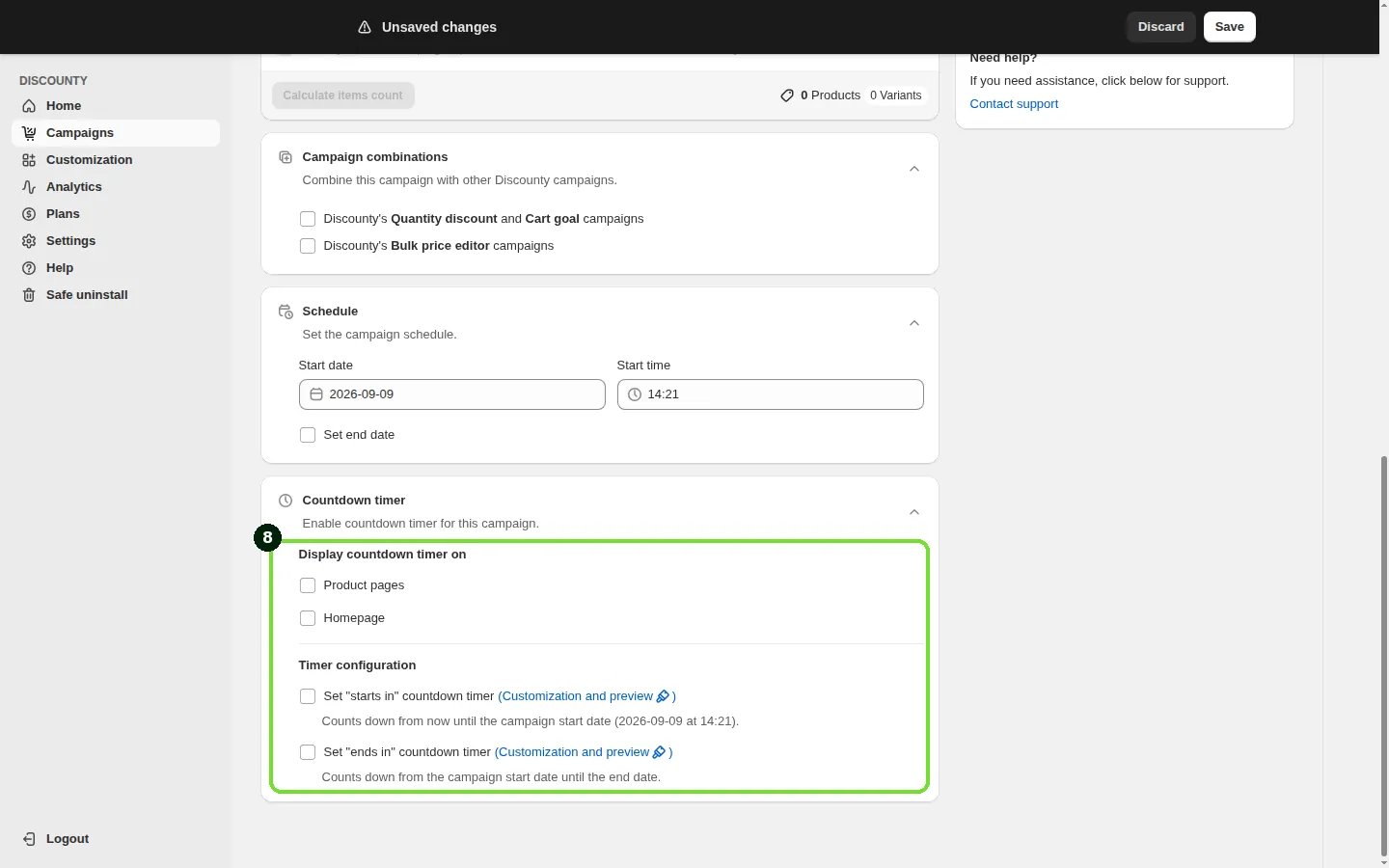
To change how the timers look, see Countdown timers: homepage and product page.
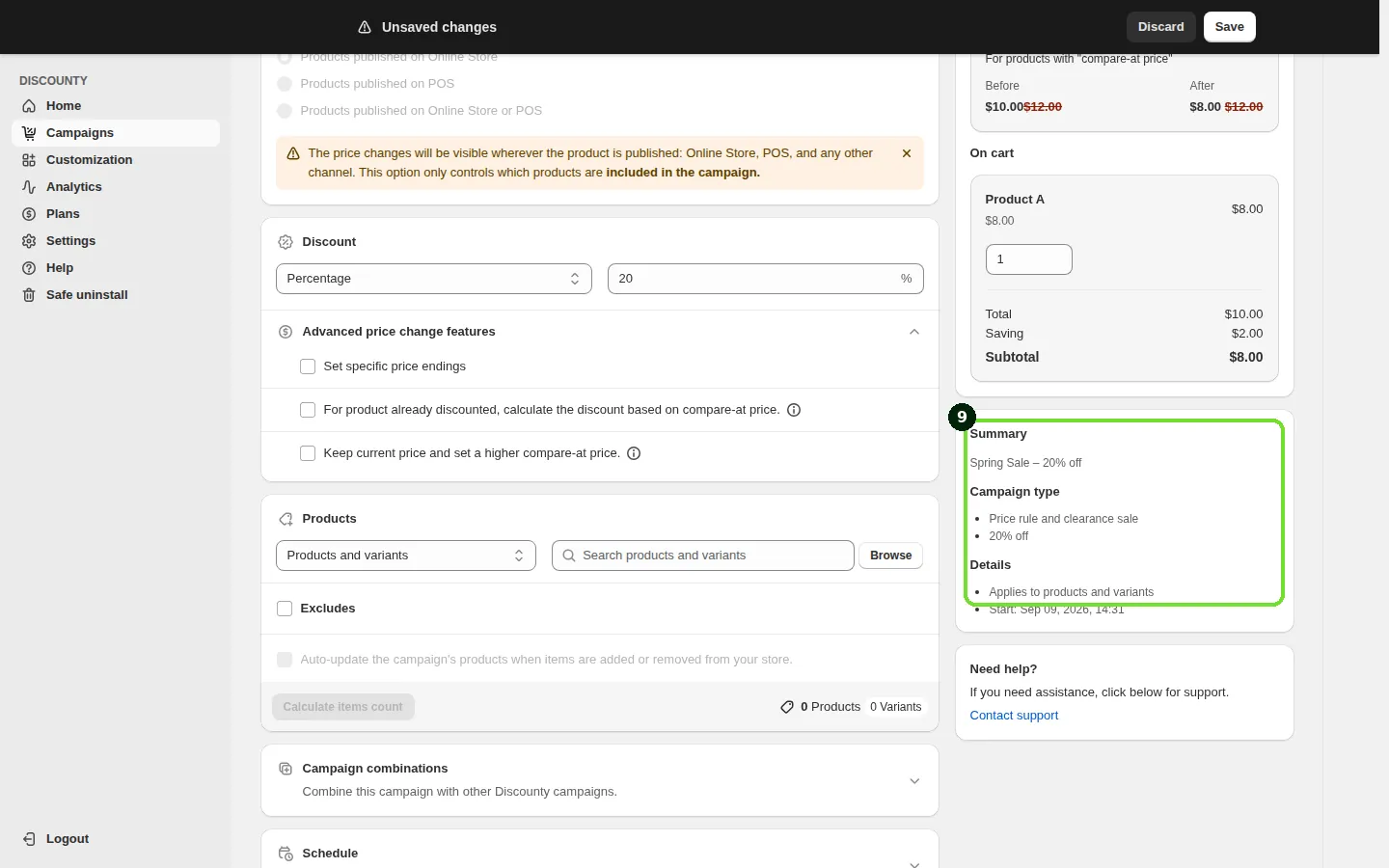
Step 9: Review the preview and save
The Discount preview on the right shows how the price looks On product page and On cart, with separate previews For products with "compare-at price" and For products without "compare-at price". The summary card lists your campaign name, discount and schedule. When you're happy with it, save the campaign.
Editing or ending a campaign
While a campaign is Active, you can only change its end date and time, countdown timers and auto-update. The app shows "You can only change end time of an active campaign. You have to deactivate the campaign to edit other fields." To change anything else, click Deactivate, edit the campaign, and activate it again. See Campaign statuses in Discounty.
Deactivating a Bulk price editor campaign, or reaching its end date, reverts the products it changed to their price before the campaign, or to the price set by another active campaign on that product. Before you uninstall Discounty, deactivate every active Bulk price editor campaign so your prices return to their original values first.
Tracking performance
Once a campaign is active, its revenue and order impact appear in Discounty's Analytics. See How do I use Discounty's Analytics dashboard?.
Related articles
Need a hand? Contact our support team through the app — we're happy to help.
In Discounty: Bulk price editor See how the Shopify bulk price editor works