


Why does my store show a different discount percentage than my Bulk price editor campaign?
Your store shows a different discount % than your Bulk price editor campaign? Find the cause (old sale price, rounding, markets) and fix it.
When your store shows a different discount percentage than the one you set in a Bulk price editor campaign, customers see a different offer than you planned. The cause is usually an earlier sale price on the product, price rounding, or a market setting. Find the case that matches what you see and follow its fix.
Applies to: Discounty Bulk price editor campaigns (formerly "General discount").
Other Discounty campaign types follow different rules. See Why is the Quantity discount or Cart goal campaign not applying? Troubleshooting guide.
How your store calculates the percentage
Your theme works out the percentage from the product's Compare at price (the crossed-out "was" price) and its Price. For example, if the compare-at price is $44 and the price is $38.50, the discount is 12.5%. Depending on how your theme rounds, it can show 12% or 13%.
Big mismatch: you set 20% off, your store shows 44% off
Why it happens
The product was already on sale before the campaign started. Its selling price had already been lowered, and its compare-at price still held the higher original price. A Bulk price editor campaign takes your discount off the current selling price, and Discounty never lowers an existing compare-at price. So your theme compares the new price with the old, higher compare-at price.
Example
Before the campaign: Price $70, Compare at price $100 (from an earlier sale)
Campaign: Percentage, 20%
After: Price $56 (20% off $70), Compare at price $100 (unchanged)
Your store shows ($100 − $56) ÷ $100 = 44% off
How to fix it
Option 1: calculate the discount from the compare-at price. In the campaign's Discount card, open Advanced price change features and tick For product already discounted, calculate the discount based on compare-at price. Discounty then takes your percentage off the compare-at price instead of the current selling price, so your store shows the percentage you set. In the example, the new price is 20% off $100 = $80, and your store shows 20% off. This option is available on the Lite plan and above.
Check the new prices first: this option can raise what customers pay. In the example above, the price goes up from $70 to $80, because 20% off $100 is more than the earlier sale price. Look at the Discount preview card before you save, and use this option only if the resulting prices are right for those products.
Option 2: clear the old compare-at price.
Deactivate the Bulk price editor campaign in Discounty.
In Shopify admin → Products, clear the Compare at price of the affected variants. Clear the field; don't set it to the same amount as the price.
Activate the campaign again.
Discounty then uses the current price as the compare-at price. In the example: Price $56, Compare at price $70, so your store shows 20% off. When the campaign ends, Discounty restores the prices it recorded when you activated it, so the product goes back to $70 with no compare-at price. The earlier "was $100" display doesn't come back.
If many products are affected, contact our support team for help.
Small mismatch: you set 15% off, your store shows 14% or 16%
Why it happens
Theme rounding: your theme may round prices to the nearest cent and then calculate the percentage, so the percentage moves by about 1%.
Price endings: if Set specific price endings is ticked under Advanced price change features, Discounty moves each new price to the ending you choose, for example 5.68 → 5.99. Because the price moves, the percentage can differ from your campaign by a point or two, more on low-priced items.
How to fix it
Option | Impact | How |
|---|---|---|
Leave as-is | Most customers accept a small difference. | No action. |
Turn off price endings | New prices follow your percentage more closely. | Deactivate the campaign, untick Set specific price endings, then activate it again. |
Adjust theme rounding | The exact percentage on all products. | Ask your theme developer to change the theme's math from "round, then calculate" to "calculate, then round". |
Small mismatch only in other currencies
Why it happens
After converting the price into a market's currency, Shopify may round the local price. This changes the percentage your customers see in that market slightly.
How to fix it
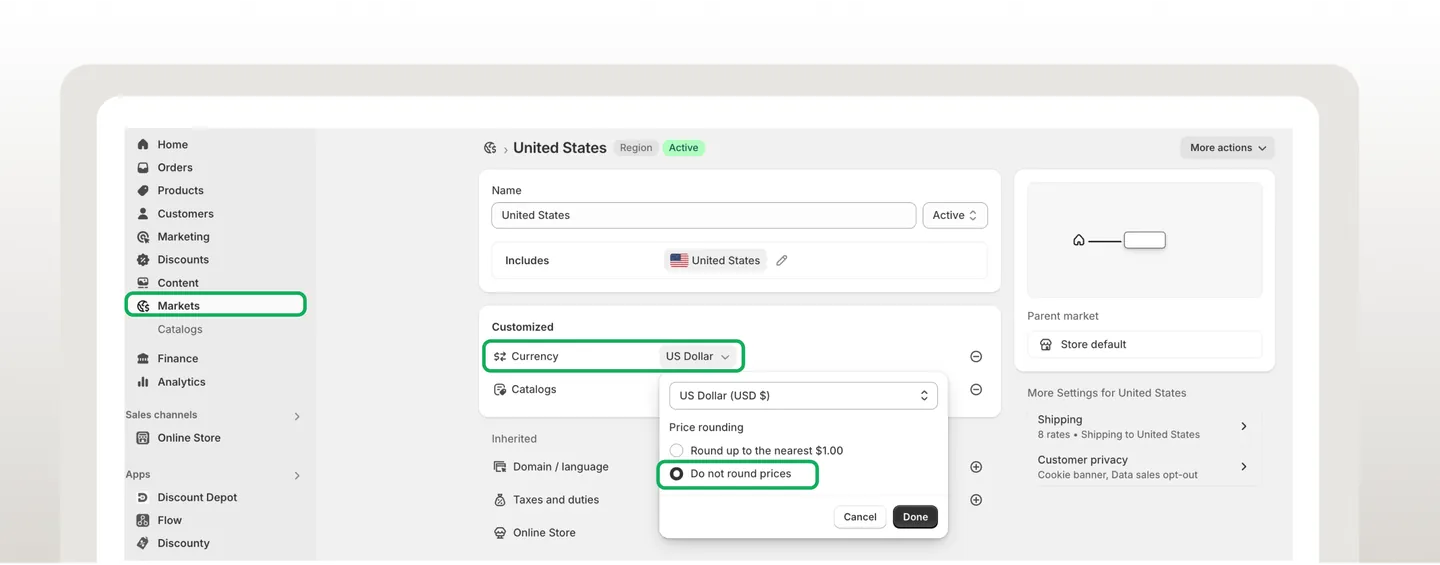
Turn off price rounding in the related markets:
In your Shopify admin, go to Markets.
Choose the market.
Click the Currency dropdown.
Under Price rounding, select Do not round prices.
Click Done, then Save.
Check the storefront in that market to confirm the change.
Still off? Keep rounding turned off and use one of the fixes for small mismatches above.
If a product shows no discount at all in one market, it may have a fixed price in that market. See Why aren’t some or all products discounted in my “Bulk price editor” campaign?
Related articles
Still off, or not sure which fix suits your store? Contact our support team through the app with a product URL and screenshots — we're happy to help.