


Where do the strikethrough price and Sale badge come from in a Bulk price editor campaign?
How Bulk price editor sets price and compare-at, how your theme shows the strikethrough and Sale badge, and which options change it.
When a Bulk price editor campaign runs, your store shows the old price crossed out next to the new one, and often a "Sale" badge. Discounty sets the product's prices; your Shopify theme draws the strikethrough and the badge. Knowing which part does what helps you get the look you want and fix it when something looks off.
What a Bulk price editor campaign changes on your products
A Bulk price editor campaign (formerly General discount) changes two fields on every product variant in the campaign:
Price — the amount the customer pays.
Compare at price — the higher "was" price your theme shows crossed out.
In the Discount card you choose Percentage, Fixed amount or New price and enter the amount. Discounty calculates the new price, keeps or sets the compare-at price, and saves both to the variant.
Example: a product with no compare-at price
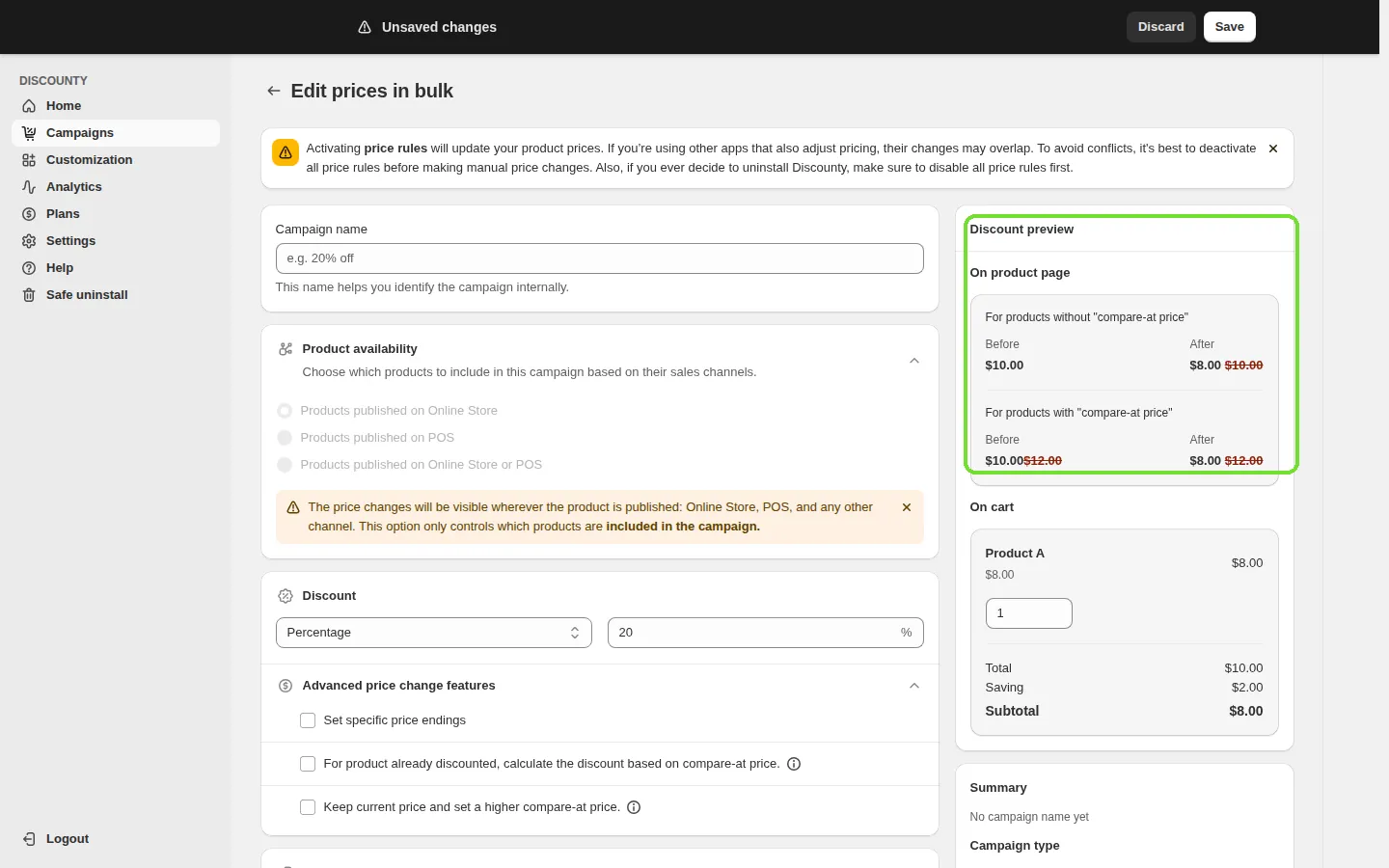
Before: Price $50.00, Compare at price empty
Campaign: Percentage, 20%
After: Price $40.00, Compare at price $50.00
Example: a product that already had a compare-at price
Before: Price $50.00, Compare at price $60.00
Campaign: Percentage, 20%
After: Price $40.00, Compare at price $60.00 (Discounty never lowers an existing compare-at price)
In the second case your theme calculates the discount from the compare-at price, so it shows about 33% off rather than 20%. If that's not what you want, see the options below or Why does my store show a different discount percentage than my Bulk price editor campaign?
The campaign form shows both cases in the Discount preview card, under For products without "compare-at price" and For products with "compare-at price", with a Before and an After column.
How your theme turns those values into a strikethrough and a "Sale" badge
Discounty only writes the two price fields. Everything visual — the crossed-out price, the "Sale" label, a percentage-off tag, colors and position — comes from your Shopify theme, based on those fields.
Shopify shows a product as on sale only when the Compare at price is higher than the Price.
Whether sale prices and badges show, and where, depends on your theme. Shopify's free themes label the badge "Sale" by default.
If the variants of one product have different compare-at prices (some empty, some set), Shopify may not show the product as on sale on collection pages, even though each variant is correct on the product page.
Because the theme reacts to the price fields and not to the campaign, anything else that edits those fields (another app, a manual edit, a product duplicated during the campaign) changes what customers see. Avoid manual price edits on products in an active campaign.
Does Discounty add its own badge for Bulk price editor campaigns?
No. For Bulk price editor campaigns the badge and strikethrough come from your theme; Discounty doesn't add a separate badge to these products. Discounty's storefront widgets, such as the Quantity/Value table, Saving on cart, the Starts in countdown timer and Ends in countdown timer, and the Buy X get Y pop-up, support other campaign types or add extra information. They don't replace your theme's sale badge. See How to activate Discounty widgets on your Shopify store? for the full list.
The Saving on cart widget does use the compare-at price: it shows customers in the cart how much they save compared with the compare-at prices. See How do I show total savings in the cart with the Saving on cart widget?
The Plans page lists "Sale badge" customization by request. On plans that include it, our support team can help change your theme's badge colors or wording with a small CSS or theme-text change. Contact us through the app with the product URL and the look you want.
Changing the badge wording or style in your theme
Change the wording (for example "Sale" to "Discount")
In your Shopify admin, go to Online Store > Themes.
Click the menu icon (…) next to your live theme and select Edit default theme content.
Use Filter items to search for Sale. In Shopify's free themes the label is under Products as On sale.
Type the new wording and click Save.
Change colors, shape or position
Go to Online Store > Themes and click Customize next to your live theme.
Open Theme settings and look for a section named Badges, Product labels or similar. Options differ by theme, and some themes have none.
Adjust the settings and click Save.
Showing "20% off" instead of "Sale"
Some themes can show the percentage or amount saved; most free themes show only the word "Sale". If your theme has no such setting, a theme developer, a badge app from the Shopify App Store, or our support team (on plans that include badge customization) can add it. Discounty itself doesn't create this text for Bulk price editor campaigns.
Discounty options that change what customers see
These options are in the campaign form, in the Discount card under Advanced price change features. They're hidden when the discount is set to New price.
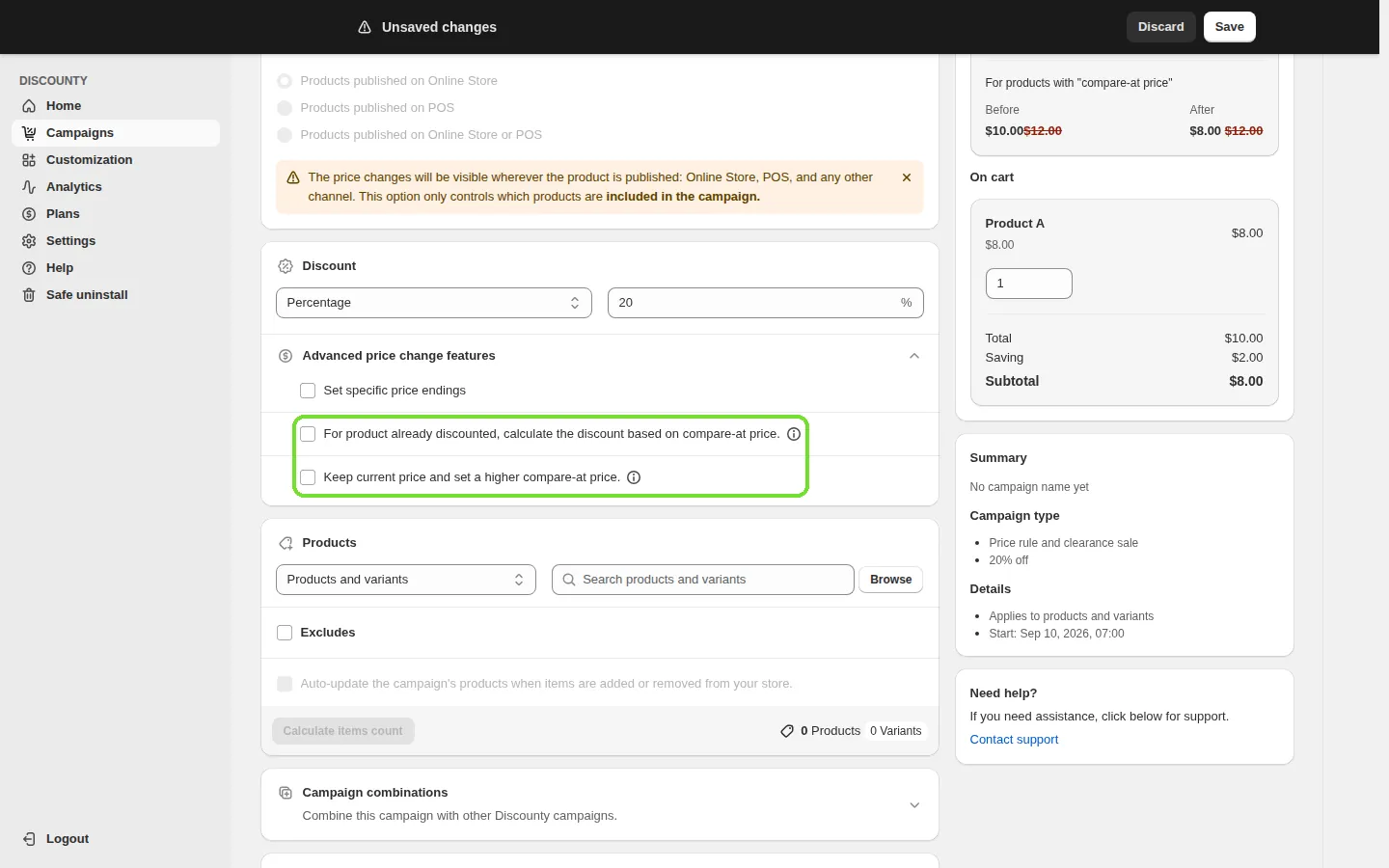
Set specific price endings
Moves each new price to the ending you enter, for example 5.68 → 5.99. Because the price moves, the percentage your theme shows can differ slightly from the campaign's percentage.
For product already discounted, calculate the discount based on compare-at price.
With this option on, a product that already has a compare-at price gets its discount calculated from that compare-at price instead of the selling price, so the percentage your store shows matches the campaign. Available on the Lite plan and above.
Before: Price $50.00, Compare at price $60.00; campaign 20%
After: Price $48.00, Compare at price $60.00 — your theme shows 20% off
This option can raise prices. If a product's current price is already well below its compare-at price, the new price can be higher than what customers pay today. For example, with Price $40.00 and Compare at price $60.00, a 20% campaign sets the price to $48.00. Check the Discount preview card before you save.
Keep current price and set a higher compare-at price.
Use this when you want a strikethrough without lowering what customers pay. Discounty leaves the Price unchanged and raises the Compare at price so the gap equals your discount. Available on the Essential plan and above.
Before: Price $50.00, Compare at price empty; campaign 20%
After: Price $50.00, Compare at price $62.50 — your theme shows a "Sale" badge and 20% off
These two options can't be used together; ticking one disables the other. A campaign using Keep current price and set a higher compare-at price. also can't be combined with other Bulk price editor campaigns on the same products.
Customers in the European Economic Area
Shopify Markets can hide compare-at prices for customers in the EEA, so those customers see the sale price but no strikethrough or badge. This is a Shopify Markets setting, not a Discounty option. See Why don't EU customers see the strike-through price in my Bulk price editor campaign? for where to change it.
What happens when the campaign ends
When a Bulk price editor campaign ends or you deactivate it, Discounty writes back the Price and Compare at price it recorded for each variant when the campaign was activated. If the compare-at price was empty before the campaign, it's cleared again, so your theme stops showing the badge and strikethrough. If the product had a compare-at price before the campaign, that compare-at price is restored and your theme keeps showing the product as on sale, exactly as before.
If a badge still shows after a campaign has ended:
Open the product in Shopify admin > Products and check the Pricing section. The badge shows whenever Compare at price is higher than Price.
If a compare-at price is set and you don't want it, clear the field and click Save. For many products, select them in the product list and use Edit products to clear the column in bulk.
If the values were correct but keep changing, another app is probably rewriting prices. See Why do Bulk price editor discounts show up, then disappear minutes or hours later?
If the values in Shopify admin are correct but your store shows old prices, a theme or page-builder cache is usually the cause. Refresh the page or clear that cache.
Troubleshooting
Your store shows a different percentage than the campaign: Why does my store show a different discount percentage than my Bulk price editor campaign?
EU customers see the sale price but no strikethrough: Why don't EU customers see the strike-through price in my Bulk price editor campaign?
Some products aren't discounted at all: Why aren’t some or all products discounted in my “Bulk price editor” campaign?
Discounts show up, then disappear: Why do Bulk price editor discounts show up, then disappear minutes or hours later?
Only some products show the strikethrough wrongly although their price fields are right: this is a theme display difference, for example product-specific metafields, a theme app block on one template, or a cached page. Ask your theme developer to compare the product card between a working and a broken product, or send us both product URLs so we can confirm the values Discounty wrote.
Frequently asked questions
Does this apply to all Discounty campaign types?
No. Only Bulk price editor campaigns change the product's Price and Compare at price. Quantity discount, Cart goal, Buy X get Y, Advanced discount code and Shipping discount campaigns apply in the cart and at checkout and don't trigger your theme's sale badge. They use Discounty widgets to show the offer instead.
Why does the badge say "Sale"?
That's your theme's default text. Change it under Edit default theme content as described above.
Why don't I see a badge or strikethrough at all?
Check that the product's Compare at price is higher than its Price, that all variants have a compare-at price, that your theme has badges turned on, and, for EU customers, the Shopify Markets compare-at setting.
Can Discounty change how the badge looks?
Discounty doesn't control the badge styling, but on plans that include "Sale badge" customization by request, our support team can suggest or add a small CSS change to your theme.
Related articles
Need a hand? Contact our support team through the app — we're happy to help.
In Discounty: Bulk price editor See how the Shopify bulk price editor works