


Why aren’t some or all products discounted in my “Bulk price editor” campaign?
Some or all products in your Bulk price editor campaign keep their original price? Work through these checks to find the cause.
A Bulk price editor campaign lowers the actual price of every product it covers. If some products, or all of them, still show their original price, something is keeping the campaign from changing those products. Check each cause below, in order, until the discounts appear.
1. Check your campaign status
Open Campaigns and look at the campaign's status. If it's Active, the campaign is running and you can move on to the next check. If it shows another status, here's what it means and what to do:
Blocked: the campaign goes beyond what your current plan includes, so it isn't running. The campaign page explains why: the campaign exceeds your "Active discounted variants" limit, you've exceeded your "Created campaigns" limit, or your plan doesn't include this campaign type or a feature the campaign uses. The Campaigns page also shows a "Campaign blocked - action required" banner. Upgrade your plan, or edit the campaign so it fits your current plan. After you upgrade, Discounty applies the campaign automatically. If a campaign stays Blocked although it now fits your plan, deactivate it and activate it again, or contact support.
Queued: the campaign is waiting for its turn. Discounty processes the campaigns in your store one at a time, so a campaign can wait while another one is applied or reverted. Avoid editing it while it's queued. If it stays in Queued for an unusually long time, contact support.
Retrieving, Applying, Auto updating or Updating products: Discounty is working on the campaign. Wait until it becomes Active.
Scheduled: the campaign starts at its start date and time. No discount applies until then. To start it now, open the campaign and click Activate.
Expired: the campaign has ended, either on its end date or because you deactivated it. To run it again, open it and click Activate.
Error: something went wrong while processing the campaign. Hover over the status to see the details. Deactivate the campaign, fix the cause, and activate it again, or contact support.
Reverting: Discounty is removing the campaign's discounts and restoring the original prices, for example right after you deactivated it. If it stays in Reverting for a long time, contact support.
For the full list of campaign statuses and what each one means, see Campaign statuses in Discounty.
2. Products must be Active and published on the campaign's sales channel
Discounty only updates products that meet both conditions:
Requirement | Where to check |
|---|---|
Product status is Active | Shopify admin → Products → (product) |
Product is published on the sales channel the campaign uses | Shopify admin → Products → (product) → Sales channels, and the campaign's Product availability card in Discounty |
The Product availability card decides which products the campaign includes:
Products published on Online Store (the default for new campaigns)
Products published on POS
Products published on Online Store or POS
Choosing a different option in Product availability is available on the Discounty plan and above. The price change itself is visible wherever the product is published. This option only controls which products are included in the campaign.
How to fix it
For each affected product, set its status to Active in Shopify admin → Products, and publish it on the sales channel the campaign uses.
Bring the products into the campaign. On the Discounty plan and above, open the active campaign and click Sync products. Discounty fetches the campaign's products again without reverting prices, and the status shows Updating products until it's done. On other plans, Deactivate the campaign, then Activate it again.
3. Remove fixed prices in specific markets
Bulk price editor campaigns change the product's Price and Compare at price. If a product has a fixed price in a specific Shopify market, customers in that market see the fixed amount, so the discount doesn't show there. If you want to keep those fixed prices and discount them, use a Percentage campaign and choose Catalog prices in the Prices to change card. See How do I set up a Bulk price editor campaign?.
How to fix it
Shopify has two versions of the Markets settings. Follow the steps that match your Shopify admin.
Older Markets settings
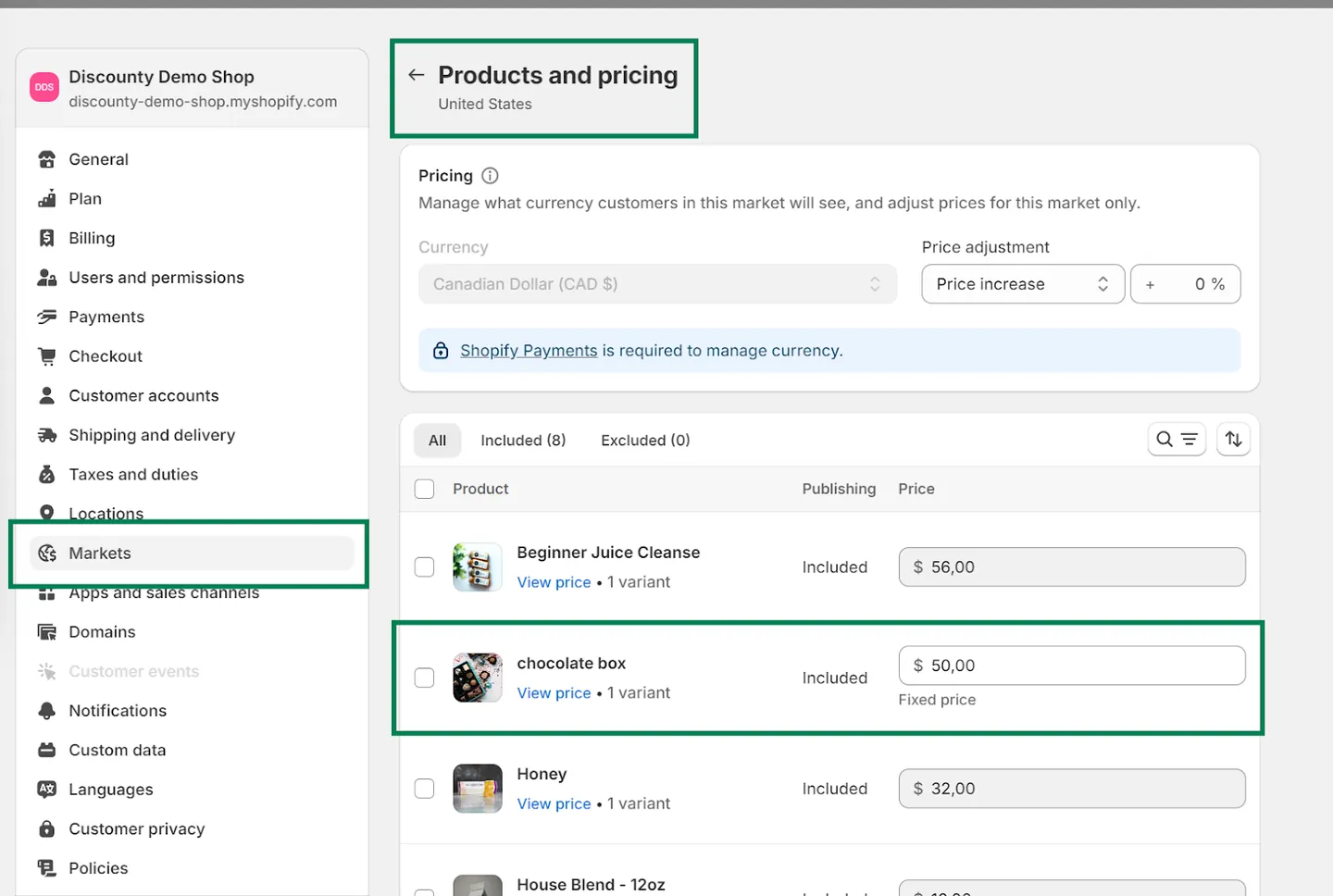
Check the market's pricing for fixed prices. If you're happy to remove them, follow these steps:
Go to Shopify admin → Settings → Markets → (market) → Products and pricing.
For each affected item, choose Adjust price → Percentage (leave it at 0% or set a relative change).
Save, then check the product in that market. If the discount still doesn't show, deactivate and activate the campaign.
Newer Markets settings
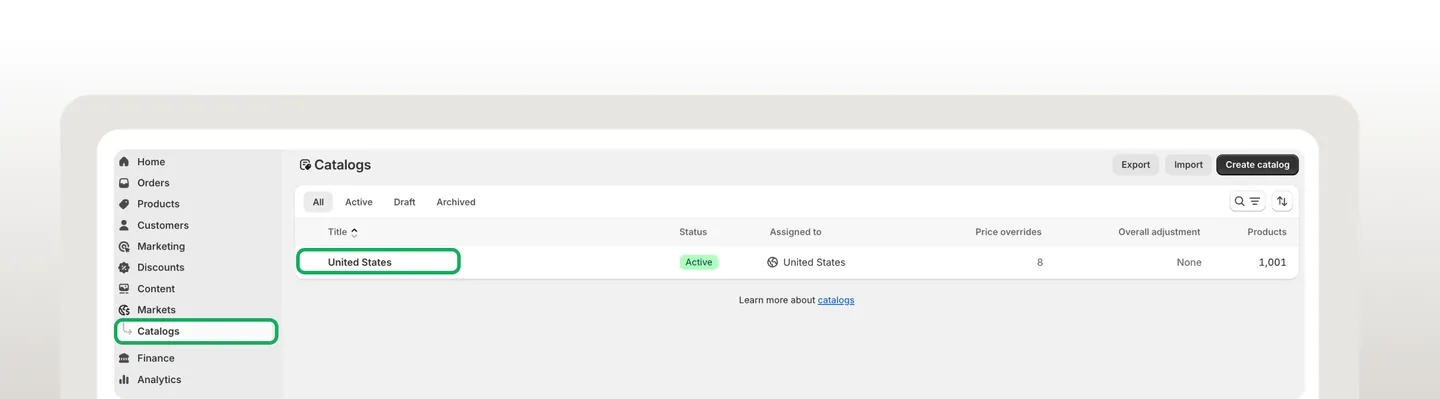
In your Shopify admin, click Markets in the left-hand menu, then Catalogs.
Select the catalog you want to update.
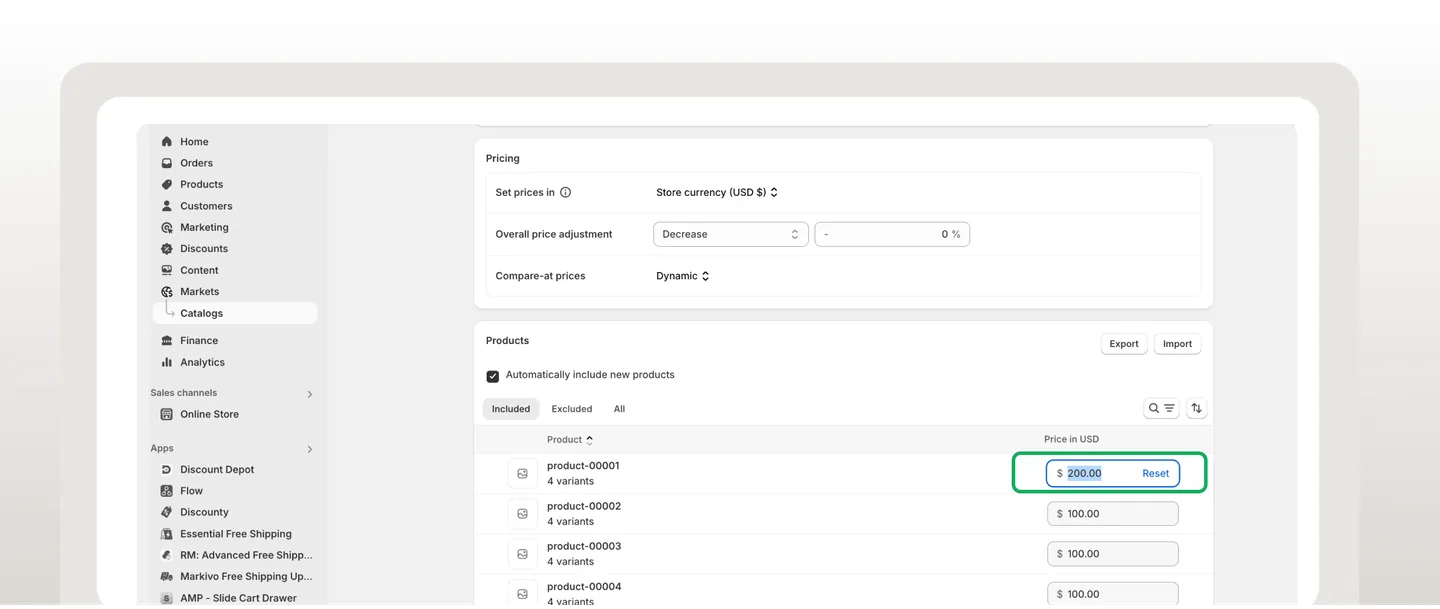
In the Products section, click the price of each affected item and reset it to its original price.
Save your changes, then check the product in that market. If the discount still doesn't show, deactivate and activate the campaign.
4. Turn on combinations to get a second discount
If a product is in both a Bulk price editor campaign and a Quantity discount or Cart goal campaign, but only one discount applies, the combination option is probably off on one or both campaigns. Both campaigns must allow the combination. Campaign combinations are available on the Discounty plan and above.
How to fix it
Deactivate both campaigns.
In the Bulk price editor campaign, open the Campaign combinations card and tick Discounty's Quantity discount and Cart goal campaigns.
In the Quantity discount or Cart goal campaign, open the Campaign combinations card and tick Discounty's Bulk price editor campaigns.
Activate both campaigns again.
If the Quantity discount or Cart goal campaign uses New price, it can't be combined with a Bulk price editor campaign. The app shows "The campaign can't be combined with "Price rule" when the discount is set to 'new price'".
5. The discount is applied, but the cart or checkout doesn't show the original price
A Bulk price editor campaign changes the actual product price in Shopify, so the discount is real. Whether customers also see the original price crossed out in the cart or at checkout depends on your theme and on Shopify's checkout.
Cart
Discounty's Saving on cart widget shows customers how much they're saving, right in the cart, with no theme code changes. Go to Customization → Saving on cart, turn on Display widget on store, and adjust the text and style. See How do I show total savings in the cart with the Saving on cart widget? for the full setup.
Most Shopify themes show only the discounted price in the cart, not the compare-at price with a strikethrough. A theme developer can usually change the theme to show both prices.
Checkout
At checkout, Shopify shows only the discounted price, not the compare-at price. Checkout is controlled by Shopify, so this usually can't be changed.
6. Another app changes the prices after Discounty
Some apps, such as pricing, inventory or feed tools, overwrite product prices after Discounty applies them, so the discount disappears from the affected products. The campaign form warns about this: "Activating price rules will update your product prices. If you're using other apps that also adjust pricing, their changes may overlap."
How to fix it
In Shopify admin → Settings → Apps and sales channels, find any app that changes product prices or runs scheduled price updates, and turn off its price changes for the products in your campaign.
Check that all the products you want are included in the campaign.
Deactivate the campaign and activate it again so Discounty writes the discounted prices again. Sync products doesn't help here: it updates which products are in the campaign, but it doesn't rewrite prices that another app changed.
For a step-by-step guide, see Why do Bulk price editor discounts show up, then disappear minutes or hours later?
7. Excluded products never get the discount
If a product matches the campaign's Excludes filter, it doesn't get the discount, even if it also matches your include filter, such as Product tags. Exclusions always win over inclusions. Exclude filters are available on the Lite plan and above.
How to fix it
Check the product's tags, collections, vendor and type in Shopify admin → Products → (product).
Compare them with what's selected under Excludes in the campaign.
Deactivate the campaign, remove the product (or its tag) from Excludes or adjust your include filter, then activate the campaign again.
8. The product is already discounted by another campaign
By default, a product gets a discount from only one Discounty campaign at a time. When you activate a campaign, products that another running campaign already discounts are left out of the new campaign, so their prices don't conflict. The campaign that was active first keeps the product.
To see which products were left out, open the campaign. While it's active, a banner titled "Some products already have a discount" appears. Click See which products to see each product and the campaign that's discounting it, with its current status. The campaign also shows a message like "3 variant(s) from 2 product(s) are excluded as they're already discounted in another campaign".
This check happens once, when the campaign is activated. If the other campaign later ends or is deleted, the left-out products don't join this campaign on their own. A product listed as discounted by "A campaign that is no longer active" is in this situation.
How to fix it
Bring left-out products back in after the other campaign ends: on the Discounty plan and above, click Sync products on the active campaign. It fetches the products again and re-checks conflicts without reverting prices. You can also deactivate and activate the campaign, or turn on Auto-update the campaign's products when items are added or removed from your store. Auto-update picks them up on its next run, not right away.
Let one product get both discounts: if your store shows Discounty's Bulk price editor campaigns in the Campaign combinations card, tick it on both Bulk price editor campaigns (Discounty plan and above). The option is disabled when the discount is set to New price or when Keep current price and set a higher compare-at price. is on. If you don't see this option, two Bulk price editor campaigns can't discount the same product in your store. Decide which campaign should own the product instead.
Related articles
Still not discounted after these checks? Contact our support team through the app — we're happy to help.