


Countdown timers: homepage and product page
Add a "starts in" or "ends in" countdown timer to your homepage and product pages, and customize its content and style.
A countdown timer shows a live clock on your store counting down to when a sale starts or ends. It builds anticipation before a launch and creates urgency before a deal ends, so customers decide sooner. You can show it on your homepage, your product pages, or both.
Countdown timers are available for Bulk price editor, Quantity discount and Cart goal campaigns, and are included on the Essential plan and above. If the Countdown timer card shows a lock icon, check your plan on the Plans page.
How to set up a countdown timer
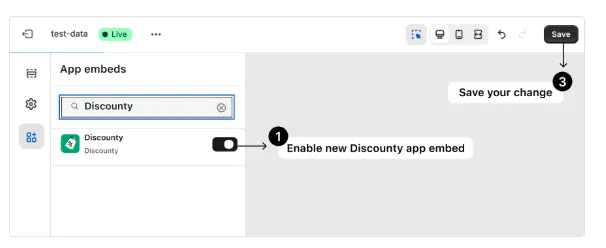
1. Activate the Discounty app embed
Make sure the Discounty app embed is active in your theme. See How to activate Discounty widgets on your Shopify store? for the steps.
2. Open the campaign
Open the Bulk price editor, Quantity discount or Cart goal campaign where you want the timer, or create a new one.
3. Choose where the timer shows
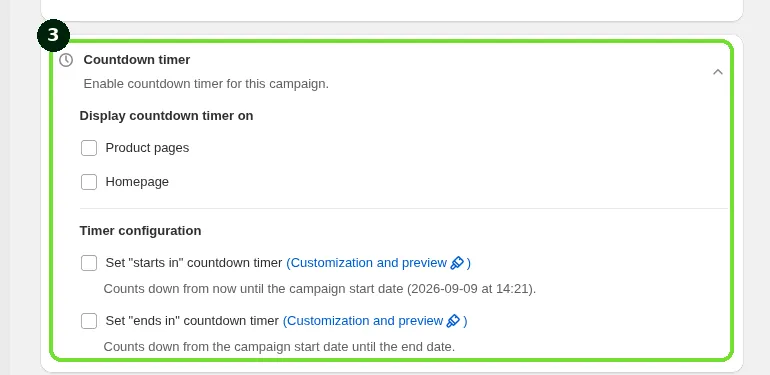
Open the Countdown timer card ("Enable countdown timer for this campaign."). Under Display countdown timer on, tick Product pages, Homepage, or both.
4. Choose the timer type
Under Timer configuration, tick one or both of these:
Set "starts in" countdown timer: counts down from now until the campaign start date. You can use the campaign start date or set a custom start date.
Set "ends in" countdown timer: counts down from the campaign start date until the end date. You can use the campaign end date or set a custom end date.
Use the "starts in" timer to build anticipation for a Scheduled campaign that hasn't started yet, and the "ends in" timer to create urgency as a campaign nears its end. Next to each option, the Customization and preview link opens that timer's widget page.
5. One homepage timer at a time
Only one countdown timer can show on the homepage at a time. The card warns: "You can display only one countdown timer on the homepage at a time. If another Discounty campaign already has one, it will be replaced."
6. Save your campaign
Click Save. You can change the countdown timers of an Active campaign at any time, without deactivating it.
7. Turn on the timer widget
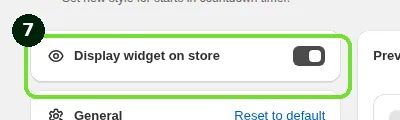
In Discounty, go to Customization and open the Starts in countdown timer or Ends in countdown timer card. Turn on Display widget on store.
Customize your timer
The Starts in countdown timer and Ends in countdown timer each have their own card on the Customization page, so each can have its own content and style. Changes you make apply only to the timer you opened. To customize both, open each card and repeat the steps below.
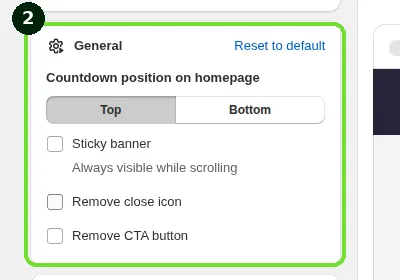
1. General
Under General:
Countdown position on homepage: Top or Bottom.
Sticky banner: "Always visible while scrolling". When sticky mode is on, the homepage banner displays at 80% opacity.
Remove close icon (optional).
Remove CTA button (optional).
2. Content
Under Content:
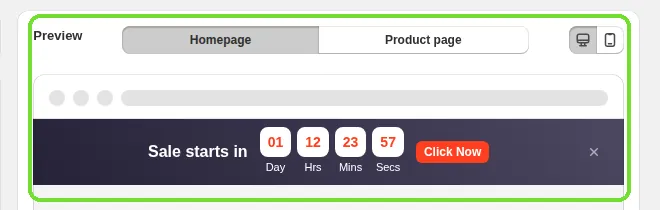
Title (for example, "Hurry up! Sale ends in").
Timer label: the words under the numbers, for example Day / Hrs / Mins / Secs.
CTA text: the button text.
Link: where the button goes. Your Shopify domain is filled in for you.
Make entire banner clickable: choose whether only the button or the whole homepage banner is clickable.
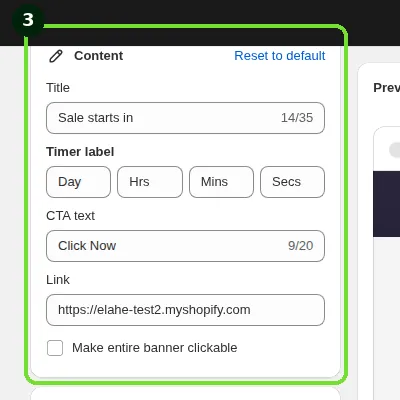
The CTA button and link are available only on the homepage countdown timer. Product-page timers have no button or link.
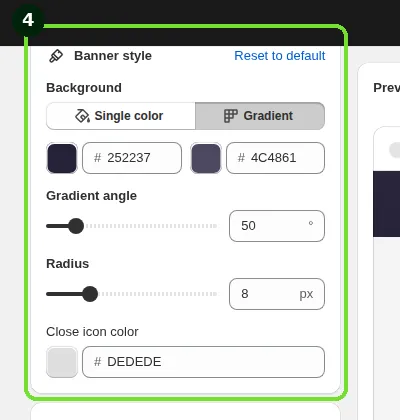
3. Banner style
Under Banner style:
Background: Single color, or Gradient (two colors and a Gradient angle).
Radius: rounds the corners of the timer boxes and the CTA button. The homepage banner itself gets rounded corners only in sticky mode, using the same Radius (default 8).
Close icon color.
4. Content color
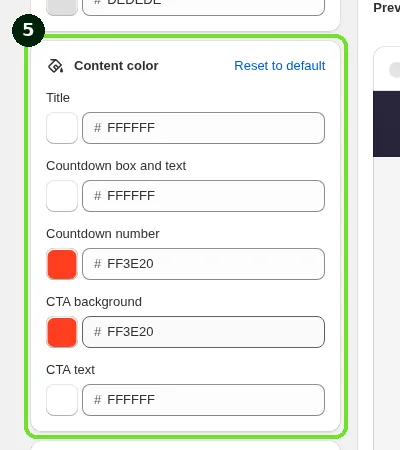
Under Content color:
Title
Countdown box and text
Countdown number
CTA background
CTA text
Most options apply to the homepage countdown timer. Product pages show a simpler version of the timer. Switch the preview between the homepage and the product page to see how your changes look on each.
5. Translations
The title, timer labels and CTA text can be translated into each language your store sells in, from the Translations section on the same page. See How do I translate Discounty widgets for a multi-language store?.
When you're done, click Save.
The timer doesn't show
Check that the campaign is a Bulk price editor, Quantity discount or Cart goal campaign, and that Product pages or Homepage is ticked in its Countdown timer card.
Check that Display widget on store is on for the Starts in countdown timer or Ends in countdown timer card.
Check that the Discounty app embed is enabled in your active theme.
On the homepage, only one timer shows at a time. Another campaign's timer may have replaced it.
If the timer still doesn't display correctly, contact our support team with your theme name and store URL.
Related articles
Need a hand? Contact our support team through the app — we're happy to help.