


How do I set up a Cart goal campaign?
Create a Cart goal campaign: spend tiers, discount conditions, sales channels, purchase type, products, combinations, segments, schedule.
A Cart goal campaign rewards customers for spending more, for example "Spend $100+, save 5%". You set one or more tiers, each with a minimum purchase amount and a discount, and the discount applies automatically in the cart and at checkout, with no code needed. Cart goal is available on every plan, including Starter.
Only the products included in the campaign count toward the amount and receive the discount. If you want the tiers to depend on the number of items instead of the amount spent, use a Quantity discount campaign. Below, each step matches one card on the campaign form, in the order you see it.
Prefer to watch? This walkthrough shows the full setup step by step:
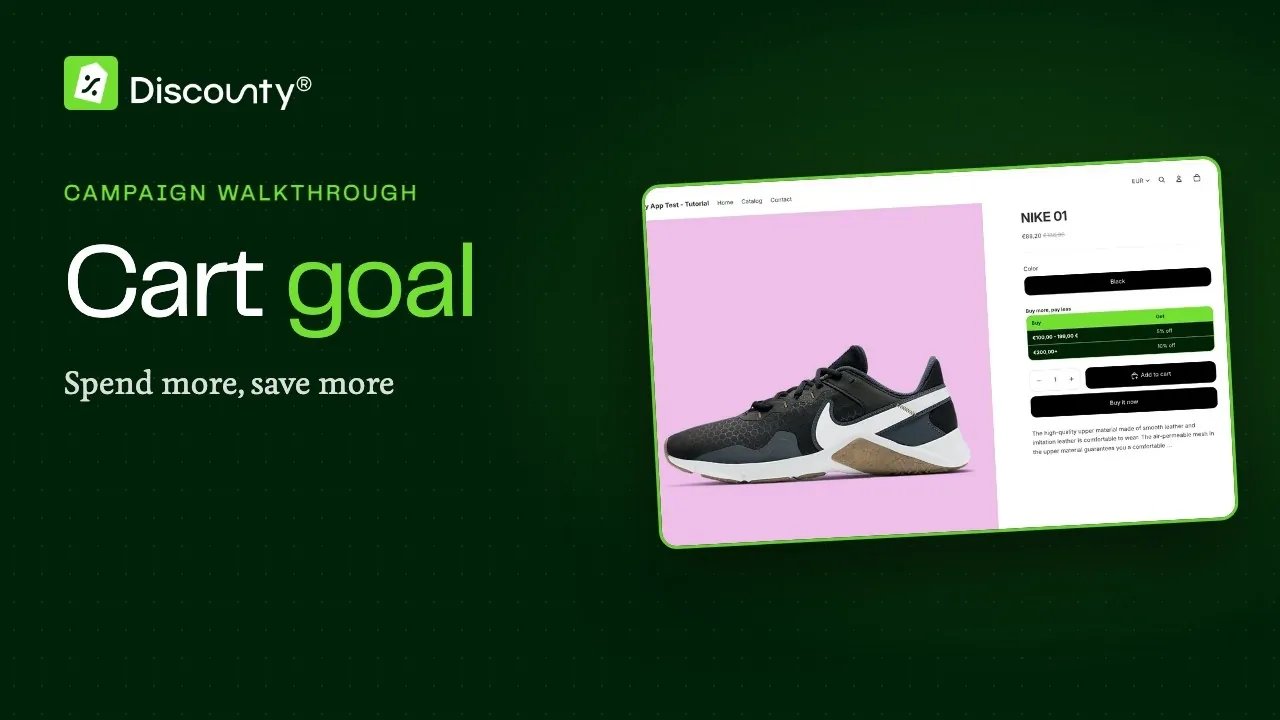 Play the video: How do I set up a Cart goal campaign?
How to set up a Cart goal campaign
Go to Campaigns, click Create campaign, and choose Cart goal.
Step 1: Name the campaign and set the checkout label
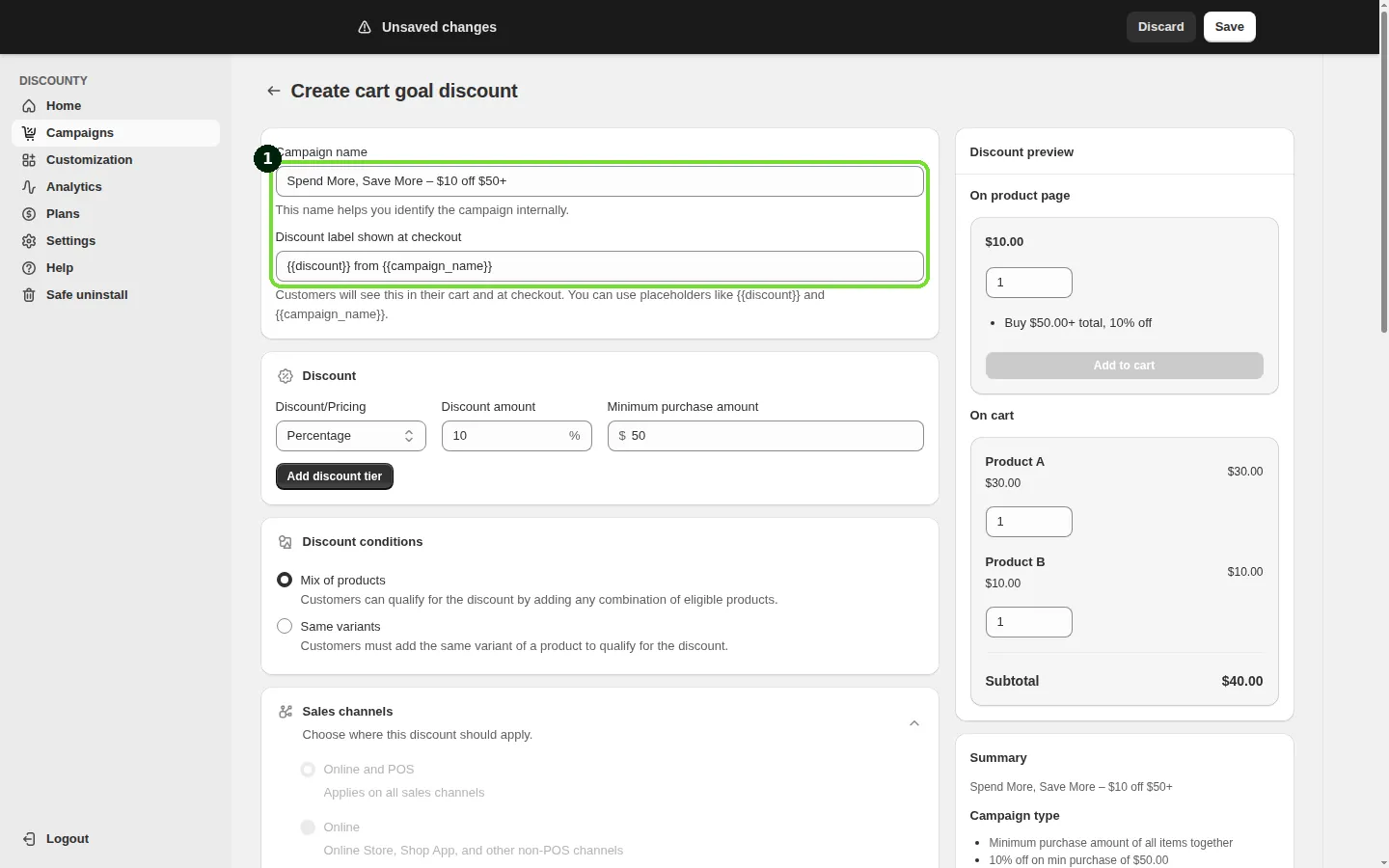
In the first card of the form:
Campaign name: an internal name, for example "Spend More, Save More – $10 off $50+". Customers don't see it unless you include it in the checkout label below.
Discount label shown at checkout: the text customers see on the discount line in their cart and at checkout. You can type any wording and use two placeholders: #{{discount}} is replaced with the discount value (for example "10%" for a percentage tier or "$10.00" for a fixed amount), and #{{campaign_name}} is replaced with the campaign name. The default is #{{discount}} from #{{campaign_name}}, which a customer sees as "$10.00 from Spend More, Save More". A label without placeholders is shown exactly as written.
Step 2: Define the discount tiers
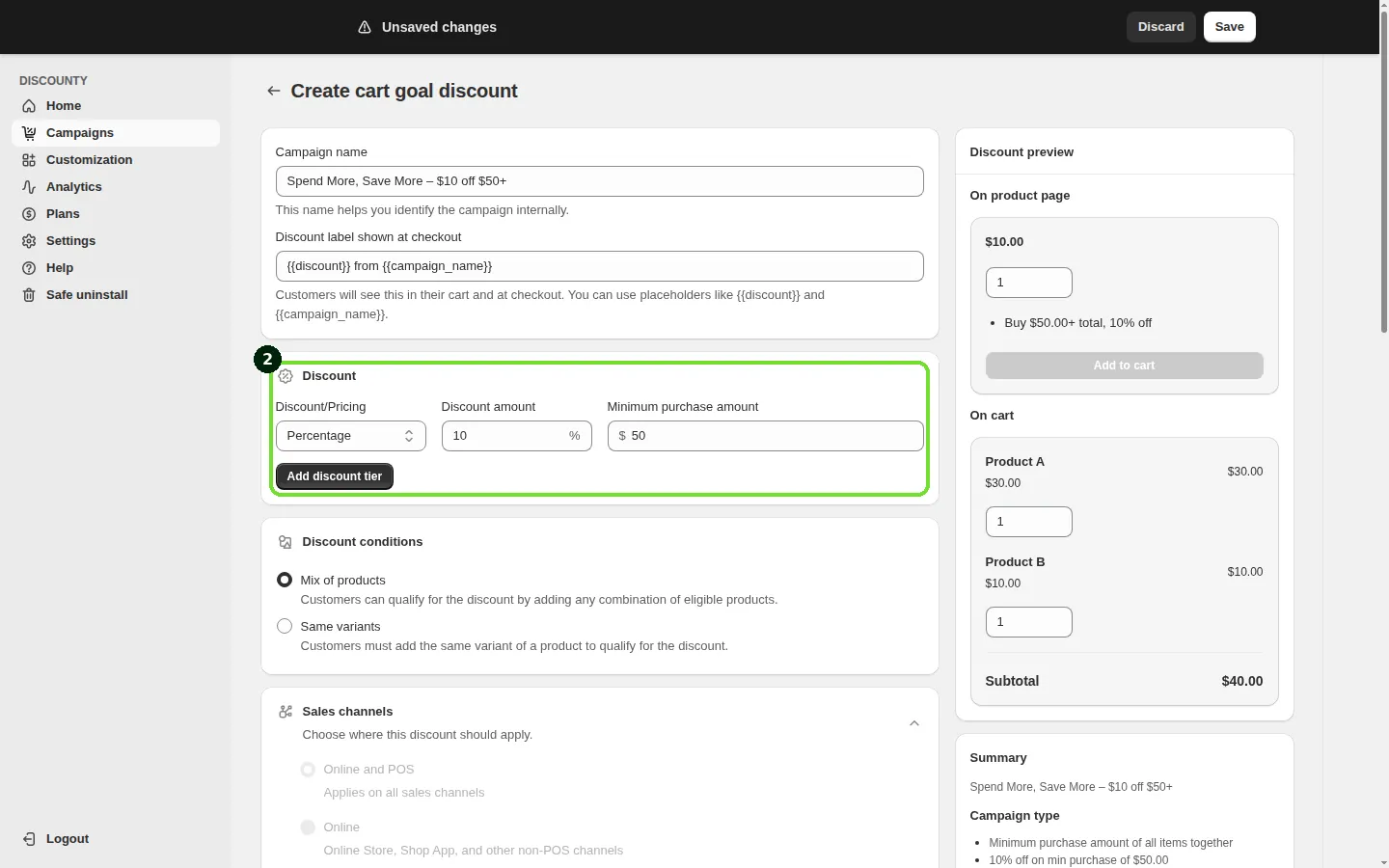
In the Discount card:
Under Discount/Pricing, choose the discount type: Percentage (for example 10% off each item), Fixed amount (for example $10 off), or New price (for example each item costs $20).
Enter the Discount amount for the first tier.
Enter the Minimum purchase amount a customer must reach with the campaign's products for that tier to apply. The amount is in your store currency.
Click Add discount tier to add another threshold, for example $50+ = $10 off and $100+ = $25 off. More than one tier is available on the Essential plan and above.
Every tier needs an amount and a discount greater than 0. Each tier's minimum purchase amount must be greater than the previous tier's. For Percentage and Fixed amount, each tier's discount must be greater than the previous tier's; for New price, each tier's price must be lower than the previous tier's.
How tiers are applied:
Only products included in this campaign count toward the minimum purchase amount and receive the discount. The amount is the total of the eligible cart lines (item price × quantity).
The highest tier whose minimum purchase amount is met applies, and meeting the threshold exactly counts. There is no upper cap: if your top tier is $100+ = 25% off, a $500 cart still gets 25% off.
With New price, each eligible item is discounted down to the new price; an item whose current price is already at or below the new price isn't discounted.
If a customer pays in a currency other than your store currency, the thresholds and any fixed amounts or new prices are converted to that currency.
Step 3: Choose how a Fixed amount discount applies
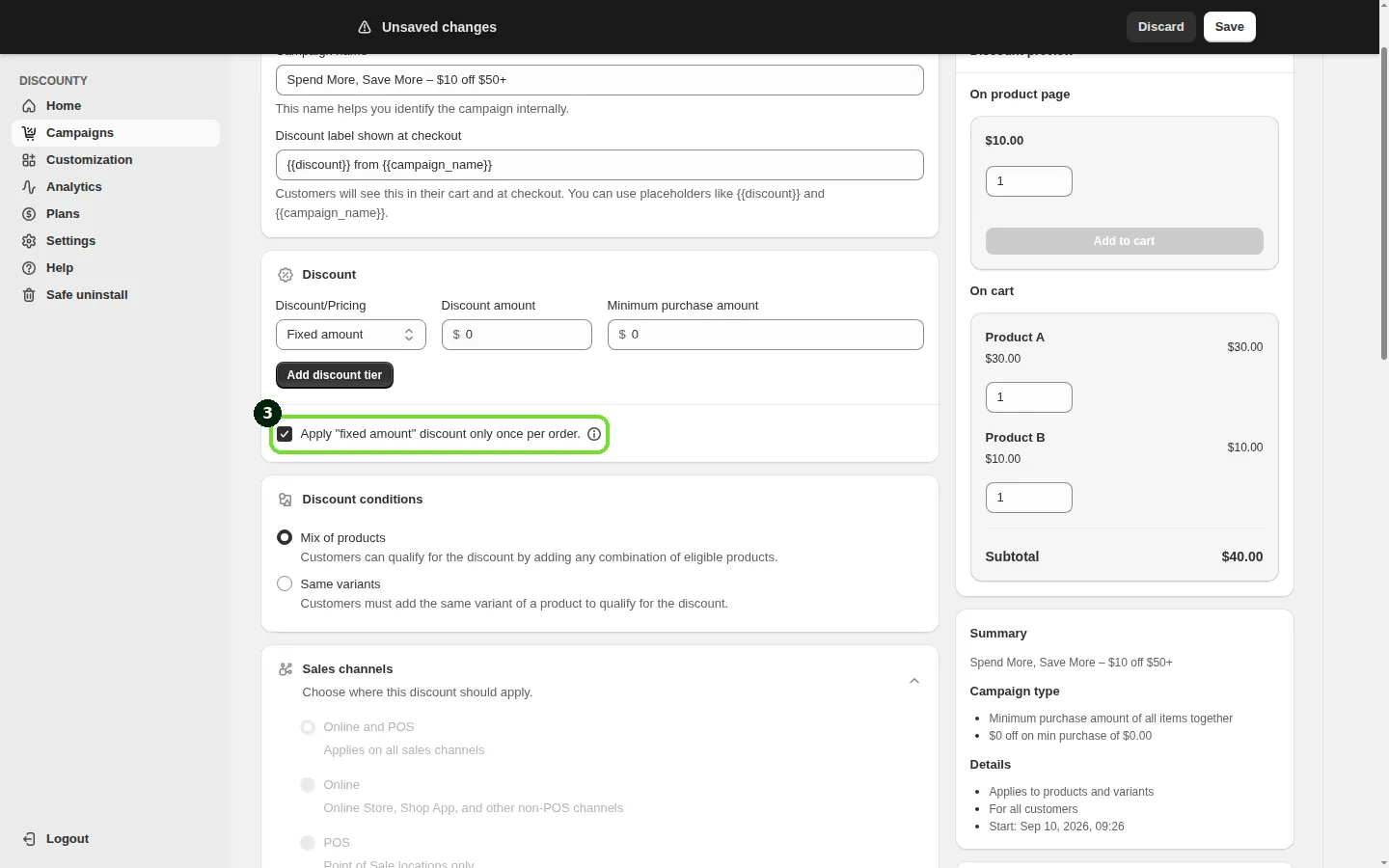
This checkbox appears in the Discount card only when the discount type is Fixed amount. It's selected by default, and its wording depends on the Discount conditions you choose in Step 4:
With Mix of products, it reads Apply "fixed amount" discount only once per order. When selected, the fixed amount is taken off once for the whole order, spread across the eligible items, after the purchase amount is reached. If not selected, the amount is taken off each eligible item in the order.
With Same product, any variant, it reads Apply "fixed amount" discount only once per product. When selected, the fixed amount is taken off once per qualifying product, pooling all of that product's variants. If not selected, the amount is taken off each eligible item of that product.
With Same variants, it reads Apply "fixed amount" discount only once per order line. When selected, the fixed amount is taken off once per qualifying variant line. If not selected, the amount is taken off each eligible item in that line.
Example: tier $50+ = $10 off, and a customer adds 4 eligible items for $60 in total. With the option selected, they save $10 in total. With it cleared, they save $10 on each of the 4 items, $40 in total. When the amount is taken off each item, an item priced lower than the fixed amount isn't discounted.
Step 4: Set the Discount conditions
In the Discount conditions card, choose how the purchase amount is counted:
Mix of products (default): customers qualify by adding any combination of eligible products. The amounts of all campaign products in the cart are added together. Example: $30 of Product A + $25 of Product B = $55, so a $50+ tier applies to both products. The summary card describes this as "Minimum purchase amount of all items together".
Same product, any variant: customers must spend enough on one product, but its variants (sizes, colors and so on) still count together. Different products are counted separately. If the threshold is $50, adding $30 of Small / Blue and $30 of Medium / Blue of the same product reaches it ($60 in total). The summary card describes this as "Minimum purchase amount of each product independently".
Same variants: customers must reach the amount with the same variant of a product. Each variant's line total is counted on its own. If the threshold is $50, a customer must reach $50 with one variant (for example 2 × $30 Small / Blue = $60); $30 of Small / Blue and $30 of Medium / Blue don't qualify. The summary card describes this as "Minimum purchase amount of each item independently".
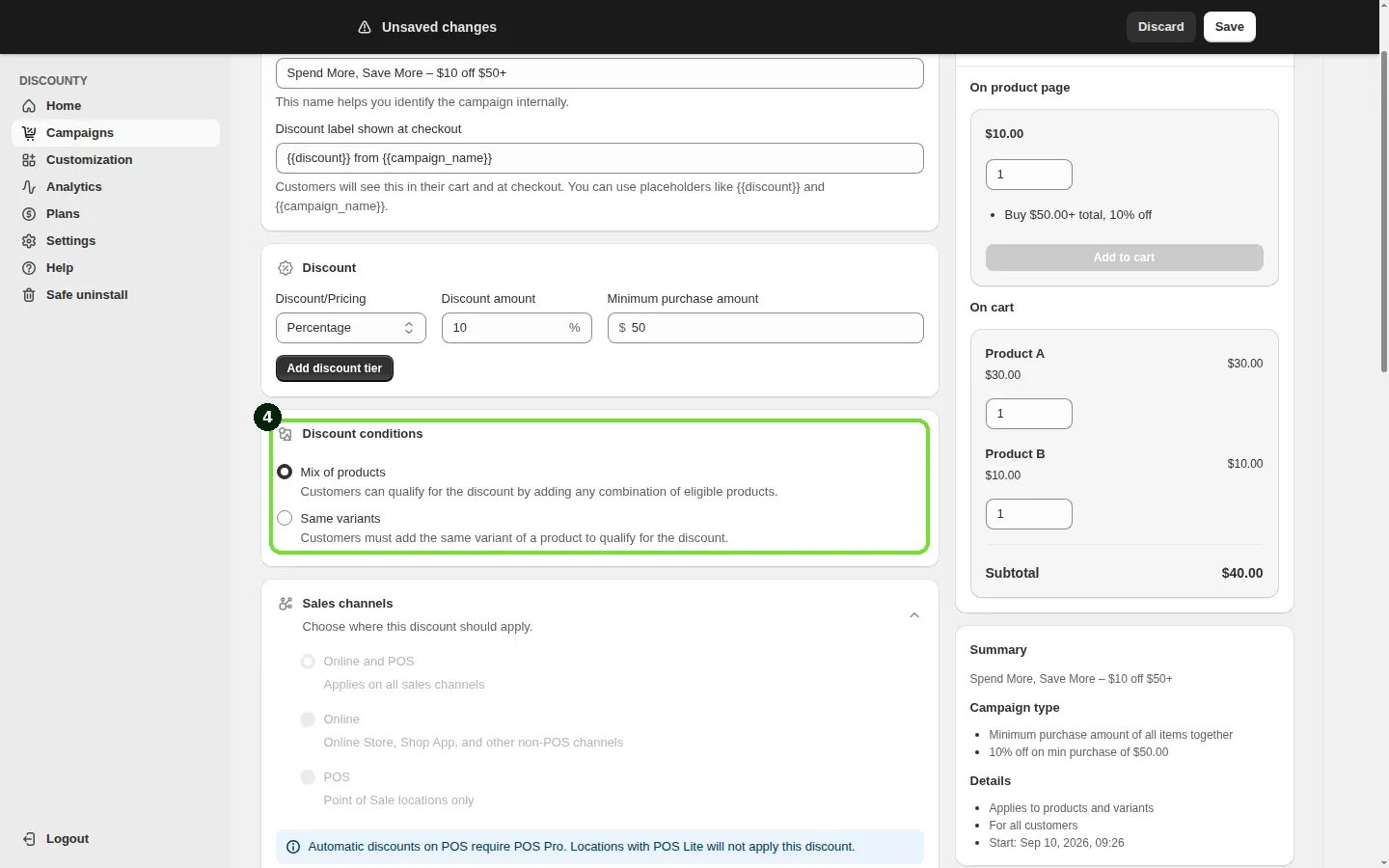
Step 5: Choose the Sales channels
In the Sales channels card, choose where this discount applies:
Online and POS (default): applies on all sales channels.
Online: Online Store, Shop App, and other non-POS channels.
POS: Point of Sale locations only.
With Online and POS or POS, the form reminds you that automatic discounts on POS require POS Pro; locations with POS Lite won't apply this discount. Changing the sales channel is available on the Discounty plan and above. Campaigns created before this setting existed don't show the card and keep working as before. See How do Discounty discounts work with Shopify POS?.
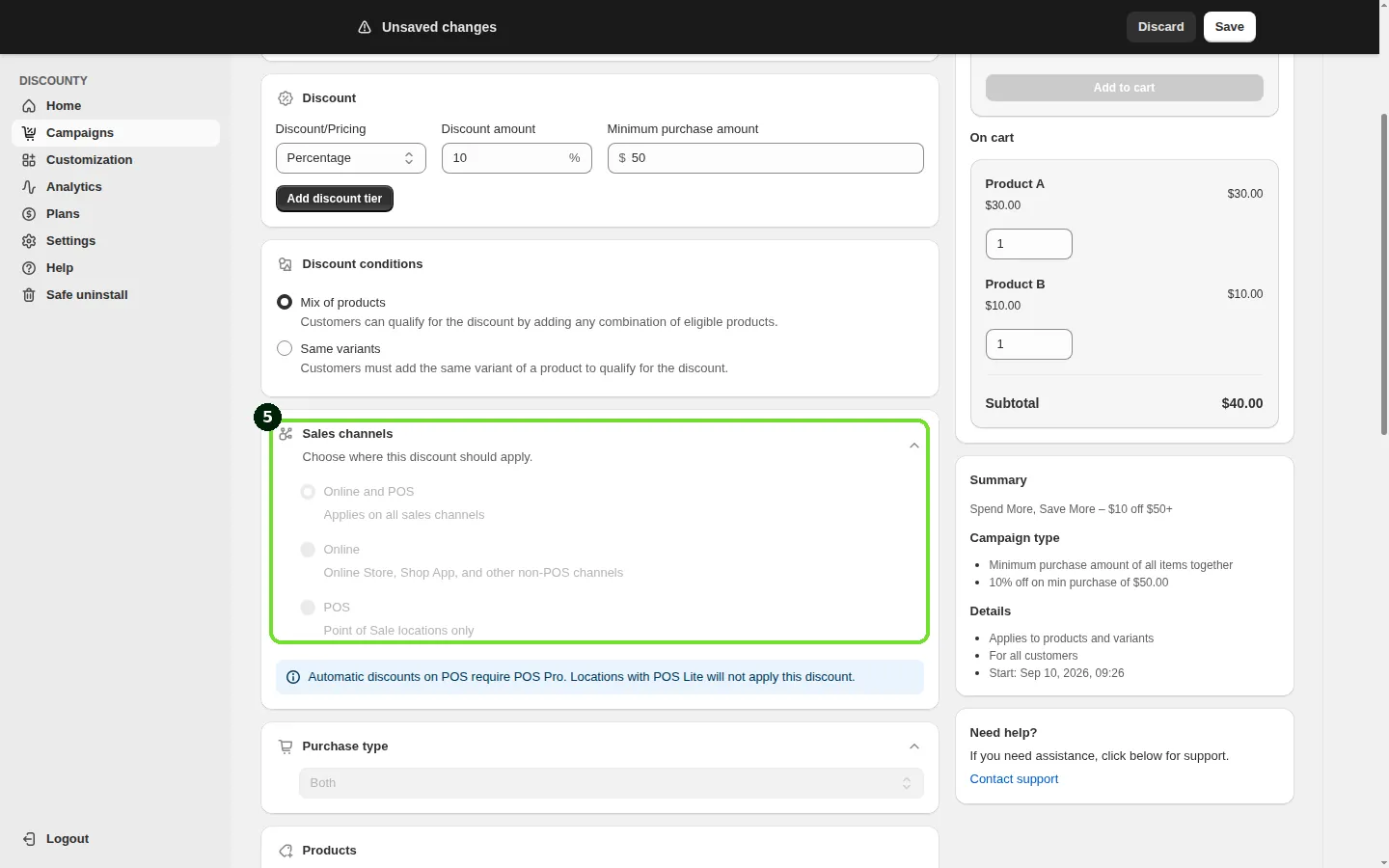
Step 6: Choose the Purchase type
In the Purchase type card, choose whether the discount applies to One-time purchase items, Subscription items, or Both (default). Only cart lines that match the selected purchase type count toward the purchase amount and receive the discount. Choosing One-time purchase or Subscription only is available on the Essential plan and above. See How do I apply a discount only to subscription (or one-time) purchases?.
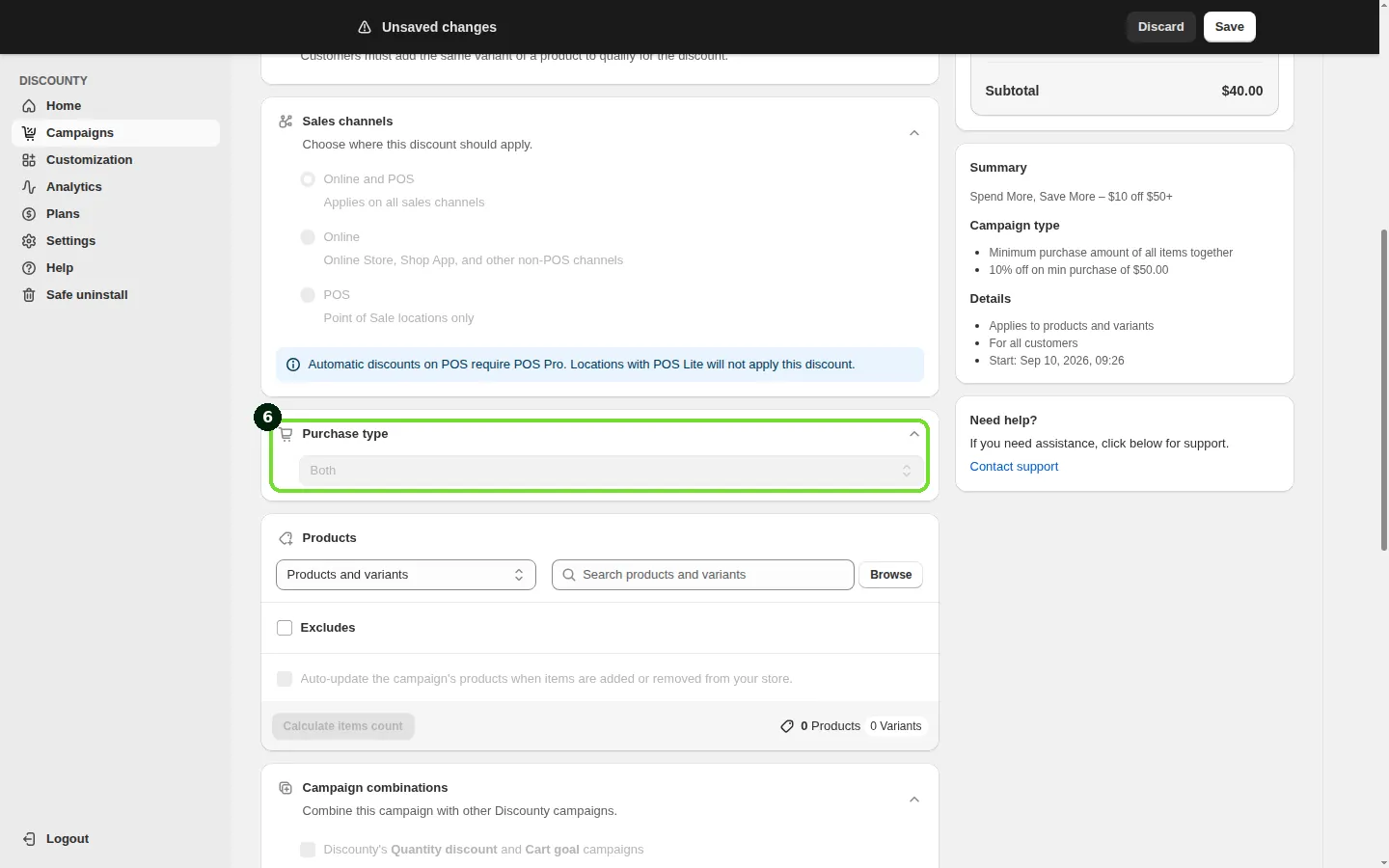
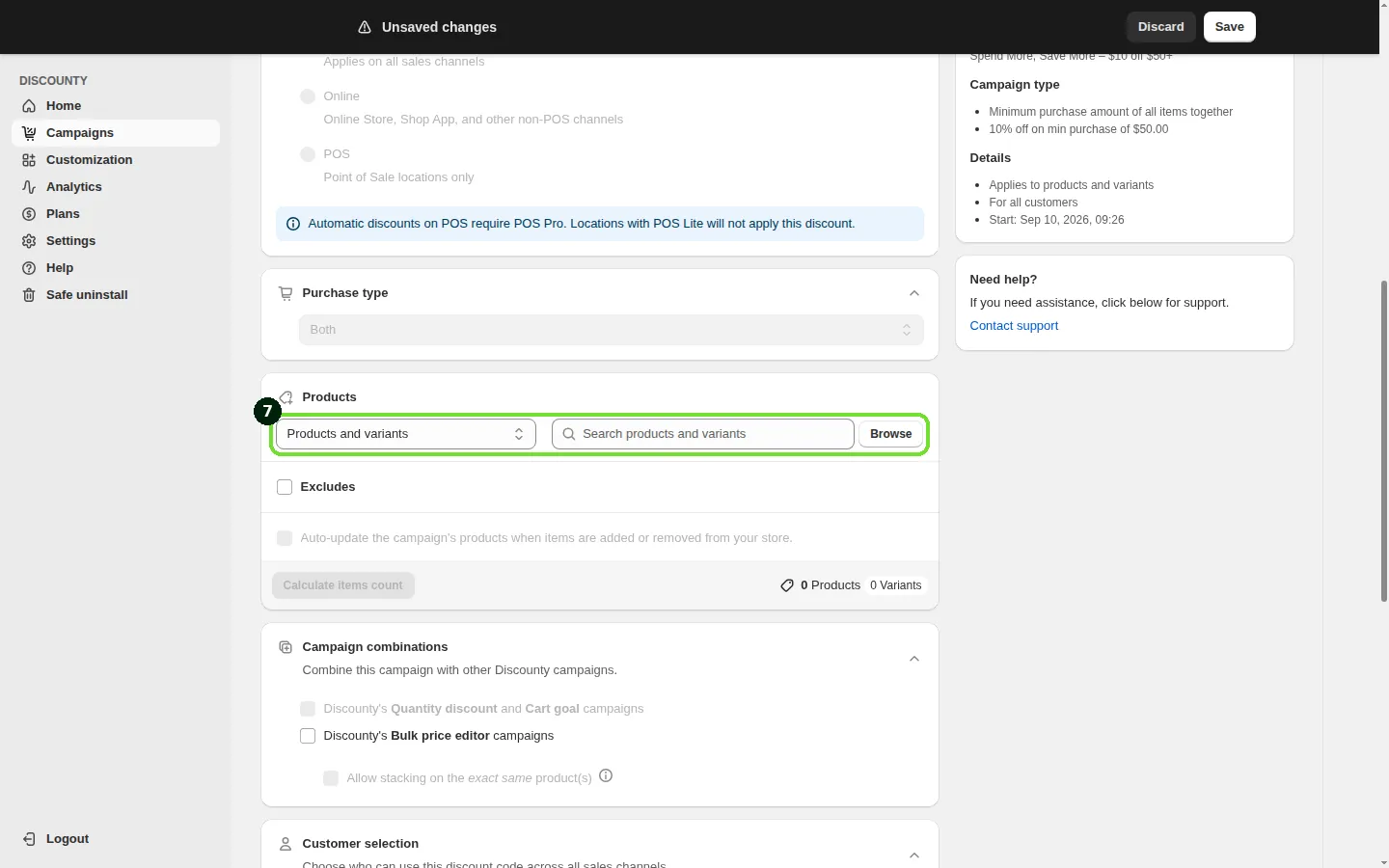
Step 7: Select the products
In the Products card, choose which products the campaign applies to:
Pick a filter: All store, Collections, Product tags, Vendors, Product types, or Products and variants. For every filter except All store, use the search box or Browse to pick the items.
To leave some items out, select Excludes and pick a second filter for the products to exclude. Excludes is available on the Lite plan and above.
Select Auto-update the campaign's products when items are added or removed from your store. if you want Discounty to keep the campaign's product list in sync with your store. Auto-update is available on the Discounty plan and above, and it's turned off when the included products are chosen manually with Products and variants.
Only the selected products count toward the minimum purchase amount and receive the discount. Anything else in the cart is ignored by this campaign.
Once the campaign is Active, you can also click Sync products on the campaign page or in the Campaigns list (Discounty plan and above) to re-fetch the campaign's products and re-check conflicts right away. The status shows Updating products until it's done.
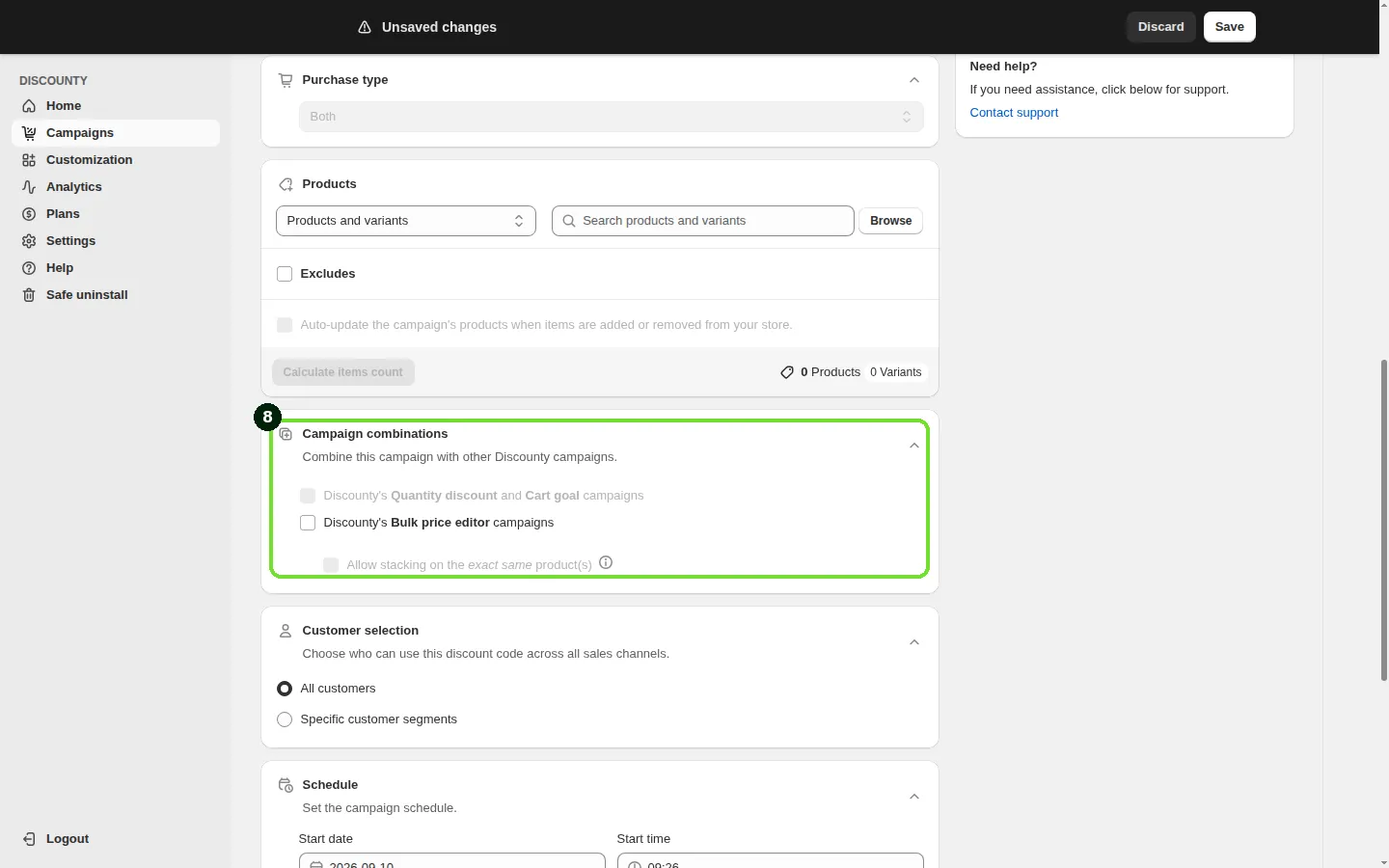
Step 8: Campaign combinations (optional)
By default, a product is discounted by only one Discounty campaign at a time. Open the Campaign combinations card to change that. Campaign combinations are available on the Discounty plan and above.
Discounty's Bulk price editor campaigns: lets the Cart goal discount apply on top of a price already changed by a Bulk price editor campaign. This option isn't available when the discount type is New price; the form shows: The campaign can't be combined with "Price rule" when the discount is set to 'new price'.
Cart goal and Quantity discount campaigns can't be combined with each other. A product gets at most one Quantity discount or Cart goal campaign.
Allow stacking on the exact same product(s): appears under the Bulk price editor option. It lets this campaign apply together with a Buy X get Y or Advanced discount code campaign on the same cart line, instead of Shopify keeping only the best discount. Select it, then search for the campaigns to stack with (up to 10). It needs Shopify Plus and the Discounty plan or above. See How do I stack two product discounts on the same item?.
For how Discounty campaigns work with Shopify's own discounts and other apps, see How do Discounty campaigns combine with each other, Shopify discounts, and third-party app discounts?.
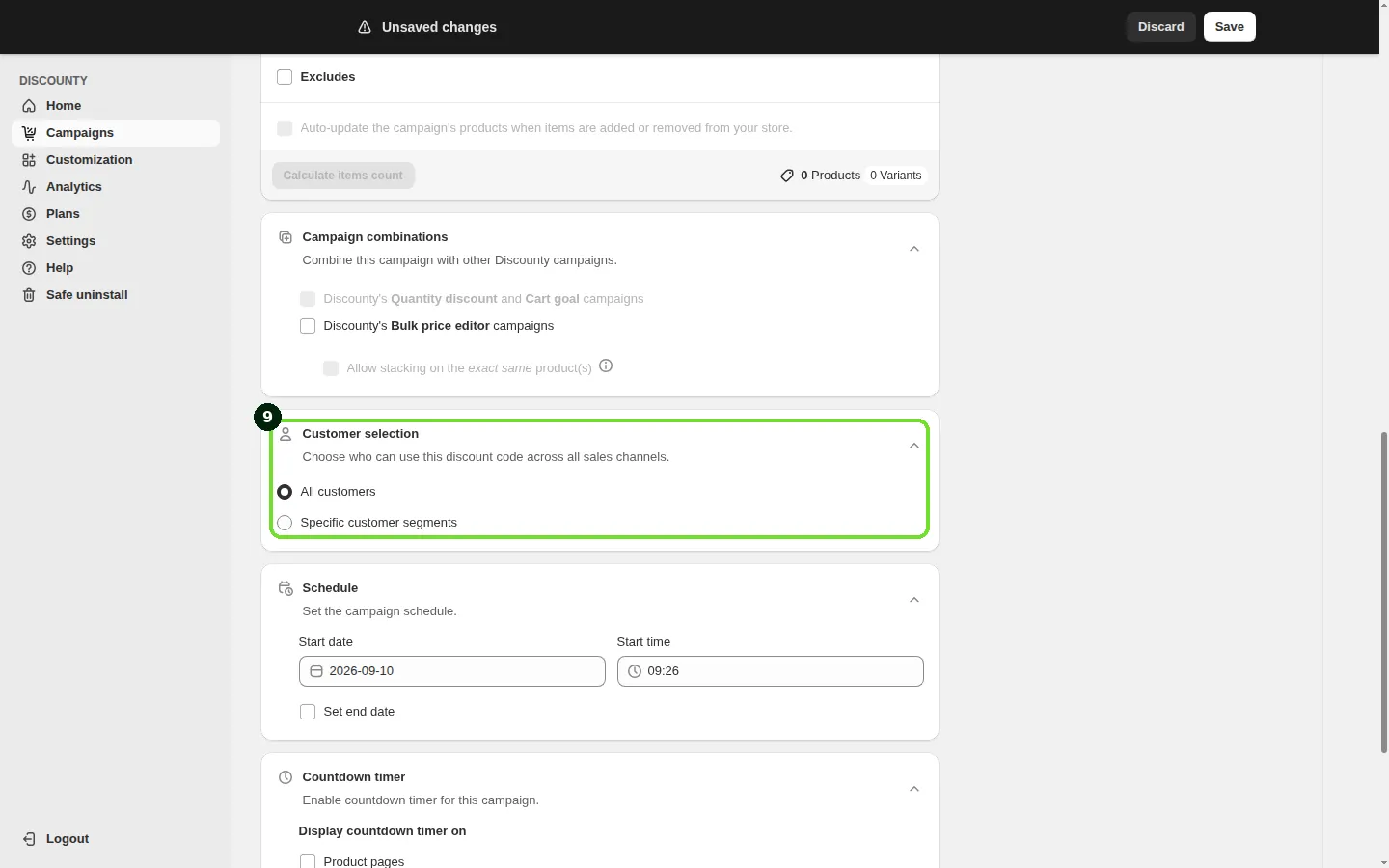
Step 9: Choose who can use the discount
In the Customer selection card, choose All customers (default) or Specific customer segments. With specific segments, search or Browse for Shopify customer segments. Due to Shopify's limit, you can add up to 5 segments to each automatic discount campaign. Customer segments are available on the Discounty plan and above. See How do I limit a Discounty campaign to specific customer segments?.
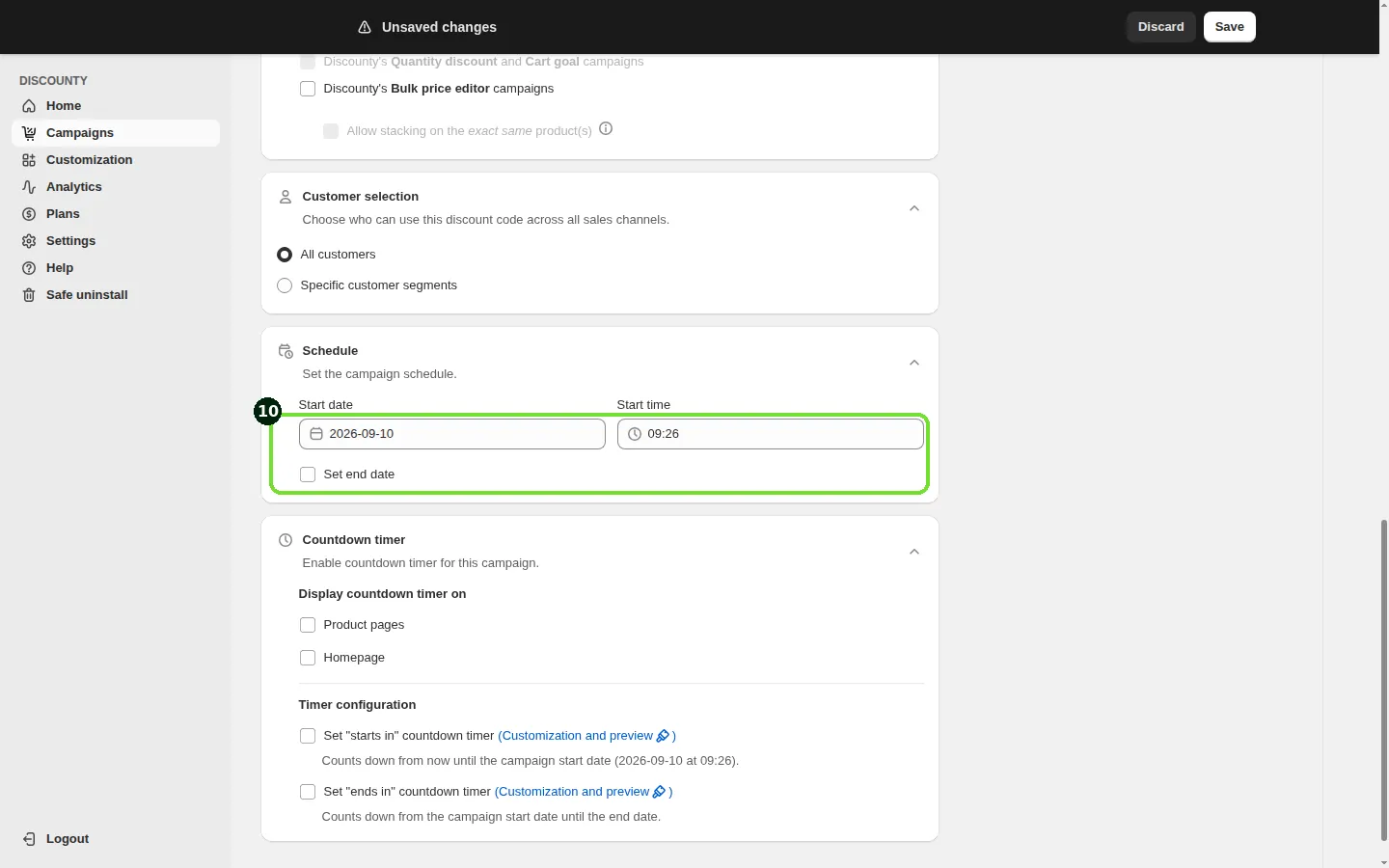
Step 10: Set the schedule
In the Schedule card, set the Start date and Start time. To end the campaign automatically, select Set end date and set the End date and End time. Setting an end date is available on every plan. Dates and times use the time zone of the device you're using when you save the campaign.
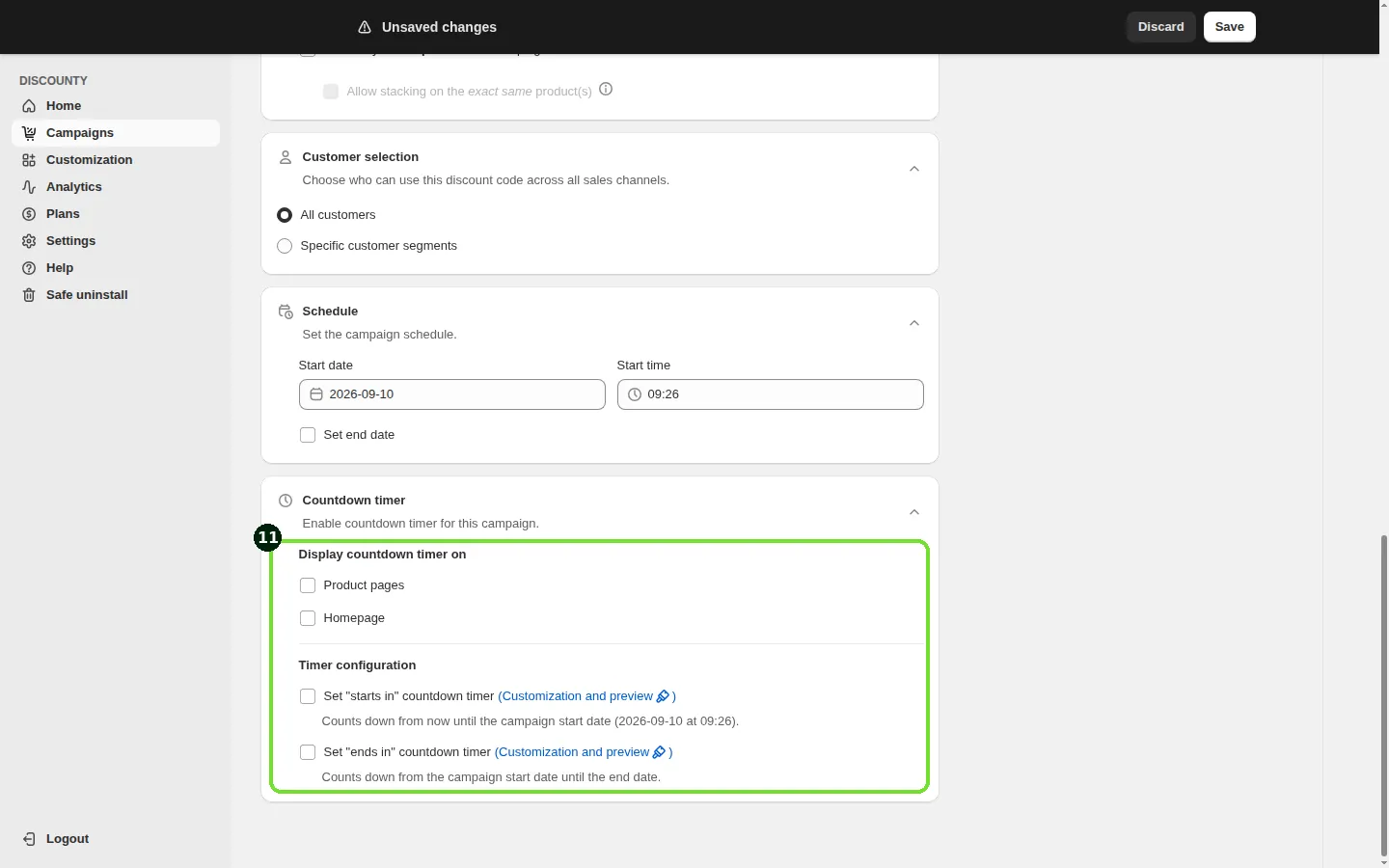
Step 11: Add a countdown timer (optional)
In the Countdown timer card you can show a timer on your storefront. Countdown timers are available on the Essential plan and above.
Under Display countdown timer on, select Product pages and/or Homepage. You can display only one countdown timer on the homepage at a time; if another Discounty campaign already has one, it's replaced.
Under Timer configuration, select Set "starts in" countdown timer to count down until the campaign starts, using Use campaign start date or Set a custom start date.
Select Set "ends in" countdown timer to count down to the end, using Use campaign end date or Set a custom end date.
Step 12: Check the preview and save
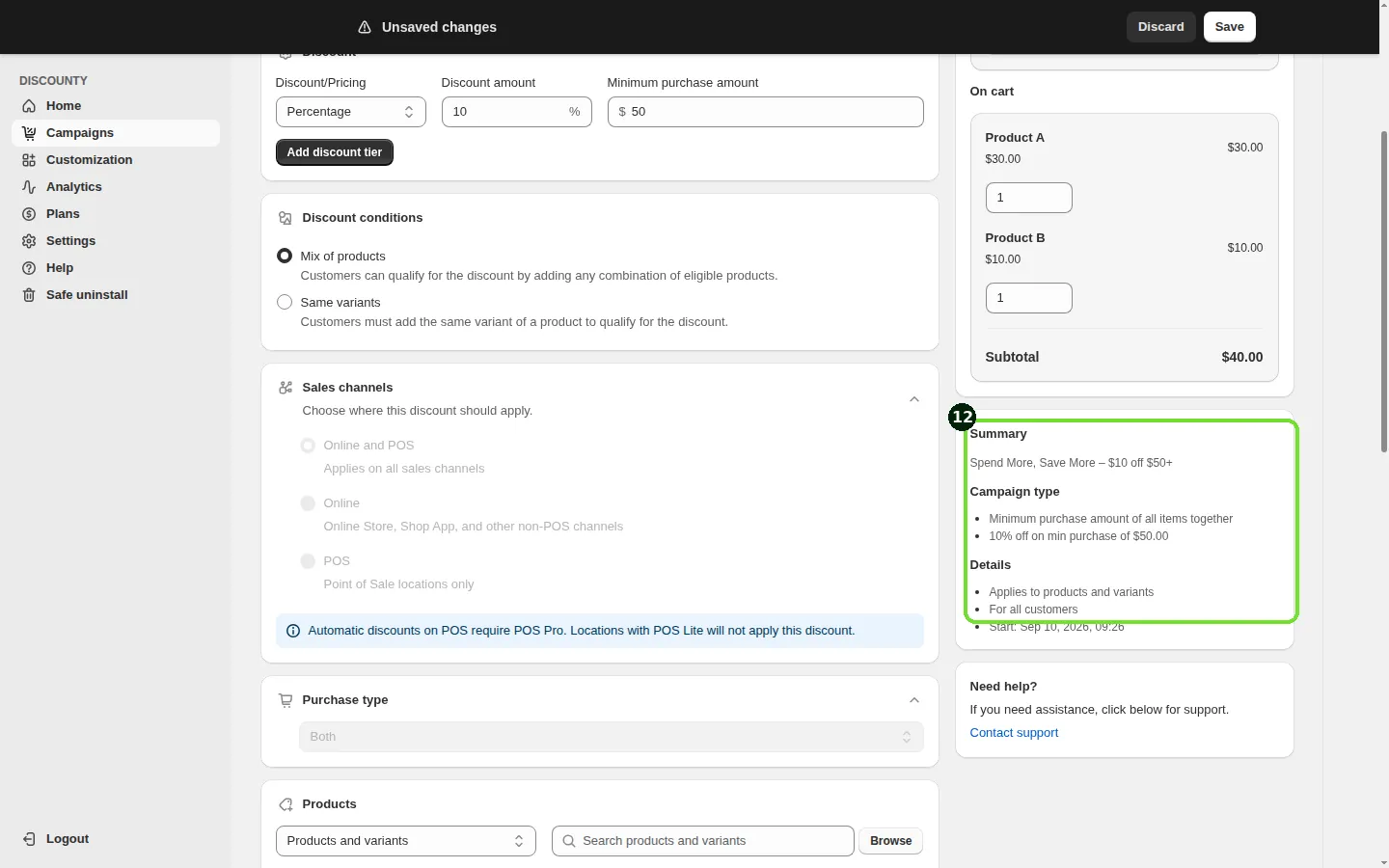
The preview on the right shows how the campaign behaves on a product page and in the cart, and the summary card lists the tiers you set. Change the sample quantities to confirm the right tier applies, then save. Once the campaign is active, you can show its spend tiers on your product pages with the Quantity/Value table widget. See How to set up and customize the Quantity/Value table widget in Discounty?.
How the discount appears in Shopify
Quantity discount and Cart goal campaigns normally share one Shopify automatic discount named "Discounty 1 [DO NOT DELETE]". Keep it in place: deleting it stops these campaigns from applying. A campaign that uses customer segments or same-line stacking gets its own Shopify automatic discount, which counts toward Shopify's limit of 25 active automatic discounts. See Is there a limit on the number of campaigns I can create?.
Editing an active campaign
While a campaign is Active, you can only change its end date and time, countdown timers and auto-update. Sales channel, purchase type, customer selection and everything else are locked. To change them, click Deactivate, edit the campaign, and activate it again. See Campaign statuses in Discounty.
Example
You sell skincare and want customers to spend more per order. You create a Cart goal campaign with Percentage tiers $50+ = 10% off and $100+ = 20% off, choose Mix of products, and include the "Skincare" collection. A customer adds a $35 serum and a $25 cleanser from that collection, $60 in total: the $50+ tier applies and both items are 10% off. They add a $45 night cream, reaching $105: the $100+ tier applies and all three items are 20% off.
With Same product, any variant, two variants of the same product (for example a 30ml and a 50ml serum) would pool together toward the $50+ tier, but spending on a different product like the night cream wouldn't count toward it. With Same variants, a single variant would need to reach $50 on its own (for example 2 × $35 serum) before any discount applied to it.
If the discount isn't applying
Check that the campaign status is Active, that the products in the cart are included in the campaign, that the eligible items reach the lowest tier's minimum purchase amount under the selected Discount conditions, and that the sales channel, purchase type and customer selection match the order. For a full checklist, see Why is the Quantity discount or Cart goal campaign not applying? Troubleshooting guide.
Related articles
Need a hand? Contact our support team through the app — we're happy to help.
In Discounty: Cart goal See how a Shopify cart discount works