


How do I apply a discount only to subscription (or one-time) purchases?
Use Purchase type to apply a campaign's discount to one-time purchases, subscription items, or both.
Want to reward subscribers without discounting one-time orders, or the other way round? A campaign's Purchase type setting decides whether its discount applies to one-time purchases, subscription items, or both. At checkout, Shopify checks each cart line and discounts only the lines that match.
What Purchase type does
Purchase type sets whether a campaign's discount applies to one-time purchases, subscription items, or both. It works like the "Purchase type" control in Shopify's own discount editor, so the discount is applied the same way at checkout, and Shopify filters each cart line for you.
Every campaign is set to Both by default, so your campaigns keep working as before until you change this setting.
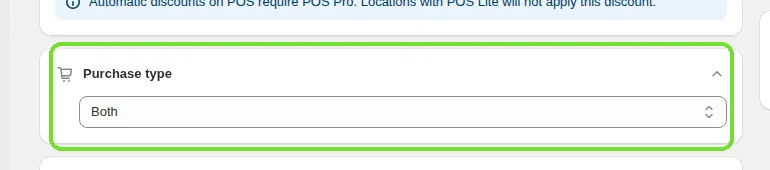
Which campaign types have Purchase type?
The Purchase type card is on these campaign types:
Buy X get Y
Advanced discount code
Shipping discount
Quantity discount
Cart goal
It is not available on Bulk price editor campaigns. A Bulk price editor campaign changes product prices directly, and a product variant has one price for both one-time and subscription customers, so a different price per purchase type isn't possible. Bulk price editor campaigns apply to all purchases.
Which plan includes Purchase type?
Purchase type is included on the Essential plan and above. On the Plans page it's listed as "Target subscription vs one-time purchases".
If your plan doesn't include it, the Purchase type card still shows in the campaign editor, but the dropdown is greyed out and a lock icon appears next to the Purchase type label. Hover over the lock to see a tooltip with an Upgrade link. Click the link (or the lock icon itself) to open the plan-upgrade dialog. Until you upgrade and choose another option, every campaign applies to Both.

The three options
Option | The discount applies to… |
|---|---|
One-time purchase | Only items bought as a normal, one-time purchase. Subscription items are not discounted. |
Subscription | Only items bought on a subscription (selling plan). One-time items are not discounted. |
Both (default) | Every eligible item, one-time or subscription. |
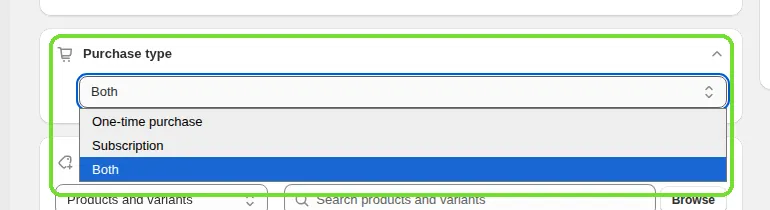
How to set the Purchase type
Create or open a Buy X get Y, Advanced discount code, Shipping discount, Quantity discount, or Cart goal campaign.
Find the Purchase type card near the top of the campaign form, right below the Sales channels card.
Choose One-time purchase, Subscription, or Both.
Fill in the rest of the campaign as usual and click Save.
Changing the Purchase type of an active campaign
You can't change the Purchase type while a campaign is Active or still processing. On an Active campaign, the app shows "You can only change end time of an active campaign. You have to deactivate the campaign to edit other fields." To change it:
Open the campaign and click Deactivate.
Change the Purchase type and save.
Activate the campaign again.
You can change the Purchase type of a Scheduled, Expired or Blocked campaign at any time.
What customers see in a mixed cart
If a cart has both a one-time item and a subscription item, and your campaign is set to One-time purchase or Subscription, Shopify discounts only the matching lines. The matching item shows the discount, and the other item stays at full price in the same cart. You don't need to set anything else up.
Frequently asked questions
Do I need a subscription app to use the Subscription option?
Yes. The Subscription option needs a subscription app on your store. If you're looking for one, see Subi on the Shopify App Store.
If you choose Subscription before you sell any subscription products, the discount stays unused until a subscription item is in a cart. If you add a subscription app later, matching orders get the discount automatically. You don't need to save the campaign again.
Did my existing campaigns change when Purchase type was added?
No. Every campaign created before this setting existed is set to Both and works exactly as before. Nothing changes until you edit it.
Why can't I set a Purchase type on a Bulk price editor campaign?
Bulk price editor campaigns change product prices directly, and a variant has one price for one-time and subscription customers, so the price can't differ by purchase type. If you need this control, use a Buy X get Y, Advanced discount code, Shipping discount, Quantity discount, or Cart goal campaign.
Related articles
Need a hand? Contact our support team through the app — we're happy to help.