


How do I stack two product discounts on the same item?
Apply two Discounty product discounts to the same cart line with same-line stacking (Discounty plan and above, Shopify Plus).
If a product qualifies for two of your campaigns, for example a Buy X get Y reward and a brand discount code, Shopify normally applies only the better discount. Same-line stacking lets both discounts reduce the same item, so you can run a sale and a promo code on the same product without one cancelling the other.
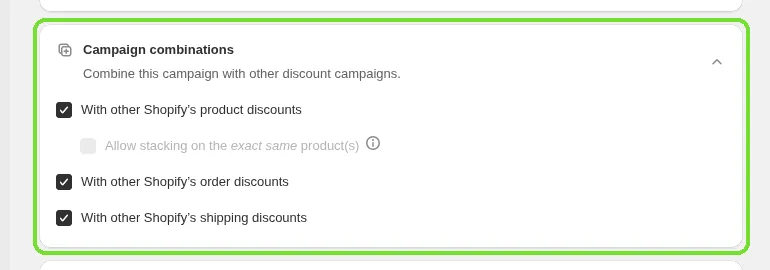
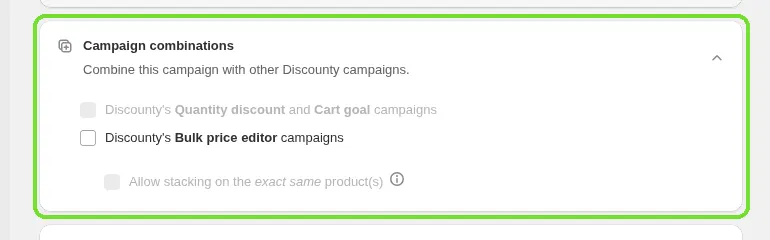
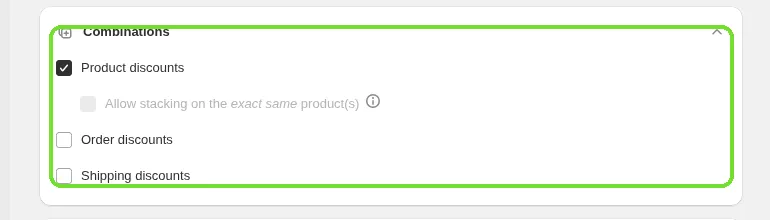
By default, Shopify applies one product discount per item: if a t-shirt qualifies for two product discounts, only the better one applies and the other is dropped. Same-line stacking tells Shopify to apply both. You turn it on in the campaign's combinations card: Campaign combinations on Buy X get Y, Quantity discount and Cart goal campaigns, and Combinations on Advanced discount code campaigns.
Same-line stacking works with Buy X get Y, Advanced discount code, Quantity discount and Cart goal campaigns.
What you need
You need both of these:
You need | If you don't have it |
|---|---|
The Discounty plan or above. On the Plans page this is listed as "Stack discounts on the same product (Shopify Plus)". | The Allow stacking on the exact same product(s) checkbox is greyed out with a lock icon. Click the lock to upgrade. |
A Shopify Plus store | The checkbox is greyed out, with the note "Same-line stacking is available only for Shopify Plus merchants." You can't turn it on or save a stack list until your store is on Shopify Plus. |
Turn on same-line stacking
Open the campaign you want to stack: a Buy X get Y, Advanced discount code, Quantity discount or Cart goal campaign.
Scroll to the combinations card: Campaign combinations on Buy X get Y, Quantity discount and Cart goal campaigns, or Combinations on Advanced discount code campaigns.
Tick the prerequisite checkbox, if the campaign type has one:
Buy X get Y: tick With other Shopify's product discounts.
Advanced discount code: tick Product discounts. The code must also include a product discount (in the Product discount card). A code with only an order or shipping discount can't stack on the same item.
Quantity discount and Cart goal: there's no prerequisite. The stacking option sits under the Bulk price editor option in the Campaign combinations card.
Tick Allow stacking on the exact same product(s).
In the search box, find and pick the campaigns you want to stack with. Each one you pick appears as a chip. To remove one, click the × on its chip. A campaign can stack with up to 10 other campaigns.
Click Save.
Both discounts now reduce the same item.
When you pick a campaign in the search box, Discounty also turns on same-line stacking (and its product-discount combination setting) on that campaign, so you don't need to repeat these steps there. Removing a campaign from the list unlinks the two campaigns, but it doesn't turn that campaign's own stacking setting off. To undo it there too, open that campaign directly.
Buy X get Y campaign
Quantity discount and Cart goal campaigns
Advanced discount code campaign
Nothing in the search results? You don't have another campaign to stack with yet. The app shows "No matching campaigns. Create another Buy X Get Y or Advanced discount code campaign to stack with this one." Create one, then come back.
Which campaigns can stack together
This campaign | Can stack with |
|---|---|
Buy X get Y | Other Buy X get Y campaigns, Advanced discount code, Quantity discount, Cart goal |
Advanced discount code | Buy X get Y, other Advanced discount code campaigns, Quantity discount, Cart goal |
Quantity discount | Buy X get Y, Advanced discount code |
Cart goal | Buy X get Y, Advanced discount code |
A few rules to keep in mind:
Quantity discount and Cart goal campaigns can't stack with each other: not two Quantity discounts, not two Cart goals, and not a Quantity discount with a Cart goal.
Bulk price editor and Shipping discount campaigns aren't part of same-line stacking.
A campaign can't stack with itself, so it doesn't appear in its own search results.
A campaign can stack with at most 10 other campaigns on the same cart line.
Order discounts and shipping discounts aren't affected. This setting only applies to product discounts on the same item.
Example: summer sale and brand code
You're running two campaigns:
Campaign | What it does |
|---|---|
Summer sale (Buy X get Y) | Buy 2 t-shirts from the Summer collection, get 20% off |
Acme code (Advanced discount code) | 10% off anything from the Acme Brand collection |
A customer adds 2 t-shirts that are in both collections.
Without stacking: Shopify applies only the better discount. The customer gets 20% off, and the Acme code isn't applied to those shirts.
With stacking on (Summer sale lists Acme code in its stack list, and the store is on Shopify Plus): both discounts apply. The customer gets 20% and 10% off the same shirts.
Before you turn it on
Quantity discount and Cart goal campaigns share one Shopify automatic discount by default. Turning on same-line stacking gives the campaign its own automatic discount, which counts toward Shopify's limit of 25 active automatic discounts.
You can't change stacking while the campaign is running. While a campaign is Active or processing (Queued, Retrieving, Applying, Reverting, Auto updating or Updating products), the combinations card is locked. Click Deactivate, change the stacking settings, then activate the campaign again.
Troubleshooting
What you're seeing | Why | What to do |
|---|---|---|
I don't see the Allow stacking on the exact same product(s) option | The prerequisite checkbox is off, or (on Advanced discount code) the code has no product discount | On Buy X get Y, tick With other Shopify's product discounts. On Advanced discount code, add a product discount and tick Product discounts. |
The checkbox is greyed out with a lock icon | Your plan doesn't include same-line stacking | Upgrade to the Discounty plan or above. The checkbox unlocks automatically. |
The checkbox is greyed out, with the note "Same-line stacking is available only for Shopify Plus merchants." | Your store isn't on Shopify Plus | Upgrade your store to Shopify Plus. The checkbox unlocks automatically. |
The whole combinations card is locked | The campaign is Active or processing | Wait for processing to finish, deactivate the campaign, change the settings, then activate it again. |
"No matching campaigns. Create another Buy X Get Y or Advanced discount code campaign to stack with this one." | You have no other campaign that can stack with this one | Create a Buy X get Y or Advanced discount code campaign, then search again. |
"A campaign can stack with at most 10 other campaigns on the same cart line. Remove one before adding another." | The stack list already has 10 campaigns | Remove a campaign from the list, then add the new one. |
"You can only have 25 active automatic discounts" | Stacking gives a Quantity discount or Cart goal campaign its own automatic discount, and your store is at Shopify's limit | Deactivate or delete another automatic discount to free a slot, then try again. |
"Couldn't update stacked campaigns. Refresh and try again." | The stack list didn't save, but the rest of your campaign saved | Refresh the page and add the campaigns again. Your other changes are kept. |
"Same-line stacking is no longer available on your plan. Existing combinations are kept but no new ones can be added." | You moved to a plan without same-line stacking | Your existing stacks keep working, but you can't add new ones. Upgrade to the Discounty plan or above to add more. |
Related articles
Need a hand? Contact our support team through the app — we're happy to help.