


How do I use Discounty's Analytics dashboard?
How to open Discounty Analytics, read the campaign list and a campaign's metrics, product sales and orders, and request new metrics.
Discounty's Analytics dashboard shows how your discount campaigns perform: how much revenue each campaign brought in, how many orders it was part of, and which products sold best. Use it to see what worked so you can plan your next campaign with confidence.
How to open Analytics
Open the Discounty app.
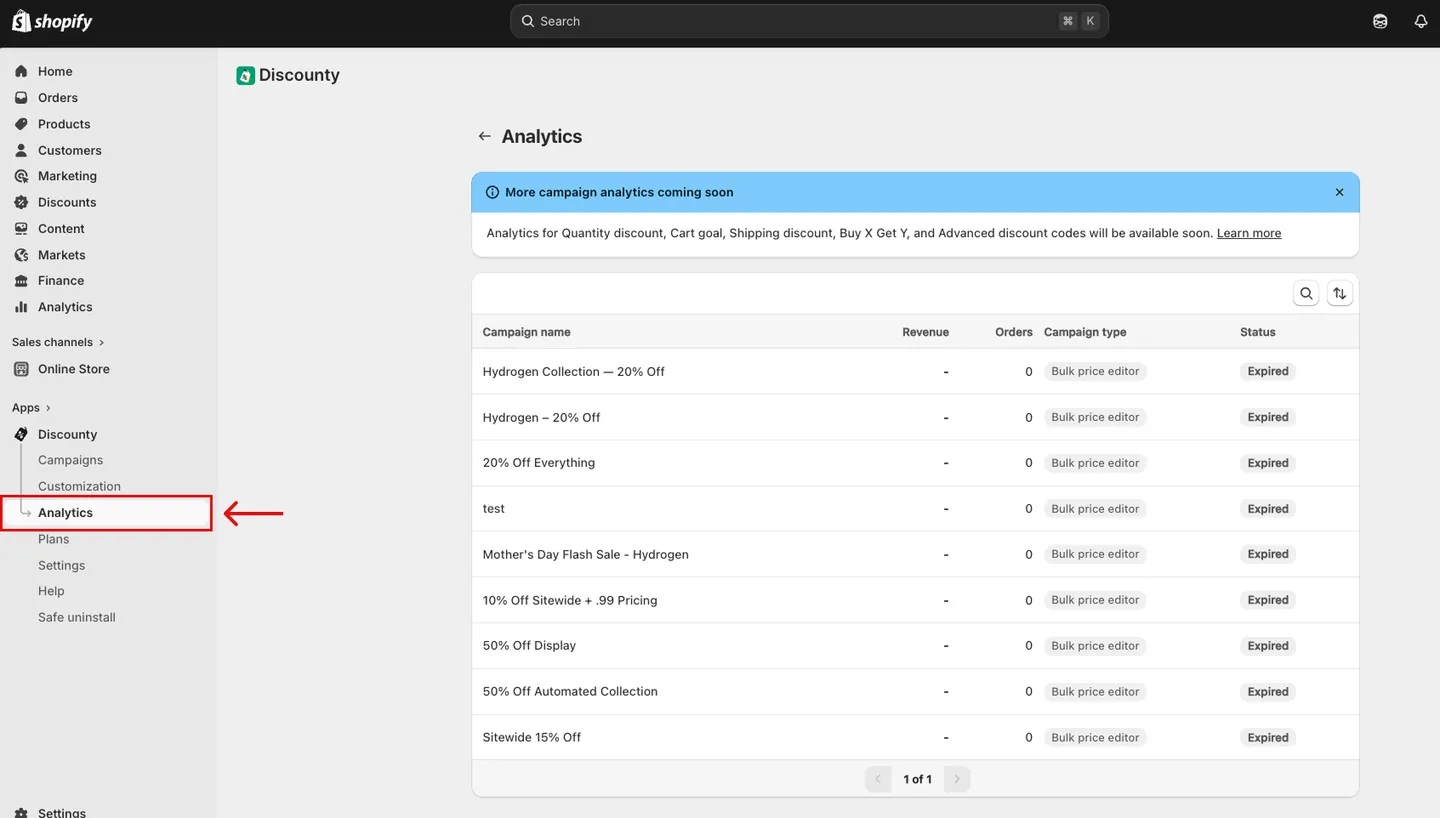
Click Analytics in the app menu.
You'll see a list of your campaigns with their main numbers.
You can also type a question into the Ask Lumos box at the top of the page, for example which campaign brought in the most revenue. See How do I use Lumos, the AI assistant in Discounty?
Which campaigns are included
Analytics currently covers Bulk price editor campaigns. Only these campaigns are listed on the Analytics page and can be opened for details.
Analytics for these campaign types will be available soon:
Quantity discount
Cart goal
Shipping discount
Buy X get Y
Advanced discount code
Until then, you can see Revenue and Orders for every campaign type in the columns on the Campaigns page.
The campaign list
The list on the Analytics page shows one row per Bulk price editor campaign, with these columns:
Campaign name
Revenue
Orders
Campaign type
Status
Click a campaign to open its analytics page.
A campaign's analytics page
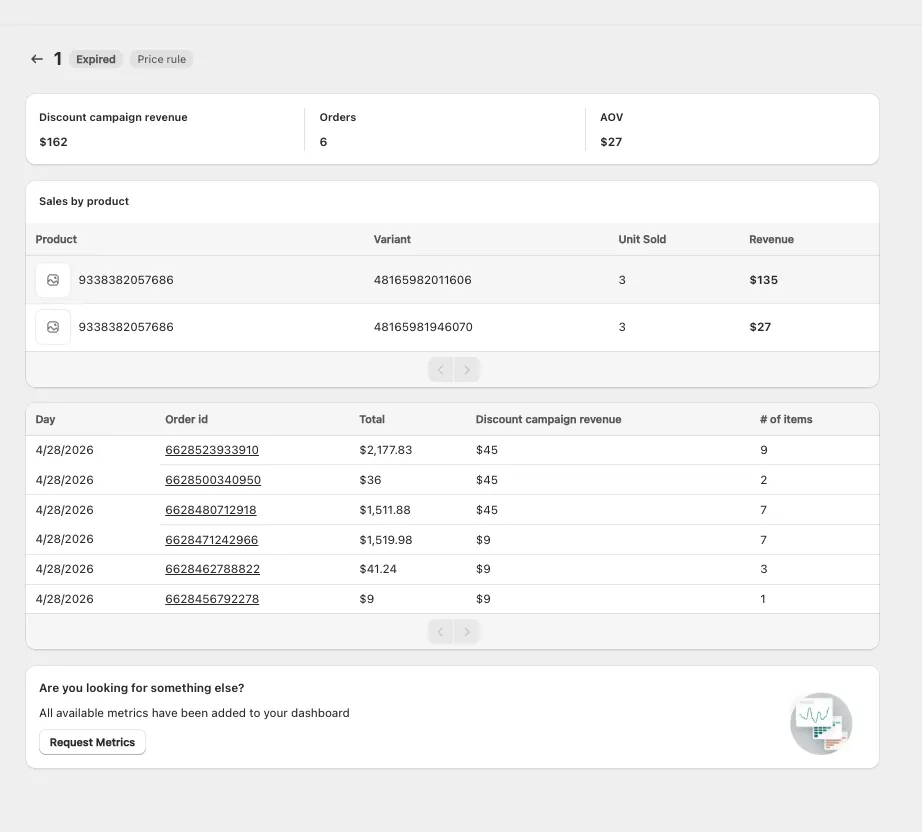
At the top, next to the campaign name, you'll see its status and a Price rule badge. Below that, the page has four parts.
Metric cards
Three cards show the campaign's results over its whole lifetime:
Discount campaign revenue: revenue from the campaign's items only, in orders that included at least one discounted campaign item.
Orders: the number of orders that included at least one discounted campaign item.
AOV (Average order value): Discount campaign revenue divided by Orders.
Hover over a card to see its definition and calculation.
Sales by product
The Sales by product table shows which products brought in the most revenue during the campaign, with the columns Product, Variant, Unit sold and Revenue. Rows are sorted by revenue, highest first.
Product and variant names are loaded live from Shopify. If a product has since been deleted from your store, the row shows its numeric product and variant IDs instead of names.
Orders
The orders table lists every order attributed to the campaign, newest first, with the columns Day, Order id, Total, Discount campaign revenue and # of items. Click an Order id to open that order in your Shopify admin.
Request metrics
If you'd like to see a number that isn't on the page, use the Are you looking for something else? card at the bottom:
Click Request metrics.
Under What metrics would help you?, describe what you'd like to see.
Click Send metrics request. Your request goes to our team through the in-app chat.
How the numbers are calculated
Discounty counts an order for a campaign when the order is created while the campaign is Active and contains at least one item the campaign discounts. Later refunds, cancellations and edits don't change the numbers. For the full rules, a worked example and what the numbers don't include, see How does Discounty calculate Revenue, Orders and the other analytics numbers?
Related articles
Need a hand? Contact our support team through the app — we're happy to help.