


How does Discounty calculate Revenue, Orders and the other analytics numbers?
How Discounty attributes orders to a campaign and calculates Discount campaign revenue, Orders, AOV and the product and order tables.
The numbers on the Analytics page show how much your campaigns sell, so it helps to know exactly what they count. Below you'll find how Discounty decides which orders belong to a campaign, how Discount campaign revenue, Orders, AOV and the two tables are calculated, where the same numbers appear on the Campaigns and Home pages, and what the figures don't include. For how to open the Analytics page and read its layout, see How do I use Discounty's Analytics dashboard?.
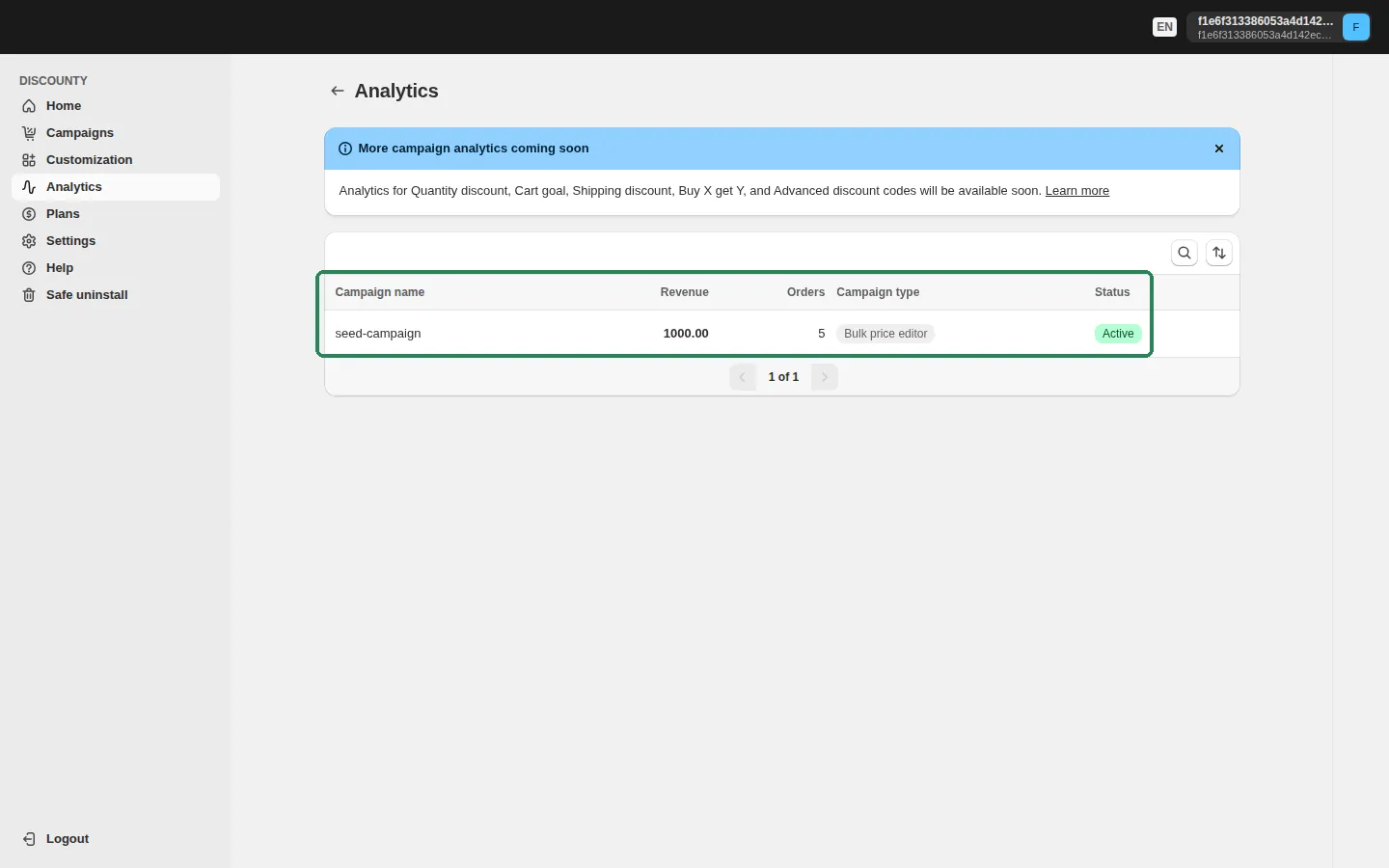
Which campaigns have an Analytics page today?
The Analytics page lists your Bulk price editor campaigns. Click a row to open that campaign's analytics page. It shows the campaign's status and a Price rule badge next to its name, followed by three metric cards, two tables, and a card where you can request other metrics.
Other campaign types aren't listed on the Analytics page yet. The banner at the top of the page reads: "Analytics for Quantity discount, Cart goal, Shipping discount, Buy X get Y, and Advanced discount codes will be available soon." Those campaigns still show Revenue and Orders on the Campaigns page. See the section further down.
How an order is attributed to a Bulk price editor campaign
Every time a new order is created in your store, Shopify sends it to Discounty, and Discounty checks each line item:
A line item counts for a campaign when its product variant is part of that campaign, the campaign is Active when the order is created, and the campaign is currently discounting that variant. Variants Discounty couldn't discount, for example because another campaign already discounts them, are skipped.
An order can contain campaign items and other items. Only the campaign items count toward Discount campaign revenue, and the whole order still counts as one order.
Orders placed while a campaign is Scheduled, Expired, Blocked or otherwise not Active aren't attributed to it, even if they contain its products.
One order can be attributed to more than one campaign. If an item is in two campaigns at the same time, each campaign gets full credit for it.
Attribution happens once, when the order is created. Later changes to the order in Shopify, such as refunds, cancellations, edits or returns, don't change the numbers.
The three metric cards
These definitions match the tooltips on each card.
Discount campaign revenue
The total revenue earned only from items included in the campaign within orders that contained at least one discounted campaign item. Items in the same order that were not part of the campaign are excluded from this revenue.
Calculation: Discount Campaign Revenue = Sum of (Quantity × Price) for campaign-included items only in orders with ≥1 discounted campaign item.
"Price" is the unit price on the order line for that item. With a Bulk price editor campaign, that's the discounted sale price.
Orders
The number of orders that included at least one discounted campaign item.
Calculation: Total Orders = Count of all orders with ≥1 discounted campaign item
AOV (Average order value)
The average amount customers spent per order that included at least one discounted campaign item.
Calculation: AOV = (discount campaign revenue / orders)
Because AOV divides Discount campaign revenue by Orders, it reflects spending on campaign items only, not the full order total. It's rounded to two decimals and shows 0 when the campaign has no orders.
A worked example
Suppose a Bulk price editor campaign puts your shirts on sale at $30 and your shoes at $50, and three orders come in while the campaign is Active:
Order #1001: 2 shirts (in the campaign) at $30 = $60, plus 1 hat (not in the campaign) at $20.
Order #1002: 1 pair of shoes (in the campaign) at $50.
Order #1003: 1 hat at $20, nothing from the campaign.
The campaign's analytics page shows:
Orders = 2 (orders #1001 and #1002; order #1003 has no campaign item, so it isn't counted)
Discount campaign revenue = $60 + $50 = $110 (the $20 hat in order #1001 is excluded)
AOV = $110 ÷ 2 = $55.00
The Sales by product table
The Sales by product table has four columns: Product, Variant, Unit sold and Revenue. It breaks Discount campaign revenue down by product variant:
Each row is one variant. Unit sold is the total quantity of that variant across all attributed orders, and Revenue is quantity × price summed over those orders.
Rows are sorted by Revenue, highest first, 10 rows per page.
Product and variant names and images are loaded from Shopify when the page opens. If Shopify no longer has the product (for example, it was deleted), the row shows the numeric product and variant IDs instead of names.
In the example above, the table shows "Shirt" with Unit sold 2 and Revenue $60, and "Shoes" with Unit sold 1 and Revenue $50.
The orders table
Below Sales by product, the orders table lists every order attributed to the campaign, newest first, 10 per page. Its columns are:
Day: the date the order was created.
Order id: the order's name (for example #1001), linked to the order in your Shopify admin.
Total: the order's subtotal as reported by Shopify, for the whole order, not just campaign items.
Discount campaign revenue: this order's contribution, quantity × price of the campaign items only.
# of items: the total quantity of all items in the order, including items that aren't in the campaign.
For order #1001 in the example, the row reads Total $80, Discount campaign revenue $60 and # of items 3.
Requesting other metrics
At the bottom of a campaign's analytics page, the Are you looking for something else? card lets you ask for numbers that aren't on the page yet. Click Request metrics, describe what you need under What metrics would help you?, and click Send metrics request. Your request goes to our team through the in-app chat.
Revenue and Orders on the Campaigns page
The Campaigns page also has Revenue and Orders columns, for every campaign type. For a Bulk price editor campaign, they're the same numbers as Discount campaign revenue and Orders on its analytics page.
Other campaign types use the same moment (when the order is created) and the same "campaign must be Active" rule, but count slightly differently:
Quantity discount and Cart goal: item-based, like Bulk price editor, but an order is attributed only if the campaign items in it reach the campaign's lowest tier (by quantity or by amount, depending on the campaign). Revenue is the quantity × price of the campaign items in those orders.
Buy X get Y: item-based. Any order that contains a product from the campaign is attributed, and Revenue is the quantity × price of those campaign items.
Advanced discount code: order-based. An order is attributed when the campaign's code was used on it. Revenue is the full order total.
Shipping discount: order-based. An order is attributed when the campaign's shipping discount was applied, either through its code or automatically. Revenue is the full order total.
Each campaign row is counted on its own. When one order is attributed to two campaigns, both rows include it, so adding up the Revenue column can give a higher figure than your actual sales.
Total revenue and Total order on the Home page
The card at the top of the Home page shows Total revenue and Total order for all your campaigns together, with a period selector for All time, Last 7 days or Last 30 days. It adds up the item-based revenue of item-based campaigns and the order totals of order-based campaigns. The card stays hidden until at least one order has been attributed to a campaign. If your store was moved from an earlier version of Discounty, the figures from that version are included as a starting balance.
What the numbers don't include
Amounts are in your store's currency, using your store's currency symbol.
There's no date filter on a campaign's analytics page. The metrics and tables cover the campaign's whole lifetime.
Orders are captured only while the campaign is Active. Orders from before the campaign started, or after it was deactivated or ended, never appear.
Refunds, cancellations and order edits made after the order was created aren't reflected.
Orders that contain no campaign item aren't shown, even if the customer viewed the campaign.
The numbers are a campaign-level view, not an accounting report. Use Shopify's own reports for reconciliation.
Related articles
Need a hand? Contact our support team through the app — we're happy to help.