


How do I use the Shipping progress bar widget to offer free shipping?
Show customers how close they are to free or discounted shipping with the Shipping progress bar: setup, messages, styles, troubleshooting.
A free-shipping threshold works best when customers can see how close they are. The Shipping progress bar shows how much more they need to add to unlock your free or discounted shipping, and it updates live as they add items to the cart. That nudge often gets customers to add one more item.
Before you start
App embed: the Discounty app embed must be enabled in your theme, otherwise no Discounty widget can appear. If you see an Enable app embed label on the widget page, follow How to activate Discounty widgets on your Shopify store? first.
An automatic Shipping discount campaign: the bar takes its goal and discount from one Shipping discount campaign whose Discount method is Automatic discount. Campaigns that use a Discount code can't power the bar. If you haven't created the campaign yet, see How do I set up a Shipping discount campaign?.
Plan: the Shipping progress bar is included on the Essential plan and above. If your plan doesn't include it, the campaign form shows Available on higher plans. Upgrade your plan to use the progress bar widget with automatic discounts. with an Upgrade now link, and the widget page shows a lock icon.
Step 1: Turn on the progress bar in your Shipping discount campaign
This step switches the bar on. Customizing the widget alone doesn't make it appear.
Open the Shipping discount campaign you want to use, or create a new one.
Under Discount method, make sure Automatic discount is selected. If Discount code is selected, the checkbox in step 4 is greyed out with the note This widget can only be used with automatic discount campaigns. Use the Switch to automatic discount link to change it.
Under Minimum purchase requirements, set the goal customers must reach: Minimum purchase amount (cart value) or Minimum quantity of items, and the shipping discount they unlock (Free shipping, Percentage or Fixed amount). With No minimum requirements there's nothing to work towards, so the bar always shows the goal as reached.
Open the Widget & display option card and tick Enable progress bar widget for this campaign. The help text reads: When checked, customers will see a live progress bar that updates as they add items to their cart. The Try widget customization link next to it opens the widget page used in steps 2–4.
Save and activate the campaign. The bar only reads from an Active campaign. A Scheduled or Expired campaign doesn't show it.
One campaign at a time. The card shows a warning: This widget can be active in one campaign at a time. Enabling it here will remove it from others. When you tick the box in one campaign and save, the option is unticked in every other Shipping discount campaign in your store.

Step 2: Choose where the bar appears
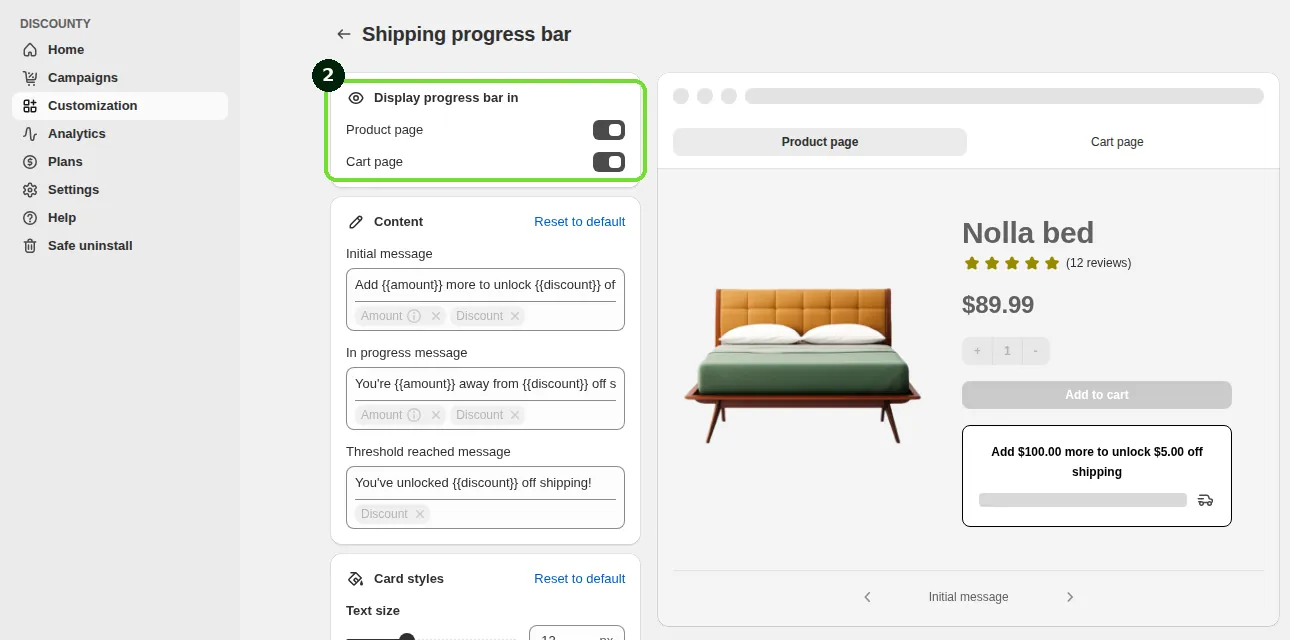
In Discounty, go to Customization and open the Shipping progress bar card.
In the Display progress bar in section, turn on one or both placements:
Product page: the bar is added below the add-to-cart form on product pages.
Cart page: the bar is added to the cart page, and to the cart drawer (the slide-out cart) if your theme has one.
Both placements are on by default. If you turn both off, the bar is hidden everywhere, even when a campaign has it turned on.
Step 3: Edit the messages
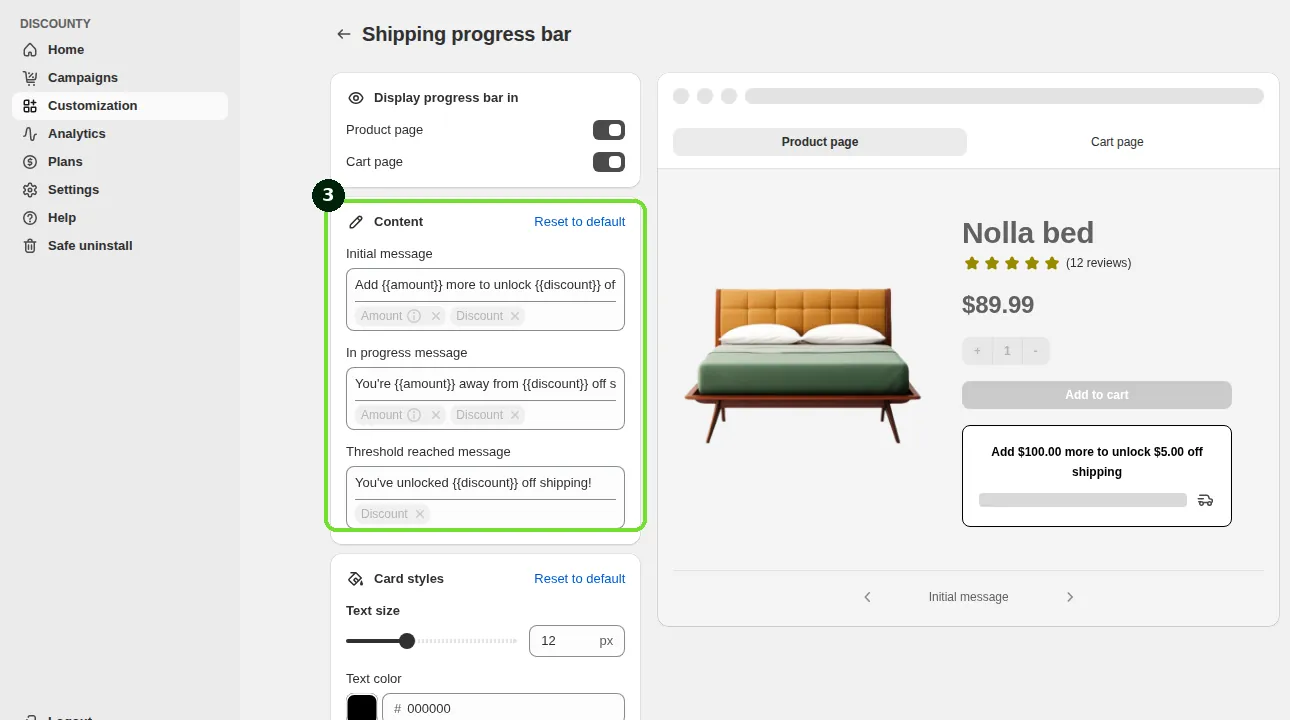
The Content section has three messages. Each one shows at a different stage of the customer's progress:
Field | When customers see it | Default text |
|---|---|---|
Initial message | Cart is empty | Add #{{amount}} more to unlock #{{discount}} off shipping |
In progress message | Cart has items, but the goal isn't reached yet | You're #{{amount}} away from #{{discount}} off shipping |
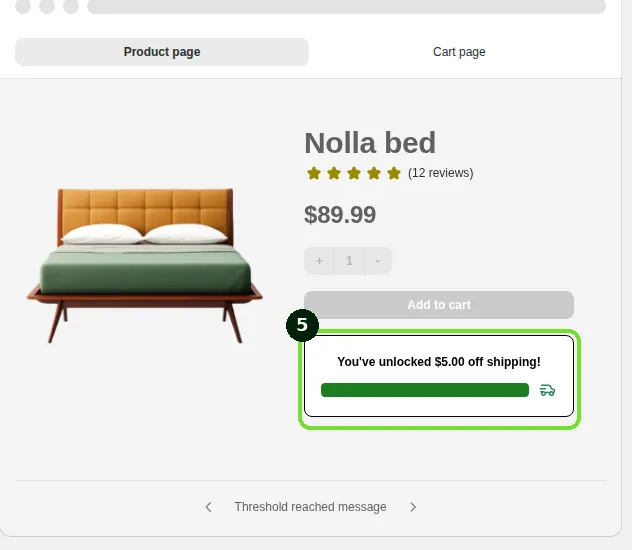
Threshold reached message | Goal reached | You've unlocked #{{discount}} off shipping! |
Use these placeholders, written with double curly braces and nothing else around them:
#{{amount}}: the remaining cart value (or number of items, for a quantity goal) needed to reach the next tier. In the Initial message it shows the full goal. It's required in the Initial and In progress messages. If you remove it, the field shows This variable is required.#{{discount}}: the shipping discount of that tier, for example 10% or a fixed amount in your store's currency. It's optional in all three messages.
Tip for free shipping campaigns: a Free shipping tier is saved as a 100% discount, so #{{discount}} shows as 100%. Write the offer in plain words instead, for example Add #{{amount}} more to unlock free shipping and You've unlocked free shipping!
Example: a campaign with a Minimum purchase amount of 100 and Free shipping, with the messages Add #{{amount}} more to unlock free shipping / You're #{{amount}} away from free shipping / You've unlocked free shipping!:
Empty cart: Add $100.00 more to unlock free shipping, bar empty.
Cart at $75: You're $25.00 away from free shipping, bar 75% filled.
Cart at $100 or more: You've unlocked free shipping!, bar full.
To translate the messages for other storefront languages, use the Translations section on the same page. See How do I translate Discounty widgets for a multi-language store?.
Step 4: Style the card and the bar
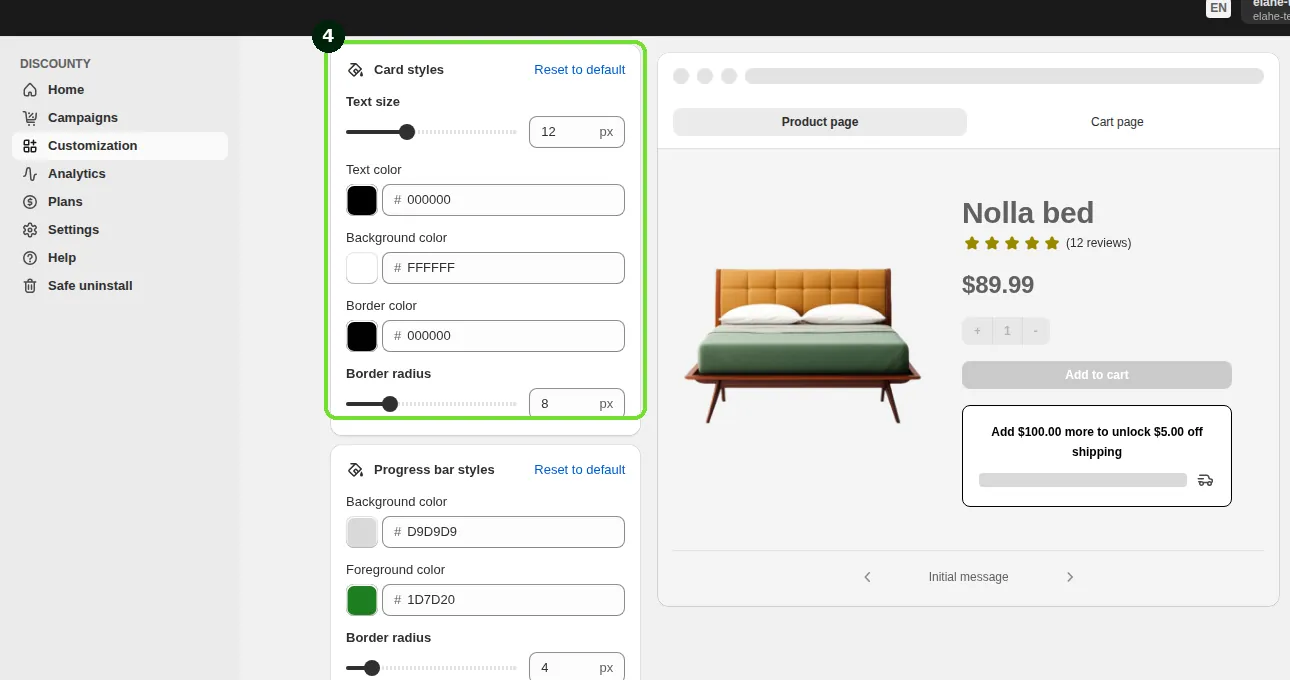
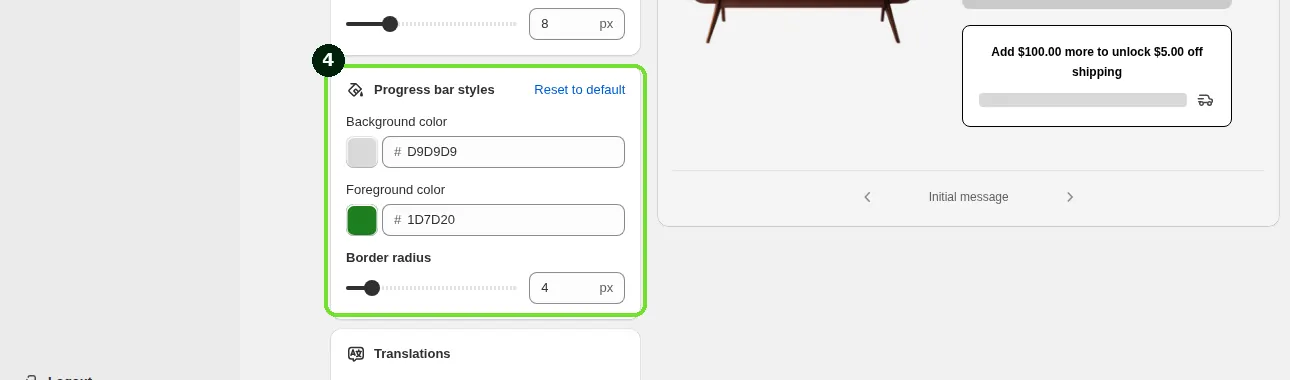
Two sections control the look. Each has a Reset to default link that restores the original values.
Card styles: Text size (px), Text color, Background color, Border color and Border radius of the box around the message.
Progress bar styles: Background color (the empty track), Foreground color (the filled part that grows with the cart) and Border radius of the bar.
The preview on the right switches between Product page and Cart page, and the arrows under it cycle through the Initial message, In progress message and Threshold reached message states so you can check each one.
Step 5: Save and check your storefront
Click Save. You'll see a Changes saved confirmation.
Open a product page on your storefront (or the cart page, depending on the placements you turned on) and refresh.
Add an item to the cart. The message and the bar should update without reloading the page.
Add enough to pass the goal and check that the Threshold reached message appears with a full bar.
How the bar behaves
Cart value or item count. With Minimum purchase amount, progress is measured on the cart's line total after any product discounts, and
#{{amount}}is a money value. With Minimum quantity of items, progress counts items and#{{amount}}is a number.Several tiers. If the campaign has more than one tier, the bar always works towards the next tier the customer hasn't reached. Once a lower tier is reached, the message switches back to the Initial or In progress text for the next tier, and an extra line You've unlocked <discount> off shipping! appears under the bar. This extra line is always in English and can't be edited or translated. The Threshold reached message shows only after the highest tier is reached.
Currency. If your store sells in more than one currency, the amounts follow the currency the customer has selected, in your store's money format.
Countries. If the campaign targets selected countries, the bar shows only to customers located in those countries (or not in the excluded ones).
Customer selection. If the campaign is limited to specific customer segments, the bar is hidden for customers who aren't in them.
Only one campaign feeds the bar, even if you run several shipping campaigns.
Troubleshooting: the bar doesn't appear
Is the checkbox on? Open the Shipping discount campaign and check that Enable progress bar widget for this campaign is ticked. Turning it on in another campaign removes it from this one.
Is the campaign automatic and Active? Discount-code campaigns and Scheduled or Expired campaigns never show the bar.
Is at least one placement on? On the widget page, check Display progress bar in → Product page / Cart page, and that you saved.
Is the app embed enabled? An Enable app embed label on the widget page means it isn't. See How to activate Discounty widgets on your Shopify store?
Are you browsing from a targeted country, as an eligible customer? Country and customer segment limits on the campaign hide the bar for everyone else.
Does your plan include it? If the campaign form shows Available on higher plans, the bar isn't part of your current plan. It's included on the Essential plan and above.
Does the bar always show the goal as reached? The campaign uses No minimum requirements. Set a minimum amount or quantity.
Do placeholders show as text (for example, the bar shows #{{amount}} instead of an amount)? Check the spelling, and make sure there are no extra characters or spaces inside or right before the braces.
Does the bar appear in the wrong place on the page? Themes differ. Contact support and we can adjust the position for your theme.
Related articles
Need a hand? Contact our support team through the app — we're happy to help.