


Getting started with Discounty
Learn how to install Discounty, enable the app embed, and launch your first discount campaign in just a few steps.
Install the Discounty app, enable the theme embed, and create your first discount campaign.
Step 1: Install the Discounty app.
Go to the Shopify App Store and install Discounty: Bulk Discount Sales.
Once installed, open the app in your Shopify admin to begin setup.
Step 2: Enable the app embed in your theme.
To display Discounty widgets properly on your storefront, you must activate Discounty’s theme extension:
In your Shopify admin, go to Online Store > Themes > Customize.
In the theme editor, click the App embeds icon (bottom left panel).
Search for "Discounty (New!)" embed and toggle it on.
Click Save.
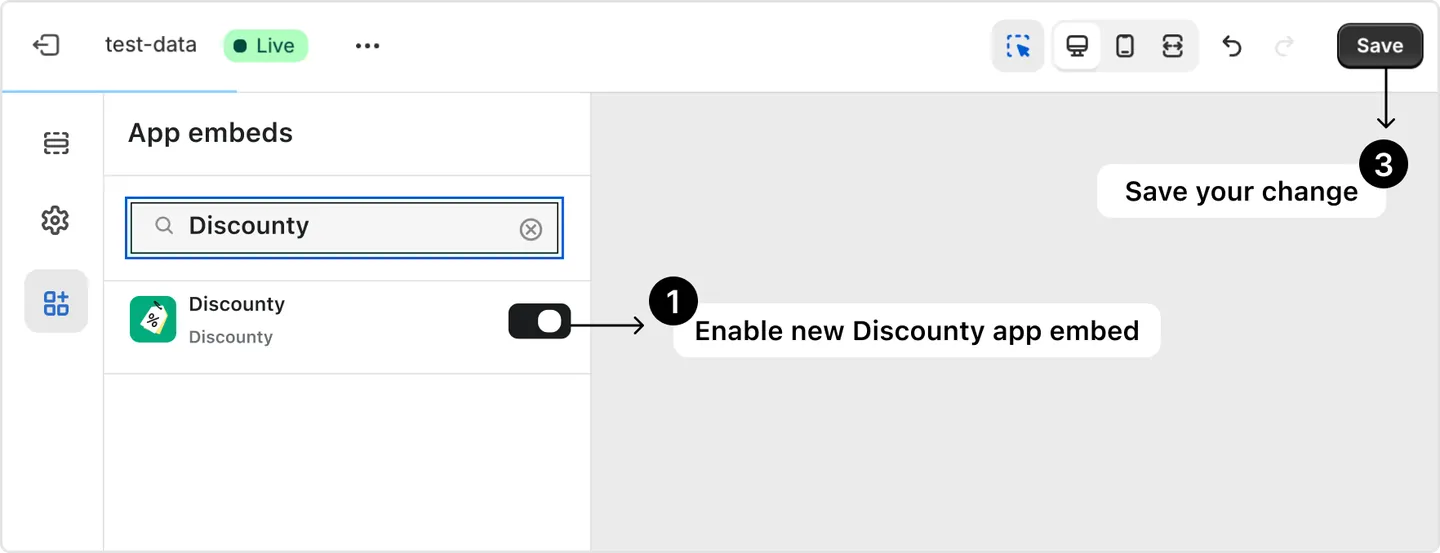
Why this matters: Quantity discount, Cart goal, Buy X get Y, and Shipping discount campaigns display a storefront widget that only renders once this embed is on — skip this step and they’ll look like nothing happened. Bulk price editor changes the product price directly, so it works without the widget.
Step 3: Create your first discount campaign.
Go to the Campaigns tab in Discounty.
Click Create campaign.
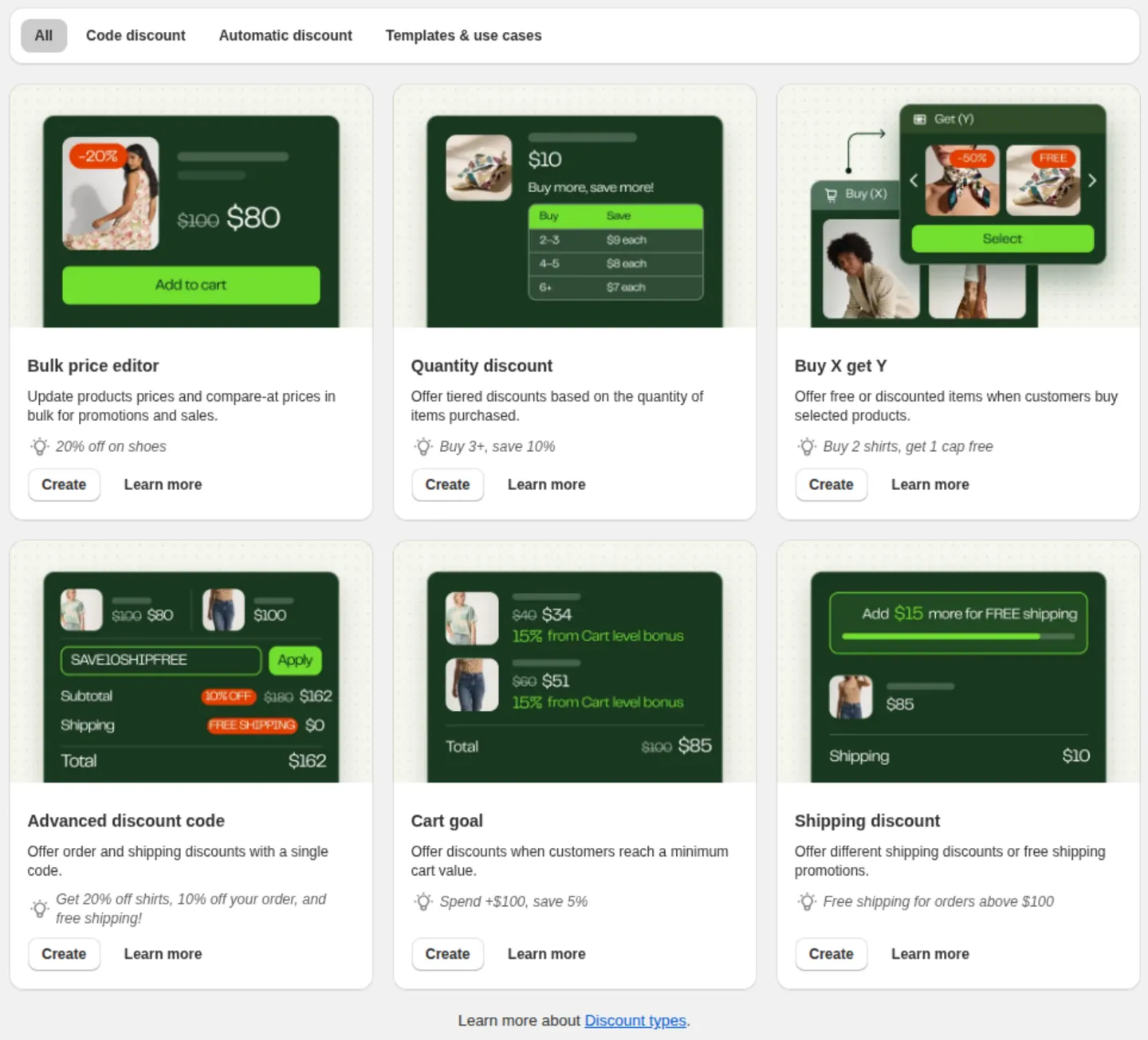
Choose a campaign type:
Bulk price editor
Quantity discount
Cart goal
Advanced discount code
Buy X get Y
Shipping discount
Set up your campaign settings.
💡 Not sure which type to choose? See the Which Discounty campaign type should I use? article for a comparison and guidance on when to use each.
Step 4: Save, activate and test your campaign.
Save your campaign.
Wait until the applying process completes and you see the 'Active' status.
Visit your storefront to confirm the discount appears and calculates correctly.
If everything looks correct, the campaign is ready. To make changes, edit the campaign settings and save again.
If the discount doesn’t show
If your campaign isn’t visible in your store as expected, first make sure you completed Step 2 (enabling the app embed). Then check the following:
Clear your browser cache and reload your store, then check the product or cart page for the price change or widget (this varies by campaign type).
Still not showing? Confirm the embed is actually on — see How to activate Discounty widgets on your Shopify store?.
Embed is on but a Quantity discount or Cart goal campaign still isn’t applying? See Why is the Quantity discount or Cart goal campaign not applying? Troubleshooting guide.
Need to change the widget’s display language instead? See How do I translate Discounty widgets for a multi-language store?.
Still stuck? Contact support from within the app.