


What is Discounty?
What Discounty does for your store: the six campaign types, storefront widgets, AI tools, and where to start.
Discounty helps you run sales and promotions on your Shopify store without editing prices by hand. Whether you want a storewide sale, "buy more, save more" pricing, free gifts, free shipping or one promo code for an influencer, you set it up once as a campaign. Discounty applies it to the right products on schedule and shows the offer to shoppers on your storefront.
This article explains what Discounty does, the six campaign types, the storefront widgets, the AI tools, and where to start.
What Discounty does
Discounty is a Shopify app for creating and managing discount campaigns from your Shopify admin. Each campaign is one promotion: you choose a type, select products, set the discount and schedule, and Discounty applies it to your store. Depending on the type, the discount reaches your customers as a changed product price, an automatic discount in the cart and checkout, or a discount code.
Every campaign has a Start date and, on selected plans, an End date, so you can schedule promotions ahead of time. Discounty has a free plan and paid plans; paid plans include a free trial, and each campaign type is available on selected plans.
The six campaign types
When you click Create campaign on the Campaigns page, the Choose campaign type screen lists these types:
Bulk price editor: updates product prices and compare-at prices in bulk for promotions and sales, for example 20% off on shoes.
Quantity discount: offers tiered discounts based on the quantity of items purchased, for example "Buy 3+, save 10%".
Cart goal: offers discounts when customers reach a minimum cart value, for example "Spend $100+, save 5%".
Buy X get Y: offers free or discounted items when customers buy selected products, for example "Buy 2 shirts, get 1 cap free".
Advanced discount code: offers order and shipping discounts with a single code, for example "Get 20% off shirts, 10% off your order, and free shipping".
Shipping discount: offers shipping discounts or free shipping promotions, for example "Free shipping for orders above $100".
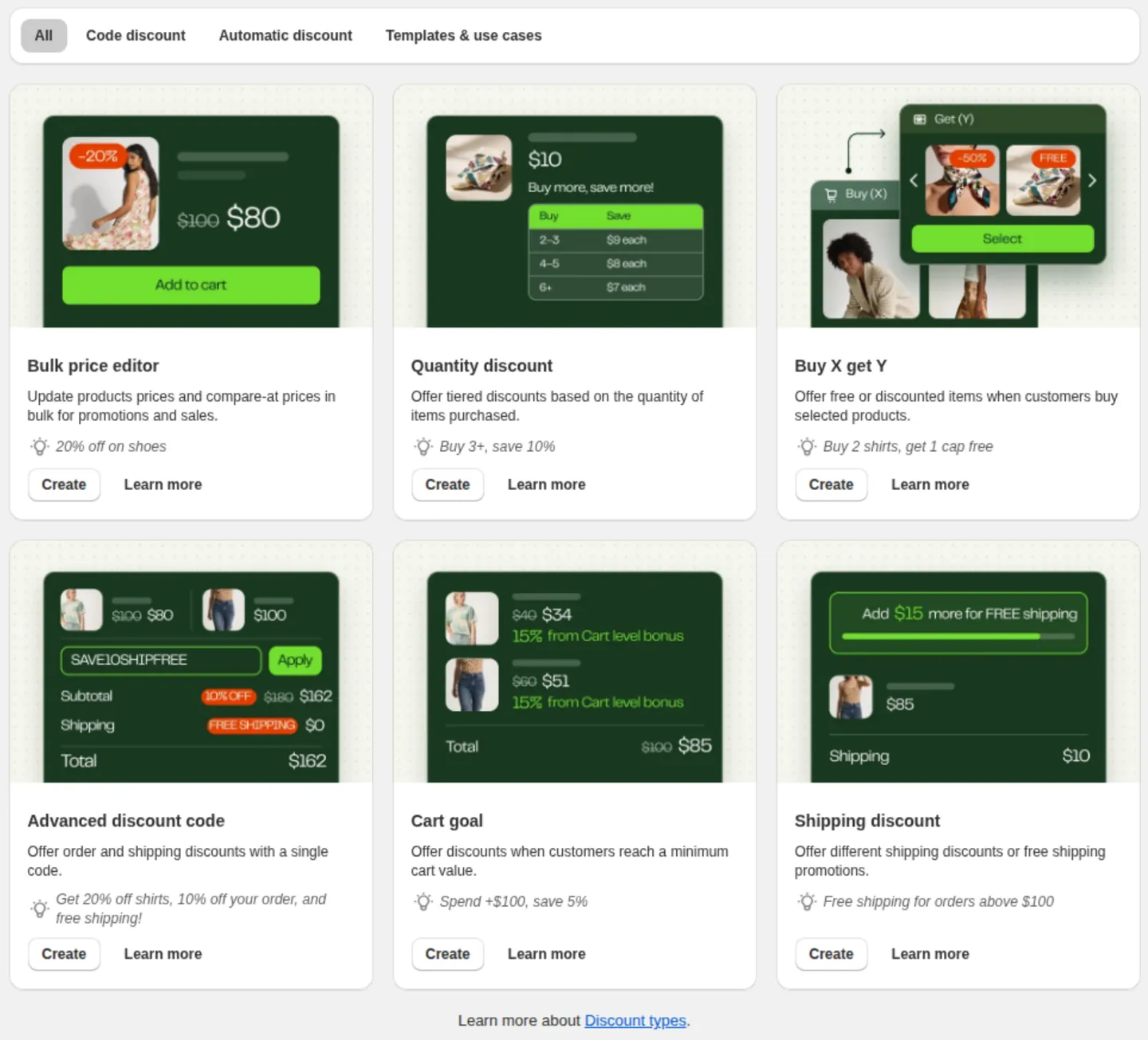
For how each type is applied and when to use it, see Which Discounty campaign type should I use?.
Storefront widgets
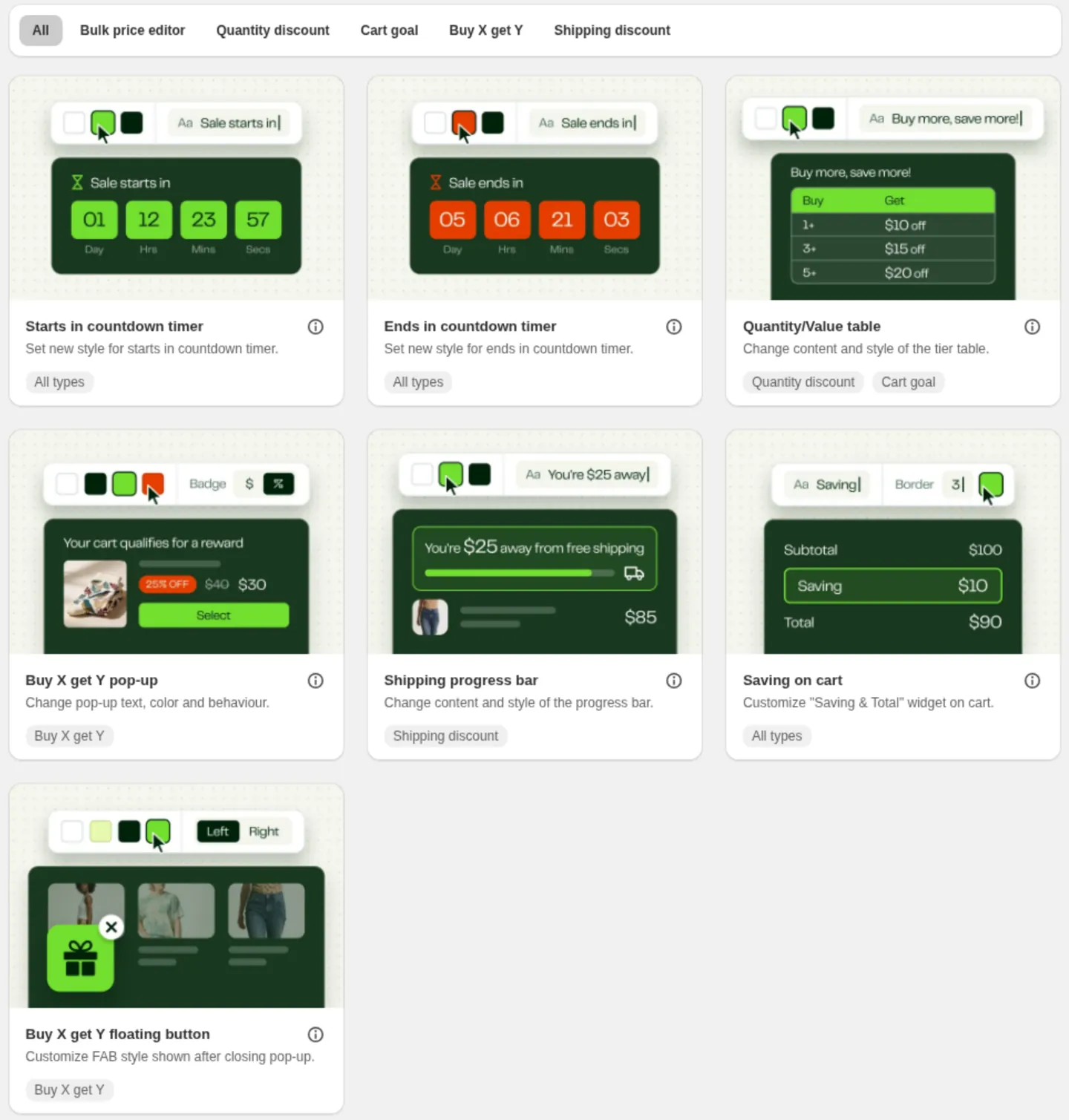
Some campaign types come with widgets that show the offer on your storefront. You can change their text, colors and style on the Customization page in the app:
Quantity/Value table: the tier table shown on product pages for Quantity discount and Cart goal campaigns.
Buy X get Y pop-up and Buy X get Y floating button: the reward pop-up shown when customers qualify for a Buy X get Y offer, and the button that reopens it after it is closed.
Shipping progress bar: shown on product and cart pages for Shipping discount campaigns.
Saving on cart: shows savings and the total price in the cart.
Starts in countdown timer and Ends in countdown timer: countdowns to a campaign's start or end.
Widgets only appear after you enable the Discounty app embed in your theme. See How to activate Discounty widgets on your Shopify store?.
Where analytics apply
The Analytics page reports revenue and orders per campaign for Bulk price editor campaigns. Other campaign types do not have a campaign analytics page at the moment. See How do I use Discounty's Analytics dashboard?.
AI tools
Discounty works with AI in three ways:
Lumos (formerly Discounty Expert) is the AI assistant inside the app. Ask it which campaigns are running or how they're performing, or describe the promotion you want, such as "20% off all t-shirts until Sunday", and it fills in the campaign for you to review and save. See How do I use Lumos, the AI assistant in Discounty?.
Shopify Sidekick can answer questions about your Discounty discounts and open a pre-filled campaign right from your Shopify admin. See How do I use Discounty with Shopify Sidekick?.
AI apps such as Claude or ChatGPT can connect to Discounty and read your campaigns and their results, so you can ask about them in the AI app you already use. See How to connect Claude, ChatGPT or another AI app to Discounty?.
Your discounts also work when shoppers check out through AI shopping agents. See Will my Discounty discounts work in ChatGPT, Gemini, and other UCP-based AI checkouts?.
How to get started
Install Discounty from the Shopify App Store, enable the app embed in your theme, then create your first campaign from the Campaigns page. The step-by-step walkthrough is in Getting started with Discounty.
Related articles
Need a hand? Contact our support team through the app — we're happy to help.