


How to Limit a Discount to Specific Shopify Markets
A cart in Europe can take 10% off at $100 while a cart in the United States pays full price. Shopify's Eligibility setting does it. Changing catalog prices is a different job.
In Discounty: Cart goal See how a Shopify cart discount works
To limit a discount to specific Shopify markets, open the discount, set Eligibility to Markets, and add those markets. One discount can target markets or a customer segment, not both. Shopify’s changelog of 7 May 2026 says this is on Basic plans and above, for stores on the new version of Markets.
Discounty is a Shopify discount app. Five of its campaign types have the same choice, named Specific markets, on the Customer selection card. A Bulk price editor campaign does not. That one changes the product’s price for everyone who can see the product.
How do you limit a Shopify discount to specific markets?
Shopify’s guide to managing discounts gives these steps. They work for a code and for an automatic discount.
- In the Shopify admin, go to Discounts and open the discount.
- Under Eligibility, select Markets.
- Select the markets and click Add, then Save.
You can pick region markets, B2B company location markets and retail location markets. You cannot assign the discount to a channel market. Shopify’s page on discounts and gift cards in Markets says that, and it says a discount code works in every market until you assign markets.
Where it breaks: the amount, the plan and a second eligibility
- A percentage needs no conversion. Shopify says a 20% discount takes 20% off the price in the customer’s currency.
- A fixed amount stays in your store currency. Shopify’s example is a $10 discount on a USD store. At a rate of 0.92 the customer in a EUR market gets €9.20 off, and the amount can move when the rate moves. You cannot type the fixed amount in the market’s own currency.
- Free shipping minimums convert too. A $75 minimum is judged in the customer’s currency at the rate of the moment.
- One eligibility only. Markets, customer segments and specific customers are three choices. A discount cannot carry two of them. The discount list will not filter by two eligibility types at once, for the same reason.
- The option can be missing. The 7 May 2026 changelog limits it to Basic plans and above, on the new version of Markets. A store still on the older Markets setup does not get this Eligibility choice.
How do you limit a Discounty campaign to specific markets?
In Discounty this is Customer selection > Specific markets. The customer selection guide names the five campaign types:
- Quantity discount
- Cart goal
- Buy X get Y
- Advanced discount code
- Shipping discount
Bulk price editor is not on that list. If the job is a sale price in each country’s catalog, that is Catalog prices on a percentage Bulk price editor campaign, covered in the bulk discount guide. Specific markets does not change those prices. It decides who the discount is for.
The example is a Cart goal: 10% off when the cart reaches $100, only in the Europe market.
- Open Campaigns, click Create campaign and choose Cart goal.
- In Discount, choose Percentage, enter 10, and set the minimum to 100.
- In Customer selection, choose Specific markets and pick Europe. Save, then click Activate.
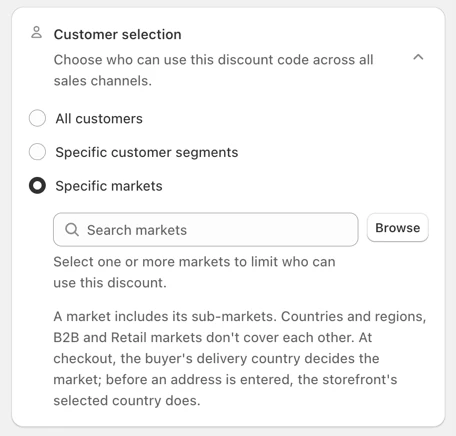
Specific markets is on the Discounty and Ultimate plans. The pricing page lists what each plan costs. If the option shows a lock, this plan does not include it, and the upgrade prompt on that card names the plan.
The list shows active markets of three types: countries and regions, B2B, and Retail. Draft markets and channel markets are not listed. You create and edit markets in Shopify, not in Discounty. The choice is include-only. To leave a market out, select the others.
Specific customer segments is the other choice on the same card. You cannot tick both. Saving a switch removes the previous choice. Segments are a different job, the one in wholesale prices for tagged customers.
A Shipping discount also has a Countries card. That card limits the delivery address. Specific markets limits who the campaign is for. Set each one for the job it does.
Where it breaks: the wrong country, widgets and an active campaign
- Checkout uses the delivery country. Before the shopper enters an address, the country selected on the storefront decides.
- A market includes its own sub-markets. North America also covers Canada. It does not cover B2B buyers or retail stores in those countries. Select each type you need.
- Most widgets follow the storefront country. The quantity table, the mini badge, Buy X get Y’s pop-up, floating button and offer, countdown timers and the shipping progress bar show only when that country is in a selected market. The cart widget, Buy X get Y auto-add and the POS tile do not use that check.
- Some markets show no widgets online. B2B, retail, draft, deleted, and markets made only of states or provinces have no countries. A campaign limited only to those shows its widgets to nobody on the storefront.
- Edit the market in Shopify, then save the campaign again. Added or removed countries, or a market set to draft or deleted, reach the widgets only after that save.
- A limited Cart goal or Quantity discount takes its own slot. Campaigns of those two types usually share one automatic discount. Limit one to markets or to segments and it gets its own, and that slot counts toward Shopify’s 25 active automatic discounts.
- You cannot change this on an Active campaign. The card is locked, with the note that only the end time can change. Click Deactivate, edit Customer selection, save, then Activate.
- Activation can fail. The campaign goes to Error if a selected B2B market has discounts turned off in Shopify, or if you selected more markets than Shopify allows on one discount. Turn B2B discounts on, or remove markets, then activate again. The help article does not give Shopify’s maximum.
What does a buyer in each market pay?
Two shoppers each add $100 of goods. The Cart goal is 10% at $100, limited to Europe. Tax and shipping are left out. This is the rule from the help article, drawn as two carts.
What should you check before the offer goes live?
Open the storefront, set the country to Europe, and add $100. Then set the country to one you did not select and add the same cart. At checkout, enter a delivery address in each country. The address wins over the storefront country.
If a market you need is missing, it is draft, a channel market, or not active. Create or activate it in Shopify, then come back. A market you had selected and then deleted in Shopify drops off the campaign. With none left, you cannot save until you pick a market, or switch to All customers or Specific customer segments.
How to undo it
- A Shopify discount: open it under Discounts and click Deactivate. To keep it and open it to every market, set Eligibility back to All customers and save.
- A Discounty campaign: click Deactivate. It shows Reverting while the discount comes off, then Expired. Campaign statuses in Discounty explains each one.
- One market only: deactivate, remove that market in Customer selection, save, and activate again.
 Automatic Discounts on Shopify: How to Set One Up
 How to Put a Whole Shopify Collection on Sale, With the Old Price Crossed Out
 How to Give Wholesale Tiered Prices Only to Customers Tagged Wholesale on Shopify