


A Monday Shopify Discount Review With ChatGPT or Claude
Discounty connects to the AI app you already use. Ask which campaigns are running, which overlap and what to plan for Black Friday, and the answers come from your own store.

Your Monday discount review can happen in the AI app you already use. Connect Discounty to Claude or ChatGPT once, on any Discounty plan, and ask in plain words: which campaigns are running, which ones overlap, which have no end date, what to plan for Black Friday. The answers come from your own store’s campaigns, next to the rest of your Monday work.
The connection only reads. Nothing changes in your store until you change it yourself in Discounty, so you can ask as much as you like.
Six questions for Monday
Keep them in a note and paste them in this order, in one conversation. Two of them are suggested on Discounty’s own AI apps page.
| Ask | What you get | Then, in Discounty |
|---|---|---|
| "Which of my Discounty campaigns are active, scheduled or expired, and when does each one start and end, in my store's time zone?" | Every campaign sorted by status, with its start and end in your store's time | Deactivate anything that should have stopped |
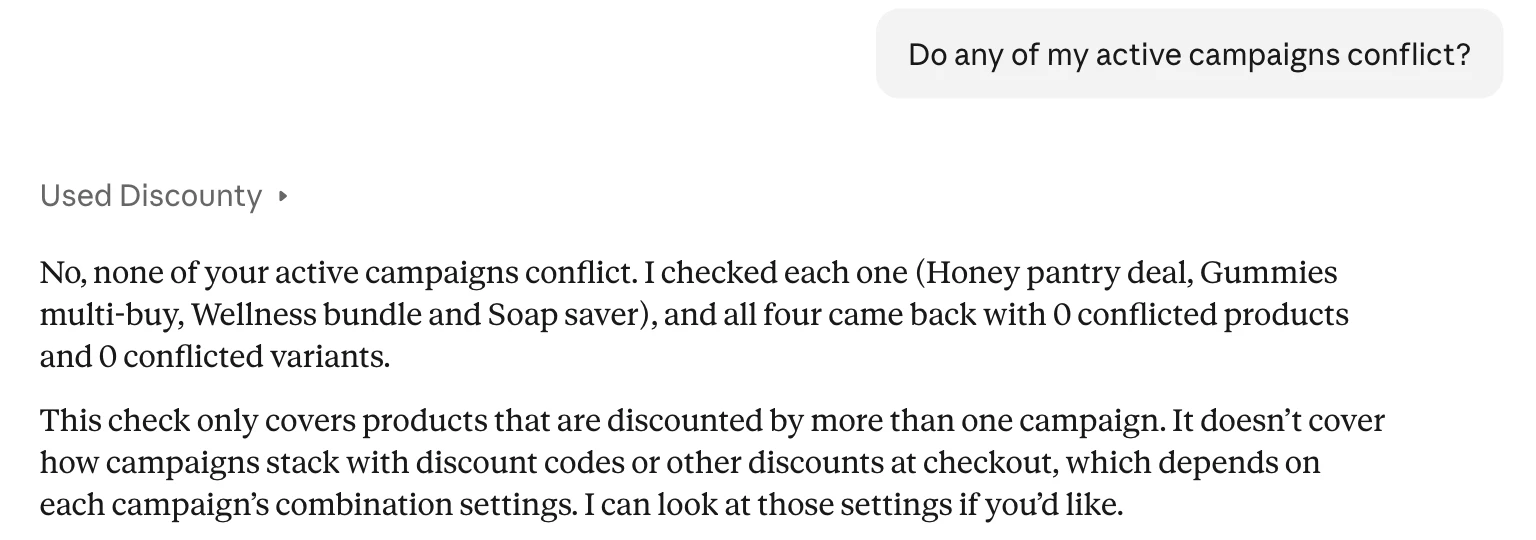
| "Do any of my active campaigns conflict?" (suggested by Discounty) | A check of every active campaign for products discounted by two campaigns at once | Fix any overlap before shoppers find it |
| "Which active campaigns have no end date, and which end in the next 7 days?" | The campaigns that run with no end, and the ones about to finish | Add end dates, or schedule what comes next |
| "Which campaign has made the most revenue?" | Each campaign's revenue and orders, side by side | Put more behind the offers that sell |
| "Is anything in my Discounty setup stopping discounts from showing on my store?" | A look at Discounty's storefront setup, with anything that needs fixing, such as the storefront embed being switched off | Turn it on, then check the storefront |
| "Help me plan a Black Friday promotion." (suggested by Discounty) | A plan that starts with anything to fix first, then the offers to run | Build the offer yourself, or with Lumos |
The AI app reads your storefront setup as well as your campaigns. If Discounty’s storefront embed is switched off, it can raise that on its own, at the top of a Black Friday plan, before any offer.
Your campaigns stay safe
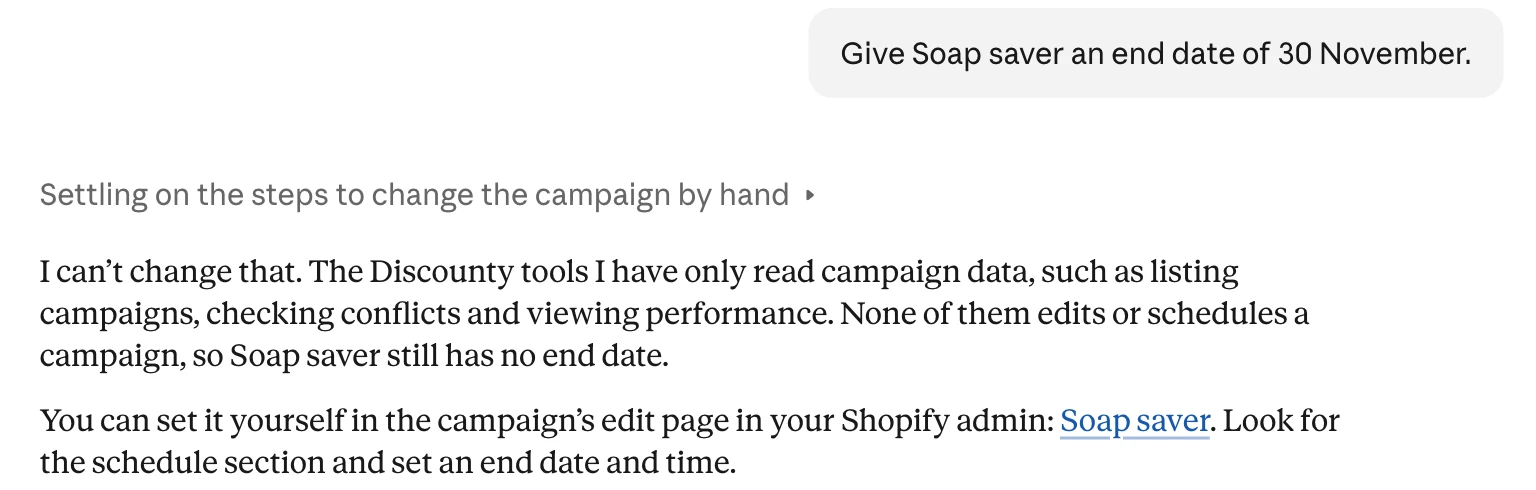
The AI app can read your campaigns and their results. It can’t create, change or delete anything. Ask it to give a campaign an end date and it tells you where to do that in Discounty, with a link to the campaign’s edit page.
When the review turns into a change, Lumos, the AI assistant inside Discounty, fills in the campaign from one sentence for you to save.
Connect Discounty to Claude or ChatGPT
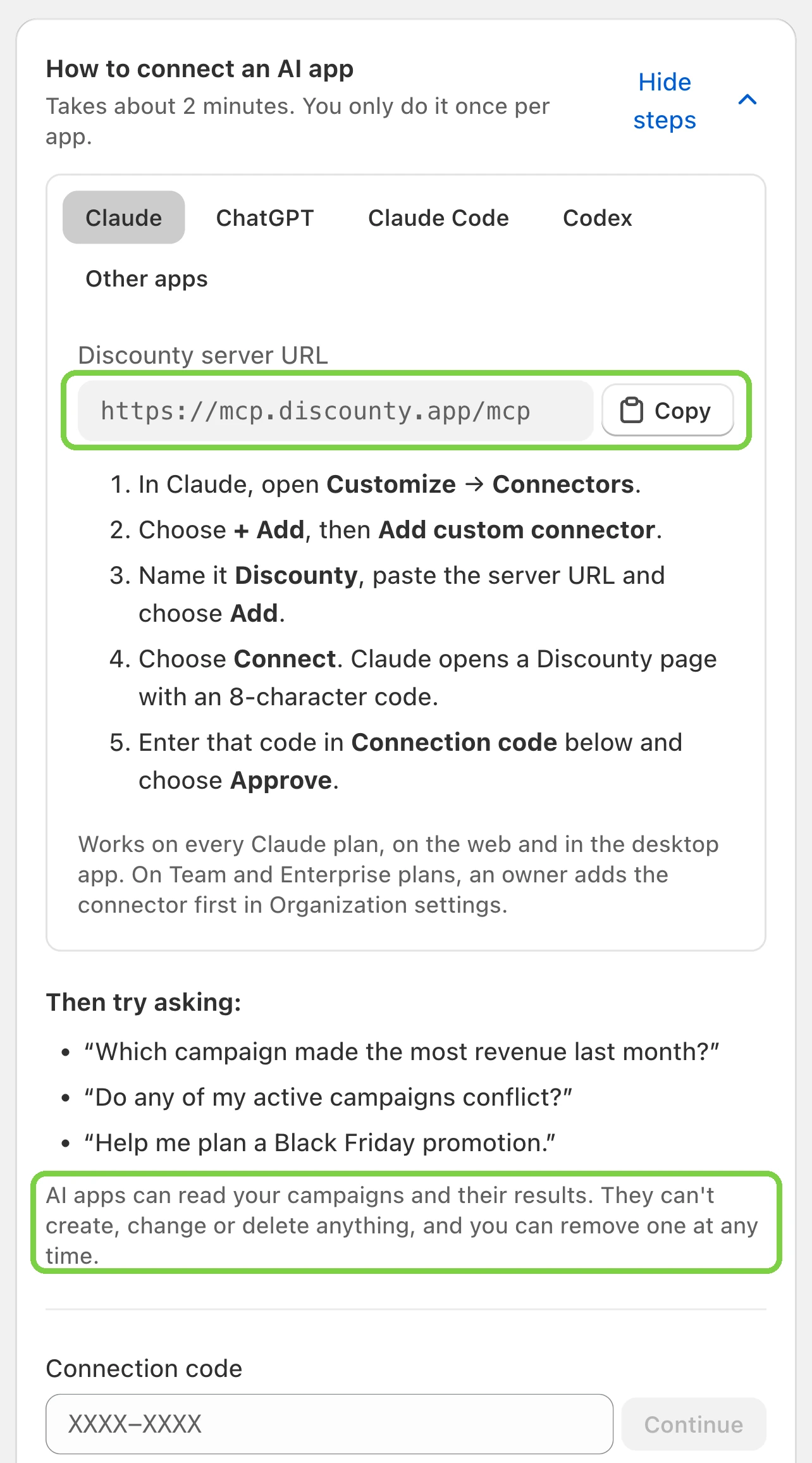
Open Discounty from your Shopify admin, then go to Settings → AI apps. Copy the Discounty server URL with Copy. The connection works on every Discounty plan.
In Claude:
- Open Customize → Connectors, choose + Add, then Add custom connector.
- Name it Discounty, paste the server URL and choose Continue.
- Claude shows an Authentication screen with the right options already selected. Leave them and choose Add.
- Choose Connect. A Discounty page opens with an 8-character code. The code works once and expires in 10 minutes.
- In Discounty, enter the code under Connection code, choose Continue, then Approve. Claude’s page returns by itself.
It works on Claude’s free plan. On Team and Enterprise, an owner adds the connector first in Organization settings.
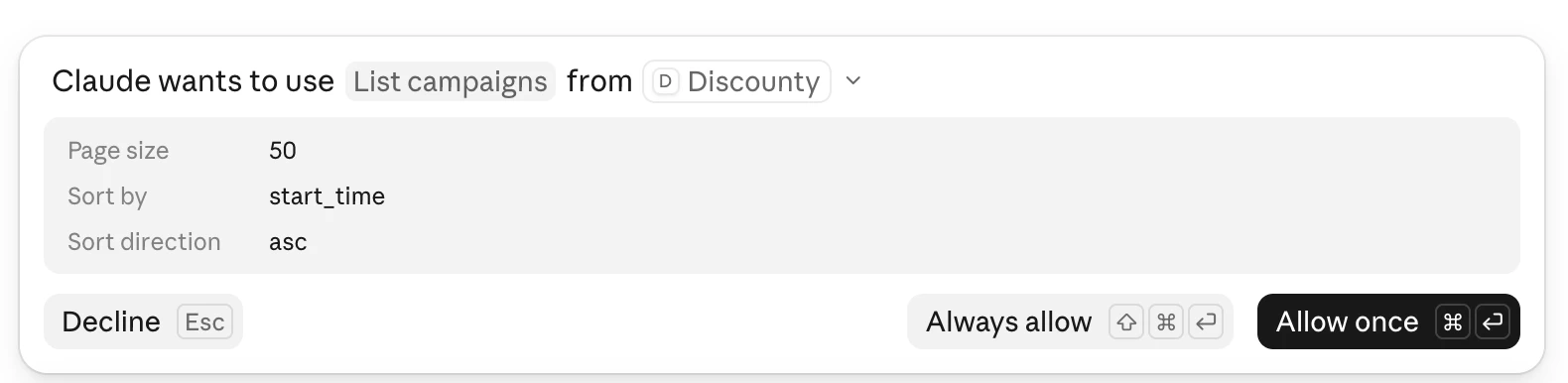
Claude asks before it reads from Discounty. Choose Allow once for that lookup, or Always allow to stop the prompt for that kind of lookup.
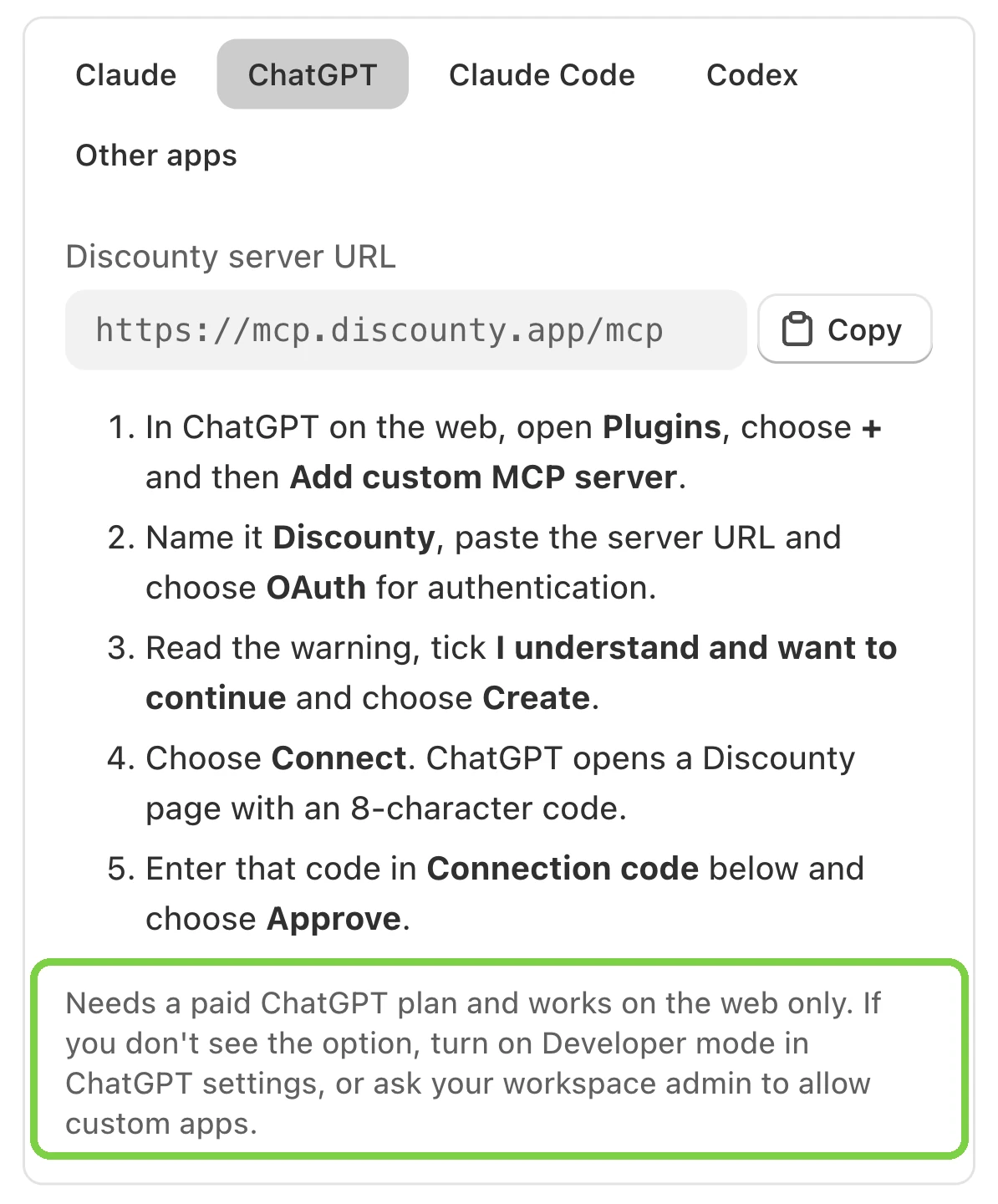
In ChatGPT, on a paid plan and on the web: open Plugins, choose +, then Add custom MCP server. Name it Discounty, paste the server URL, choose OAuth, tick I understand and want to continue, choose Create, then Connect, and approve the code in Discounty as above. If the option is missing, turn on Developer mode in ChatGPT’s settings or ask your workspace admin to allow custom apps.
Approve only a code you started yourself. Discounty will never ask you for one. If someone sends you a code, choose Deny.
To disconnect, open Settings → AI apps. It lists each connected app, who connected it and when it was last used. Remove ends that app’s access at once.
Cursor, VS Code and other apps are covered in how to connect Claude, ChatGPT or another AI app.
Good to know
- Revenue and orders per campaign are all-time totals. To see one week, note each campaign’s total every Monday and compare. When a number doesn’t say which dates it covers, ask.
- Type times in Discounty as your device’s clock shows them. An AI app may suggest sale times in your store’s time zone, while the campaign form reads the times you type in your device’s time zone. If you work from another time zone than your store, convert before you type.
- For how Discounty itself works, such as which time zone a schedule uses, the Discounty Help Center is the reference.
 What Is Lumos? Set Up a Shopify Sale in One Sentence With Discounty's AI
 Do Shopify discounts work in ChatGPT and AI checkouts?
 How to Put a Whole Shopify Collection on Sale, With the Old Price Crossed Out