


What happens when you uninstall Discounty, and how do you recover?
How to uninstall Discounty safely, what happens to each campaign type if you don't, and how to recover your prices.
If you uninstall Discounty while a campaign is still running, your products can keep their discounted prices, or a discount can stop working at checkout. The Safe uninstall page in the app deactivates your campaigns first so your prices go back to normal before you leave. Below you'll find the safe way to uninstall, what happens to each campaign type if you skip it, and how to recover.
Recommended: use Safe uninstall
Safe uninstall deactivates your Active, Scheduled and Blocked campaigns for you, so Bulk price editor prices return to their original values before you remove the app. The page shows this reminder:
"To remove Discounty from your store, deactivate all Price rule campaigns first to revert to the original prices. After deactivating the campaigns, you can safely uninstall the app."
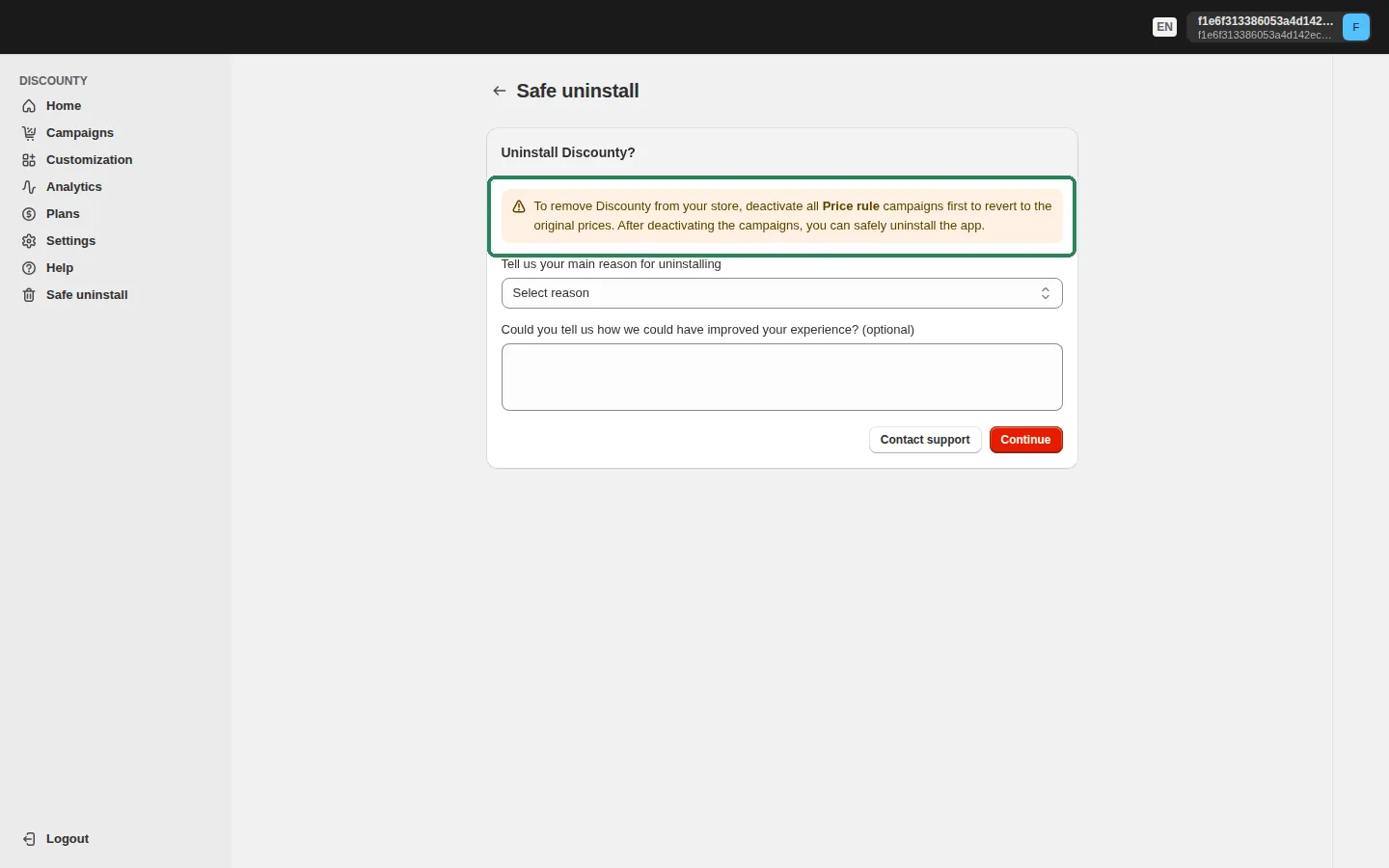
In Discounty, click Safe uninstall in the app menu.
On the Uninstall Discounty? card, choose a reason under Tell us your main reason for uninstalling and add any feedback (optional). Click Continue.
Depending on the reason you choose, the app may ask a short follow-up question, offer help (Help me make it work), or show a special offer (Claim my offer). To go ahead with uninstalling, click Deactivate and uninstall.
Discounty deactivates your campaigns. Wait until you see Campaigns successfully deactivated. If there was nothing to deactivate, you'll see You’re all set, there’s nothing to deactivate. instead.
When the card shows Ready to uninstall., click Uninstall. Shopify's Apps and sales channels page opens, where you finish removing Discounty.
After uninstalling, refresh your browser to make sure everything is fully removed.
If you're on a paid plan, the card also shows how many days are left in your current billing cycle: "You still have N days remaining in your current billing cycle." You can keep using your plan and uninstall on the last day to get the most from what you've already paid for.
If you uninstall with active campaigns
If you uninstall directly from your Shopify admin instead of using Safe uninstall, Shopify removes Discounty's access to your store right away, and the app can't make changes until you reinstall. What happens to your active campaigns depends on their type.
Bulk price editor campaigns
Bulk price editor campaigns change each product's Price and Compare-at price in Shopify directly. Uninstalling doesn't undo that, and the app can no longer reach your store to revert them. Your products keep showing the discounted price, and the compare-at price if one was set, until you fix it (see the next section).
Quantity discount, Cart goal, Buy X get Y, Advanced discount code and Shipping discount campaigns
These campaign types run as Shopify discounts powered by the Discounty app. They never change your products' Price or Compare-at price, so there's nothing on the product to revert. Store features that depend on an app stop working once the app is uninstalled, so these discounts stop applying at checkout as soon as Discounty is removed.
Recovering after uninstalling with an active Bulk price editor campaign
Recommended: reinstall Discounty
Go to the Shopify App Store and reinstall Discounty.
If a Bulk price editor campaign was still running when you uninstalled, you'll see an Action required banner: "Due to a previous installation, a quick store review is required before creating new campaigns. Please contact support to continue." You can't create new campaigns until this is resolved.
Click Contact support on the banner. Our team reviews your store with you and helps clean up the leftover prices.
If you don't see the banner but your products still show the wrong prices, contact our support team through the app anyway. Include your store domain and the name of the affected campaign.
If you need help with the campaigns you had before uninstalling, contact our support team.
Alternative: fix prices yourself in Shopify
You can also restore prices without reinstalling, but this can be slow and error-prone for stores with many products.
Option A: edit each product
Go to Products in your Shopify admin.
Set the Price and Compare-at price of each affected product back to their original values.
Option B: use product export and import
In your Shopify admin, go to Products and click Export.
In the CSV file, set the Price and Compare-at price columns back to your original values. An export taken during the campaign already contains the discounted prices, so use your values from before the campaign.
Import the file back into Shopify.
Billing after uninstalling
Uninstalling stops future Discounty charges. Depending on where you are in your billing cycle, you may still see a charge for the current period. See Why can charges occur after uninstalling an app, and how do trials and billing cycles factor in?
Theme cleanup
Discounty's storefront widgets are added through a Shopify app embed, not by editing your theme's code. Shopify removes app embeds and app blocks from your theme automatically when you uninstall the app that added them, so you don't need to clean up any theme files.
Related articles
Need a hand? Contact our support team through the app — we're happy to help.