


How to Schedule a Shopify Sale That Starts and Ends by Itself
Change every price on Friday night, change them all back on Monday morning, or set the sale up once and let it run. What Shopify can put on a clock, what it can't, and how to repeat a sale every weekend.

In Discounty: Bulk price editor See how the Shopify bulk price editor works
You can schedule a Shopify discount to start and end by itself under Discounts > Create discount > Active dates, but not a crossed-out sale price. The old price shown crossed out (the compare-at price) has no date field. So that kind of sale takes Launchpad (Shopify Plus only) or two rounds of edits by hand. An app such as Discounty’s Bulk price editor sets the prices at the start and puts them back at the end. Nothing repeats on its own: for a sale every weekend, schedule each weekend ahead of time.
How do you schedule a sale with Shopify’s own tools?
An automatic discount or a discount code can open and close on a date. Shopify’s guide to amount off discounts gives these steps:
- From your Shopify admin, go to Discounts and click Create discount.
- Choose the kind of discount, such as amount off products.
- Under Method, select Automatic discount or Discount code.
- Set the value and the products or collections it covers.
- In the Active dates section, set the start date. Click Set end date and set the day it ends.
- Save.
That covers the discount. It does not cover every way a sale is shown:
| How the sale is set up | Starts and ends by itself? | What the shopper sees |
|---|---|---|
| Automatic discount | Yes, under Active dates | The saving in the cart and at checkout |
| Discount code | Yes, under Active dates | The saving once the code is entered |
| Compare-at price edited by hand | No. You change the prices at the start and again at the end | The old price crossed out on product and collection pages |
| Launchpad (Shopify Plus only) | Yes. It changes pricing at the start and end of an event | The new price on the product |
| Rollout of a price catalog (Basic plan and up) | Yes. An Event turns a catalog on for a set period, then rolls it back | The catalog's prices; Shopify's guide does not mention a crossed-out price |
| Shopify Flow (Shopify's automation app) | No. It has no ready-made action that changes a price | No change |
Launchpad, on Shopify Plus only, changes the products’ own prices on a date. A rollout (in Shopify admin under Markets > Rollouts) switches on a catalog, a separate price list you build for one selling region, for a set time. It does not change the Price and Compare-at price on each product.
Where it breaks: compare-at prices and repeats
- The crossed-out price does not schedule. Shopify’s sale price is two fields on each variant: Price, what the shopper pays, and Compare-at price, the old price your theme crosses out. Neither takes a date. Someone edits them on Friday night and again on Monday, by hand.
- A discount does not look like a sale on the product page. Shopify’s sale pricing guide says a strikethrough saving needs a third-party discount app or a custom build by a Shopify Partner. The shopper sees the full price until the cart.
- Nothing repeats. Active dates take one start and one end. If you reactivate last weekend’s expired discount, Shopify makes it Active with no end date, so it runs until someone switches it off. Create a new discount for each weekend instead.
- Automatic discounts have a ceiling. Shopify allows 25 active automatic discounts at once, and discounts created by apps count toward it.
If you want the crossed-out price on a clock across a whole collection, putting a collection on sale in bulk covers the price fields in detail.
How do you schedule a sale with an app like Discounty?
In Discounty, use a Bulk price editor campaign. Set a start and an end date and time, and it changes the product’s real price at the start and puts it back when the sale ends. A product with no compare-at price gets its old price as the compare-at price, so your theme can show it crossed out. At the end, both fields go back.
- In Discounty, open Campaigns, click Create campaign and choose Bulk price editor.
- Set the discount as a percentage, a fixed amount or a new price.
- Pick the products: by collection, tag, vendor, product type, the whole store, or by hand.
- In the Schedule card, set the Start date and Start time. Tick Set end date, then set the End date and End time.
- Optional, on the Essential plan and up: add a countdown timer in the Countdown timer card (see below).
- Save, then click Activate. With a start time in the future, the campaign shows Scheduled until then, Active while it runs and Expired after it ends.
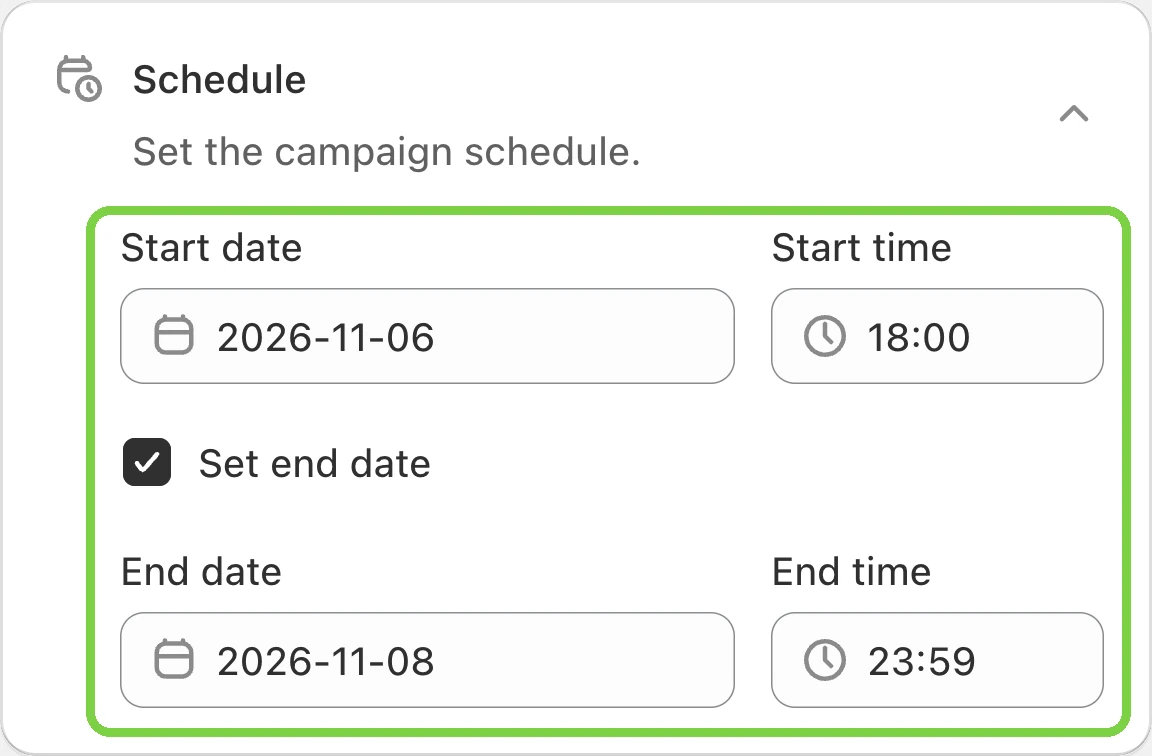
Discounty reads the dates in the time zone of the device you save from, not your store's. Which time zone a sale runs on shows what that changes.
Prices don’t all flip in the same second. Discounty picks up a due campaign within a minute and then works through the variants: a few products take moments, thousands take longer, and two campaigns in one store run one after the other. For a big sale, set the start a little before you announce it. Prices go back the same way after the end time, so don’t promise a sale that closes to the minute.
Discounty’s other campaign types take a start and end date the same way. The Bulk price editor setup guide walks through every card on the form.
Add a countdown timer
A sale built a week early can say it is coming. Countdown timers are on the Essential plan and up. The “starts in” timer counts down to a scheduled campaign’s start date; the “ends in” timer counts down to its end. Both can run on one campaign.

Timers show on product pages and the homepage, not in the cart, and need Discounty’s app embed switched on in your theme. The countdown timer guide has the setup steps.
How does a weekend sale run, hour by hour?
A store in New York sells a hoodie at $60 and a T-shirt at $24. Neither has a compare-at price. The owner wants 25% off both from Friday at 18:00 to Sunday at 23:59.
On Wednesday, from her laptop in New York, she creates a Bulk price editor campaign. She sets Percentage to 25 and picks the Hoodies and Tees collections. In the Schedule card she enters 6 November at 18:00 as the start, ticks Set end date, and enters 8 November at 23:59 as the end. She saves and clicks Activate. The campaign shows Scheduled.
On Friday at 18:00 the campaign starts, and a campaign this small is Active within moments. The hoodie becomes $45 and the T-shirt $18, with $60 and $24 as their compare-at prices, so the theme can cross them out. A shopper who buys two hoodies and a T-shirt pays $108 instead of $144.
Had the hoodie already shown $60 with a $70 compare-at price, it would keep the $70. Discounty never lowers an existing compare-at price. The 25% comes off the $60 selling price, so the hoodie is $45 with $70 crossed out. On the Essential plan and up, an option takes the discount off the compare-at price instead.
On Sunday at 23:59 the campaign ends. It shows Reverting while Discounty puts the prices back, then Expired. On Monday morning the hoodie is $60 and the T-shirt $24, with no compare-at price, as before. Nobody edited a price.
How do you run a Friday-to-Sunday flash sale every week?
Schedule each weekend as its own sale, a few weeks ahead. In Discounty:
- Build the first weekend, like the one above: Friday 6 November at 18:00 to Sunday 8 November at 23:59.
- Open the saved campaign and click Duplicate. The copy keeps the discount and the product filters.
- Change only the dates in the copy’s Schedule card: Friday 13 to Sunday 15 November. Save, then click Activate.
- Duplicate again for 20 to 22 November, change the dates, Save, then click Activate.
- Check the campaign list: three campaigns, each Scheduled, each with an end date.
Before you line up a month of weekends:
- Each weekend is a campaign. It counts toward your plan’s Created campaigns limit until you delete it. An Expired campaign can be deleted, which frees the slot for the next weekend.
- Check your plan’s limits. Scheduling a Bulk price editor campaign’s start and end is on every plan, the free Starter plan included. Starter allows 3 campaigns, so 3 weekends lined up at once until you delete the expired ones. It also allows 10 variants on sale at the same moment, and one hoodie in five sizes and four colours is already 20. Lite allows 10 campaigns and 150 variants; the pricing page lists the rest.
- Over the variant limit, the sale does not start. Discounty saves the campaign but won’t run it until you upgrade or pick fewer variants.
- One campaign per product at a time. A product that is already in another running campaign is left out of the new one, so an always-on sale on the same collection makes the weekend sale skip those products. Campaign combinations (Discounty plan and up) lets two campaigns share a product, but then both discounts apply, one on top of the other.
- The weekly rhythm has a cost. A sale every Friday can teach regular customers to wait for Friday. Running sales on a rhythm covers how to keep a regular sale without training shoppers to wait, and what makes a flash sale work covers when a deadline stops meaning anything.
With Shopify’s own discounts the routine is the same: create one discount per weekend, each with its own Active dates.
Which time zone does a scheduled sale run on?
A sale has one start moment and one end moment. Which clock sets them depends on the tool:
- Shopify’s discounts use the time zone in your Shopify admin, under Settings > General > Store defaults. Shopify’s own example: a store on Eastern time with a 26 November start date begins the discount at 12:00 a.m. Eastern on 26 November.
- Discounty reads the times in the time zone of the computer or phone you save from. A teammate in London who types 18:00 for a New York store opens the sale at 13:00 New York time, five hours early. Set the device to the store’s time zone first, or convert the times before you type them. Viewing the campaign later from somewhere else changes only how the times look on screen, not when the sale runs.
Shoppers in other time zones meet those moments at a different local hour. Take a Black Friday sale from Friday 27 November to Cyber Monday 30 November, New York time:
To choose the dates, when stores start their Black Friday sale has the 2025 count: across Discounty stores, the median store’s first sale started six days before Black Friday.
What happens to prices when the sale ends?
A Shopify discount stops applying at its end date and never touched the product prices. Compare-at prices you edited by hand stay until you edit them back. In Discounty:
- A Bulk price editor campaign saves each product’s original price and compare-at price when it starts, and restores both when it ends. A product that already had a compare-at price gets its own back.
- The other five Discounty campaign types never write to the product price. They stop applying at checkout.
Two things can spoil the restore. The first is editing a product’s price while its sale runs, by hand or with another app: the edit can be overwritten, or stop the old price coming back. If you must change a price mid-sale, deactivate the campaign, edit, then set the End date and End time again, click Save and only then Activate. A reactivated campaign has no end date unless you set one.
The second is uninstalling Discounty while a Bulk price editor campaign is live: the sale prices stay on your products. Use Safe uninstall in Discounty’s left-hand menu. It deactivates every campaign first, so the prices come back.
On Monday, open two or three products from the sale and check Price and Compare-at price. If a campaign shows Error, the tooltip next to the status says what went wrong. Contact support, on the right of the campaign page, reaches Discounty’s team.
How to undo it
- A Shopify discount: open it under Discounts and click Deactivate.
- A Discounty campaign that is still Scheduled: edit it or delete it. Nothing on your store has changed yet.
- A Discounty campaign that is Active: you can change only the End date and End time. The app says so: “You can only change end time of an active campaign. You have to deactivate the campaign to edit other fields.” To stop the sale now, click Deactivate. The campaign moves to Reverting, puts the prices back, and ends as Expired.
- While Discounty is still changing prices (statuses such as Applying or Reverting), the campaign can’t be edited or cancelled. Wait until it shows Active or Expired. Campaign statuses in Discounty explains each one.
 When Do Shopify Stores Start Their Black Friday Sale?
 What Is a Flash Sale? A Guide for Shopify Stores
 How to Put a Whole Shopify Collection on Sale, With the Old Price Crossed Out