


How to Auto-Add a Free Gift to the Cart on Shopify When It Reaches an Amount
A shopper reaches $64 and qualifies for your free lip balm, but nothing lands in her cart, so she pays without it. How to set the gift up, add it to the cart for her, and take it out if the cart drops.

In Discounty: Buy X get Y See how Shopify Buy X Get Y offers work
To give a free gift over a cart amount on Shopify, create a Buy X get Y discount with a minimum purchase amount and the gift as the free item. Shopify never adds the gift to the cart, so the shopper has to add it herself, or an app adds it for her. Discounty is a Shopify discount app that runs free gift with purchase offers. Its Buy X get Y campaign with Auto-add to cart puts the gift in the cart when it reaches the amount, and takes it out if the cart drops below. Auto-add is on the Discounty plan (named after the app) and up.
How do you give a free gift with purchase in Shopify?
Following Shopify’s Buy X get Y guide, for a gift over $60:
- Go to Discounts > Create discount and choose Buy X get Y. Pick Automatic discount or Discount code as the method.
- Under Customer buys, choose Minimum purchase amount and enter 60. Choose the products or collections that count toward it.
- Under Customer gets, set the quantity to 1 and choose the gift product.
- Under At a discounted value, choose Free. Tick Set the maximum number of uses per order and enter 1 if one gift per order is the offer.
- Set the combinations and the active dates, then click Save.
Where it breaks: auto-adding the gift, the spend amount and express checkout
- The gift is never added to the cart. Shopify’s guide says so in those words. A shopper who reaches $60 and doesn’t add the gift pays without it. Without an app, nothing adds it.
- The amount counts full prices. Shopify counts each product at its full price, before other discounts. A product that already has a discount that combines with this one doesn’t count toward the amount at all.
- Only the chosen products count. Shipping and taxes never count toward the amount, and neither do products outside the Customer buys list.
- Express checkout can skip the gift. Buy it now, Shop Pay and other buttons on the product page go straight to checkout, past the cart. The express checkout section below has the test and the fix.
- Automatic discounts have a cap. Shopify allows 25 active automatic discounts at once, and discounts created by apps count, Discounty’s included.
How do you auto-add a free gift with Discounty?
In Discounty a gift with purchase is a Buy X get Y campaign. The campaign makes the gift free at checkout and, with Auto-add to cart, adds it for the shopper.
Buy X get Y is on the Lite plan and up. Auto-add to cart is on the Discounty plan and up; the pricing page lists what each plan costs. On Lite and Essential, Show pop-up lets the shopper pick the gift and add it from a pop-up once the cart qualifies.
The example: a skincare shop gives a free Lip Balm Duo when the cart reaches $60.
- In Discounty, open Campaigns, click Create campaign and choose Buy X get Y. In Campaign name, enter “Free lip balm over $60”. With the default checkout label, shoppers see this name.
- In Discount method, choose Automatic. With Discount code, Discounty shows nothing on the storefront, so the shopper has to add the gift herself.
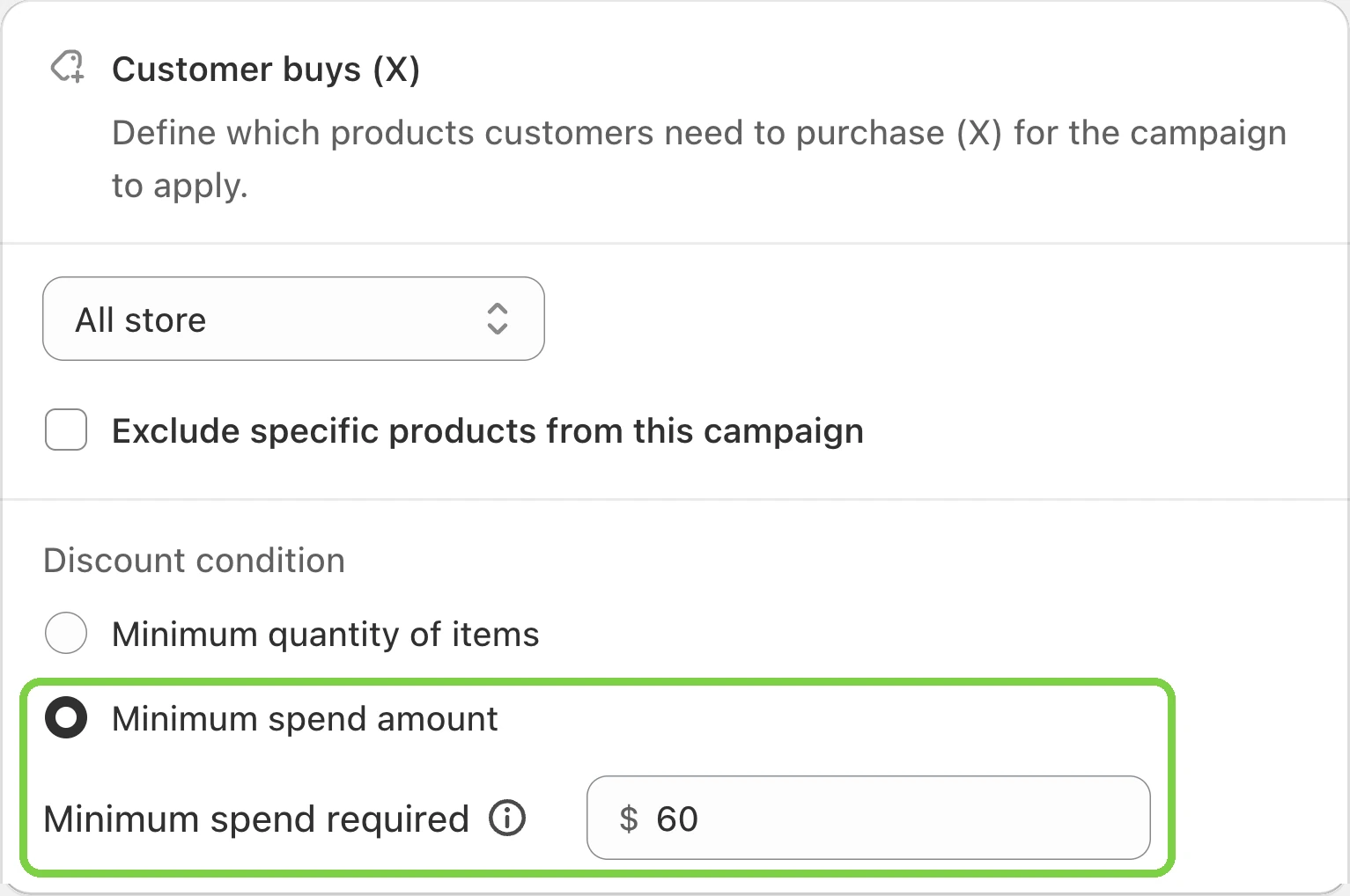
- In Customer buys (X), choose All store, so every product counts toward the amount. To leave some out, tick Exclude specific products from this campaign. Under Discount condition, choose Minimum spend amount and enter 60 in Minimum spend required.
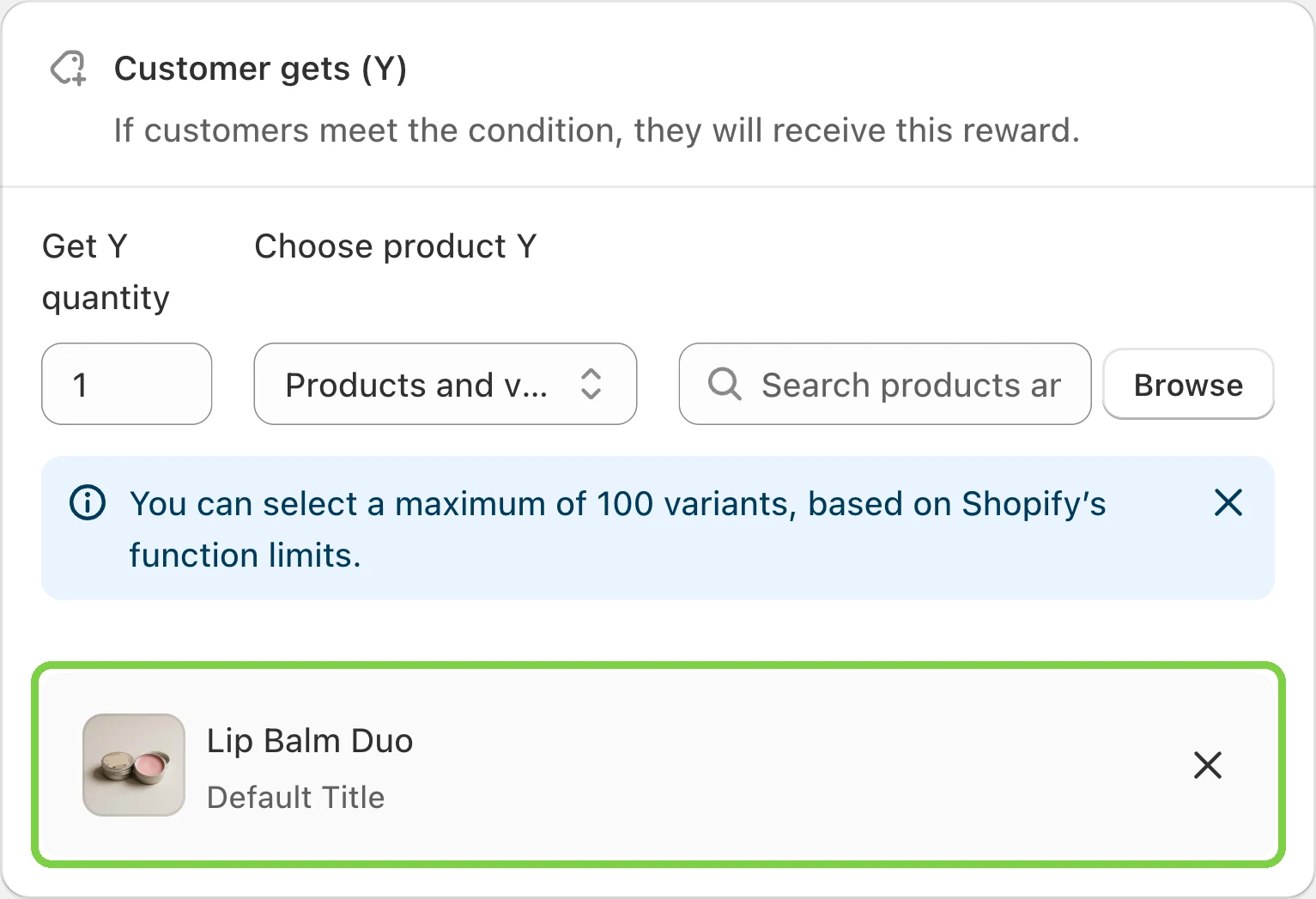
- In Customer gets (Y), set Get Y quantity to 1. Choose Products and variants and pick the gift. Auto-add needs the gift to be exactly one variant: a product with no size or colour choice, like this one, or one size or colour picked on its own.
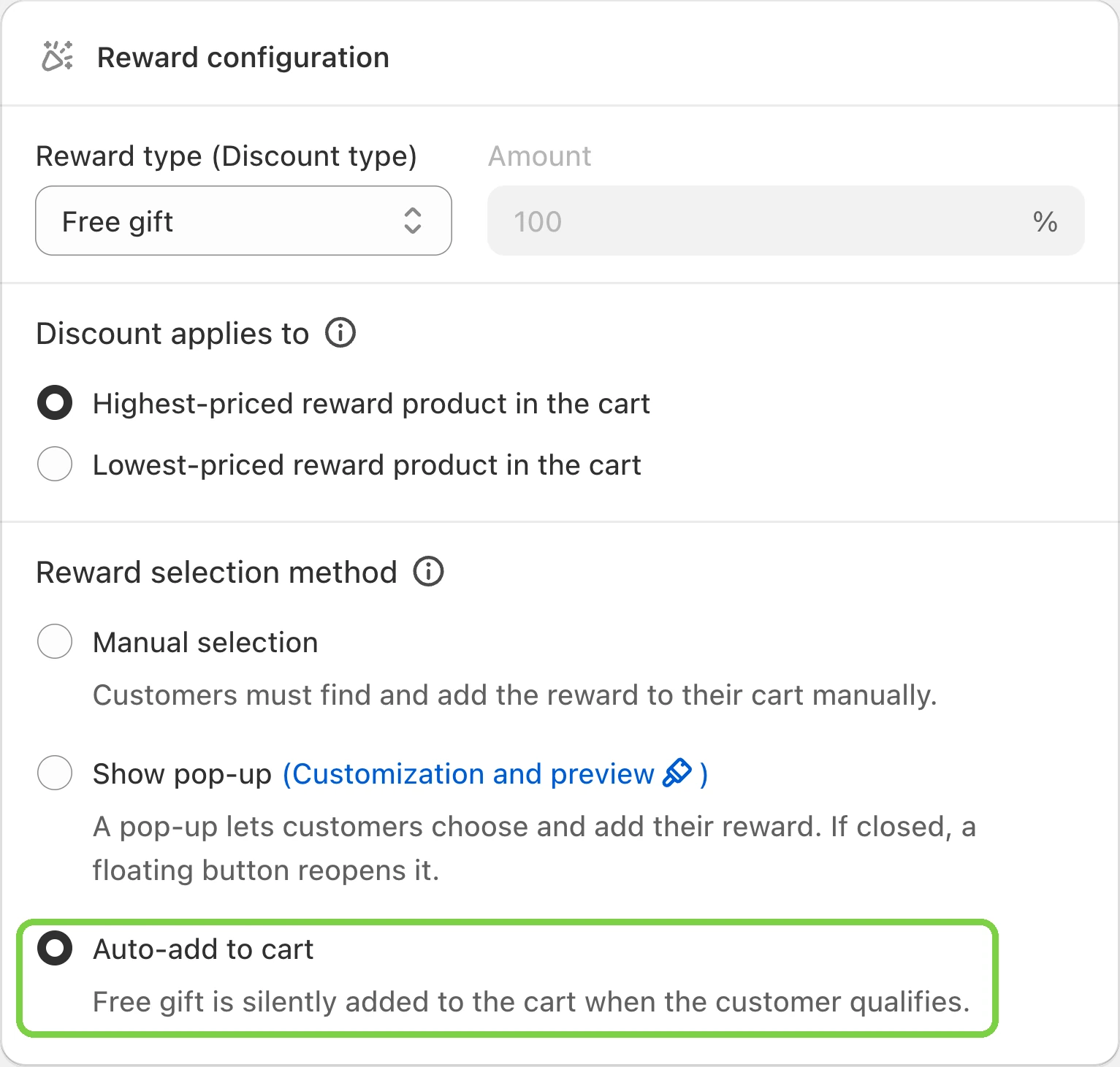
- In Reward configuration, set Reward type (Discount type) to Free gift. The amount locks to 100%. Under Reward selection method, choose Auto-add to cart (Discounty plan and up). The option stays greyed out until the gift is free and a single variant. Leave Discount applies to as it is: with one gift it makes no difference.
- Leave Campaign combinations as it is: the gift combines with Shopify’s product, order and shipping discounts by default. Set the Start date, and Set end date if the offer should stop on its own. Save, then click Activate.
- Switch on Discounty’s app embed in your theme, if it isn’t on already. Auto-add runs from the embed, so without it no gift is added. The app embed guide shows where.
- Once the campaign is Active, fill a cart to just over $60 on your own store and watch the gift arrive.
The spend-based Buy X get Y guide covers the spend condition in more detail.
What happens to the free gift when the cart drops below the amount?
The skincare shop sells a Face Serum at $28, a Cleanser at $22 and a Hand Cream at $14. The Lip Balm Duo sells at $12 on its own.
At $50 the cart is $10 short. The Hand Cream takes it to $64, and the Lip Balm Duo goes into the cart for free. At checkout its discount line uses the campaign’s label, which by default reads “FREE GIFT from Free lip balm over $60”.
Now the shopper changes her mind and takes the Hand Cream out. The cart is back to $50, and the gift comes out too. With the lip balm’s $12 the cart would be $62, but the gift never counts toward the amount, so it can’t keep itself in the cart.
If the shopper deletes the gift herself, Discounty leaves it out. It doesn’t add the gift back until her cart has been emptied, even if she keeps shopping above $60.
Is the free gift added with express checkout or Buy it now?
Probably not from the product page. Those buttons skip the cart, and the cart is where the gift is added. Shopify calls them accelerated checkout buttons. The unbranded Buy it now and branded ones such as Shop Pay, Apple Pay or PayPal sit next to Add to cart and take the shopper straight to checkout from the product page. Express buttons on the cart page come later, when the gift has normally been added already.
Before launch, buy a product with Buy it now on your own store, in a quantity that passes $60, and look at the order. If the gift is missing and the offer matters more than one-click buying, hide the buttons on product pages. In your theme editor, open the product template, click Buy buttons and untick Show accelerated checkout buttons. Shopify’s steps for this cover each theme screen. The setting hides the branded buttons too, which some shoppers use to pay faster. Turn it off for the campaign’s dates and back on afterwards.
What should you check before the gift goes live?
- Show the offer before the cart. The gift arrives only at $60, and nothing counts down to it. In Discounty, go to Customization, open Buy X get Y offer and turn on Product page, then Save. Its default text, “Buy
{minimum}of this item, get{reward}”, suits a quantity offer. For a spend offer, write “Spend{minimum}, get a free gift”. The text is shared by all your Buy X get Y offers, so keep it general if you also run a quantity offer. - Running a sale on some products? Fill a cart just over $60 with sale items and check that the gift arrives. If it doesn’t, ask Discounty’s support how your sale items count toward the amount.
- A gift with sizes or colours can’t be auto-added as a whole product. Pick the one variant you’ll give, or use Show pop-up so the shopper chooses. With the pop-up, test a cart that falls below $60 and check whether the gift comes out.
- Keep the gift in stock for the campaign’s dates: one for every order over $60.
- One gift per amount. Get Y quantity stays at 1 however much the shopper spends. A second gift over $100 needs a second campaign, and over $100 both gifts can apply. Two Buy X get Y campaigns on the same products have no priority, so plan them together.
- Selling in a shop too? On Shopify POS, the Discounty Free Gifts tile adds and removes the gift the same way. Automatic discounts on POS need POS Pro.
- You can’t change the amount or the gift on a live campaign. Deactivate it, edit it, set the end date again, Save, then Activate. A campaign activated again has no end date unless you set one. The gift is off in between, so do it at a quiet hour.
For a money reward instead of an item, such as 10% off over $60, see spend more, save more tiers. For “buy 2, get 1 free” offers, see how buy X get Y offers work.
How to undo it
- A Shopify discount: open it under Discounts and click Deactivate.
- A Discounty Buy X get Y: click Deactivate. The campaign shows Reverting while the discount is removed, then Expired, and from then on the gift is no longer free. Campaign statuses in Discounty explains each status.
 BOGO on Shopify: What It Is and How to Set It Up
 Spend More, Save More on Shopify: Minimum Purchase Tiers
 Shopify Discount Combinations: How to Stack or Stop Them