


How to Offer Free Shipping Over a Cart Amount on Shopify, With a Progress Bar
A shopper with $62 in the cart doesn't know free shipping starts at $75, so she pays for postage or leaves. How to set the threshold in Shopify, show the distance as the cart fills, and keep a discount code from taking it away.

In Discounty: Shipping discount See how a Shopify free shipping discount works
To give free shipping over a cart amount on Shopify, add a free shipping rate or a Free shipping discount with a minimum amount. Shopify’s admin has no progress bar, so the bar comes from your theme or an app. The bar that says “You’re $13 away from free shipping” reads the cart as it fills. In Discounty, a Shopify discount app, a Shipping discount set to Automatic discount with a minimum purchase amount shows that bar on product and cart pages, on the Essential plan and up.
How do you offer free shipping over a cart amount in Shopify?
Shopify has two ways in, and they behave differently.
A free shipping rate. Shopify’s guide to setting up shipping rates gives these steps:
- Go to Settings > Shipping and delivery and open your shipping profile.
- Next to the shipping option in a zone, click ⋯ > Edit shipping option.
- Tick Offer free shipping and enter the minimum order amount, such as 75.
- Click Done, then Save.
A Free shipping discount. Under Discounts > Create discount, choose Free shipping and the method: Automatic discount or Discount code. Pick the countries, set Minimum purchase amount to 75, set the combinations and the active dates, then save. Shopify’s free shipping discount guide covers each field.
| Free shipping rate | Free shipping discount | |
|---|---|---|
| Where | Settings > Shipping and delivery | Discounts > Create discount |
| Runs on dates | No, it is always on | Yes, under Active dates |
| Limit to some customers | No | Yes, under Eligibility |
| Other discounts lower the cart | Shopify's guide does not say, so test it with a code | Yes, if they can combine with it |
| Different amount per country | Yes, one rate per shipping zone | One minimum per discount, so one discount per country |
Where it breaks: thresholds, discount codes and the progress bar
- A code can take free shipping away. A Free shipping discount counts products at their discounted price, but only for discounts that can combine with it. An $80 cart with a 15% code is $68, under a $75 threshold. If the two can’t combine, Shopify applies one or the other, never both.
- Test it before a promotion. Fill a cart just over the threshold, enter your usual code at checkout, and check the shipping line. The bar on the cart page can’t see a code typed later at checkout, so it may show free shipping that checkout then takes away. Then decide: lower the threshold for the promotion’s dates, or accept that some code users pay for shipping.
- One shipping discount per order. Two shipping discounts never combine. A shopper who types a “$5 off shipping” code during automatic free shipping gets only one of them.
- The minimum counts products only. Taxes don’t count toward it. Gift cards the shopper buys do.
- Nothing in the admin shows the distance. The shopper finds out at checkout. If your theme or a separate app draws the bar, its amount is often typed in its own settings: change it whenever you change the rate or the discount.
How do you add a free shipping progress bar with Discounty?
In Discounty the bar belongs to a Shipping discount campaign. The campaign gives the free shipping at checkout, and the bar reads its threshold from the same campaign, so the amount on the bar always matches the offer.
Shipping discount campaigns are on the Lite plan and up, and the progress bar on the Essential plan and up; the pricing page lists what each costs. On Lite, free shipping works without the bar.
- In Discounty, open Campaigns, click Create campaign and choose Shipping discount.
- Under Discount method, choose Automatic discount and enter a Title, such as “Free shipping over $75”. Shoppers see it in the cart and at checkout. The bar works only with an automatic discount; with a code its box is greyed out. The method can’t be changed once the campaign is created. Leave Sales channels and Purchase type as they are.
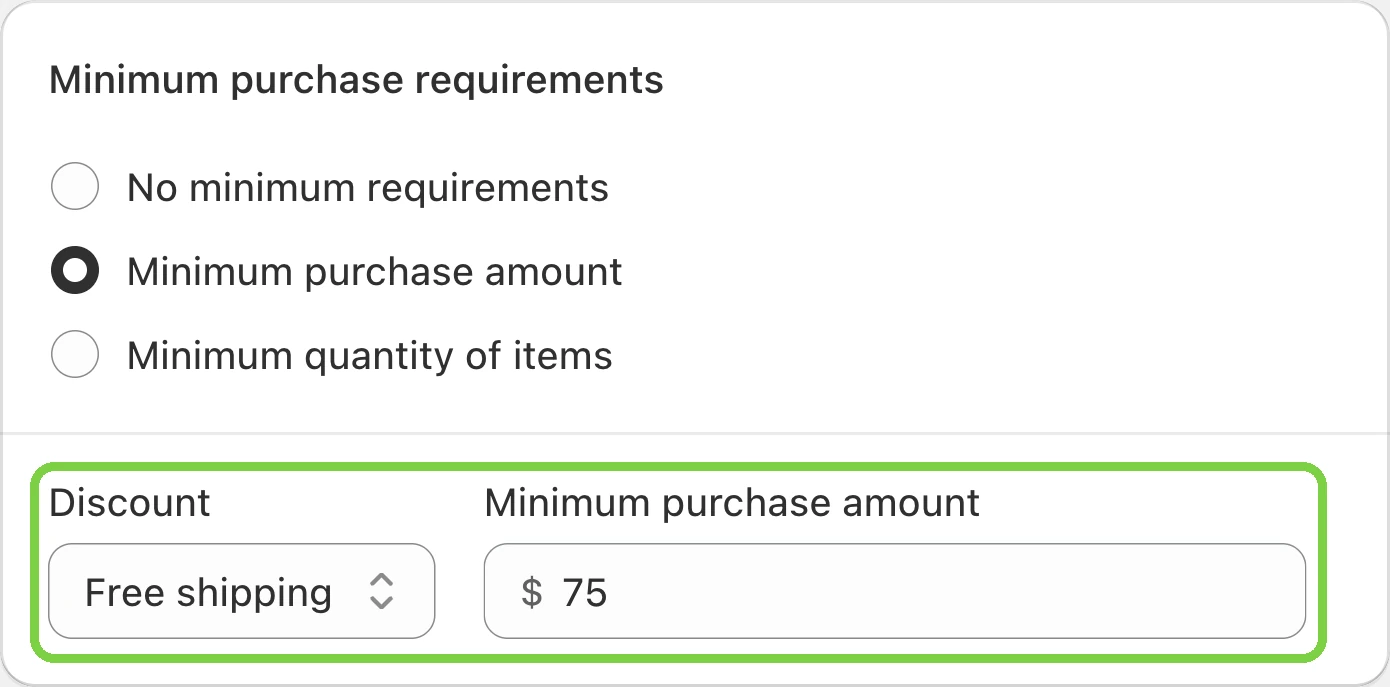
- In Minimum purchase requirements, choose Minimum purchase amount. Under Discount, choose Free shipping and enter 75.
- In Countries, keep All countries or pick the ones the offer is for.
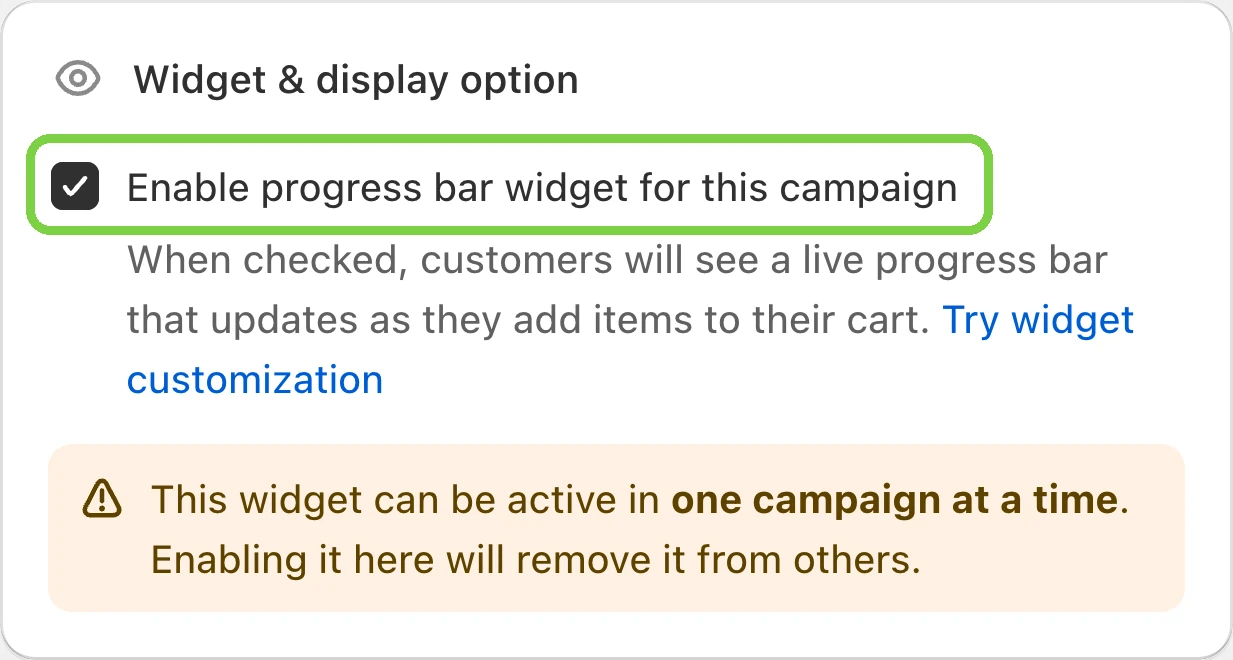
- In Widget & display option, tick Enable progress bar widget for this campaign (Essential plan and up; on Lite the box is greyed out with an Upgrade now link).
- In Combinations, tick Product discounts if a Quantity discount, a Buy X get Y or a Shopify product discount runs at the same time, so it doesn’t knock out free shipping. The other discount has to allow shipping discounts too. Discounty’s Quantity discount and Cart goal do by default. A Buy X get Y does too, unless With other Shopify’s shipping discounts was unticked in its Campaign combinations. A Shopify discount needs Shipping discounts ticked in its own Combinations. A Bulk price editor sale needs nothing, because it changes the price itself.
- Set the Start date and Start time in the Schedule card. Save, then click Activate.
If you already give free shipping over an amount in Shopify, use the same amount everywhere. A Shopify Free shipping discount and this campaign are two shipping discounts, and only one applies per order, so switch the Shopify one off. The bar also needs Discounty’s app embed switched on in your theme: the app embed guide shows where. The Shipping discount setup guide covers every card on the form.
Write the bar’s messages
In Discounty, go to Customization and open Shipping progress bar. Under Display progress bar in, choose Product page (below the add-to-cart form), Cart page (the cart and your theme’s slide-out cart), or both. Then change all three messages. The defaults use the {{discount}} placeholder, and Discounty stores free shipping as a 100% discount, so left as they are they say “100% off shipping”. Write “free shipping” in words instead:
- Initial message, for an empty cart: Add
{{amount}}more for free shipping - In progress message: You’re
{{amount}}away from free shipping - Threshold reached message: You’ve got free shipping!
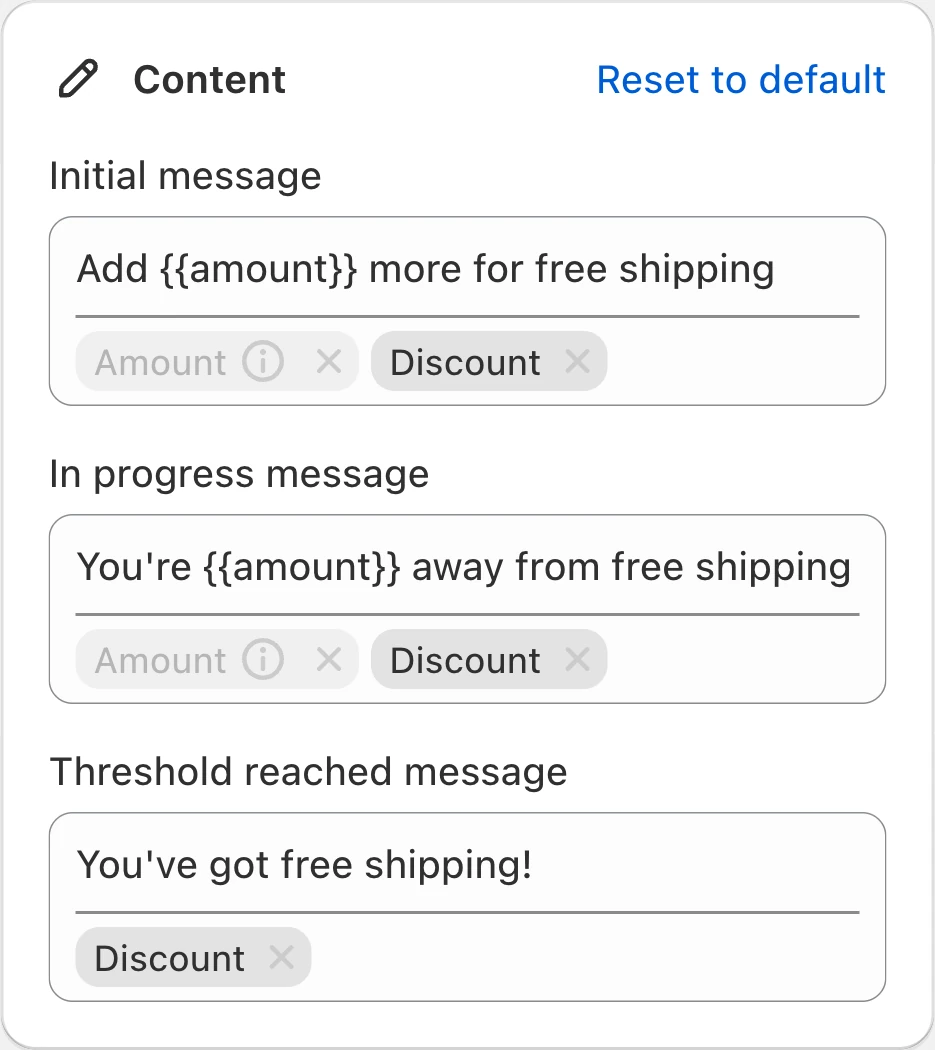
{{amount}} is the money left to spend, and it has to stay in the first two messages. Click Save. Once the campaign is Active, add something to a cart on your store and watch the bar move. The progress bar guide covers the colours and the translations.
What does the bar show as the cart fills?
A tea shop sells tins at $18 and gives free shipping over $75, with the three messages above. The bar is on the product page and the cart page.
A shopper with three tins sees she is $21 short. A fourth tin makes $72, still $3 short. At five tins the bar is full and checkout shows free shipping.
Now add a sale. A Discounty Quantity discount gives 10% off five tins or more, and the shipping campaign has Product discounts ticked under Combinations. Five tins are $81 after the discount. The bar measures the cart after product discounts, so it counts $81 and stays full. Had the sale been 20%, five tins would be $72 and the bar would say “You’re $3.00 away”. For a deep sale, lower the threshold while it runs, or keep it on purpose as a reason to add a sixth tin. A live campaign has to be deactivated to edit it, as the last check below explains.
Can each country have its own free shipping threshold and bar?
In Shopify, yes: each shipping zone has its own rates, so the United States can get free shipping over $75 and Canada over $100.
In Discounty, one Shipping discount campaign feeds the bar for the whole store. Turning the bar on in a second campaign turns it off in the first. So pick the market that matters most, and set that campaign’s Countries to it. A campaign limited to some countries hides the bar from shoppers elsewhere. The bar’s amounts follow the currency the shopper picks.
The other countries can get free shipping from a rate in their own zone, or from a second Shipping discount campaign without the bar. Keep one threshold per country: if a $75 rate and a $100 bar run in the same country, the bar tells shoppers to spend $100 for something they already get at $75.
What should you check before the bar goes live?
Pick the threshold first. A little above your average order works when one more small item gets the shopper there; making free shipping pay for itself walks through the sum with your shipping cost and margin. The bar tracks the shipping offer only. For a second goal above it, such as 10% off over $100, see spend more, save more tiers.
Then check these:
- The bar doesn’t show? The campaign must be Active, not Scheduled, with the box still ticked (ticking it in another campaign unticks it here). Your plan must be Essential or higher, the app embed on, at least one placement ticked, and the shopper inside the campaign’s countries.
- The bar always looks full if the campaign has No minimum requirements. Set a minimum amount.
- One threshold per free shipping campaign. Extra tiers, such as $5 off shipping from $50, work only with a percentage or fixed amount, not with Free shipping.
- Each automatic Shipping discount counts toward Shopify’s cap. Shopify allows 25 active automatic discounts at once, and discounts created by apps count. Code campaigns don’t.
- On a live campaign you can change only the end date and time. To raise the threshold, deactivate it, edit it, set the end date again, Save, then Activate. Free shipping and the bar are off in between, so do it at a quiet hour.
How to undo it
- A Shopify rate: open the shipping option and untick Offer free shipping.
- A Shopify discount: open it under Discounts and click Deactivate.
- A Discounty Shipping discount: click Deactivate. The campaign shows Reverting while the discount is removed, then Expired, and the bar disappears with it. To keep the offer and hide the bar, turn off both placements under Display progress bar in. Campaign statuses in Discounty explains each status.
 How to Make Free Shipping Profitable on Shopify
 Spend More, Save More on Shopify: Minimum Purchase Tiers
 Shopify Discount Combinations: How to Stack or Stop Them