


Run Your Discounty Sales From Shopify Sidekick
Sidekick only works with apps that build a connection for it, and Discounty built one. Ask about your campaigns, describe a sale or change one, all from your Shopify admin.

You already ask Shopify Sidekick about your orders and products. With Discounty installed, you can run your discounts from it too. Type “Set up 15% off the Wildflower Midi Dress with Discounty” and Discounty opens its campaign form with the product, the discount and the settings already filled in. You check it and save.
This works because Discounty built its own connection to Sidekick, the AI assistant in your Shopify admin. It works on every Discounty plan, free Starter included.
Why Sidekick can run your Discounty campaigns
Sidekick can only work with an app whose developer has built a connection for it, using Shopify’s Sidekick app extensions. One part lets Sidekick read the app’s data, the other lets it open the app’s pages with the details filled in. Discounty built both, and keeps adding to them:
- June 2026: ask Sidekick about your Discounty campaigns: what is running, how each one performs, and which campaign type fits a goal.
- July 2026: describe a discount and Discounty opens the campaign form filled in.
- October 2026: change a saved campaign the same way, and open its Activate or Deactivate confirmation from Sidekick.
So you can plan, set up and adjust a sale from the Shopify admin, in plain words, and Discounty does the form work.
Ask Sidekick which discounts are running
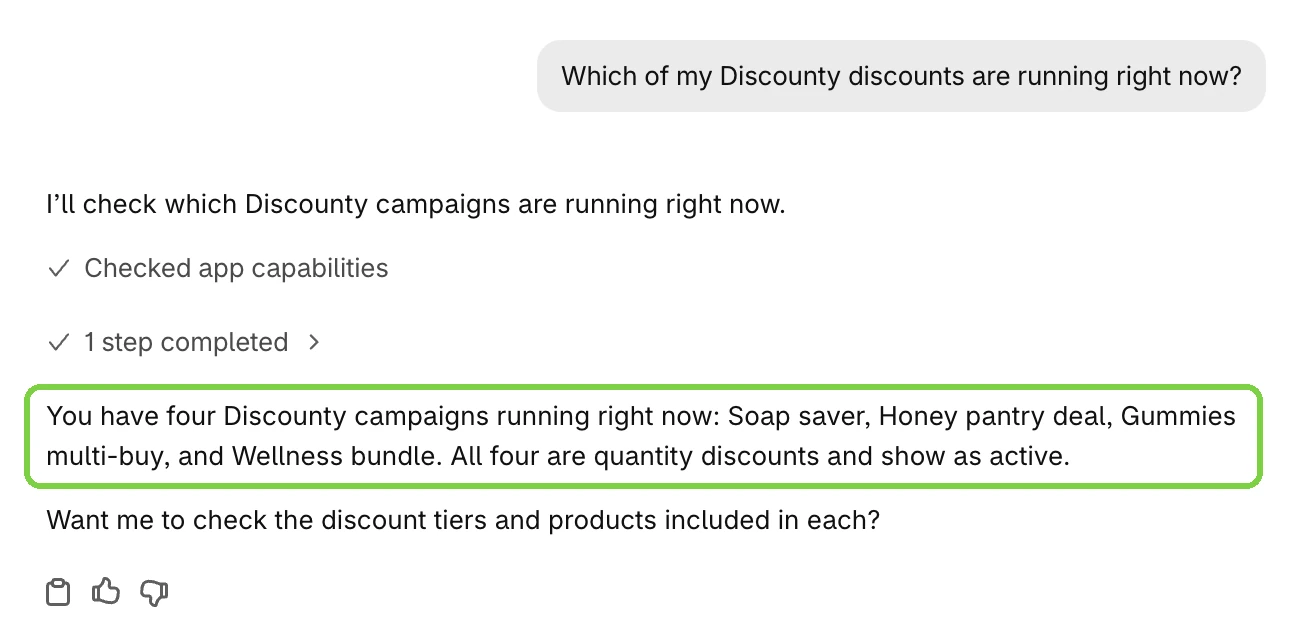
Start with a question: “Which of my Discounty discounts are running right now?” Sidekick reads your campaigns through Discounty’s connection, names each running one with its type, and may offer to look at their tiers and products.
Set up a sale by asking
Describe the discount and say it is for Discounty: the amount and the products. Sidekick finds the products in your store and the campaign type that fits, and Discounty opens that form filled in. For 15% off a dress, Sidekick opens Bulk price editor, which changes the real prices while the sale runs and puts them back when it ends.
Its reply says what it filled in:
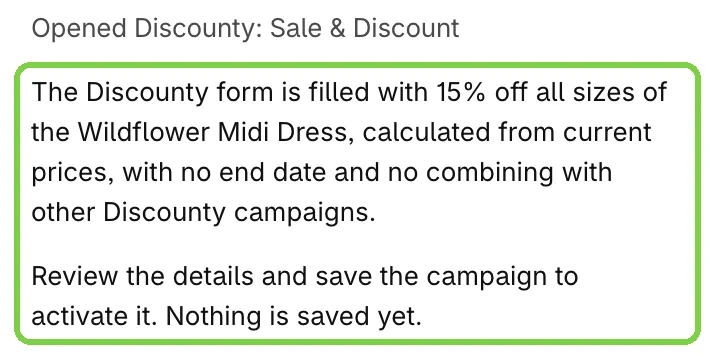
The form matches the reply:
- Name: “15% off Wildflower Midi Dress”.
- Discount: Percentage, 15, with a preview of the new price.
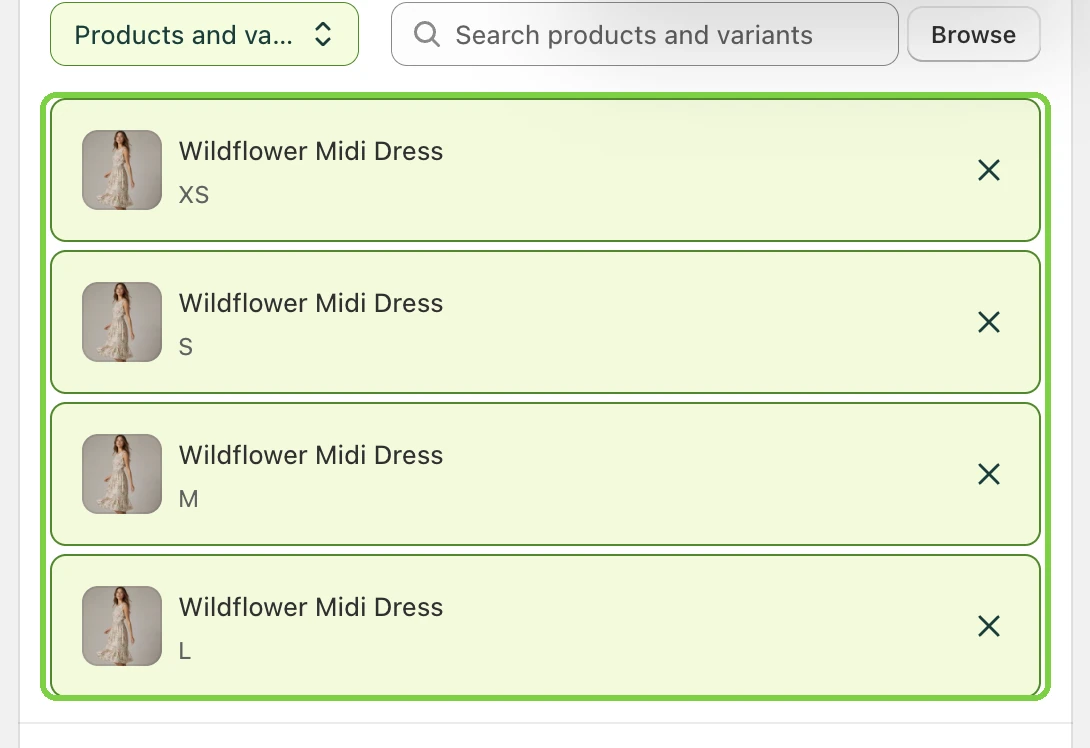
- Products: every size of the dress.
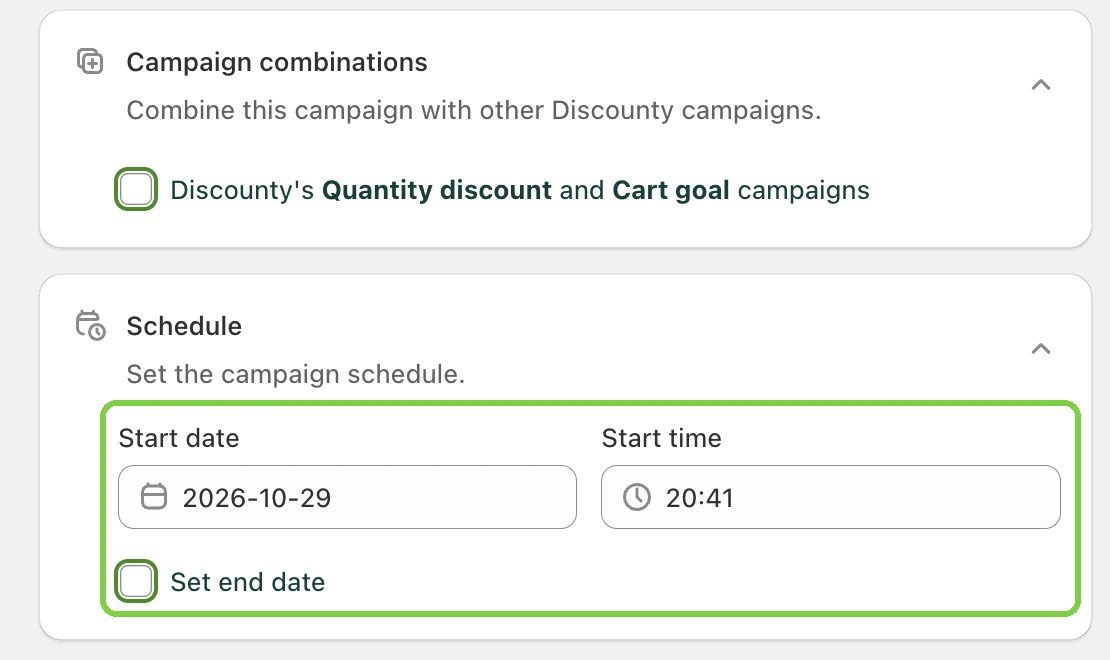
- Combining: off, so this sale doesn’t stack with your other Discounty campaigns.
Discounty highlights the fields that came from your request, so you can see at a glance what was set.
Set the end date before you save
A request without dates gets a sale that starts when you activate it and runs until you stop it. Open the Schedule card, tick Set end date and pick when the sale ends, or change the start. If your computer and your store use different time zones, read which time zone a scheduled sale runs on first.
How to set up a Discounty sale with Sidekick
- Open Sidekick from the icon at the bottom right of your Shopify admin, or from Shopify Home. Whether it shows in your admin is up to Shopify; Shopify’s guide to setting up Sidekick shows where to find it.
- Describe the discount and name Discounty: the amount and the products.
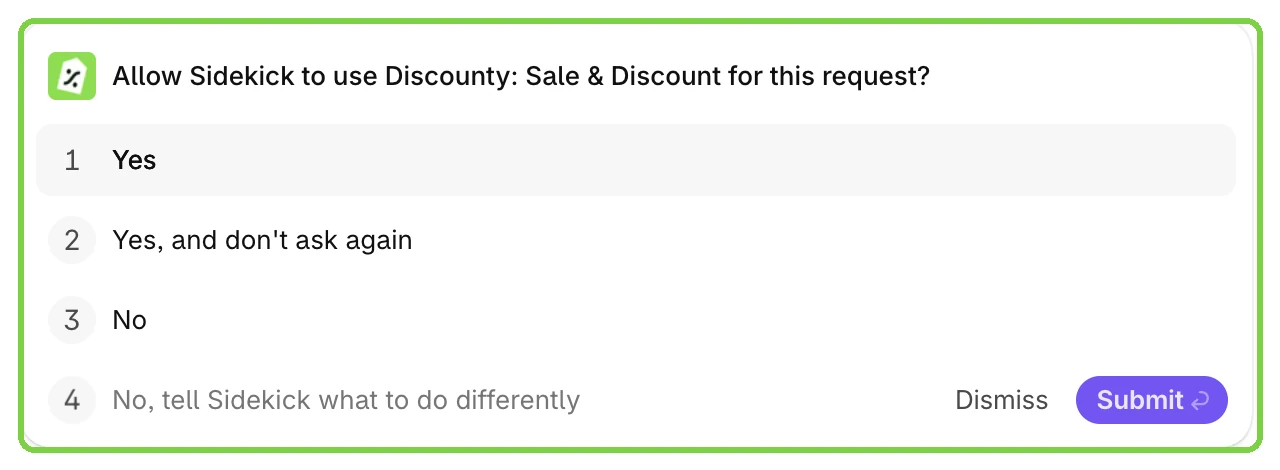
- Answer the permission card. The first time a request uses Discounty, Sidekick asks “Allow Sidekick to use Discounty: Sale & Discount for this request?” Pick Yes for this request only, or Yes, and don’t ask again.
- If Discounty shows a Shopify screen asking for more access, click Update and ask Sidekick again.
- Check the form Discounty opens, and set the end date in the Schedule card.
- Click Save, then Activate. With a future start date, the campaign shows Scheduled until it begins.
How do I use Discounty with Shopify Sidekick? lists what Sidekick can and can’t fill in.
What else to ask Sidekick about your discounts
| Ask | What you get |
|---|---|
| "Tell me about my Summer Sale in Discounty" | Its type, status and schedule |
| "How is my Summer Sale performing?" | Its orders, revenue and average order value |
| "Which Discounty campaigns brought in the most revenue this month?" | A ranked list. The revenue and orders beside each campaign are its all-time totals |
| "I want tiered pricing that gets cheaper the more someone buys" | The Discounty campaign type that fits |
| "Extend my Summer Sale to the end of the month" | The campaign's edit page with the change filled in, ready for you to save |
| How a campaign type works, such as Cart goal | An answer from Discounty's help content |
You stay in control of every change
- Nothing is saved without you. Sidekick opens the form; the campaign exists only after you click Save. It can open the Activate or Deactivate confirmation, but nothing changes until you confirm.
- Your plan and the campaign’s status set the limits. Sidekick leaves out settings your plan doesn’t include and settings a campaign’s status locks, and tells you which it skipped. An Active campaign only takes changes to its end date, countdown timers and auto-update.
- Deleting stays with you. Sidekick doesn’t delete campaigns. Open the campaign in Discounty to delete it, and deactivate it first if it is Active.
- Changing your mind is easy. Click Discard on a form you haven’t saved. A saved campaign is an ordinary Discounty campaign: edit, deactivate or delete it from Campaigns. Ending a Bulk price editor sale puts the original prices back.
Three ways Discounty works with AI
Sidekick is one of three. Use it when you are already in the Shopify admin and your question spans the whole store. Inside Discounty, Lumos, Discounty’s own AI assistant, fills in campaign and widget settings from one sentence for you to save. And an AI app such as Claude or ChatGPT can read your campaigns next to the rest of your work (how to connect one). Your discounts also apply when shoppers buy through AI assistants: see discounts in AI checkouts.
 How to Schedule a Shopify Sale That Starts and Ends by Itself
 How to Put a Whole Shopify Collection on Sale, With the Old Price Crossed Out
 Do Shopify discounts work in ChatGPT and AI checkouts?